Entity Setup
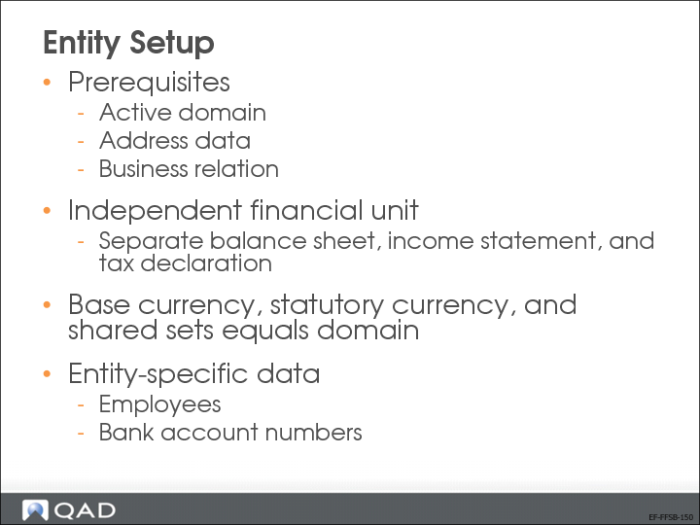
Use the Entity activities (36.1.1.2) to create, view, and modify entities in an active domain. Entities represent independent financial units within a business for which you assess taxes and generate separate balance sheets and income statements. Each entity within a domain inherits the domain base currency, and uses the same shared set data.
Note: You cannot delete entities; instead, make an obsolete entity inactive.
A business relation code is associated with an entity to provide address information on printed documents. Prerequisites for creating an entity are an active domain and a business relation.
Entity-specific data includes employees and the company’s bank account numbers.
The workspaces in your QAD EE application correspond to entities. You cannot log in to a domain directly.
Address-Related Data
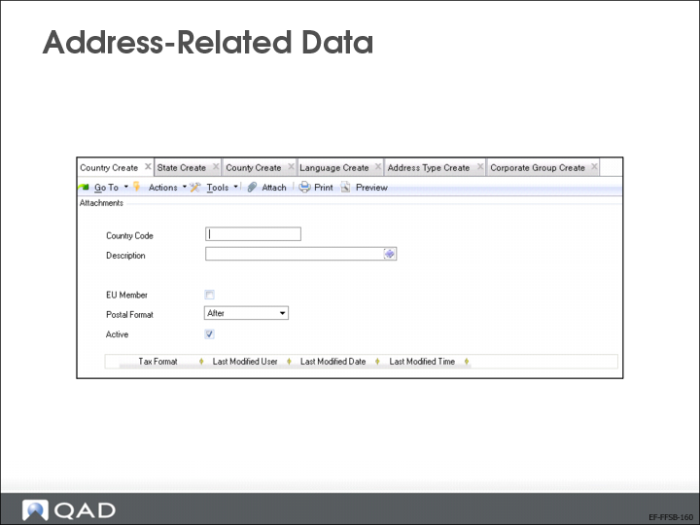
Depending on your local requirements, prerequisites to setting up an entity can include:
• Countries
• States
• Counties
• Address types
• Corporate groups
• Languages
Business Relations Setup
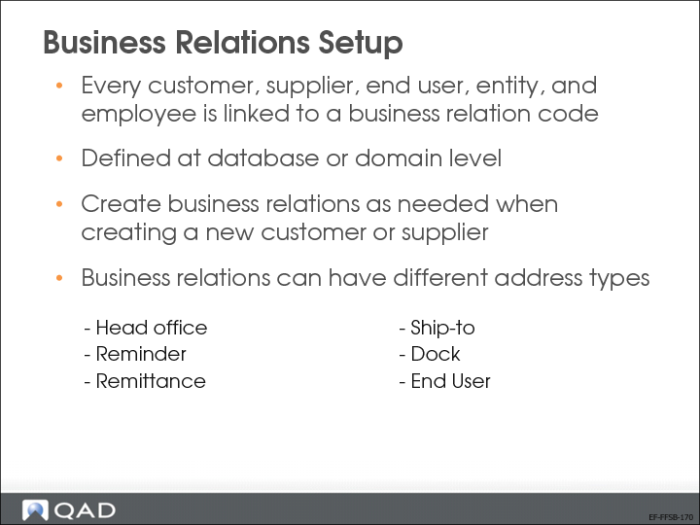
Business relations are defined at database or, alternatively, at domain level, and are a prerequisite to creating entity, employee, customer, end user, or supplier records.
When you use the entity, employee, customer, end user, or supplier programs to create a new record, you can also create a new business relation as required.
Business relations can have different types of address, as shown in the slide. Other address types exist in the system and are defined elsewhere in the system:
• Bill-to (Customer Create (27.20.1.1))
• Ship-to (Customer Ship-To Create (27.20.2.1))
• End user (End User Create (27.20.3.1))
• Company (Company Address Maintenance (2.12))
Business Relation Create
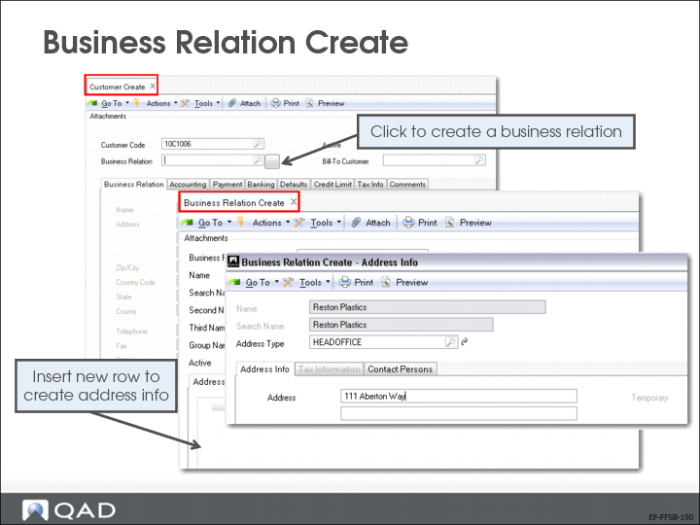
Use Business Relation Create (36.1.4.3.1) to define a new business relation. The business relation code is then used in the customer, supplier, end user, and entity functions to link address data.
In the customer, supplier, end user, and entity functions, the button next to the Business Relation field provides direct access to Business Relation Create (36.1.4.3.1) to create a new record.
Business relations can be domain restricted. A restricted business relation can only be viewed, modified, and reported on in the domain in which it was created. If, for example, the database is organized by domain per country, you can use this restriction to ensure that users cannot accidentally or deliberately use a business relation that belongs to another domain and country.
If the business relation must be linked to an internal entity, you must configure this setting when creating the business relation.
Business Relation Features
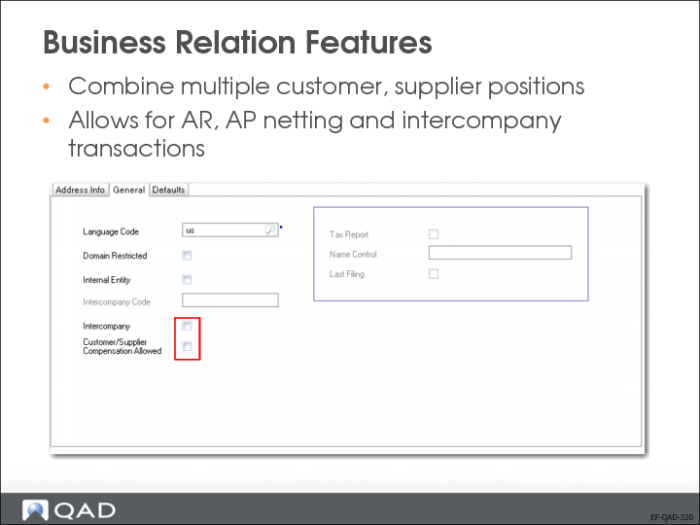
If a business relation applies to both a customer and a supplier, you can allow open items for customers and suppliers that belong to that business relation to be netted against each other by selecting the Customer/Supplier Compensation Allowed field.
The entity record also contains a Customer/Supplier Compensation Allowed field. When customer and supplier compensation is enabled at entity level, the Customer/Supplier Compensation Allowed field must be enabled for the business relations involved for an adjustment to be saved.
When customer and supplier compensation is disabled for the entity, this overrides the customer and supplier compensation setting for the business relation if compensation is enabled here.
Entity Create
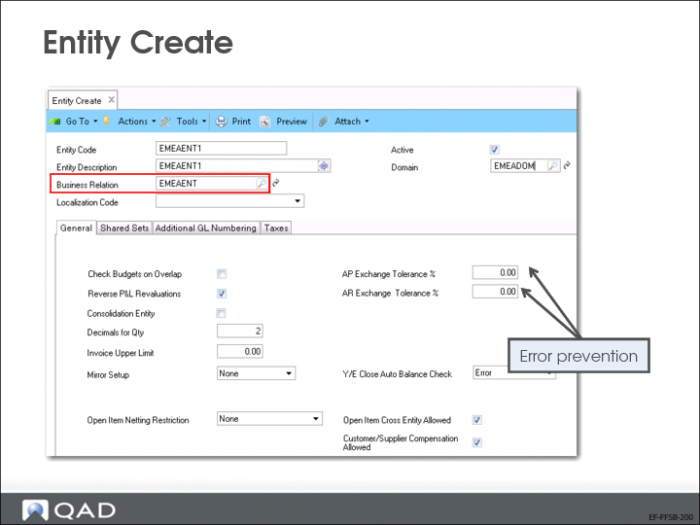
Use Entity Create (36.1.1.2.1) to create entity records. Enter the previously created domain and business relation codes.
The following domain data is copied to the entity when you save the record: shared set codes, base currency, cross-company accounts, GL periods, and COA masks. Shared set codes display on the second tab of the entity record, but cannot be updated.
On the General tab, use the AR and AP Exchange Tolerance% fields to help prevent errors in exchange rates. The exchange tolerance verifies whether the realized exchange gain or loss on foreign currency payments is reasonable. The realized gain or loss amount in base currency is compared with the base currency equivalent of the amount paid and expressed as a percentage:
gain-loss BC / payment BC * 100
If that percentage is higher than the maximum allowed tolerance, an error message is displayed in the payment transaction.
The Additional GL Numbering tab is used to allow a secondary numbering sequence for GL transactions. This feature is used in some countries when transactions must be identified by numbers in a sequence without any gap.
Use the Taxes tab to configure settings for suspended and delayed taxes.