Reports Converted to QRF
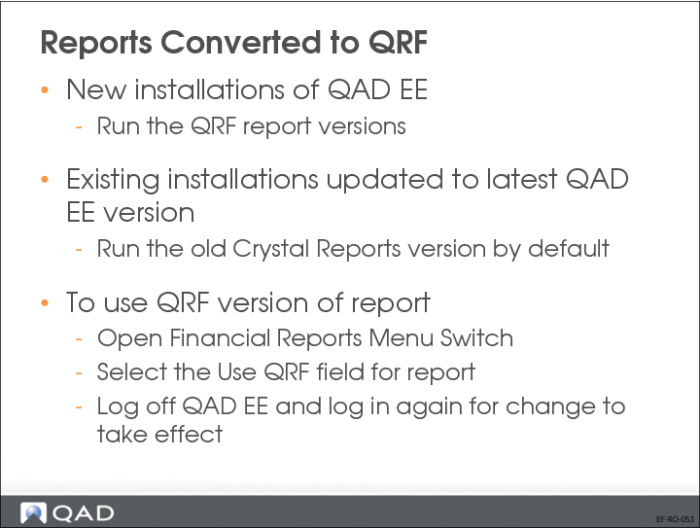
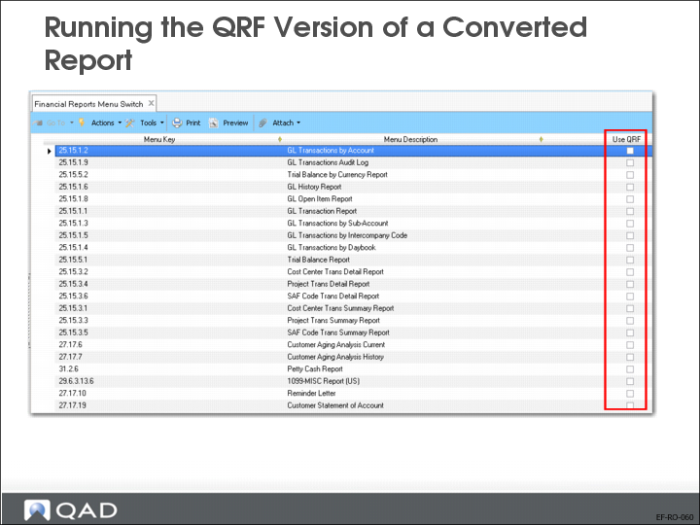
For reports that have been converted from Crystal Reports to QRF, new installations of QAD Enterprise Applications run the QRF versions of the reports. For existing installations that have been updated to the latest version of QAD Enterprise Applications, the menu items run the old Crystal Reports version by default. To use the QRF version of a report, use Financial Reports Menu Switch (36.24.3.8).
In Financial Reports Menu Switch (36.24.3.8), select the Use QRF field for the report that you want to run in QRF.
If you select or clear the Use QRF field for a report, save your change and then log off QAD Enterprise Applications and log in again for the change to take effect.
QRF Reports - Selection Criteria
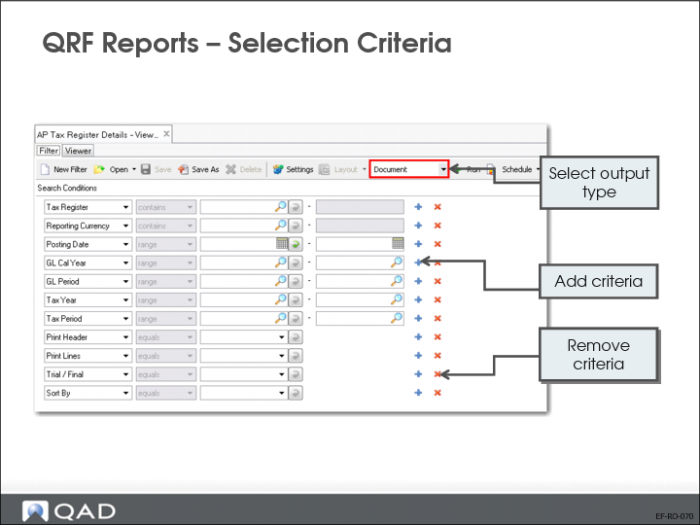
By default, a QRF report displays all the records available in the source data. However, you can retrieve certain ranges of records in the report; for example, sales records between last September and this March. You do this by setting filter conditions to filter data in the report.
The search operators include the following:
• equals
• not equals
• contains
• range
• starts at (the default)
• greater than
• less than
• is null
• is not null
If you choose the Range operator, enter a beginning value of the range in the first search box. Optionally, enter an ending value of the range in the second search box.
To refine your search further, click the plus (+) icon to add another search row. You can add as many rows as needed, each with different search values and operators. When you specify several criteria, note that multiple criteria for the same field are treated as a logical AND condition.
To remove a search criteria row, click the delete (X) icon.
Optionally, save the new filter conditions as a filter for future reuse.
On the toolbar, select an output format from the list next to the Settings button. You can choose from three output formats when the report is run:
• Document: The report is displayed in the Report Viewer window.
• Excel: The report is generated in Microsoft Excel format. You can save the file and open it in the Report Viewer window.
• PDF: The report is generated in PDF format.
QRF Reports - Viewer
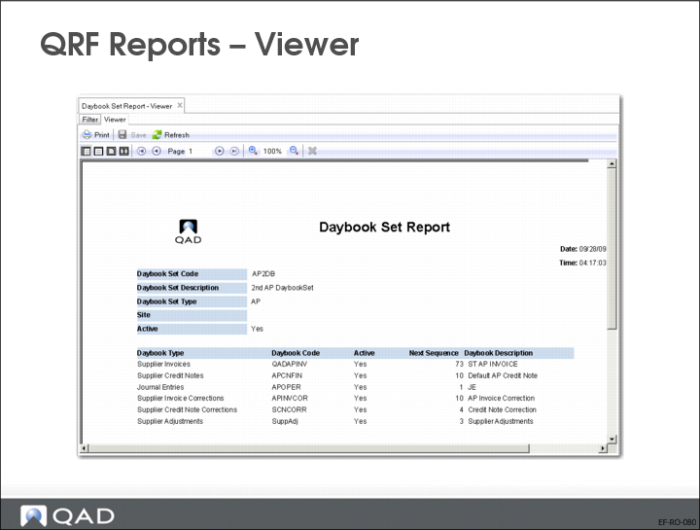
In the Report Viewer, use the toolbar buttons to navigate through the report and perform other functions such as saving and printing.
Button | Name | Description |
| Print | Send the report to a printer. |
| Save | Save the report to a specified location. |
| Refresh | Regenerate the report using your last setting. |
| Actual Size | Display the report in its actual size. |
| Page Width | Fit the report to the width of the Report Viewer window. |
| One Page | Display the report in a one page view in the Report Viewer window. |
| Two Pages | Display the report in a side-by-side two page view in the Report Viewer window. |
| First Page | Jump to the first page. |
| Previous Page | Go to the previous page. |
| Next Page | Go to the next page. |
| Last Page | Jump to the last page. |
| Zoom In | Magnify the report preview size. |
| Size | Specify the exact report preview size. |
| Zoom Out | Decrease the report review size. |
| Cancel Rending | Cancel rendering the report. |
QRF is described in more detail in Training Guide: QAD Advanced Financials.