Customizing Crystal Reports
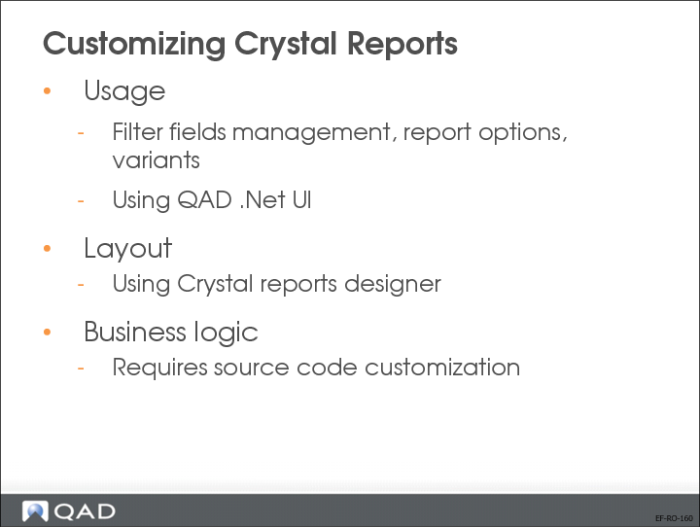
You can customize Crystal reports at three levels:
• Customization at usage level
Modify filter fields, report options, create and save variants, or configure the user interface. This option is described later in this course.
• Layout customization
If you have Crystal Reports designer skills, you can make any changes to the output layout. This option is described later in this course.
• Modify reports business logic in the source code. This option requires software customization skills.
Usage Customization—Crystal Reports
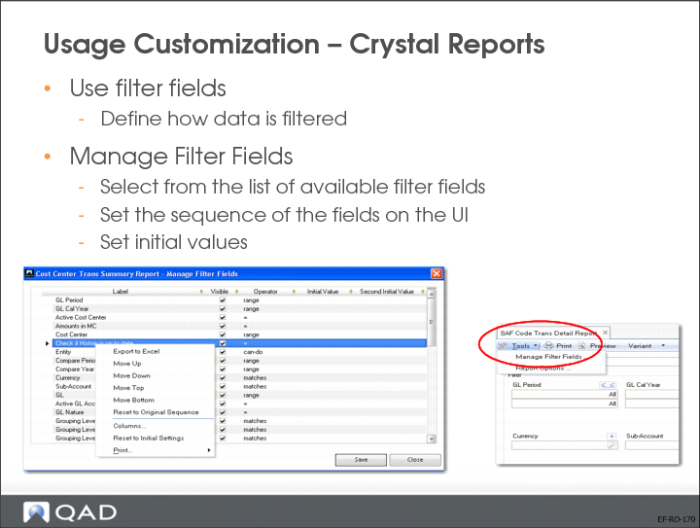
Use filter fields and store your search criteria for later reuse. You can remove or add filter fields, set the sequence in which the fields display, and set initial values for each field.
To modify report filter fields, click Tools|Manage Filter Fields from within a report. A popup window appears that lets you select or deselect fields, change the operator, and set initial values. Right-click a field to access more options, such as options that let you move the filter fields up or down, or that let you reset the original sequence.
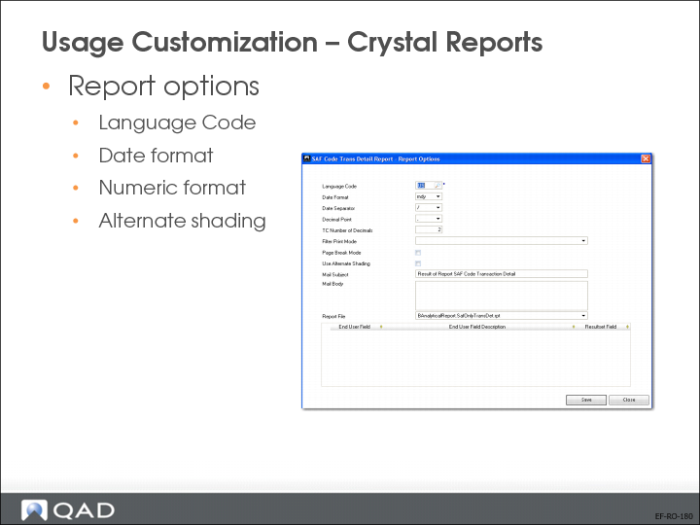
Click Tools and then Report Options to modify the report format options, the report language, and to determine whether to use data on the report or not (this field is mandatory).
Add user-defined fields to the report using this screen.
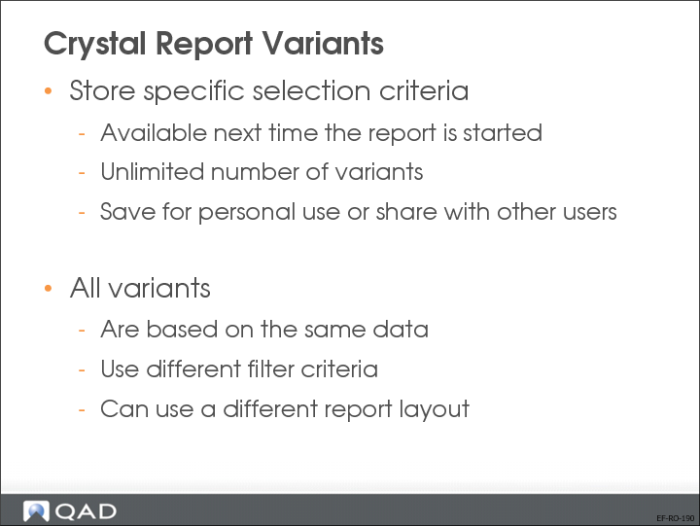
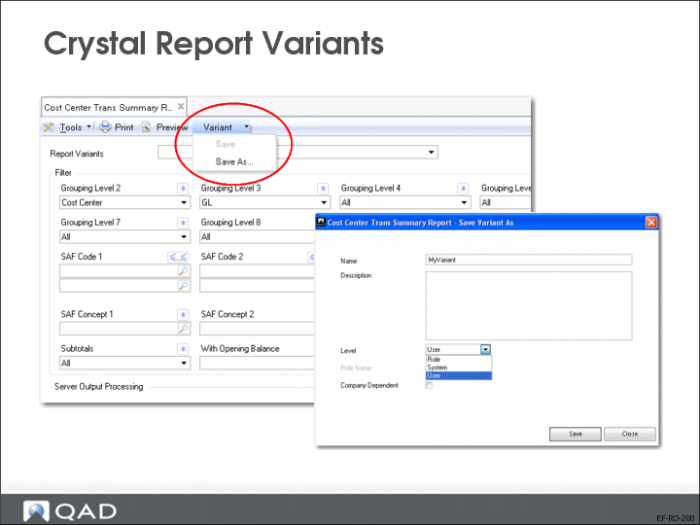
Crystal Report Variants
When you have customized the report usage, you can store it as a report variant. The report variant will then be available the next time you start the report. In the Save screen, you can choose to share the report variant with other users.
Crystal Report Variants—Continued
To save a Crystal report variant, click Variant|Save As... on the menu toolbar.
After you specify a report name and description, select whether you want to share the report variant with other users with a specific role (Role), with all users (System), or to use it yourself (User).