Purchasing Process
Overview
In this section, you will learn how purchase orders are processed in QAD Enterprise Financials.
We will review different process flows for requisition to payment.
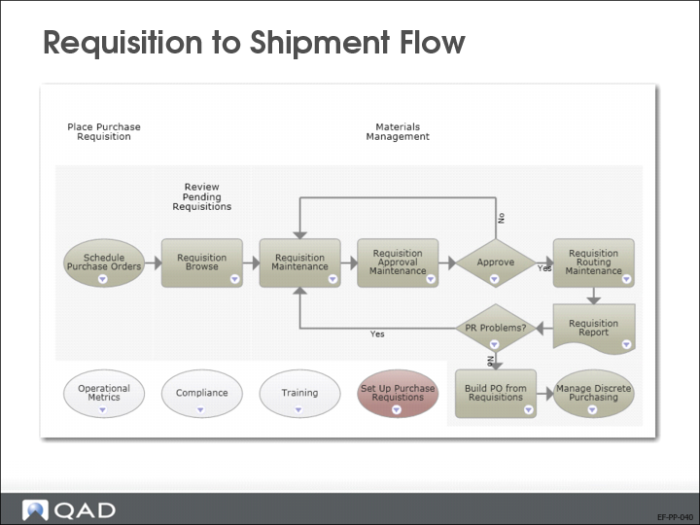
Requisition to Shipment Flow
The process maps display the purchasing process from purchase order requisition to purchase order receipts. Operational activities create unposted transactions that must be posted to Financials using Operational Transaction Post (25.13.7).
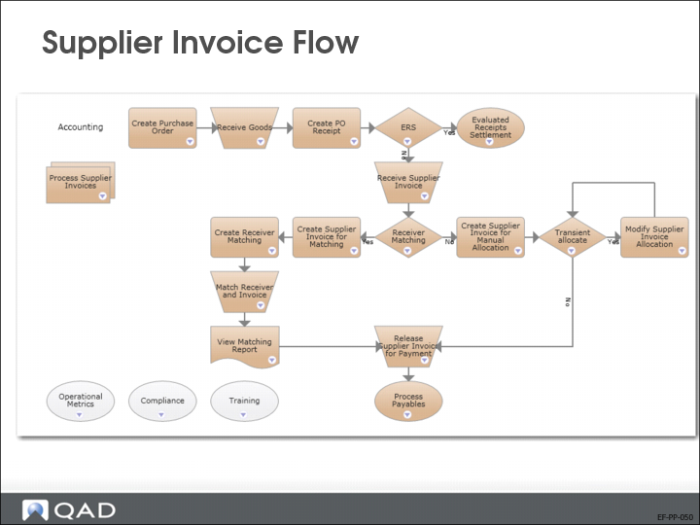
Supplier Invoice Flow
Before paying a supplier invoice, verify that the supplier invoice matches what was received by the receiving department and that the supplier has charged you the correct price. This process is called receiver matching. The Receiver Matching function ensures that amounts payable on invoices match the items received on purchase orders.
You can perform receiver matching during invoice creation, or later using manual allocation.
The various steps in the process are designated by different supplier invoice statuses.
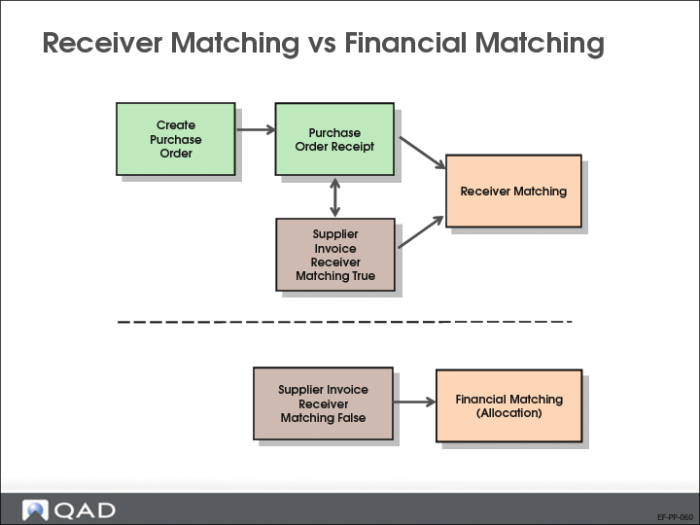
Receiver Matching vs Financial Matching
The system provides two types of matching for invoices: receiver matching or financial matching (allocation).
Receiver matching is the process of matching invoice amounts against original purchase order receipts.
Financial matching is used for payments, for products, or services that have not been processed through the purchasing cycle. The invoice amounts are not matched against purchase order amounts. Instead, they are posted to an Unmatched Invoices account, and then allocated directly to a cost account. Theses invoices are typically one-time payments to suppliers for occasional goods or services.
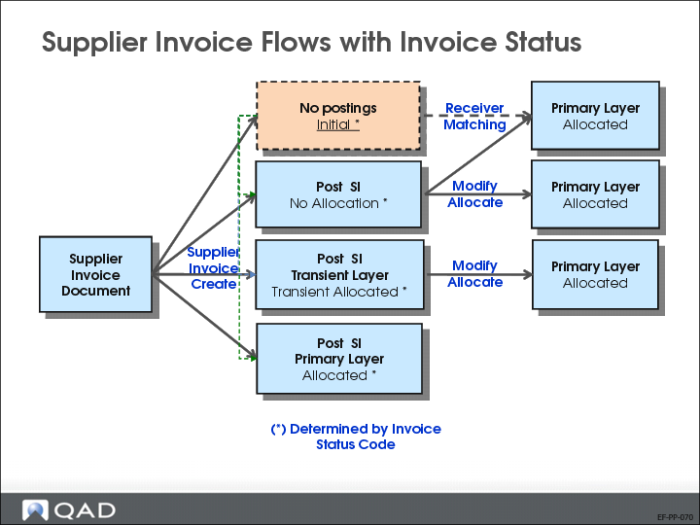
Supplier Invoice Flows with Invoice Status
Supplier invoice activities, with the exception of reversing and replacing, are controlled by the invoice status code associated with the invoice. The invoice status code and its attributes determine when the invoice is ready to be posted to the official layer of the AP sub-ledger. Postings depend on the approval and allocation status of the invoice status code.
The Initial status does not create any postings.
Transient layers can be used to allocate before approval. Once approved, the allocation posting is moved to the primary (official) layer.
US Exercise: Purchasing Process
In this exercise, you will process a supplier invoice for goods received.
Unless otherwise stated, use entity 10USACO and accept default values.
1 Use Purchase Order Maintenance (5.7) to create two purchase orders.
PO 1
Field | Value |
Purchase Order | TEST-PO1 |
Supplier | 10S1005, Absolute Electronics Company |
Ship-To | 10-100 |
Site | 10-100 |
Item | 500 of 02002 |
Unit Cost | 0.50 |
Taxable | No |
PO 2
Field | Value |
Purchase Order | TEST-PO2 |
Supplier | 10S1003, Heron Surgical Supply |
Ship-To | 10-100 |
Site | 10-100 |
Item | 1 Memo item for $250 |
Taxable | No |
Note: To record a memo item, do not specify a value in the Item Number field. Enter the quantity in the Qty Ordered field, enter EA (each) as the unit of measure (UM), and enter the cost in the Unit Cost field.
2 Use Purchase Order Receipts (5.13.1) to receive both purchase orders completely.
3 Use Operational Transaction Post (25.13.7) to post the unposted transactions to the GL and verify the result in the GL using Journal Entry View (25.13.1.3).
Daybook: RCT-PO
Try changing the columns selected and the order of the columns to tailor the Journal Entry View (25.13.1.3) to your needs.
4 Use Supplier Invoice Create (28.1.1.1) to create a supplier invoice for the received materials (item 02002).
Field | Value |
Supplier | 10S1005, Absolute Electronics Company |
Reference | INV1-PO1 |
Amount | 245
500 * 0.49 (price var. of 0.01) |
Invoice Status Code | RM-INIT |
PO Nr | TEST-PO1 |
Daybook | SINV (defaults from daybook set) |
Taxable | No |
a Review the other available tabs.
b Click the Matching button.
5 In the Receiver Matching Create window, click the Search button to retrieve details on purchase order TEST-PO1. (The PO number is copied to the Order field in Receiver Matching Create from the Order field on the supplier invoice.)
6 When the result is returned, notice that there is a difference of 5 USD between the PO amount and the invoice amount due to the price variance on the invoice.
7 On the receiver matching line, update the value in the Matched Unit Price field to 0.49 and press the Tab key.
The Difference field is updated to 0 (zero).
8 Click Save and Create Invoice to save the receiver matching record and open a blank Supplier Invoice Create window.
9 Create a supplier invoice using Supplier Invoice Create (28.1.1.1) for the received memo item.
Field | Value |
Supplier | 10S1003, Heron Surgical Supply |
Reference | INV-PO2 |
Amount | $250 |
Invoice Status Code | RM-INIT |
PO Nr | TEST-PO2 |
Daybook | SINV (defaults from the daybook set) |
Taxable | No |
a Review the other available tabs.
b Click the Matching button.
10 In the Receiver Matching Create window, click the Search button to retrieve details on purchase order TEST-PO2. (The PO number is copied to the Order field in Receiver Matching Create from the Order field on the supplier invoice.)
11 Match the receipt for TEST-PO2 with the invoice. Accept the defaults in the receiver matching line. No changes are required.
12 Click Save to save the receiver matching record.
13 Use Supplier Invoice View (28.1.1.3) to review the invoices after the matching.
Try changing the columns selected and the order of the columns to tailor the view to your needs.
14 Use Journal Entry View (25.13.1.3) to review the GL postings created by the invoice and the matching.
a Try changing the columns selected and the order of the columns to tailor the view to your needs.
b Add the External Invoice Reference field to the grid.
EMEA Exercise: Purchasing Process
In this exercise, you will process a supplier invoice for goods received.
Unless otherwise stated, use entity 22UKCO and accept default values.
1 Use Purchase Order Maintenance (5.7) to create two purchase orders with the following data:
PO1
Field | Value |
Purchase Order | HO-PO1 |
Supplier | 22S1001, Cheshire Packaging Products |
Ship-To | 22-100 |
Site (line) | 22-100 |
Item | 1000 of 90031 |
Unit Cost | 0.04 |
Taxable | Yes |
The total PO amount including tax should be 47.00 GBP.
PO2
Field | Value |
Purchase Order | HO-PO2 |
Supplier | 22S1000, Auto-Plas International |
Ship-To | 22-100 |
Site | 22-100 |
Item | 1 memo item for 250 GBP |
Taxable | No |
Note: To record a memo item, do not specify a value in the Item field. Enter the quantity in the Qty Ordered field, enter EA (Each) as the unit of measure (UM), and enter the cost in the Unit Cost field.
2 Use Purchase Order Receipts (5.13.1) to receive both purchase orders completely.
3 Use Operational Transaction Post (25.13.7) to post the unposted transactions to the GL and verify the result in the GL using Journal Entry View (25.13.1.3).
Daybook: Only select RCT-PO
Try changing the columns selected and the order of the columns to make the Journal Entry View (25.13.1.3) more useful for you.
4 Use Supplier Invoice Create (28.1.1.1) to create a supplier invoice for the received materials using the following data:
Field | Value |
Supplier | 22S1001 |
Reference | INV-PO1 |
Amount | 45.83 GBP 1000 * 0.039 (price var. of 0.001) + 17.5% VAT |
Invoice Status Code | RM-INIT |
Purchase Order Number | HO-PO1 |
Daybook | SINV (defaults from the daybook set) |
Taxable | Yes |
a Review the other available tabs.
b Click the Matching button.
5 In the Receiver Matching Create window, click the Search button to retrieve details on purchase order HO-PO1. (The PO number is copied to the Order field in Receiver Matching Create from the Order field on the supplier invoice.)
6 When the result is returned, notice that there is a difference of 1.17 GBP between the PO amount and the invoice amount due to the price variance on the invoice.
7 On the receiver matching line, update the value in the Matched Unit Price field to 0.039 and press the Tab key.
The Difference field is updated to 0 (zero).
8 Click Save and Create Invoice to save the receiver matching record and open a blank Supplier Invoice Create window.
9 Use Supplier Invoice Create (28.1.1.1) to create a supplier invoice for the received memo item using the following data:
Field | Value |
Supplier | 22S1000 |
Reference | INV-PO2 |
Amount | 250 GBP (no taxes) |
Invoice Status Code | RM-INIT |
Purchase Order Number | HO-PO2 |
Daybook | SINV (defaults from the daybook set) |
a Review the other available tabs.
b Click the Matching button.
10 In the Receiver Matching Create window, click the Search button to retrieve details on purchase order HO-PO2. (The PO number is copied to the Order field in Receiver Matching Create from the Order field on the supplier invoice.)
11 Match the receipt for HO-PO2 with the invoice. Accept the defaults in the receiver matching line. No changes are required.
12 Click Save to save the receiver matching record.
13 Use Supplier Invoice View (28.1.1.3) to review the invoices after the matching.
Try changing the columns selected and the order of the columns to tailor the view to your needs.
14 Use Journal Entry View (25.13.1.3) to review the GL postings created by the invoice and the matching.
a Try changing the columns selected and the order of the columns to tailor the view to your needs.
b Add the External Invoice Reference field to the grid.