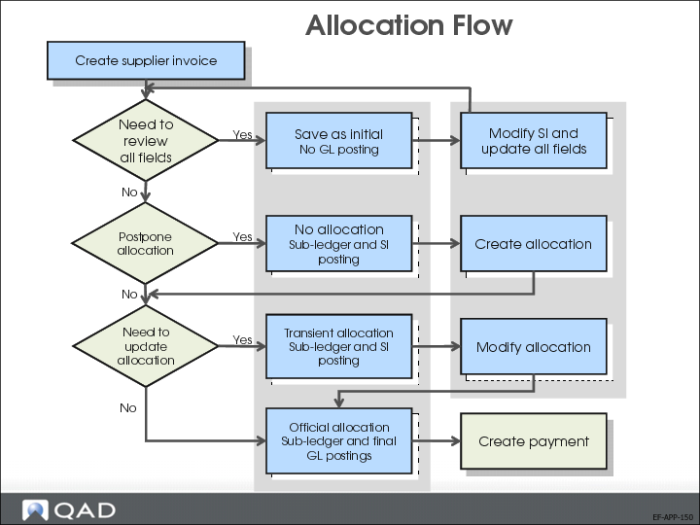
Allocation Flow
The Supplier Invoice activities (28.1.1) let you select invoices to update based on their status code and move the invoices through a workflow cycle. You change the status of the invoices by selecting a different invoice status code.
You can control two aspects of supplier invoicing using invoice status codes:
• Allocation of the invoice amount to accounts. This determines the postings generated and which layer is updated.
• Approval of the invoice and release for payment. This process can be completed in one or two stages. The approval process places contested invoices on hold and then releases them.
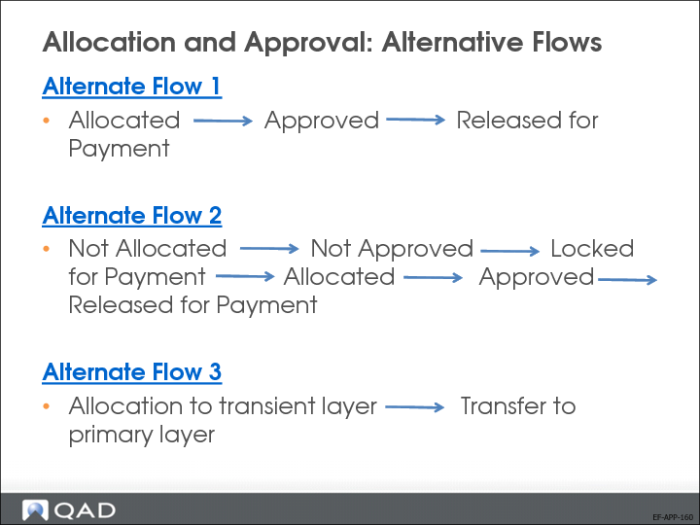
Allocation and Approval: Alternative Flows
Flow 1: Allocated – Approved – Released for Payment
In the General tab of Supplier Invoice Create (28.1.1.1), the status code must be:
• Allocated
• Approved
• Released for payment
In the Matching Posting tab of Supplier Invoice Create (28.1.1.1), the Matching Daybook is linked to the primary layer.
Flow 2: Not Allocated – Not Approved – Locked for Payment – Allocated – Approved – Release for Payment
In the General tab of Supplier Invoice Create (28.1.1.1), the status code must be:
• Not allocated
• Not approved
• Locked for payment
The Matching Posting tab of Supplier Invoice Create is disabled.
A second transaction is needed to approve, transfer, and release the invoice for payment.
You allocate the invoice using Supplier Invoice Modify (28.1.1.2).
In the General tab, change the invoice status code:
• Allocated
• Approved
• Released for Payment
In the Matching Posting tab, the Matching daybook is linked to the primary layer (Allocation).
Flow 3: Allocation to Transient Layer – Transfer to Primary Layer
In the General tab of Supplier Invoice Create (28.1.1.1), the invoice status code must be:
• Transient allocation
• Approved
• Released for payment
In the Matching Posting tab, link the Matching daybook to the transient layer.
A second transaction run is needed to transfer the allocation from transient to primary layer
In the General tab of Supplier Invoice Modify (28.1.1.2), change the status to Allocated.
In the Matching tab, change the Matching daybook to one linked to the primary layer.