Banking Entries
Overview
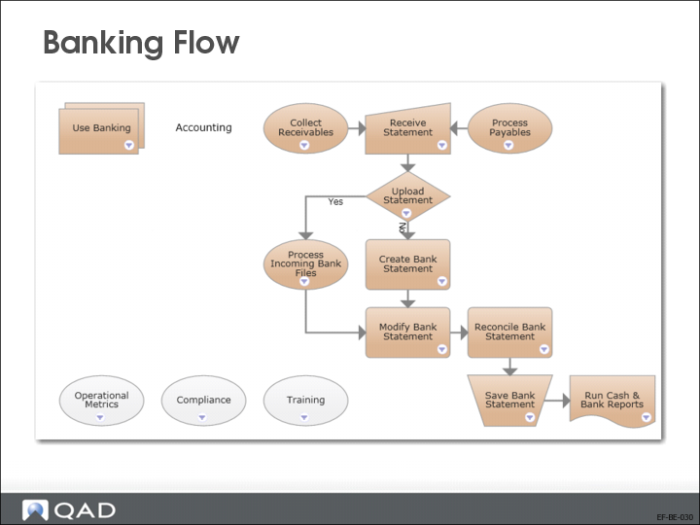
In this chapter, you will learn how banking is handled in QAD Enterprise Applications. This includes the banking flow, bank statement activities, and statement allocation.
Note: This chapter describes the manual banking entry flow. The automated flow that uses the Process Incoming Bank Files functionality is described in Training Guide: QAD Advanced Financials.
Banking Flow
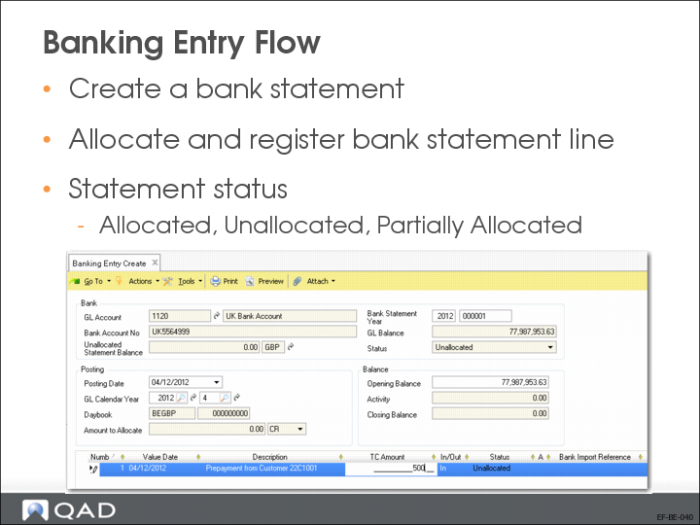
The Banking Entry Create (31.1.1) function is the single entry point for creating, maintaining, and allocating statements. You can modify existing bank statements, depending on their status.
Each statement has one of the following statuses, depending on the status of its statement lines:
• Allocated
All statement lines are allocated.
• Unallocated
No statement lines are allocated yet.
• Partially Allocated
Some (but not all) statement lines are allocated.
Bank Statement Allocation
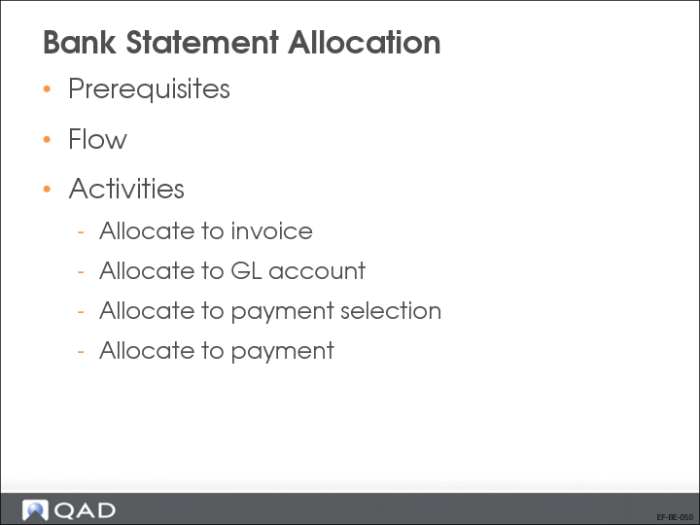
Available allocation options include:
• Choose Allocate to Invoice to allocate the entry amounts to invoices, prepayments, or payment selections. For this option, you can define configuration settings to streamline the process.
• Choose Allocate to Payment or Payment Selection to allocate the entry amounts to a customer or supplier payment selection.
• Choose Allocate to GL Account to create a journal entry that allocates the banking entry amount to GL accounts.
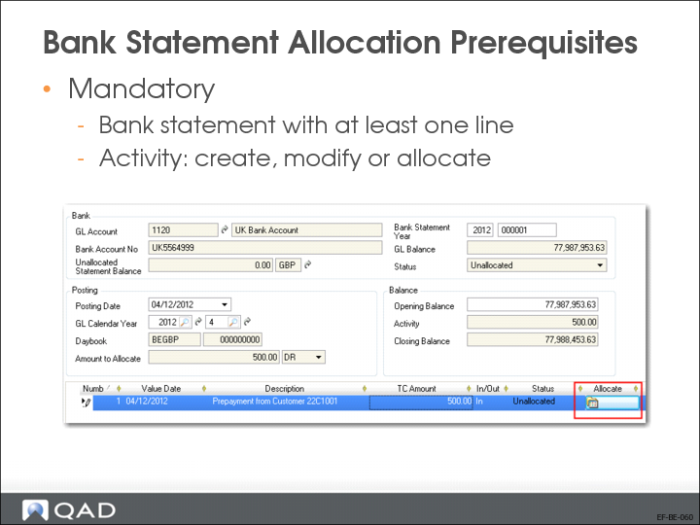
Bank Statement Allocation Prerequisites
Bank statement lines can be created manually or uploaded. A bank statement is required to have at least one line allocated.
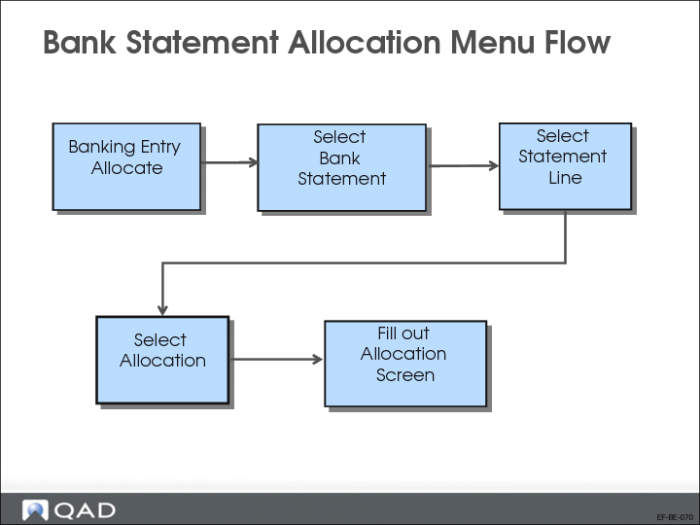
Bank Statement Allocation Menu Flow
1 Select Banking Entry Allocate.
Browse through unallocated and partially allocated bank statements.
2 Select a bank statement in the browse.
3 Select a bank statement line.
4 Use the Allocation button or right-click and select the relevant allocation option.
5 Complete the Allocation screen.
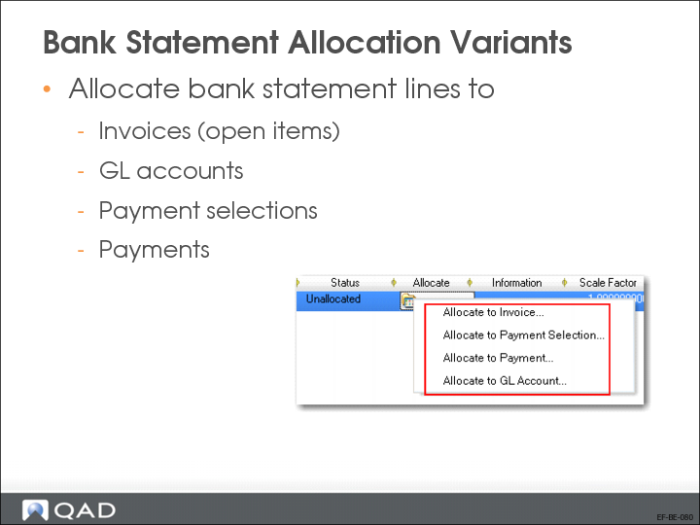
Bank Statement Allocation Variants
Each statement line must be allocated to:
• An invoice (customer or supplier) or an open item (including prepayments).
• A GL account
• A payment selection. Payment selections are groups of supplier payments or direct debits (customer payments).
• A payment (such as a check or draft)
Click Allocate on the statement line header to access the different options.
To ensure that it is always possible to reconcile the payment account with the total of the For Collection payments, the system prevents you from allocating a banking entry to a payment if the posting date of the payment is later than the posting date of the banking entry.
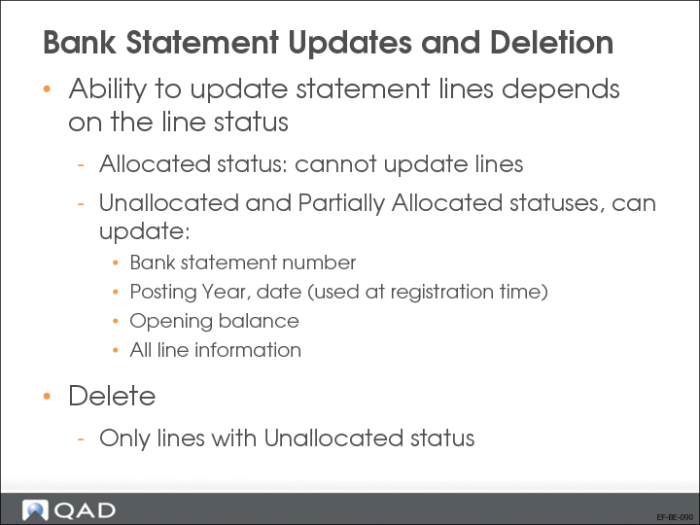
Bank Statement Updates and Deletion
The status of the bank statement defines which fields can be modified:
• Allocated: All fields are read only; only the View activity is allowed
• Not Allocated/Partly Allocated. The following fields can be modified:
• Bank Statement Number
• Posting Year/Date (used at registration time)
• Opening Balance
• All line information
You can only delete bank statements that have a status of Unallocated.
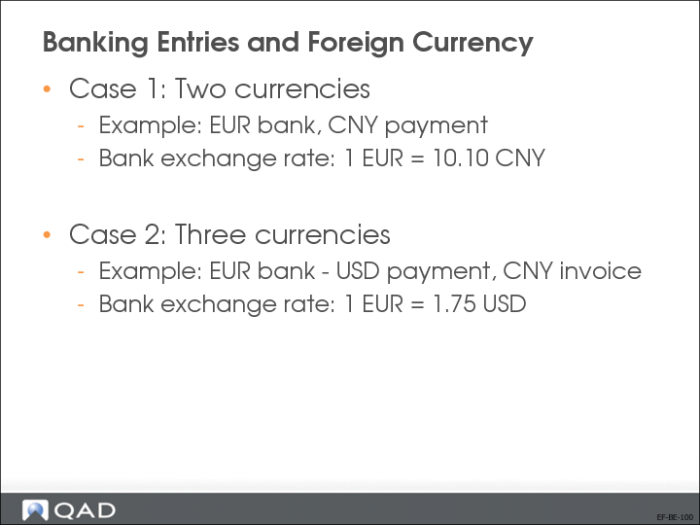
Banking Entries and Foreign Currency
You can also enter additional information on value dates, external exchange rates, and currencies by selecting the Value Details option.
• These details can be used for cash forecasting and for handling exchange rates.
• Right-click the entry line to display the option.
Bank Statement Related Reports
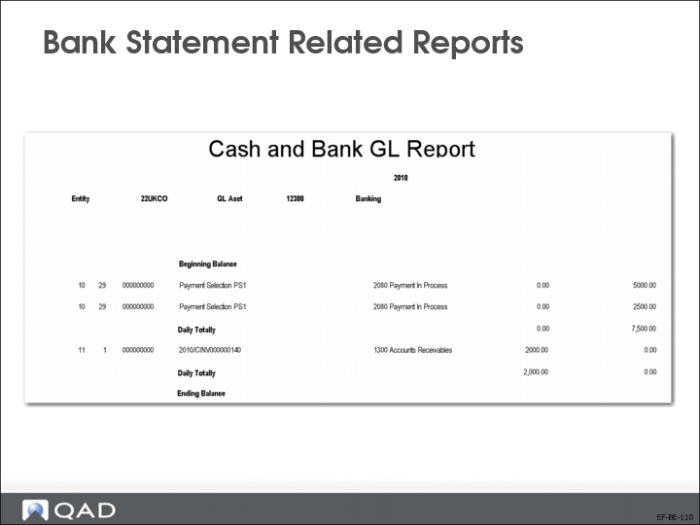
The Cash and Bank GL Report lists the transactions that are posted on the selected cash or bank account and the corresponding GL accounts on which the cash or bank transactions have been posted.
US Exercise: Banking Entry
In this exercise, you will practice creating bank statements and allocating bank statement lines.
Unless otherwise stated, use:
• Entity: 10USACO
• Use the following parameters (if needed):
• Bank account: GL 1100 Current Bank account USD
• Sub-account: use the default or else use Gserv
• Cost center: use the default or else use Adm
• For all other fields, use the lookup and choose from the list.
1 Use Banking Entry Create (31.1.1) to enter the following bank statements for the current USD bank account. Click the Allocation button to allocate to an invoice or a GL account.
Note: Amounts in bold are subtotals
| Bank Entry | Curr | Amount | Allocation |
| | | 0.00 | |
1 | Cash Withdrawal | USD | -1,000.00 | Funding Petty Cash against GL 1670 |
| | | -1,000.00 | |
2 | Incoming Customer Transfer | USD | 10,000.00 | Customer 10C1001 / 7100 USD + Prepayment |
| | | 9,000.00 | |
3 | Outgoing Payment | USD | -900.00 | Supplier 10S1001 Prepayment |
| | | 8,100.00 | |
4 | Undocumented Payment | USD | -250.00 | to GL 1670 |
| | | 7,850.00 | |
5 | Bank Charges | USD | -50.00 | to P/L Account 7700 |
| | | 7,800.00 | |
6 | Correction | USD | 250.00 | to GL 1670 |
| | | 8,050.00 | |
7 | Incoming Customer Transfer | USD | 3,575.00 | Customer 10C3000 (all Entities/all Invoices) |
| | | 11,625.00 | |
2 Verify the banking entries in Journal Entry View (25.13.1.3).
EMEA Exercise: Banking Entry
In this exercise, you will:
• Create bank statements.
• Allocate bank statement lines.
Unless otherwise stated, use the following values:
• Entity: 22UKCO
• Bank account: GL 1120 Current Bank account GBP
• Sub-account: use the default or else use Gserv
• Cost center: use the default or else use Adm
• For all other fields: use the lookup and choose from the list.
1 Use Banking Entry Create (31.1.1) to enter the following bank statements for the current GBP bank account. Click the Allocation button to allocate to an invoice or a GL account.
Note: Amounts in bold are subtotals. Create each line as a separate statement.
| Bank Entry | Curr | Amount | Allocation |
| | | 0.00 | |
1 | Cash Withdrawal | GBP | -1,000.00 | Funding Petty Cash against GL 1670 |
| | | -1,000.00 | |
2 | Incoming Customer Transfer | GBP | 10,000.00 | Customer 22C1000 / 7100 GBP + Prepayment |
| | | 9,000.00 | |
3 | Outgoing Payment | GBP | -900.00 | Supplier 22S1001 Prepayment |
| | | 8,100.00 | |
4 | Undocumented Payment | GBP | -250.00 | to GL 1670 |
| | | 7,850.00 | |
5 | Bank Charges | GBP | -50.00 | to P/L Account 7700 |
| | | 7,800.00 | |
6 | Correction | GBP | 250.00 | to GL 1670 |
| | | 8,050.00 | |
7 | Incoming Customer Transfer | GBP | 3,575.00 | 22C1002 Electronic Services Ltd (all Entities/all Invoices) |
| | | 11,625.00 | |
2 Verify the banking entries in Journal Entry View (25.13.1.3).