Reports and Views
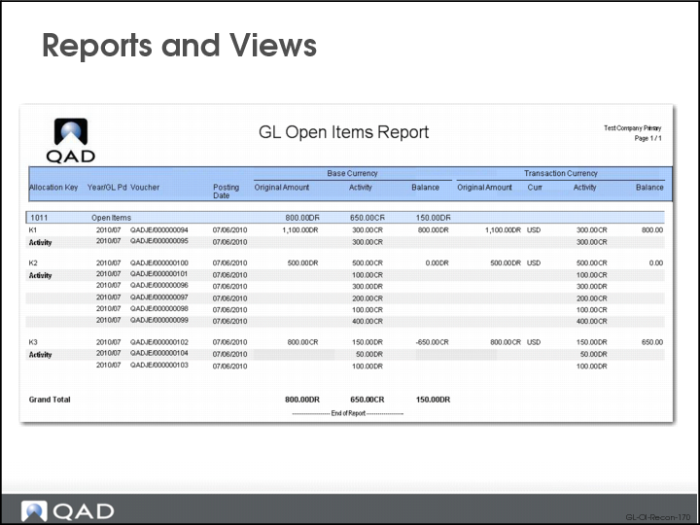
The GL Open Items report (25.15.1.8) lists and totals GL open items within the open items sub-ledger. The output is grouped by allocation key.
GL Open Item View
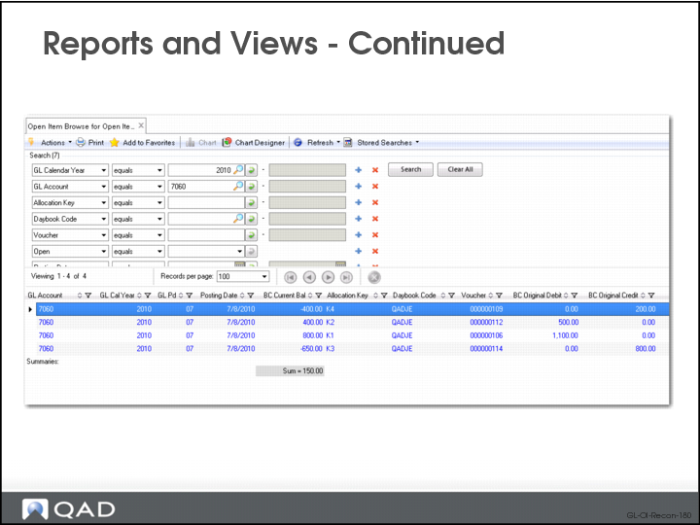
The GL Open Item View (25.15.2.5) displays the balance of transactions for each allocation key on a GL open item account.
US and EMEA Exercise: GL Open Item Reconciliation
Exercise 1: Create Journal Entries for GL Open Item Account
In this exercise, you will use an open item account to create a journal entry with a new allocation status, Allocate Later.
Complete the following steps:
1 Create a journal entry with the Allocate Later status.
a Open Journal Entry Create (25.13.1.1) and specify the following values:
Daybook: TRAJE
Posting Date: 09/05/2013
Description: Holiday Fee Provision 2013
b Choose GL account 4900 and enter TC Credit = 386.00. Use currency USD in 10USACO and currency GBP in 22UKCO.
c Tab to the end of the line. Another sub-line will appear with the allocation status set to Allocate Later.
d Balance the posting by choosing GL Account 2465 with TC Debit = 386.00. Use the currency USD in 10USACO and the currency GBP in 22UKCO.
2 Click Save.
Exercise 2: Reconcile Unallocated Transactions on a GL Open Item Account
In GL Open Item Reconciliation, you can reconcile postings with the status New Open Item, Linked to Open Item, or Allocate Later. In this exercise, you will:
• Verify the status of the postings
• Reconcile open items with the Allocate Later status to an existing allocation key, Holiday Fee 2013 (allocation key Holiday Fee in 22UKCO)
• View the journal entry after reconciliation
• View the balance of the allocation key
• View the activity on the allocation key
• Verify the journal entry before reconciliation
1 Open Journal Entry View (25.13.1.3) and specify the following:
Year: 2013
Daybook: JE
2 Click the Search button.
3 Select the journal entry with the description Jan Holiday Pay – Joe.
4 Verify that the posting has been linked to the allocation key Holiday Fee 2013 in 10USACO (allocation key Holiday Fee in 22UKCO).
5 Select the journal entry with the description Jan Holiday Pay – Mary.
6 Verify that the posting has not been linked to an allocation key.
7 Open GL Open Item Reconciliation (25.15.2.13)
In the Open Items Account field, enter 4900.
In the Posting Date From field, enter 01/01/2013.
In the Posting Date To field, enter 10/05/2013.
8 Click the Search button.
All the postings to account 4900 are displayed.
9 In the filter, set the Allocation Status field to Unallocated.
10 Click the Search button.
Only postings with the Allocate Later status are displayed.
11 Right-click in the grid and select Check All to select all unallocated postings.
12 In the Apply Allocation section at the end of the screen:
a Set the Allocate Status field to Link to Open Item.
b Set the Applied Allocation Key to Holiday Fee 2013.
13 Press the Tab key.
14 Verify that the BC Balance of Selection field displays 676.00 CR.
15 Verify that the New BC Balance of Applied Open Items field displays 786.00 CR.
16 Click the Execute button.
17 Open Journal Entry View (25.13.1.3) to verify the journal entry after reconciliation.
Year: 2013
Daybook: JE
18 Click the Search button.
19 Select the journal entry with the description Jan Holiday Pay – Mary.
a Verify that it has been linked to the allocation key Holiday Fee 2013.
20 Open GL Open Item View (25.15.2.5) to verify the balance of the allocation key.
21 Specify the GL calendar year 2013 and allocation key Holiday Fee 2013.
22 Click the Search button.
23 Verify that the line with the allocation key has the balance of -786.00.
24 Open GL Open Item Activity View (25.15.2.6) to verify the activity on the allocation key.
Mov Year = 2013
Mov Pd = blank
Allocation Key = Holiday Fee 2013
25 Click the Search button.
26 Verify the posting with BC Activity Credit = 110.00 has the type Initial while the other postings have the type Activity.
Exercise 3: Delete a Transient Posting
In this exercise, you will delete the transient posting created in exercise 1. Then, you will verify the balance of the allocation key.
1 Open Journal Entry Delete (25.13.1.4) and search for the posting to delete:
Daybook: TRAJE
2 Click the Search button.
3 Select the journal entry.
4 Click the Delete button.
5 Open GL Open Item View (25.15.2.5) to verify the balance of the allocation key.
GL Calendar Year: 2013
Allocation Key: Holiday Fee 2013
6 Click the Search button.
7 Verify that the line with the allocation key has the balance of -400.00.
Exercise 4: Reconcile Allocated Transactions on a GL Open Item Account
In this exercise, you will reconcile a transaction from one allocation key to another.
1 Open GL Open Item Reconciliation (25.15.2.13) and specify the following values:
GL Items Account: 4900
Posting Date From: 01/01/2013
Posting Date To: 10/05/2013
2 Click the Search button.
3 Select the posting with BC Credit = 400.00.
4 In the Apply Allocation section, specify the following:
Allocation Status = Link to Open Item
Applied Allocation Key = Bonus 2013
5 Press the Tab key.
6 Click the Execute button.
7 Open GL Open Item View (25.15.2.5) to verify the balance of the allocation key.
GL Calendar Year: 2013
Allocation Key: Holiday Fee 2013
8 Click the Search button
9 Verify that the line with the allocation key has a balance of 0.00 and has been closed.
Exercise 5: Initialize a GL Open Item Account
In this exercise, you will modify a standard account to be an open item account, and then allocate all of the existing postings to an allocation key using GL Open Item Initialization.
1 Open GL Account Modify (25.3.13.2).
2 In the browse, specify GL account 4901 and click the Search button.
3 Double-click GL account 4901.
4 Change the GL Type from Standard Account to Open Items Account.
5 Save the change.
6 Open GL Open Item Initialization (25.15.2.12) and set the following values:
Start Date: 01/01/2013
End Date: 08/31/2013
Currency: USD in 10USACO, GBP in 22UKCO
OIAccounts: 4901
7 Set the daybook, posting date, and new allocation key for the opening and closing transactions.
Daybook: JE
Posting Date: 08/31/2013
Allocation Key: New Bonus 2013
8 Click the Execute button.
9 Open Journal Entry View to verify the existing journal entry after initialization.
Description: 2013 Extra Legal Bonus – Jan
10 Click the Search button.
11 Select the initialization posting.
12 Verify that the initialization posting has been linked to the allocation key New Bonus 2013.
13 Open Journal Entry View to verify the closing and opening transaction.
Posting Date: 08/31/2013
14 Click the Search button.
15 Select the posting.
16 Verify the closing transaction, which has an allocation status of New Open Item, and the opening transaction, which has an allocation status of Allocate Later