GL Period Closing Process
Closing Functionality Overview
The financial calendar consists of user-defined GL calendar years and GL periods. GL periods let you divide the fiscal year into smaller subsets in order to manage and report on business activities. Opening or locking a GL period allows an organization to better control its accounting and reporting processes.
In this chapter, we will learn about the GL period (month) closing process and the year-end closing process in QAD Enterprise Applications.
We will review period statuses and period marks, and how they change through the process. We will also look at locking periods by application area.
Period Status and Period Marks
Period Status
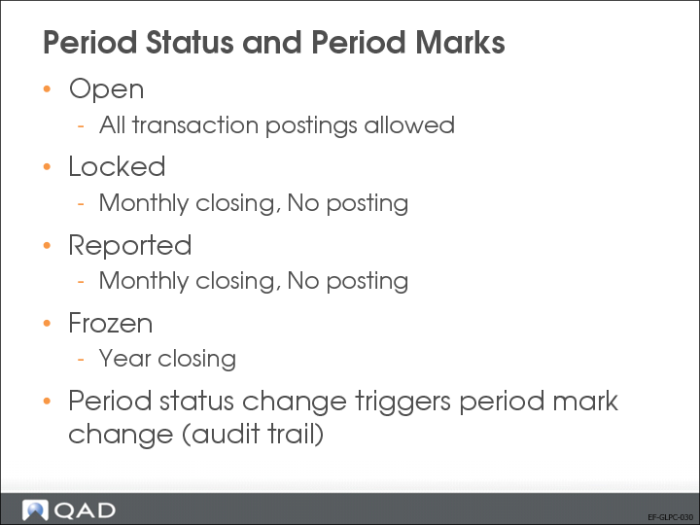
The status associated with a GL period determines what kind of activity can take place. A period can have one of four assigned statuses:
• Open
This is the normal period status and applies when no closing date has been set for the period. Transactions are normally posted during open periods, except when the period has been locked and reopened. The closing date for the period is automatically set once you begin the process of closing the period. Some entities within a domain may need to keep a GL period open for longer than other entities in the same domain.
• Locked
This status applies when the period is subject to a monthly closing. You can close a GL period for one entity and leave it open for all other entities in the same domain. You can unlock a GL period if more transactions need to be processed for that period.
• Reported
The Reported status applies to a period for which Monthly Closing has been successfully run and reported. You can reset a reported GL period to a different status.
• Frozen
When you run Year End Closing, the Frozen status is automatically applied to all periods of the year. A Frozen period cannot be reopened.
Period Marks
Report periods are further controlled using period marks, which identify the period during which a transaction was posted and also describe the status of the period in GL reporting. In addition, period marks are used to identify tax periods. Period marks are system defined.
The Open period mark identifies periods during which transactions have been posted between the normal start and end dates. Transactions can then be reviewed and the period closed to normal activity. The following auto-generated period marks are also supplied with the system:
• Close Report Period
• Undo Close Report Period
• Report Period
• Undo Report Period
These marks are automatically applied during the monthly closing and reporting process. Transactions posted during each of these periods are subsequently identified by the corresponding system period mark. The Close Report Period mark is auto generated when you close a report period, and date stamps the period end. The Undo Close Report Period mark is then auto generated if the period is reopened.
Application Areas
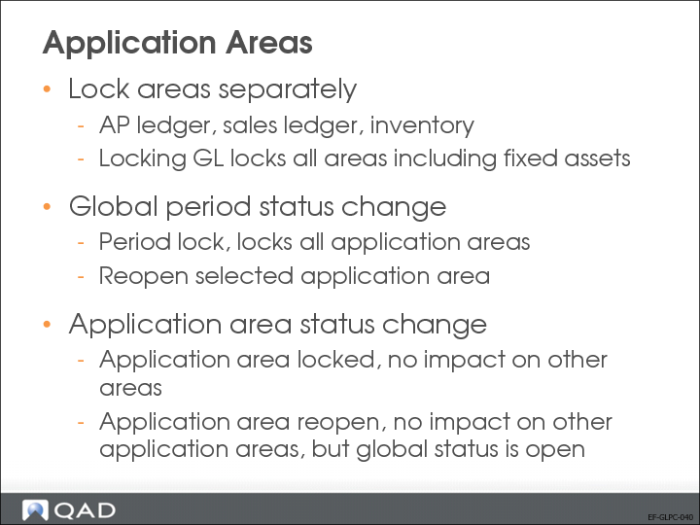
You can lock GL periods by GL transaction type. For example, you can lock a GL period to prevent any more sales order shipments in that period. However, you can still allow banking entries to be created in the same period. The GL module overrides the other area modules, and when locked, prevents transactions of any type for the period.
The application areas that can be locked separately are:
• GL, which locks all areas including fixed assets.
• AP, which locks the AP sub-ledger in Financials.
• Sales, which locks the AR sub-ledger in Financials. This also prevents the posting of sales invoices through Invoice Post and Print and posting of any sales order transaction in Operational Transaction Post.
• Inventory, including all inventory (IC) and work order (WO) transactions created in operational functions.
When an application area is open (indicated by a selected check box) for a period, you enable transactions of that type to be posted during the GL period. The area check box acts as a switch, opening or locking the period to transactions of that type. You can update the area switch only when the period is open.
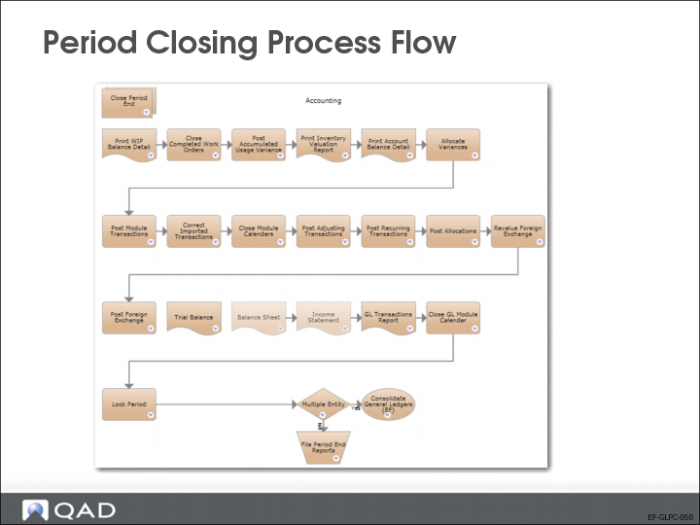
Period Closing Process Flow
The ability to filter based on the daybook code facilitates the period closing process because you can easily identify and review transactions of a certain type and identify unusual activity.
Before you lock a GL period, verify that there are no unposted transactions, such as those created in the operational activities. You can print the Unposted Transaction Register (25.13.14) to identify transactions not yet posted to the general ledger.
Use Entity GL Period activities (25.4.2) to change the GL period status for a specific entity. The changes you make in this function do not affect the other entities in a domain.
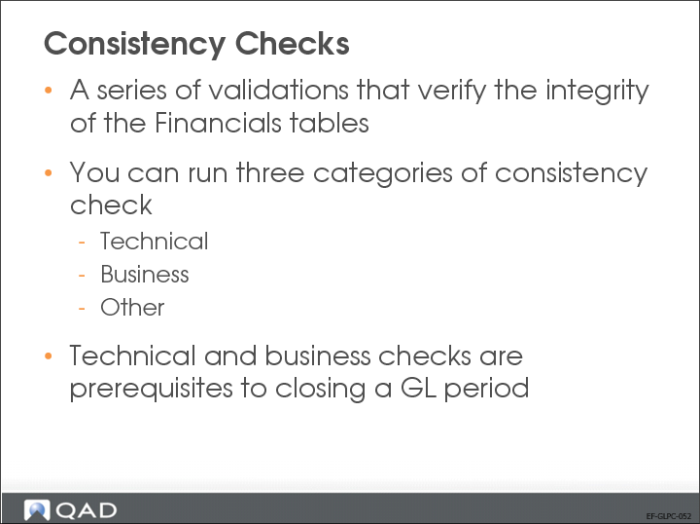
Consistency Checks
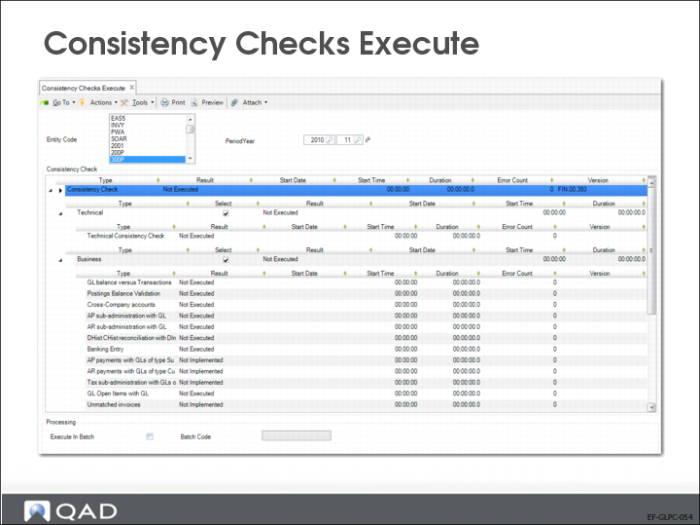
Consistency Checks Execute (25.21.3.1) lets you run a series of validations that verify the integrity of the Financials tables.
You can run three categories of consistency checks:
• Technical
The technical checks focus on the referential integrity of the Financials tables, ensure that mandatory fields are populated, and ensure that redundant fields are populated and consistent.
The list of technical consistency checks is fixed. You cannot select to run certain technical consistency checks and not others.
• Business
The business checks focus on the consistency of the tables from a business point of view, such as general ledger and sub-ledger administration. For example, the checks verify that the balance of a customer control account equals the open customer invoices posted to the account.
The list of business consistency checks is fixed. You cannot select to run certain business consistency checks and not others.
• Other
You can modify the other validations using non-intrusive customization to include any required additional consistency checks. The Numbering Completeness check is included in this section by default, but can be removed using non-intrusive customization.
Running the technical and business consistency checks is a prerequisite to closing a GL period. If these consistency checks have not been run for a GL period, the system displays an error if you attempt to set the GL period to reported. When you have run the consistency checks for a GL period, you can set the period to reported, even if the consistency check run found errors. Setting a GL period to reported is a manual process, and you must decide whether to proceed with the closure based on the results of the consistency checks.
Consistency Checks Execute
You can run the consistency checks from the menu or as a GoTo option from the Entity GL Period functions.
When you set a period to reported, the system displays a warning if previously run consistency checks for that period are out of date. The out-of-date warning reminds you to rerun outdated consistency checks whose results have limited value from an audit perspective.
You can run the consistency checks in interactive mode in real time, or you can schedule the consistency checks to run in batch in the background. When you run in interactive mode, the Consistency Checks Execute screen is automatically updated with the results from the run.
When you run the consistency checks in interactive mode, a progress bar is displayed, indicating that the checks are ongoing.
Consistency Check Results
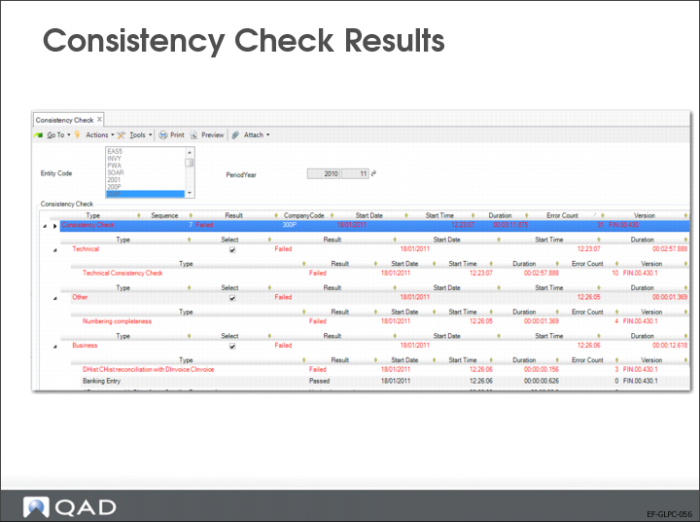
When the consistency checks are complete, the Results, Start Date, Start Time, and Duration fields in Consistency Checks Execute are updated with the relevant values. Validations that fail are displayed in red.
The run parameters and results of each validation run are stored in a text file, which is attached to the entity GL period record. You can view the text file as an attachment in the Entity GL Period functions.
You can also use the Consistency Checks report (25.21.3.2) to display the results of a consistency check validation run in report format.
Period Lock
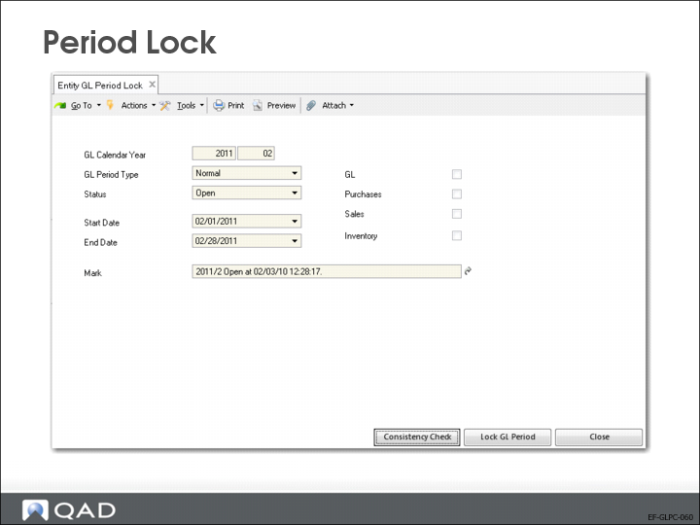
Use Entity GL Period Lock (25.4.2.3) to lock one or more application areas.
You can run consistency checks from Entity GL Period Lock.
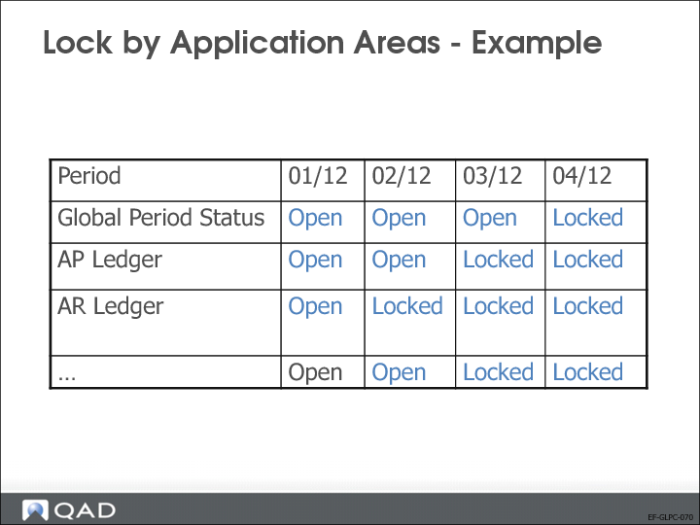
Lock by Application Areas—Example
This slide illustrates how to lock GL periods by area and by period.
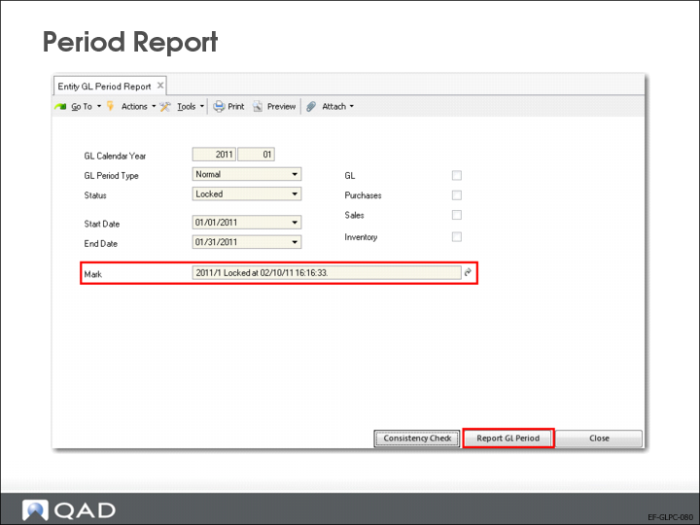
Period Report
Use Entity GL Period Report (25.4.2.5) when you are ready to report a locked period.
Note that the period mark specifies the date and time the specific period was locked.
You cannot set a GL period to reported if consistency checks have not been run for that period. You can run the consistency checks from Entity GL Period Report.
When you have run the consistency checks for the GL period, you can set the period to reported, even if the consistency check run found errors.
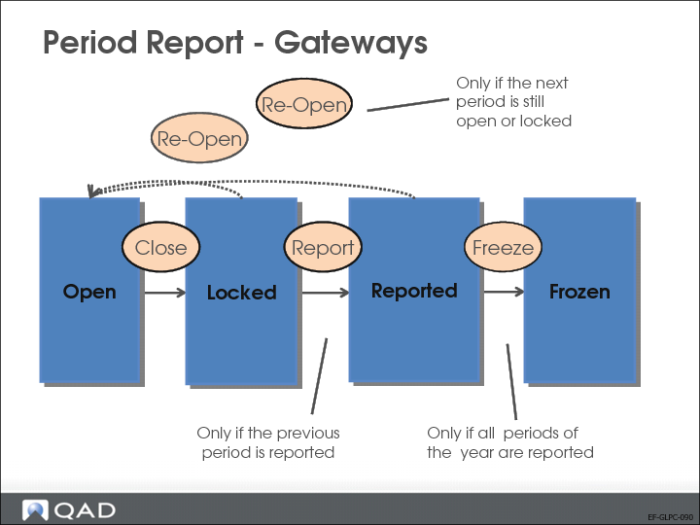
Period Report—Gateways
When you lock or report GL periods, the ability to undo these changes is restricted. The diagram illustrates the locking and reporting possibilities.
For example, only locked periods can be reported, and only a GL calendar year that is entirely reported can be frozen.
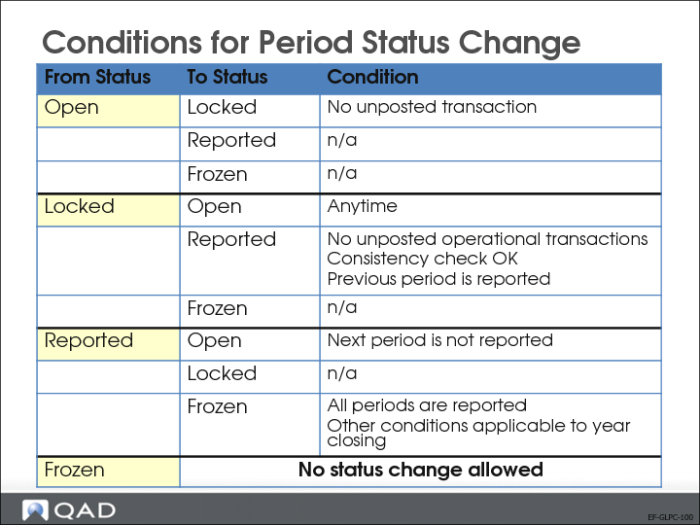
Conditions for Period Status Change
Other conditions apply to GL period status changes, as listed in the above table by status.
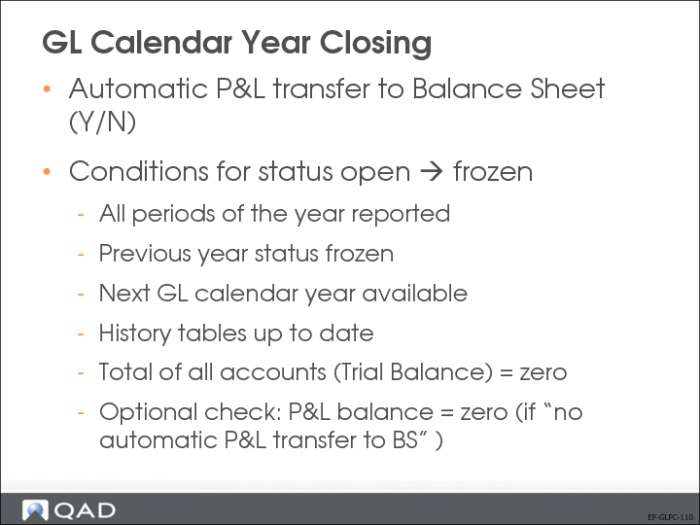
GL Calendar Year Closing
When you close the GL calendar year, the system changes the status of all of its GL periods to frozen, and marks all periods as reported.
Year-end closing postings are created at account and sub-account levels only, and in the base and statutory currencies only.
Validate the year end closing by manually running closing reports on every period.
If the conditions to close the GL calendar year are met, the system creates the following:
• A closing GL period
• An opening GL period (00)
• A P&L transfer to Balance Sheet posting (optional)
• A P&L closing posting
• A Balance Sheet closing posting
• A Balance Sheet reopening posting
• Year closing postings:
• GL and Sub-Account level
• BC and SC
The system also freezes the GL periods of the year.