Transaction Posting Basics
Overview
This section provides a high-level overview of the transaction posting process. It describes how financial transactions are created, and which transactions originate from operational activities.
Other financial transactions topics include posting templates, reversing transactions, recurring entries, transaction mass layer transfer, open item adjustments, revaluation, and cross-company transactions. These topics are described in detail in
Chapter 22, “General Ledger Transactions” on page 541.
This section concentrates on basic journal entries and posting transactions from other modules.
Transactions Posting Flow
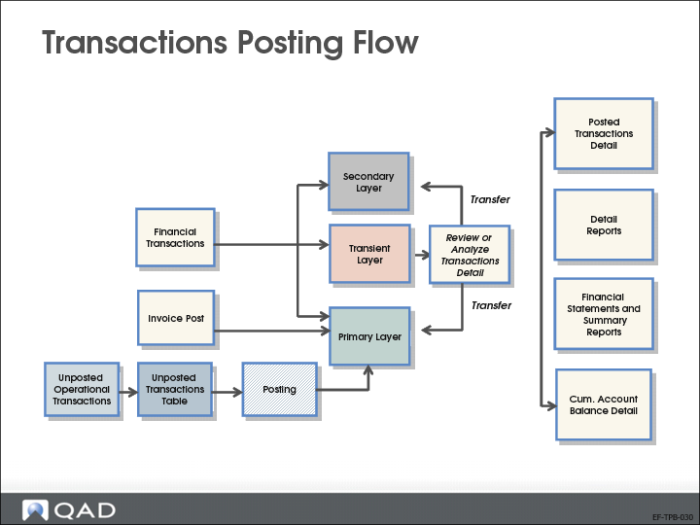
Financial transactions are recorded in the Financials module. These transactions can be posted in one of the three system-defined accounting layer types. This depends on the daybook in which the transaction is posted.
Most operational GL transactions originate from manufacturing, purchasing, and inventory movements, and are created as unposted transactions. These transactions must be posted to the primary layer (labelled “official” in the system) to update GL account balances.
Customer invoices based on sales orders are posted directly to the primary layer of the general ledger.
Journal Entry Posting
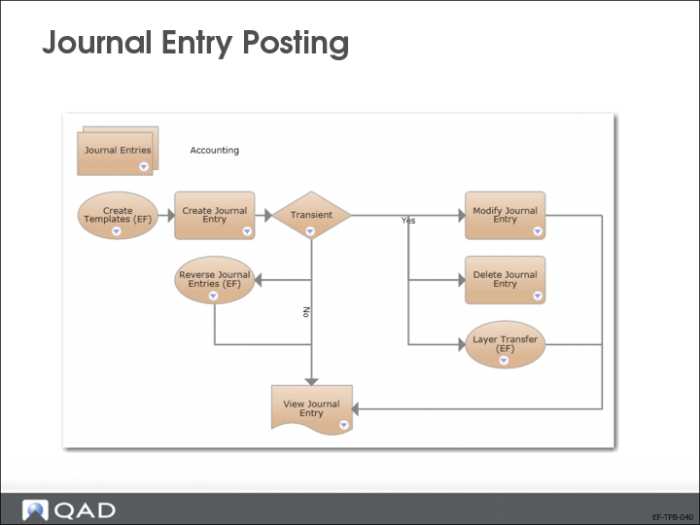
You can use Journal Entry Create (25.13.1.1) to make manual postings directly in Financials. The daybook you specify determines the layer in which the transaction is posted.
Only transactions in a transient layer can be modified, deleted, or transferred to another layer.
You can reverse journal entries posted in layers other than the transient layer. You can view all posted transactions in Journal Entry View (25.13.1.3).
Journal Entry Posting Features
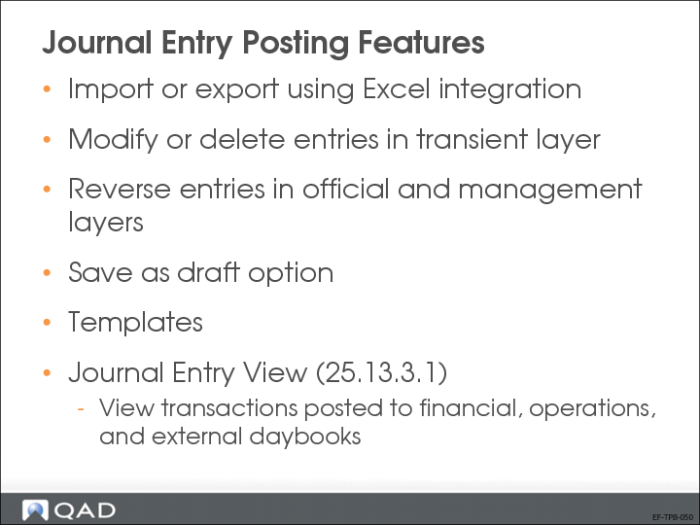
Using the Excel Integration feature, you can export data into Excel spreadsheets for analysis or reporting. You can also create new data within Excel and import it to the QAD database, where it is validated before being saved.
You can save journal entries in draft format when Draft Instances is selected in Change System Settings (36.24.5.1). When you save a record in draft format, none of the system validations are run. You can then return later to complete the record by choosing the Journal Entry Browse Drafts activity (25.13.1.13) and selecting the record you want to finish from the list.
If you plan to record the same journal entry on a regular basis, posting templates let you save the posting details for reuse. Templates are usually used with recurring entries, in which the template is posted at recurring intervals according to a predefined schedule. However, you can use templates for any type of repetitive posting.
Journal Entry View (25.13.1.3) allows you to review any posted transaction. The filters, such as daybook, layer, or posting date, help you find what you are looking for.
When journal entries are posted to the primary or secondary layer, you cannot modify or delete them—you can only reverse the entries. You can modify or delete journal entries in the transient layer.
Journal Entry Create
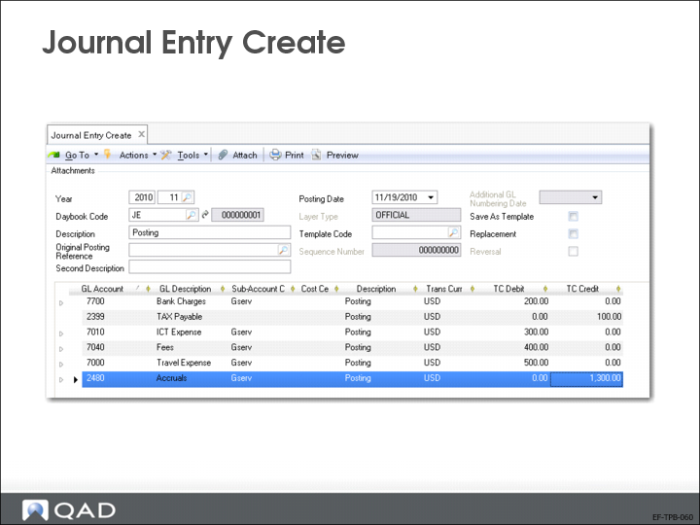
Use Journal Entry Create (25.13.1) to record financial transactions.
When you select the Replacement field, the journal entry is a replacement posting for correction and triggers a reversal posting and a new, correct posting. In this case, the original posting reference is displayed in the appropriate field.
To create a journal entry template, select the Save as Template field. To use an existing template, enter the appropriate template code in the Template field.
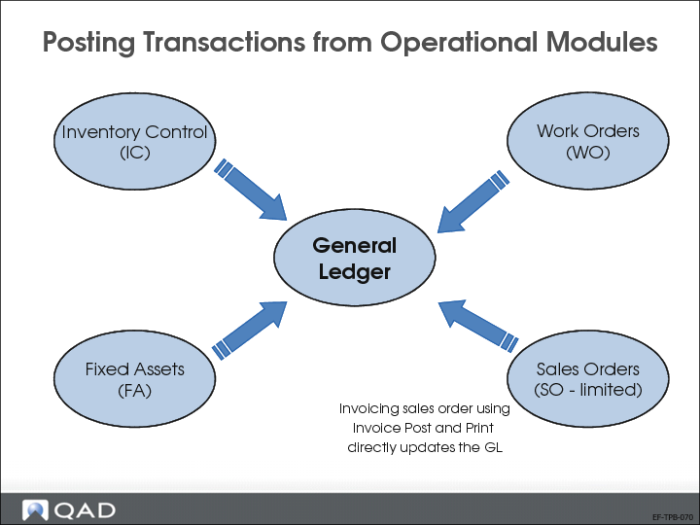
Posting Transactions from Operational Modules
In a production system, most GL transactions originate from operational transactions, such as manufacturing, purchasing, and inventory movements. These operational transactions fall into four areas:
• Inventory Control (IC)
• Work Order (WO)
• Fixed Assets (FA)
• A limited number of sales order (SO) transactions
Setup Prerequisites
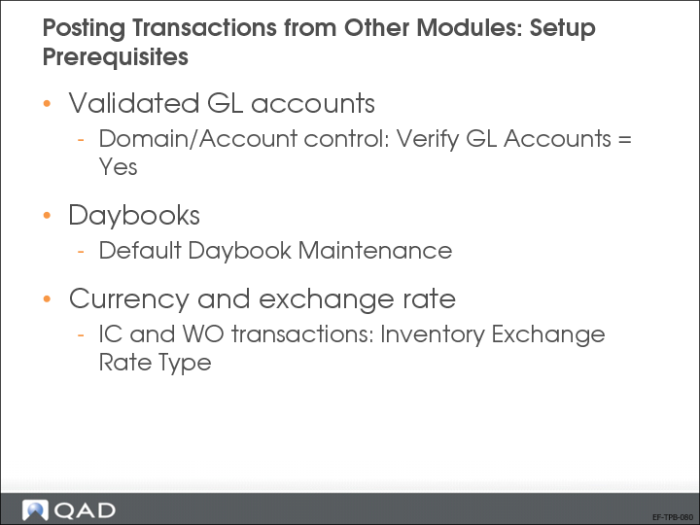
Before you can post operational transactions, select the Verify GL Accounts field in Domain/Account Control (36.9.24). This setting indicates that valid default GL accounts, sub-accounts, and cost centers, if applicable, have been identified at domain level.
At a minimum, you must specify the system daybook in Default Daybook Maintenance (25.8.4). You must create the system daybook in Financials with a type of Journal Entries, link it to the primary layer, and assign a daybook control type of Operational.
A specific system exchange rate type is available for IC and WO transactions. If no exchange rate is defined for these, the system defaults to using the accounting exchange rate.
Process Flow
The process flow for posting transactions from other modules is as follows:
Review unposted transactions
• Unposted Transactions Inquiry (25.13.13)
• Unposted Transactions Register (25.13.14)
• You can only select the Unbalanced option.
Post operational transactions to the GL
• Operational Transaction Post (25.13.7)
• Select by entity, date, and daybook.
Correct invalid data
• Unposted GL Transaction Correction (25.13.16)
• Update the account, sub-account, cost center, or project.
• Generate an audit trail for the changes (optional) by selecting the GL Transaction Audit Trail field in GL Op Transaction Control.