Foreign Currency Revaluation
Overview
In this chapter, you will learn about the foreign currency revaluation functionality in QAD Enterprise Applications. The chapter explains revaluation concepts and terms, revaluation setup, and revaluation transactions and related activities.
Currency Revaluation Concepts
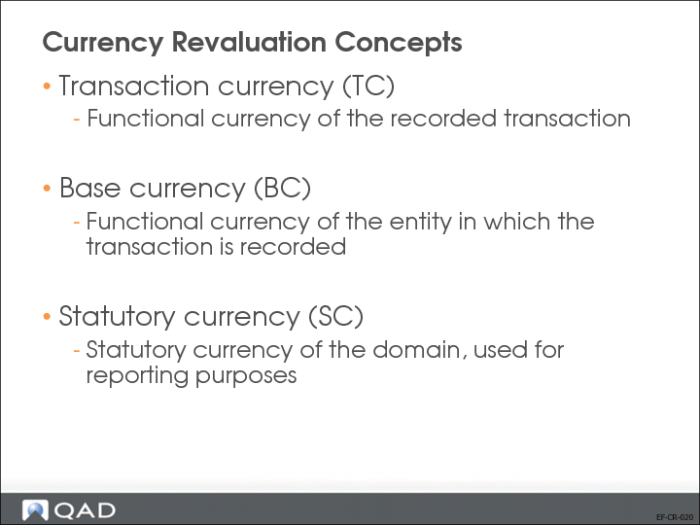
There are three types of currencies in QAD Enterprise Financials.
• Transaction currency (TC)
The functional currency in which the transaction is recorded.
• Base currency (BC)
The functional currency of the entity in which the transaction is recorded.
• Statutory currency (SC)
The statutory currency of the domain; used for reporting purposes.
Currency Conversion
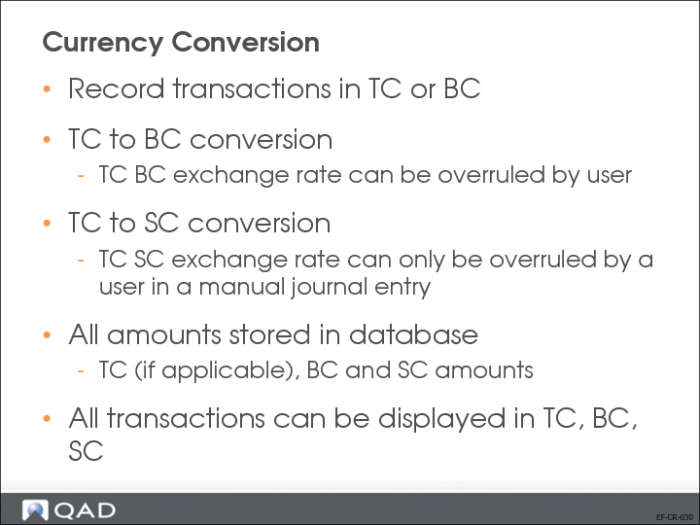
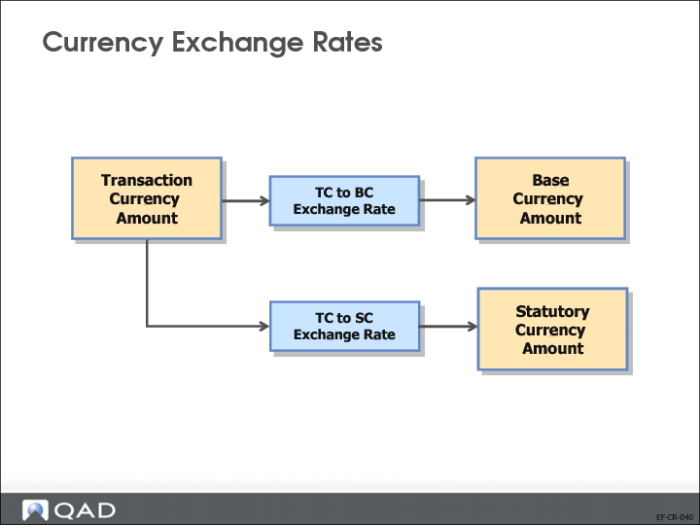
Due to the dual base currency concept in QAD Enterprise Applications, three currencies may appear on foreign currency transactions.
Transactions can be recorded in foreign or base currency.
All three amounts are stored in the database and can be displayed on reports.
Currency Exchange Rates
There are two types of revaluation:
1 Revaluation of transactions denominated in a non-base currency, relative to the base currency.
2 Revaluation of transactions denominated in a non-statutory currency, relative to the statutory currency.
Exchange Rate Types
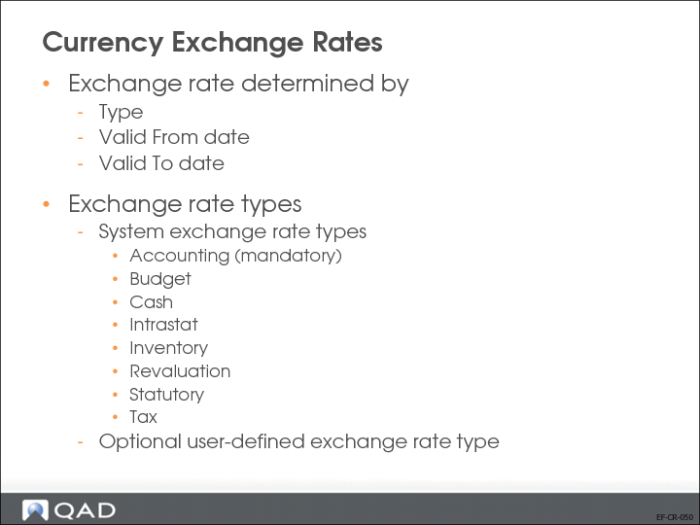
An exchange rate is defined by its type, valid from, and valid to date.
To ensure that a valid daily exchange rate is always available, the Valid To field lets you specify the validity end date of an exchange rate. This field is available for all exchange rate types. In addition, the Default Validity field lets you specify the default number of days that an exchange rate of a particular type is valid.
There are system exchange rate types and user-defined exchange rate types.
You must define an exchange rate for the system exchange rate type Accounting.
The statutory exchange rate type is used in currency conversions that use statutory currency. In domains that use a statutory currency, the system always looks for a statutory type exchange rate.
If the system cannot find an exchange rate for the relevant period, it can revert to using the accounting exchange rate, depending on the setting of the Fallback to Accounting field in Exchange Rate Type Create (26.3.1).
Posting Accounts
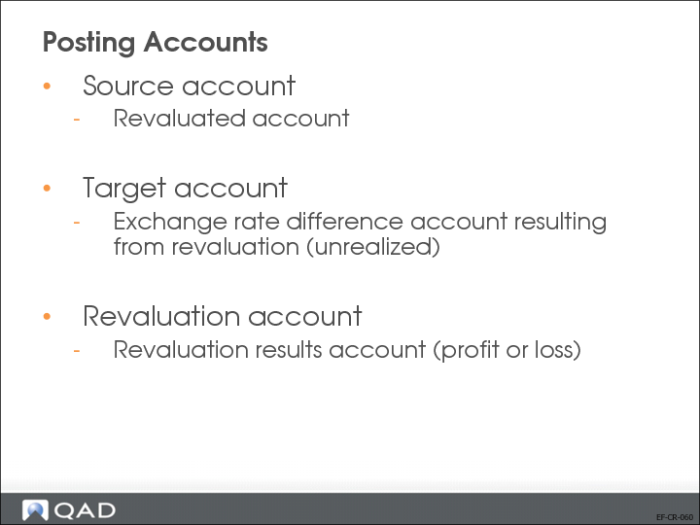
• Source account
The original account to which the transaction was posted.
• Target account
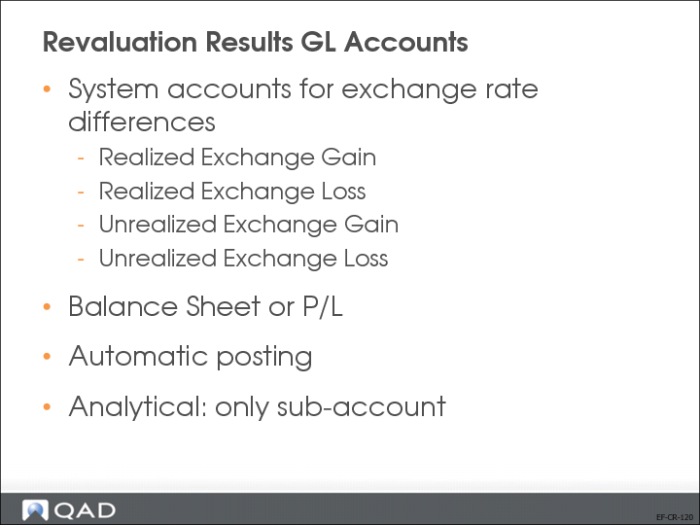
The exchange rate differences account resulting from revaluation. This account is one of the two system unrealized accounts.
• Revaluation account
The account to which the revaluation results are posted.
Only the system account and the revaluation account are used in the posting. However, for standard GL accounts, the source and revaluation accounts are the same, and the source account is also used in the posting.
Currency Revaluation Setup
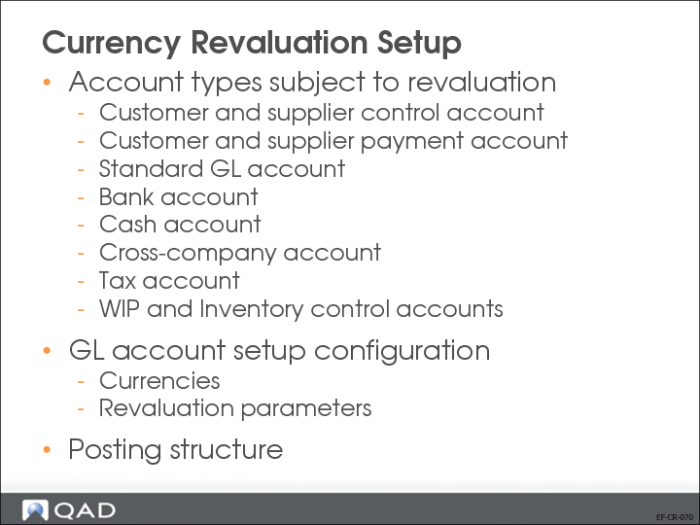
To enable accounts to be revalued, you must configure currencies and revaluation parameters on the accounts, and then create a posting structure for revaluation postings.
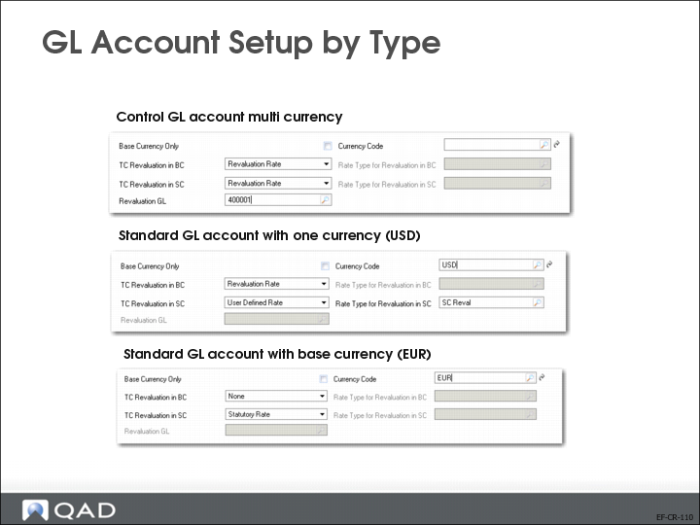
Currency revaluation parameters can be set up at the level of the individual GL account. Whether a GL account can be revalued and the revaluation approach (with revaluation account or not) depends on the type of GL account.
The effect of revaluation on customer and supplier payment accounts depends on the payment instrument. If the payment instrument is direct debit (customer accounts only), the foreign currency transactions are performed using the accounting exchange rate for the direct debit date, and revaluation is not required. However, for drafts and post-dated checks denominated in a foreign currency, the payee must wait until the due date to collect the value. The value of the check or draft can vary from the date of issue until the due date, and is subject to revaluation.
Standard GL Accounts
Some standard GL accounts accept transactions in any currency, and are, subject to revaluation.
Bank and Cash Accounts
Bank and cash accounts can be denominated in a non-base currency, which must be expressed in the base currency of the entity.
GL Account Create, Revaluation Settings
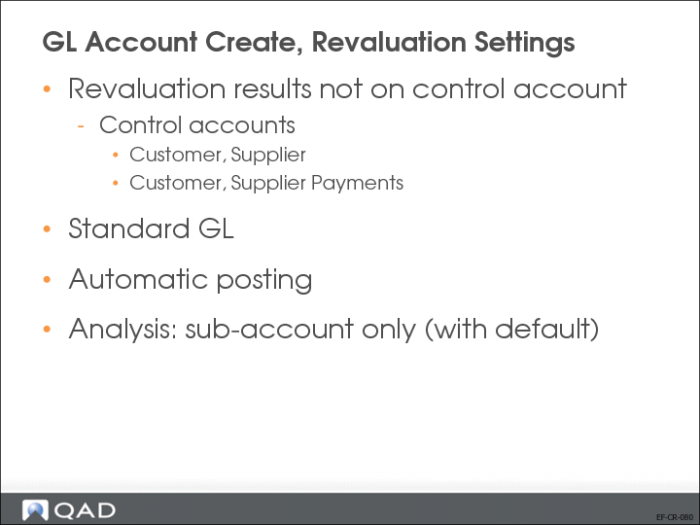
Revaluation results must not be posted on the control account.
When the GL account type is a control account then a revaluation account must be identified. The result of the revaluation will be posted on the revaluation account.
Analytical method is limited to sub-account for this type of account.
The same set of accounts is used for transaction currency and statutory currency revaluation.
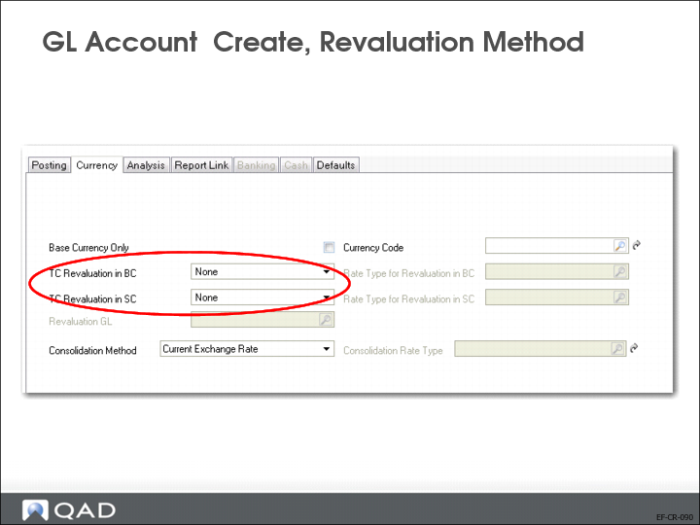
GL Account Create, Revaluation Method
The revaluation account fields become enabled depending on the type of GL account selected.
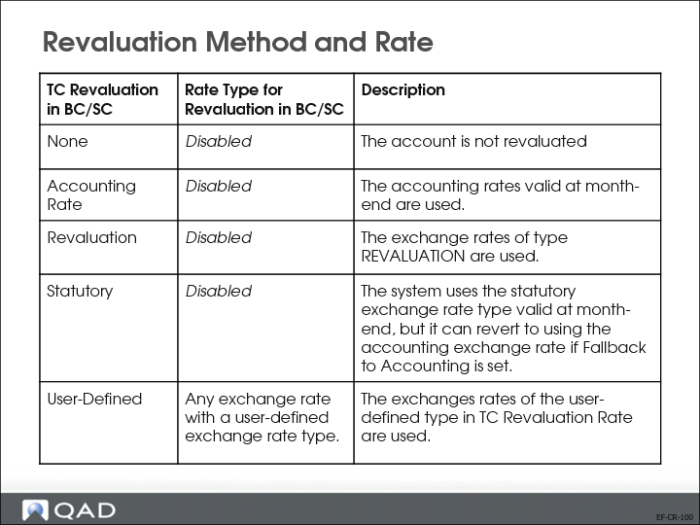
Revaluation Method and Rate
You define the revaluation methods and rates for a source GL account in the Currency tab of Account Create. The tab lets you define both methods and rates for the revaluation of both the base currency and the statutory currency.
You can define the statutory currency revaluation method and rate independently of the base currency revaluation method and rate.
f
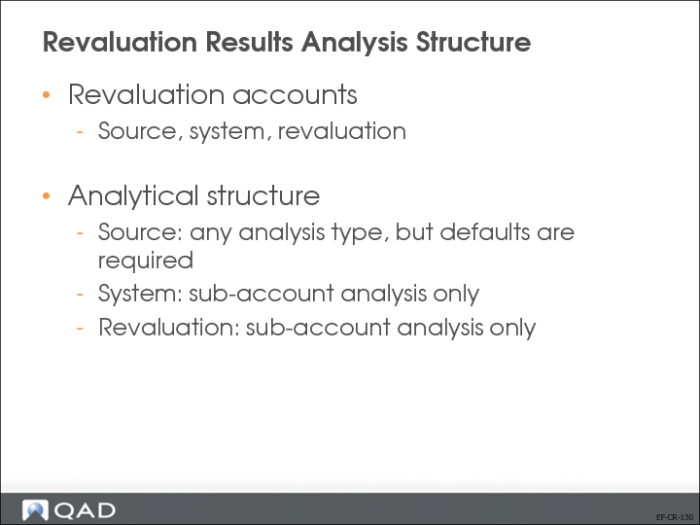
Revaluation Results Analysis Structure
All types of analysis are supported for the source account. However, default values are required. For example, if the source GL account has cost center analysis, a default cost center must be specified in the GL account Analysis tab in order for the account to be revaluated.
Daybooks
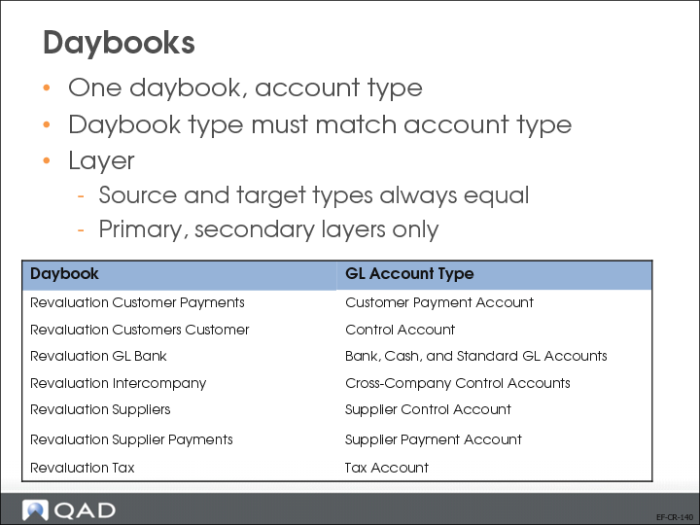
You must define revaluation daybooks for each account type that is being revalued, and the daybook type must match the account type.
Only daybooks of the primary and secondary layers can be used, and the source and target layer types must be the same.
GL Periods
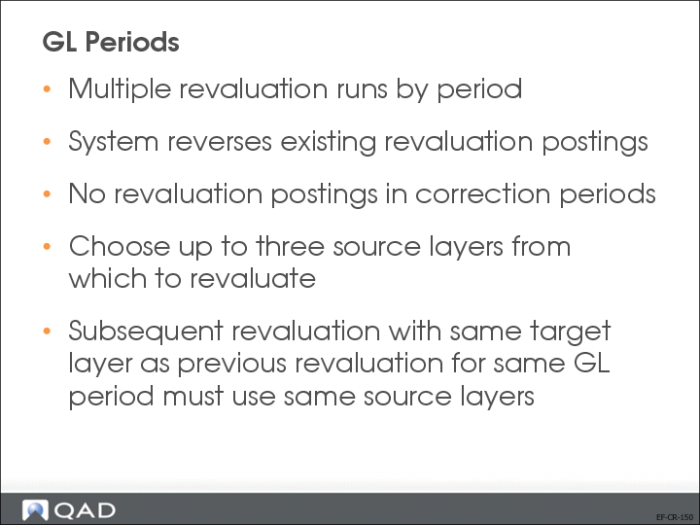
Multiple revaluation runs can be made during the same GL period.
When a revaluation posting has been created for a particular GL period, a subsequent revaluation posting for the same period reverses the existing posting. You cannot create revaluation postings that occur in correction periods, or create a reverse posting to occur in a correction period.
You can choose up to three source layers to be revaluated and the target layer to which the revaluation posting must be made. A subsequent revaluation that has the same target layer as a previous revaluation for the same GL period must also use the same source layers as the previous revaluation. Alternately, all the source layers must be different in the subsequent revaluation for the same GL period to prevent overlap.
If the target layer is the same and the source layers overlap, then an error message will be displayed, and you cannot save the revaluation posting.
See User Guide: QAD Financials for detailed information and examples on multiple revaluations in the same GL period.
Currency Revaluation Activities
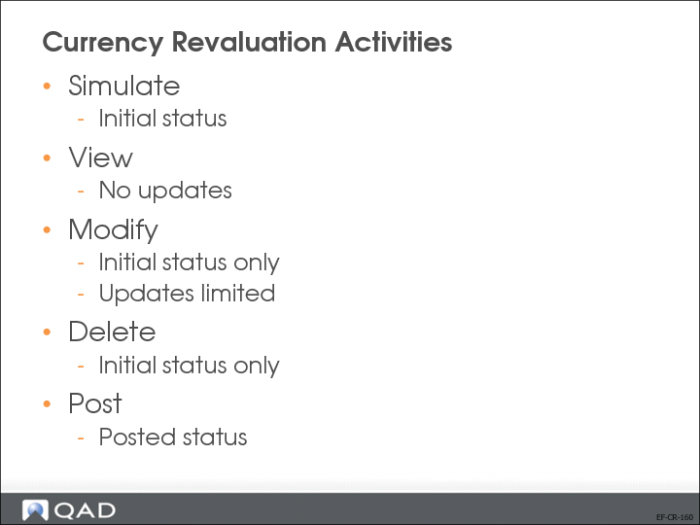
• View
Use Revaluation View to display revaluation data in read-only mode.
• Modify
You can use Revaluation Modify to modify a revaluation if all the revaluation areas have the Initial status. In this case, you can modify the revaluation header or scope, and you can delete entire rows in the Simulation tab of the Revaluation screen. However, you cannot modify the row data.
The Exchange Rate tab is read only
• Delete
You can use Revaluation Delete to delete all areas of a revaluation with the Initial status.
• Post
Using Revaluation Post, you can select a number of revaluations and generate postings. The selected revaluation areas are assigned the Posted status.
Revaluation Simulate
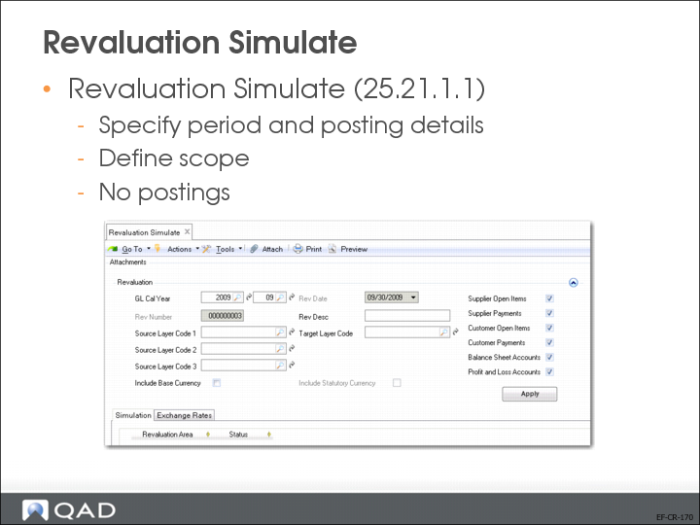
Revaluation Simulate activity (25.21.1.1) identifies the revaluations to run for the GL periods and revaluation areas specified. You can also specify the source layers where the balances are calculated and the target layer where the revaluation will be posted when you run Revaluation Post.
The Revaluation Scope settings let you identify specific types of accounts for which to run the revaluation process; for example, customer or supplier payment or control accounts, or balance sheet accounts. The account types you select are displayed in the Revaluation Area column of the simulation grid when you click Apply to begin the simulation.
You can choose to revaluate relevant to the base currency, statutory currency, or both. The statutory currency revaluation will use the statutory exchange rate, unless you have specified a different revaluation rate in the currency settings in GL Account Create (25.3.13.1). When using the statutory exchange rate, you have the option to revert to using the accounting exchange rate if the statutory rate is unavailable. The fallback option is set in Exchange Rate Type Create (26.3.1).
The base currency revaluation and the statutory currency revaluation are not dependent. You can run the revaluations separately or together.
The simulation results are displayed in a hierarchical grid. You can drill down for more detail on individual items. The results are grouped by revaluation area, and by transaction currency or by transaction currency/sub-account combination if you defined sub-account analysis for the system accounts.
The results display the following information:
• The original debit and credit amounts in TC, BC, and SC.
• The revaluated debit and credit amounts in TC, BC, and SC.
• The revaluation differences to be posted.
• Analytical information, if you defined analysis on the accounts.
When you have completed the fields, click Save to save the revaluation.
Both Revaluation Simulate and the Revaluation report include all transactions in the revaluation scope. In addition, transactions that have no revaluation impact are included, that is, transactions where the revaluation difference is zero because the historical rate is the same as the revaluation rate.
By including all transactions in Revaluation Simulate and the Revaluation report, the system provides a complete reconciliation between the transaction amounts from before and after revaluation.
Revaluation Post
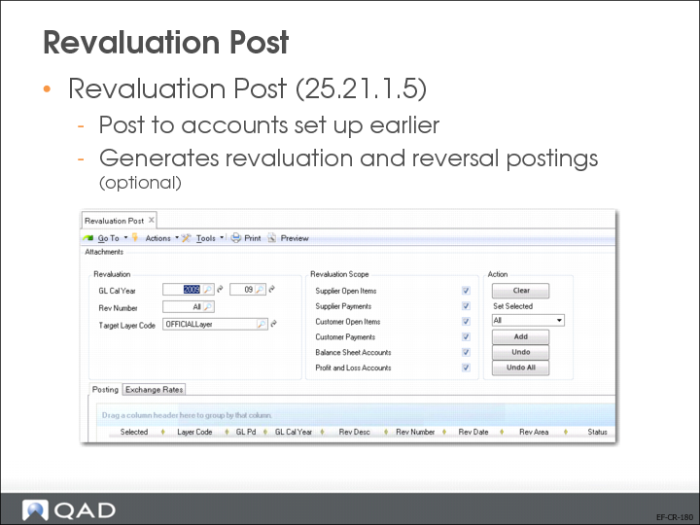
Revaluation Post is similar to Revaluation Simulate, but Revaluation Post activities update the GL. Use Revaluation Post (25.21.1.5) to post the revaluation differences to the relevant accounts.
You can only post a revaluation after you have saved it in Revaluation Simulate. Revaluation Post processes one or more of revaluation simulations, and creates the GL postings for them.
Select revaluations created using Revaluation Simulate for posting using the GL calendar year and GL period, revaluation number, layer, and revaluation scope items as search criteria. Click Add to add revaluations that match the criteria to the Posting grid.
US Exercise: Revaluation
In this exercise, you will:
• Verify the parameters for revaluation.
• Simulate the revaluation.
• Execute and post the revaluation.
Use entity 10USACO
1 In entity 10USACO, use GL Account View (25.3.13.3) to review the parameters of the following accounts. If needed, modify the parameters using GL Account Modify (25.3.13.2):
Unrealized Exchange Loss (9900)
Unrealized Exchange Profit (8900)
The accounts must be system accounts and the system types must be Unrealized Exchange Loss (9900) and Unrealized Exchange Profit (8900).
2 Use GL Account View (25.3.13.3) to review the parameters of Accounts Payable control account 2000.
3 Use Supplier Invoice Create (28.1.1.1) to create the following supplier invoices in foreign currency:
Field | Value |
Daybook | SINV (defaults from the daybook set) |
Period | Current period |
Invoice Status Code | OK2PAY |
Field | Supplier 1 | Supplier 2 |
Supplier | 20S1002 | 30S1002 |
Currency | EUR | CNY |
Amount | 100,000.00 | 1,000,000.00 |
Exchange rate | USD = 0.769231 EUR / 1 EUR = 1.3 USD | 1 USD = 8 CNY / 1 CNY = 0.125 USD |
Invoice Date | Specify a date in the middle of the current period. |
Posting Date | Specify a date in the middle of the current period. |
4 Use Exchange Rate Create (26.4.1) to create revaluation exchange rates.
• From USD to CNY
Valid from the last date of the current period: 9 (1 USD = 9 CNY / 1 CNY = 0.111111 USD)
• From USD to EUR
Valid from the last date of the current period: 0.740741 (1 USD = 0.740741 EUR/ 1 EUR = 1.35 USD)
5 Use Revaluation Simulate (25.21.1.1) to simulate the revaluation of supplier open items.
a Enter the following data:
Field | Value |
GL Calendar Year | Current year |
Period | Current period |
Source Layer Code 1 | Primary |
Target Layer Code | Primary |
Supplier Open Items | Yes |
Supplier Payments Customer Open Items Customer Payments Balance Sheet Accounts Profit and Loss Accounts | No |
Include Base Currency | Yes |
Include Statutory Currency | No |
b Click Apply to retrieve the simulation results.
c Save the simulation results.
Note: If you receive an error message regarding missing exchange rates, you can address this by creating the relevant Revaluation exchange rate in Exchange Rate Create.
6 Use Revaluation report (25.21.1.6) to print the revaluation report for the simulation and verify that the correct revaluation rates have been used.
7 Use Revaluation Post (25.21.1.5) to post the revaluation of Accounts Payable (Supplier Open Items) as of the last date of the current period.
8 Use Journal Entry View (25.13.1.3) to check the postings in the revaluation daybook (Supreval) for supplier open items.
EMEA Exercise: Revaluation
In this exercise, you will:
• Verify the parameters for revaluation.
• Simulate the revaluation.
• Run and post the revaluation.
1 In entity 22UKCO, use GL Account View (25.3.13.3) to review the parameters of the following GL accounts. Use GL Account Modify to modify the parameters, if needed.
Unrealized Exchange Loss (9900)
Unrealized Exchange Gain (8900)
These must be system accounts and the system type must be:
• Unrealized Exchange Loss (9900)
• Unrealized Exchange Gain (8900)
2 Use GL Account Modify (25.3.13.2) to review the parameters of the Accounts Payable control account 2000.
3 Use Supplier Invoice Create (28.1.1.3), create the following supplier invoices in foreign currency (at least one in each currency):
Field | Value |
Daybook | SINV (defaults from the daybook set) |
Period | Current period |
Invoice Status Code | OK2PAY |
Field | Supplier 1 | Supplier 2 |
Supplier | 10S1002 | 30S1002 |
Currency | USD | CNY |
Amount | 100,000.00 | 1.000.000,00 |
Exchange rate | 1 GBP = 1.58142 USD/USD = 0.632250 GBP | 1 GBP = 10.567CNY / 1 CNY = 0.0946511 GBP |
Invoice Date | Specify a date in the middle of the current period. |
Posting Date | Specify a date in the middle of the current period. |
4 Use Exchange Rate Create (26.4.1) to create revaluation exchange rates.
• From GBP to CNY
Valid from end of current month: 10 (1 GBP = 10 CNY)
• From GBP to USD
Valid from end of current month: 1.5 (1 GBP = 1.5 USD)
5 Use Revaluation Simulate (25.21.1.1) to simulate the revaluation of supplier open items.
a Enter the following data:
Field | Value |
GL Calendar Year | Current year |
Period | Current period |
Source Layer Code 1 | Primary |
Target Layer Code | Primary |
Supplier Open Items | Yes |
Supplier Payments Customer Open Items Customer Payments Balance Sheet Accounts Profit and Loss Accounts | No |
Include Base Currency | Yes |
Include Statutory Currency | No |
b Click Apply to retrieve the simulation results.
c Save the simulation results.
Note: If you receive an error message regarding missing exchange rates, you can address this by creating the relevant Revaluation exchange rate in Exchange Rate Create.
6 Use Revaluation Report (25.21.1.6) to print the revaluation report for the simulation and verify that the correct revaluation rates have been used.
7 Use Revaluation Post (25.21.1.5) to post the revaluation of Accounts Payable (Supplier Open Items) as of the last day of the current period.
8 Use Journal Entry View (25.13.1.3) to check the postings in the revaluation daybook (Supreval) for supplier open items.