Journal Entry Templates
In the following pages, you will learn more about journal entry templates.
Journal Entry Templates—Continued
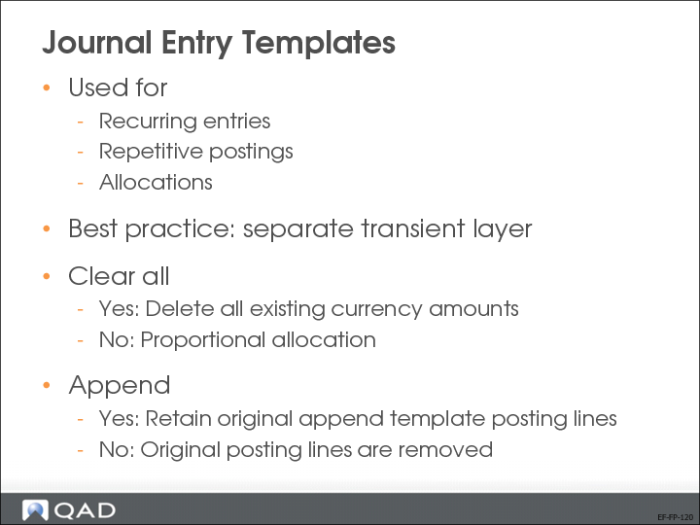
If you plan to record the same journal entry on a regular basis, posting templates let you save the posting details for reuse. Templates are usually used with recurring entries in which the template is posted at recurring intervals according to a predefined schedule. However, you can use templates for any type of repetitive posting, and for allocations.
Journal entry templates retain the following transaction details:
• GL account, including the associated sub-account, cost center, project, or SAF details
• Description
• Currency
• Debit amount
• Credit amount
The account details are loaded into the posting grid when you select the template. You need change only the monetary amount and the reference each time you reuse the template, or maintain and use the same values. You can save the transaction or edit the details as required.
Best practice is to use a transient layer daybook to post journal entry templates. If you use a daybook linked to a transient layer, you can review the template details before posting the transactions to the primary layer. When you have verified the template, you can then change the daybook type to primary.
Note the following two fields:
Clear All
When creating a template, select the Clear All field to delete all existing amounts. Only the posting lines (such as accounts, sub-accounts, cost center) are stored, and you can enter new amounts in the posting grid. If the Clear All field is unselected, the system creates a proportional allocation based on the total transaction amount entered.
Append
When using a template in a transaction, select Append to retain the original posting lines and append the template posting lines. If you do not select Append, the original posting lines are removed, and only the template is retained.
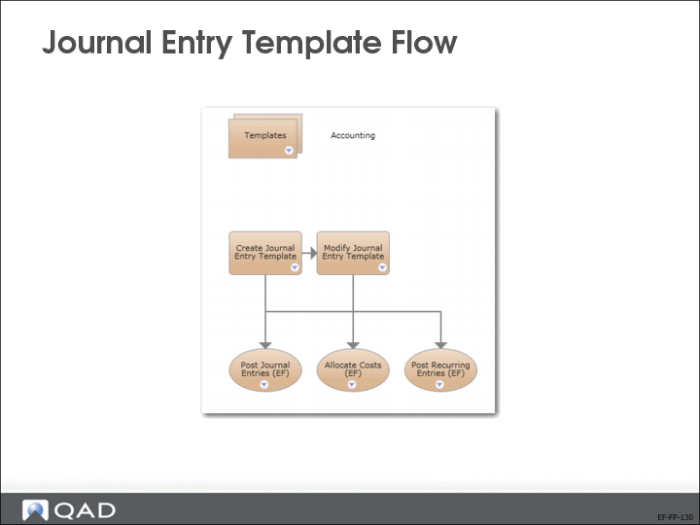
Journal Entry Template Flow
Create Template
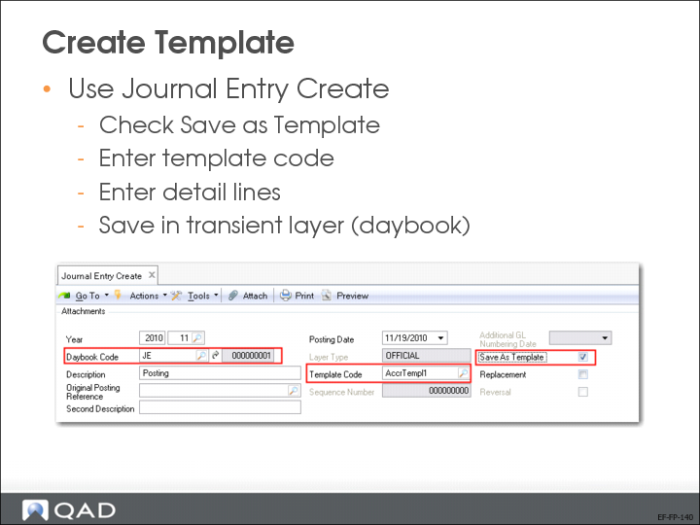
Complete the following steps to create a template for a journal entry in the transient layer:
1 In Journal Entry Create, specify a daybook code that is associated with the transient layer.
2 Select Save as Template.
3 Enter the template code.
4 In the grid, specify the detailed posting lines.
5 Save the posting.
You can modify templates, as required.
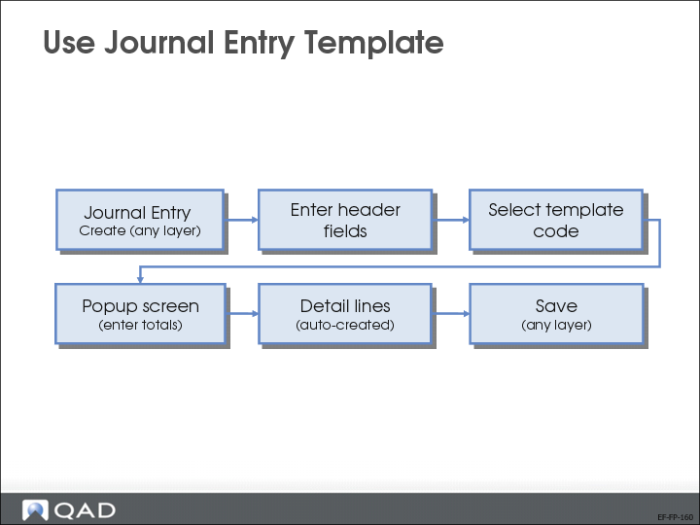
Complete the following steps to create a journal entry using a posting template:
1 In Journal Entry Create (25.13.1.1), click the Template Code lookup and select a template.
The Posting Template Apply screen is displayed.
2 Specify the total amount and any other details as required.
3 Click OK.
The journal entry grid lines are updated according to the posting template.
4 Save the journal entry.