UI Navigation
Login and Welcome
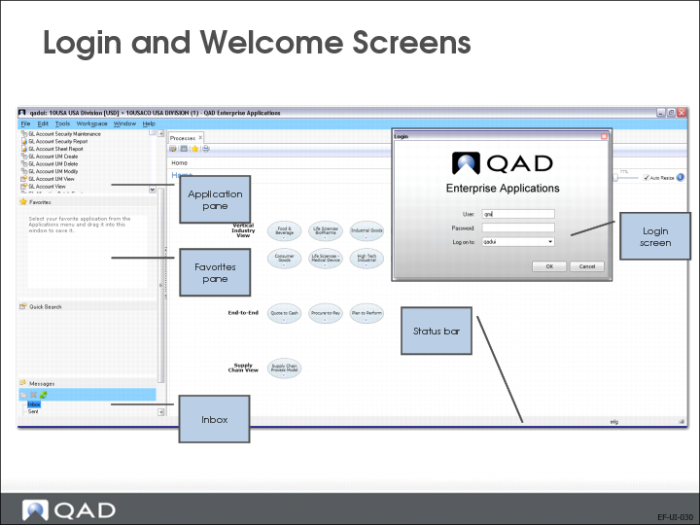
The main Financials screen contains the following UI components:
• Application pane
• Favorites pane
• Inbox
• Workspace selector
• Status bar
Menu Navigation and Tools
Toolbar
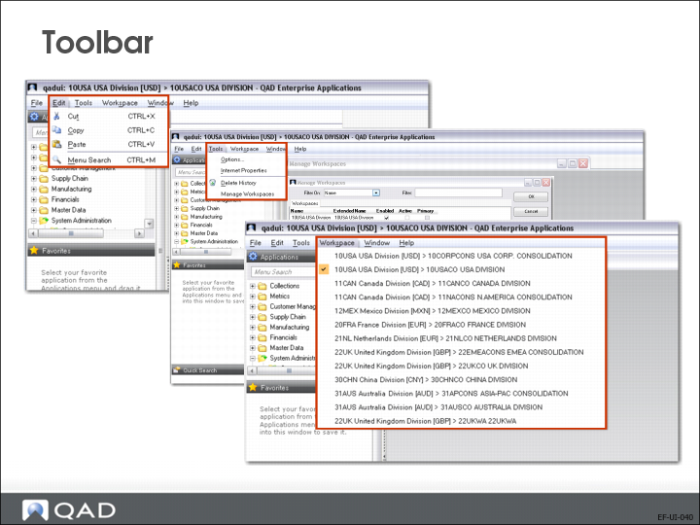
The toolbar provides access to:
• The Edit menu, with standard Windows functions, such as cut, copy, and paste
• The Tools menu, which lets you change various interface attributes, including the workspace (entity) to display
• The Workspace menu, which lets you navigate between workspaces
• The Help menu
Menu Search
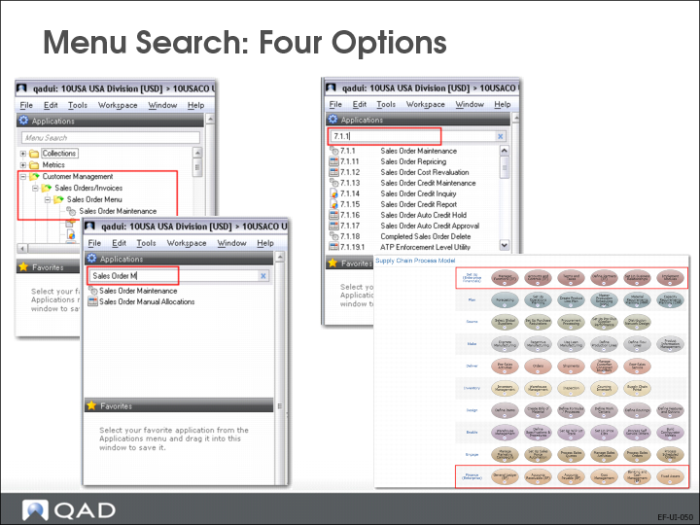
To find a menu, users can:
• Search through folders
• Enter the menu name you need
• Enter the menu number you need
• Navigate to the menu using process maps
Menu Properties
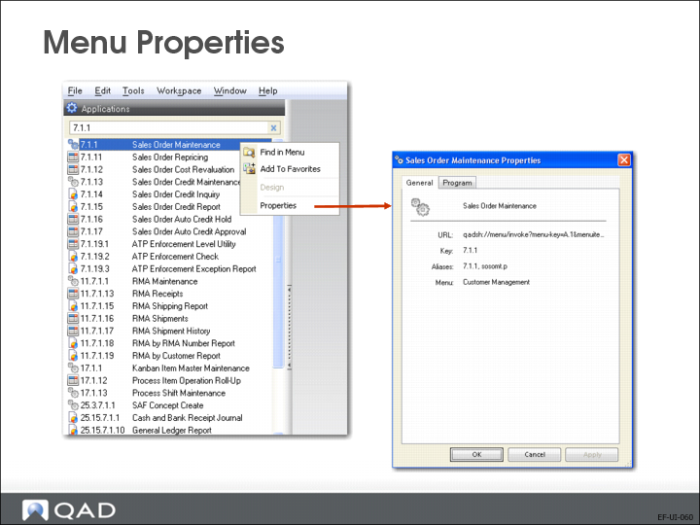
To find a menu number or name and other menu attributes, right-click the menu name in the menu pane.
Note: Using the right-click menu, you can also display the menu in the menu tree.
Messaging and Workflow
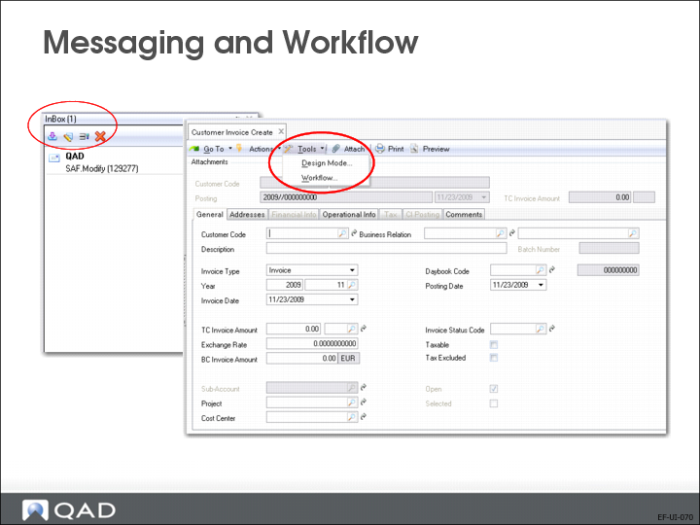
The Financials application includes full e-mailing capabilities.
In addition, a workflow functionality is accessible in component based functions (those displaying in tabs). This feature lets you create and initiate workflows between users or roles.
Example: When a new customer is created by a user in Financials, a workflow is initiated for the operational user to set up the operational data for the customer.
The workflow supports the segregation of duties and adds efficiency to day-to-day tasks.
Creating a Workflow
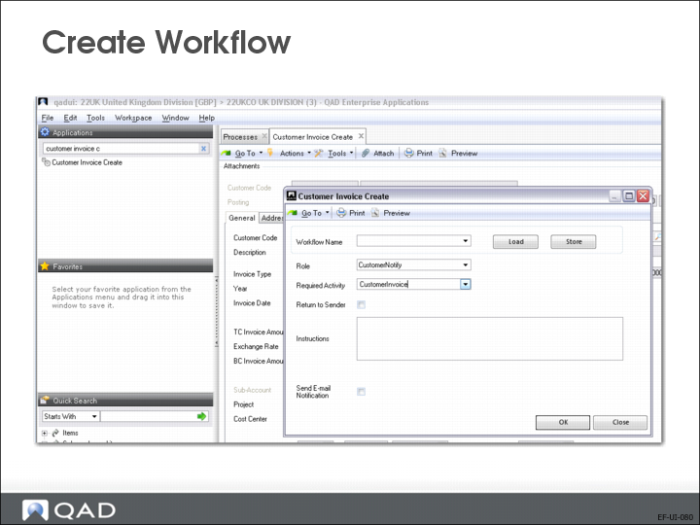
To create a new workflow, select the function from the Tools drop-down list on the menu tool bar. Name the new workflow, assign it to a role, and specify the required activity. Additional instructions can be added in a text comment box.
You can then initiate the workflow or store it for later use and re-use.
Favorites
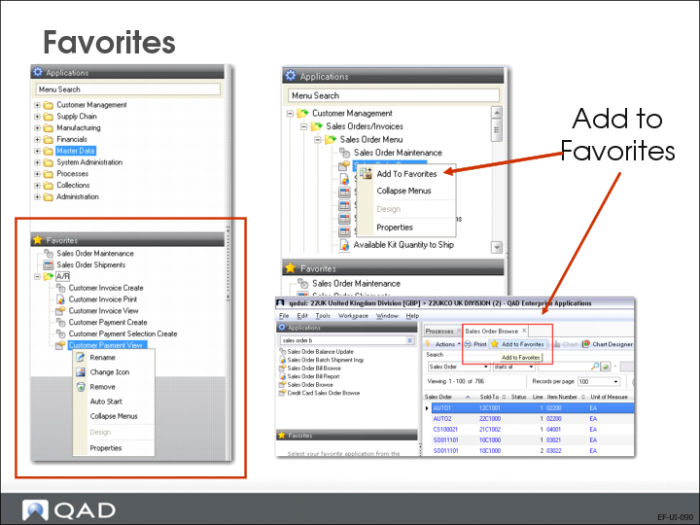
Use the Favorites pane to provide faster access to the menus that you use every day.
Add menus to your Favorites pane by right-clicking on the menu name on the menu list, by dragging and dropping the item from the menu list, or by clicking the Add to Favorites icon in the menu.
You can rename items in your favorites, and group them in directories.
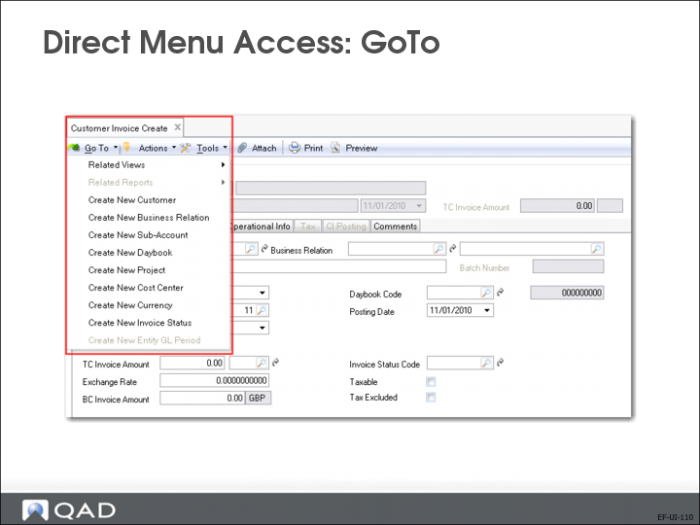
Direct Menu Access with the GoTo Button
The GoTo function provides another way to access menus faster. Depending on the screen you are currently in, the GoTo menu lists other menus related to the current screen, as well as reports and views.
GoTo behaves differently, depending on whether the current field has data in it:
• If the field has a value, GoTo invokes the View activity
• If the field is blank, GoTo invokes the Create activity.
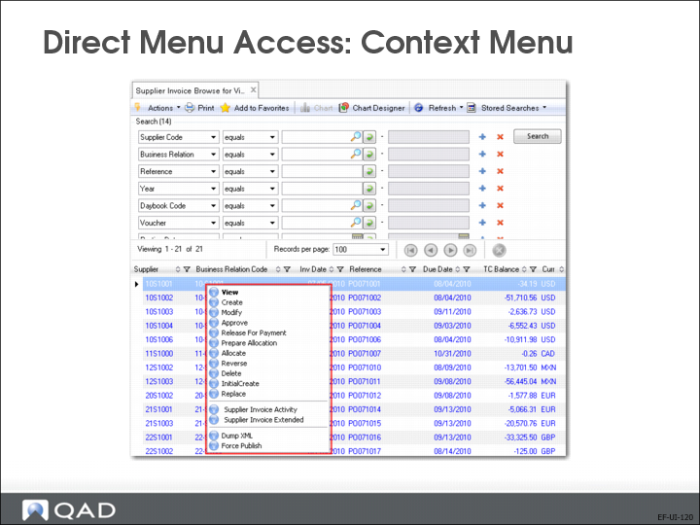
Direct Menu Access: Context Menu
You can access record-specific activities by right-clicking on the blue underlined record. Create, view, modify, and delete are standard activities available for most types of records.
For example, in the Supplier Invoice Browse for View, the links include Release for Payment, Prepare Allocation, Allocate, and Reverse.
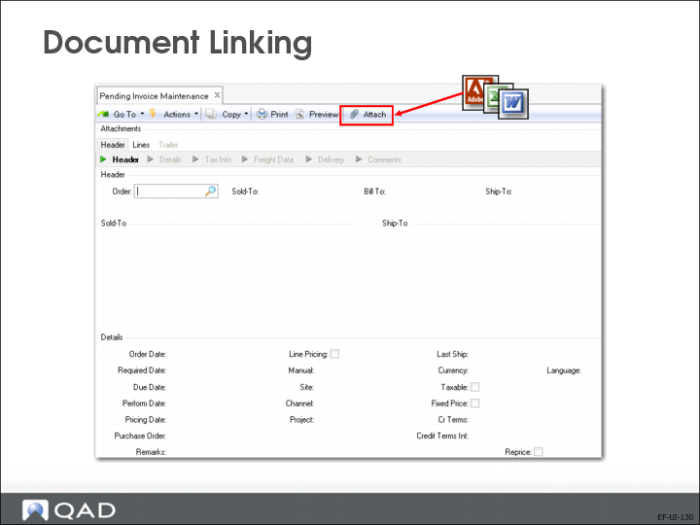
Document Linking
In Financials, you can link documents of various types, such as PDFs, Excel, and Word documents, to records.
Scans of invoices can be attached to supplier or customer invoices.