Hands On Exercise: AP Processing
In this exercise, you will receive a purchase order, create a supplier invoice and match it against the received purchase order. You will then create and print the payment for the supplier.
Use the following data throughout the exercise where it does not default.
|
Field
|
Value
|
|
Entity:
|
10USACO
|
|
Site:
|
10-100
|
|
Output:
|
PAGE
|
|
All other fields:
|
Choose any from the drop-down list when necessary
|
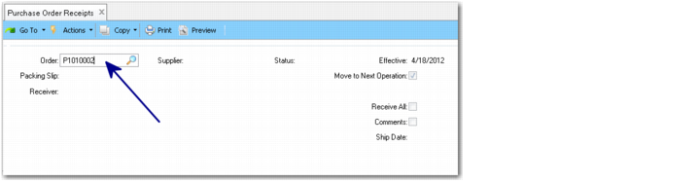
1 Use Purchase Order Receipts (5.13.1) to receive order P1010002 in full.
a Enter the purchase order number (P1010002).
Purchase Order Receipts
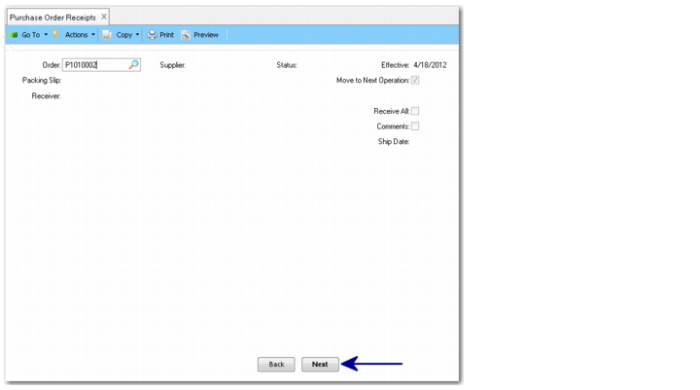
b Click Next.
Purchase Order Receipts
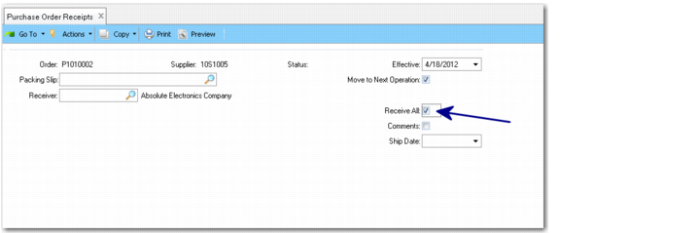
c Select the Receive All field.
Purchase Order Receipts, Receive All Field
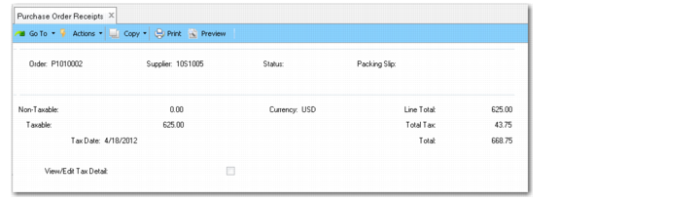
d Press Enter until you return to the first frame with the PO number.
Purchase Order Receipts, PO Number
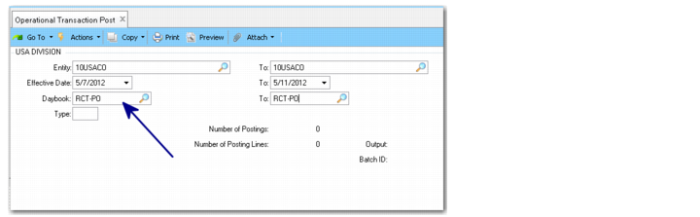
2 Use Operational Transaction Post (25.13.7) to post the GL transactions for the purchase order receipt. Limit posting to purchase order receipts to save time: enter daybook RCT-PO.
Operational Transaction Post
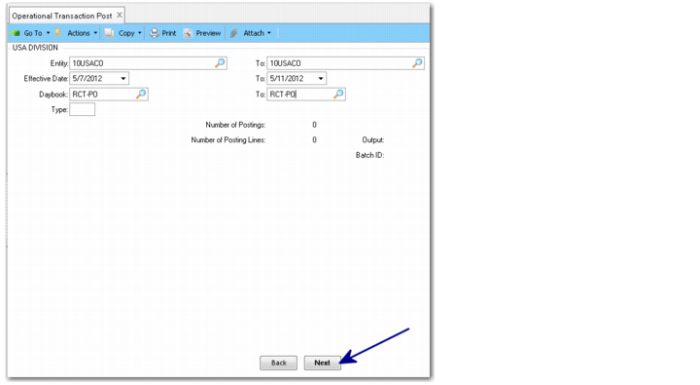
3 Click Next twice to post the GL transactions.
Operational Transaction Post, Postings
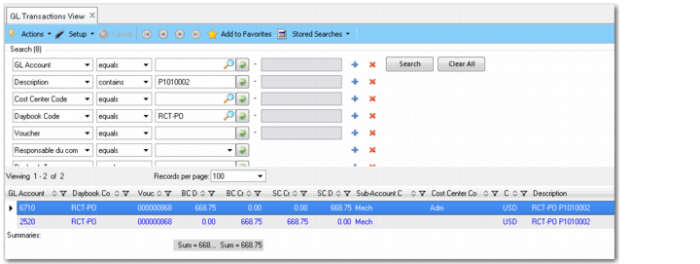
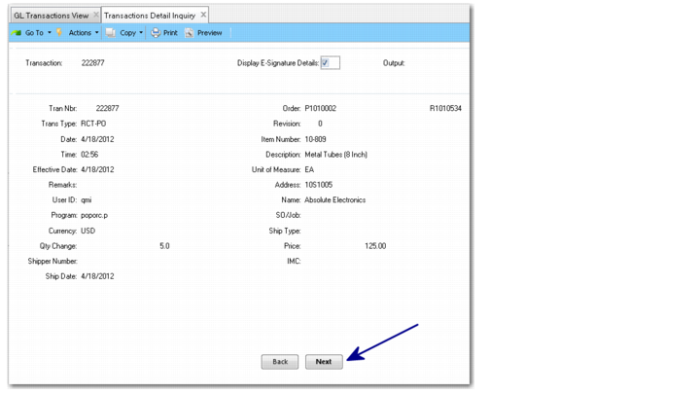
4 Use GL Transactions View (25.15.2.1) to review the posted transaction. Use the filter fields to find it easily (daybook, posting date…).
GL Transactions View
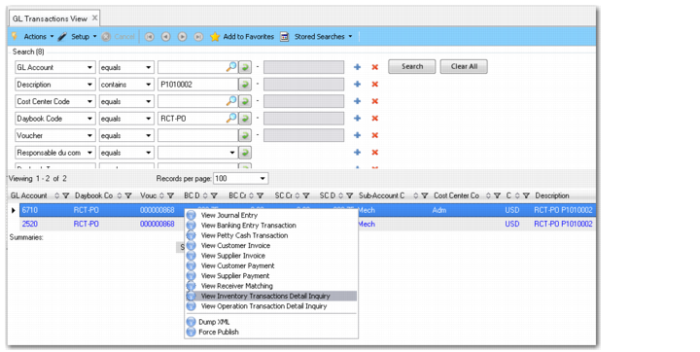
a Right-click and select View Inventory Transactions Detail Inquiry.
GL Transactions View, Right-Click Menu
b Click Next to run the report.
Transactions Detail Inquiry
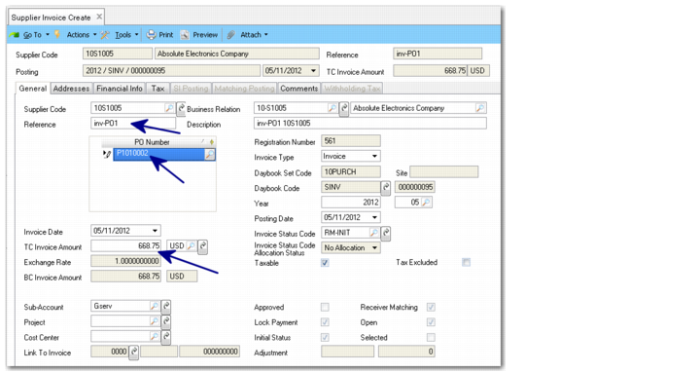
5 Use Supplier Invoice Create (28.1.1.1) to create an invoice for the received materials.
Supplier Invoice Create
Field | Value |
Reference: | INV-PO1 (the invoice reference you received from your supplier) |
PO Number: | Select from the lookup or type “P1010002”. |
TC Invoice Amount: | 668.75 |
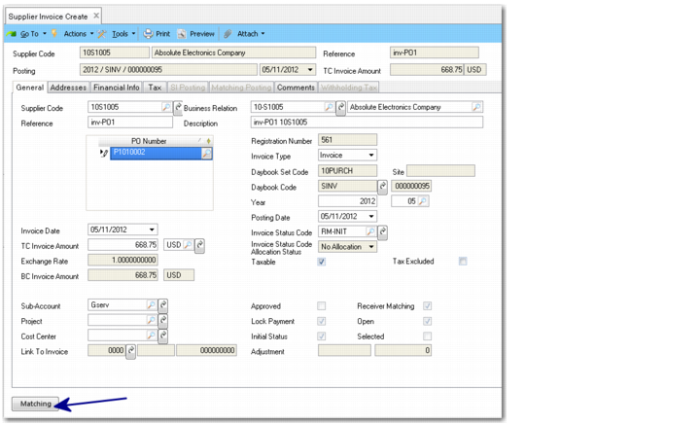
6 Click the Matching button.
Supplier Invoice Create, Matching Button
This opens a pop-up window.
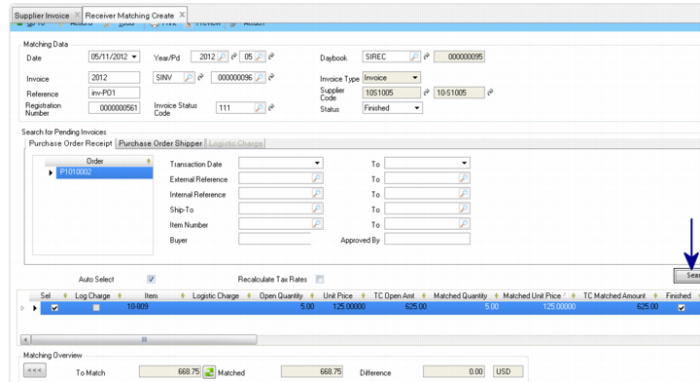
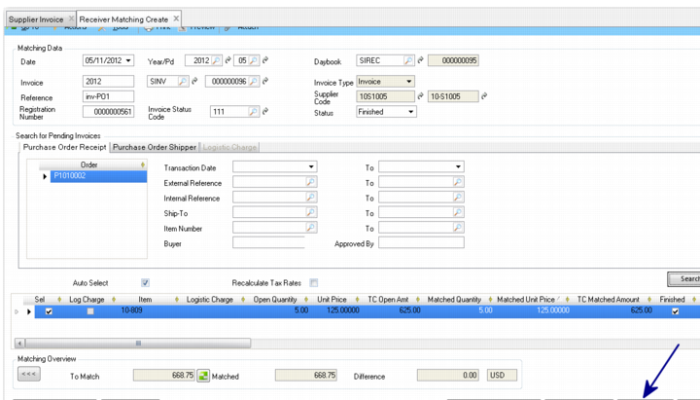
7 In that window, click the Search button to display the open receivers for your purchase order.
The amounts are automatically applied.
Receiver Matching Create
8 Click Save.
Receiver Matching Create, Save
9 Use Supplier Activity Dashboard (28.18.1) to view the transactions for the supplier.
Supplier Code: 10S1005
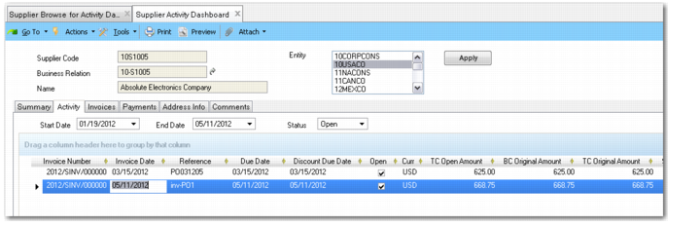
Supplier Activity Dashboard
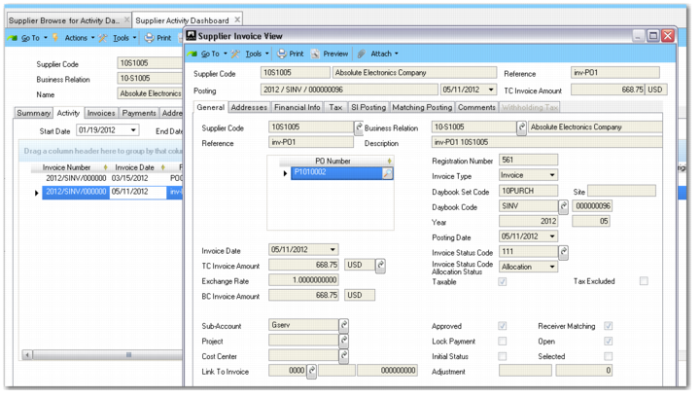
10 Double-click the invoice date in the Activity tab to open the invoice.
Supplier Activity Dashboard, Activity Tab
Supplier Invoice View
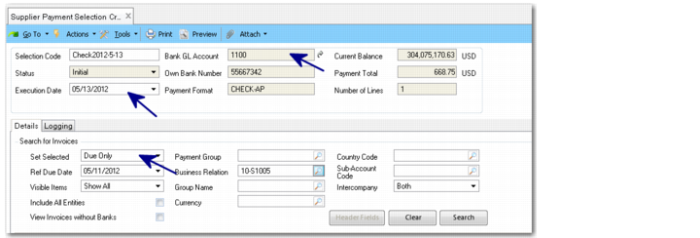
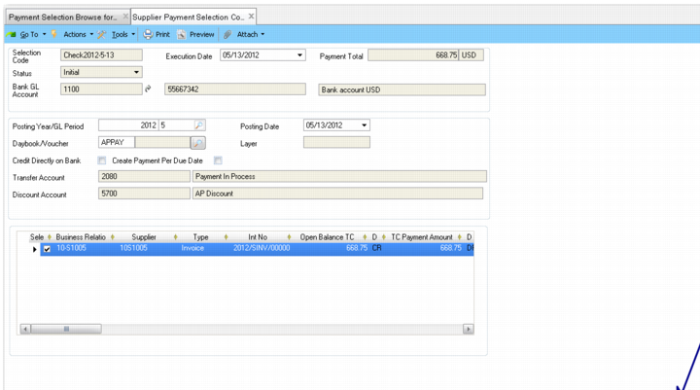
11 Use Supplier Payment Selection Create (28.9.4.1) to prepare the invoice payment.
Field | Value |
Code: | Type “Check2012-5-13” |
Bank GL Account: | 1100 |
In the Details tab in the center of Supplier Payment Selection Create, specify the following values:
Field | Value |
Set Selected: | Due Only |
Execution Date: | Today’s date |
Visible Items: | Show All |
Supplier Payment Selection Create
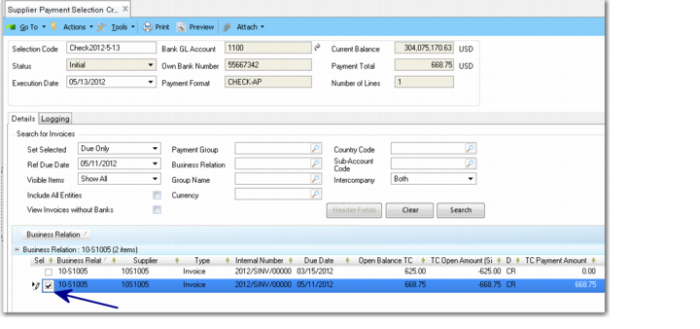
12 Click the Search button and select the invoice to pay.
Supplier Payment Selection Create, Search
13 Use Supplier Payment Selection Confirm (28.9.4.5) to confirm your payment selection.
Menu Search
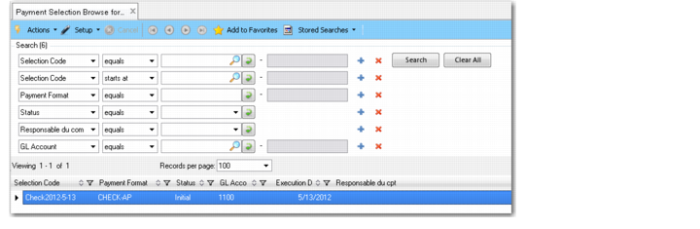
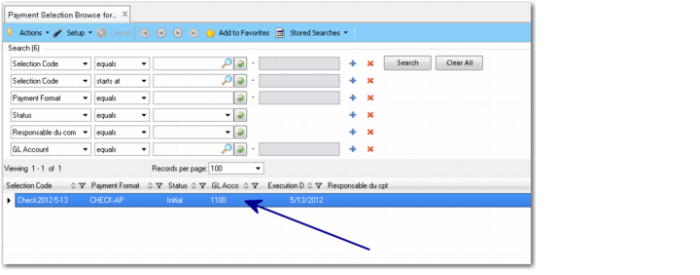
14 Double-click the code to select the payment selection.
Payment Selection Browse
15 Click Confirm. Click Close.
Supplier Payment Selection Confirm
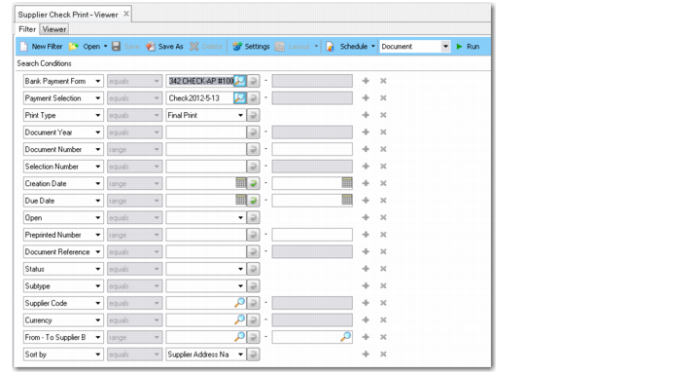
16 Use Supplier Check Print (28.9.9.3) to print your check.
Supplier Check Print
Field | Value |
Bank Format: | 55667342 CHECK-AP (select from the drop-down list) |
Payment Selection: | Type “Check2012-5-13” or use the look-up to select this value. |
Print Type: | Select Final Print from the drop-down list. |
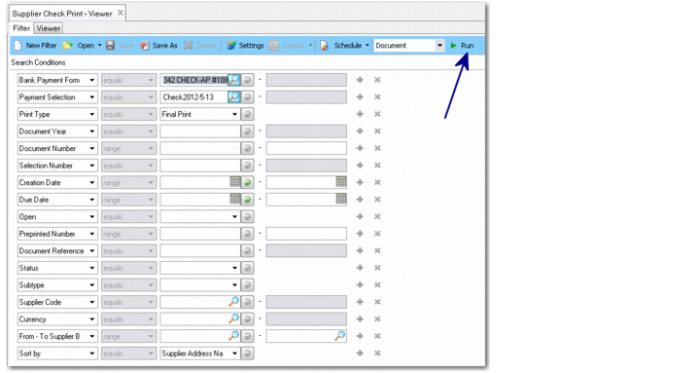
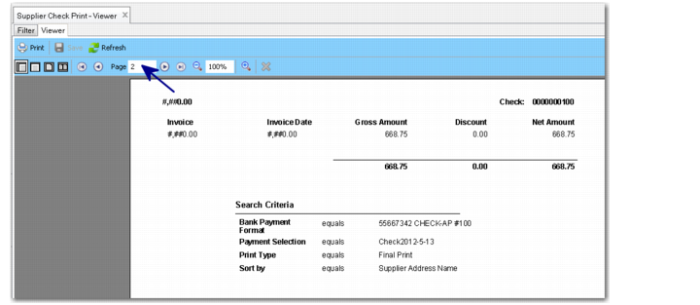
17 Click Run to print your check (2 pages of output).
Supplier Check Print, Run
Supplier Check Print, Report
18 Use Supplier Activity Dashboard (28.18.1) to review.
Field | Value |
Supplier Code: | 10S1005 |
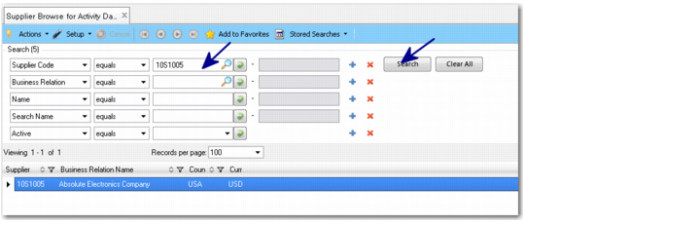
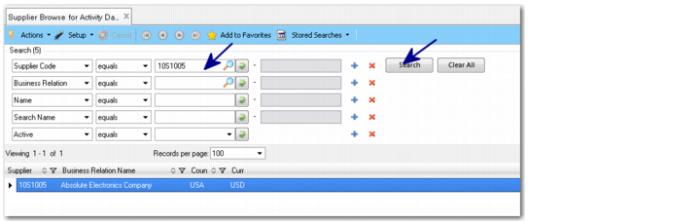
Supplier Browse for Activity
19 Double-click the supplier in the browse to launch the dashboard for that supplier.
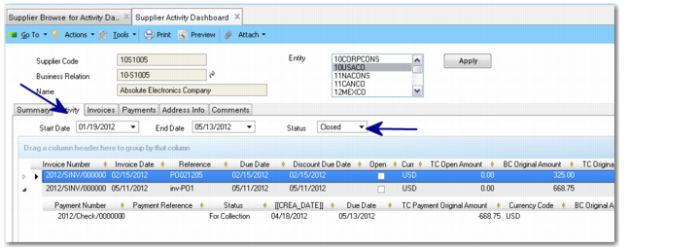
20 Click the Activity tab in the dashboard to review the activity.
Supplier Activity Dashboard, Activity Tab