Screen Customization
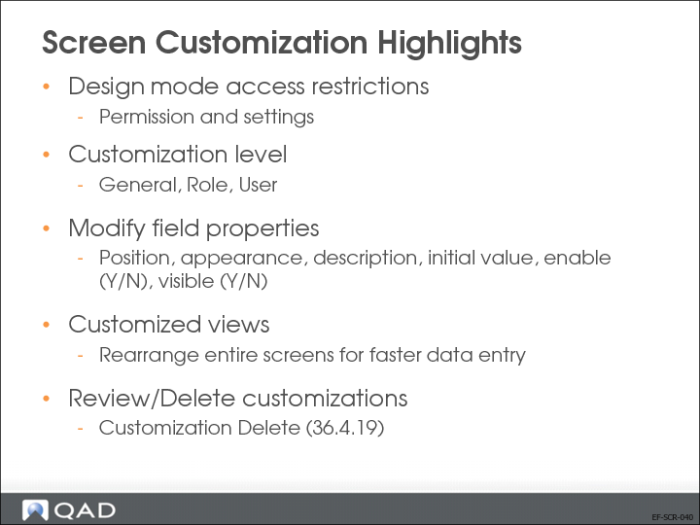
Design mode lets you add, move, or remove fields and tabs, and modify field properties. In addition, you can create predefined column views for screens that contain grids.
The customizations you create can apply to yourself, all users with the same default role, or to all users in the system. You are prompted to specify the customization level when you start and save the customization.
You access design mode by selecting Design Mode in the Tools menu in the screen that you want to customize.
When you select Design Mode, the system prompts you to choose one of the following customization levels:
• General. The customizations are effective for all users.
• Role. The customizations are effective for all users who have the selected role as their default role.
• User. The customizations are effective for you only.
In design mode, a gray border is displayed around all fields. When you select a field, its border color changes to red. By selecting the border, you can drag and drop a field or modify its properties.
The Field list/properties window displays the properties that control the appearance of the selected field.