Forecast Simulation Processing
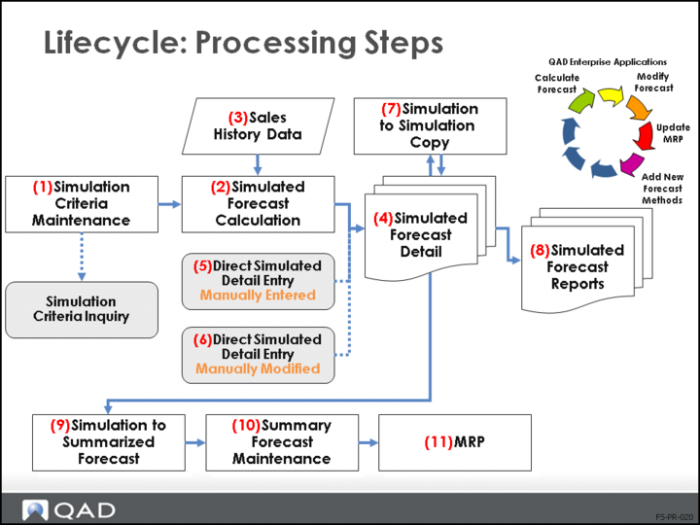
Workflow: Processing Steps
• The highlighted items in the lifecycle shown here are the steps performed while processing the forecasting simulation module
• Steps 4 and 8 shown here are results, not actions
Use Forecast Simulation
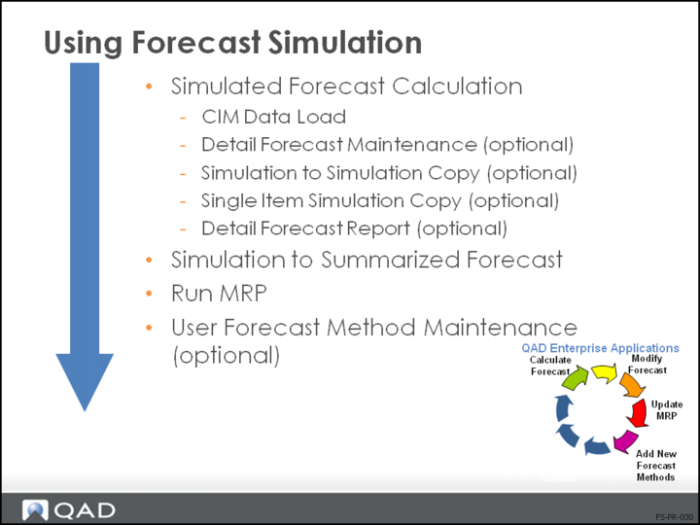
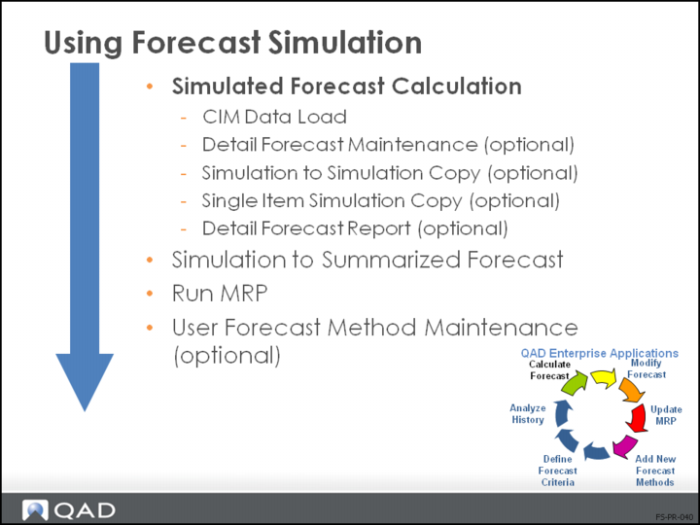
This illustration is a suggested processing sequence for Forecast Simulation based on information that flows from one type of data to another and prerequisites.
.Run Forecast Simulation Calculation
• Simulated Forecast Calculation analyzes an item’s sales history and predicts what quantity will be sold in the future
• Forecast quantities are maintained in forecast detail records
• There are four ways to create a forecast detail record:
• Run the forecast calculation using sales history and a specified forecast method
• Use the CIM interface and load a forecast generated elsewhere
• Create a forecast detail record by entering forecast quantities
• Copy existing forecast detail records to a new forecast ID
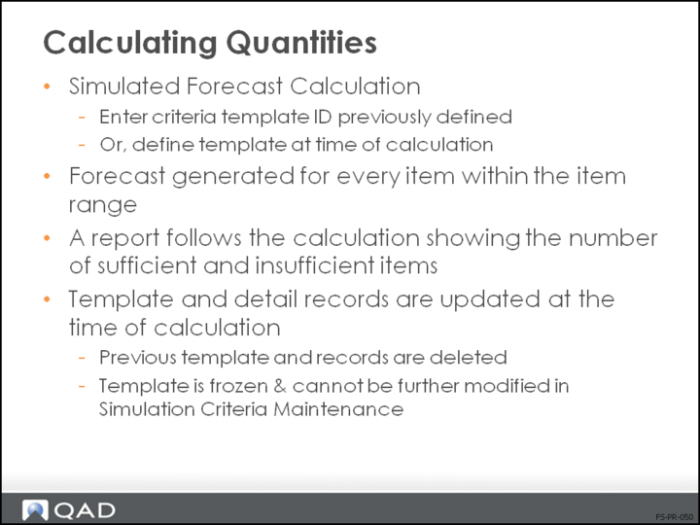
Calculating Quantities
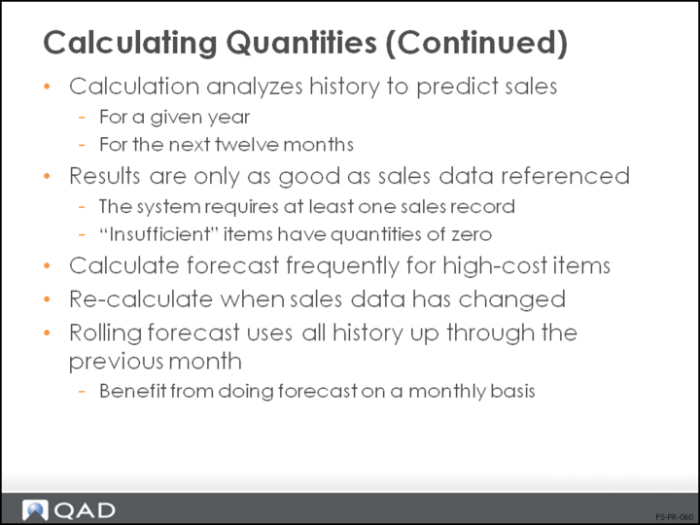
• At least one sales record is required to produce nonzero forecast quantity
• When insufficient history exists to create a valid forecast, the detailed forecast record is created with quantities of zero and the item is printed out as insufficient
Note: Negative results are shown as zeros.
To generate a forecast:
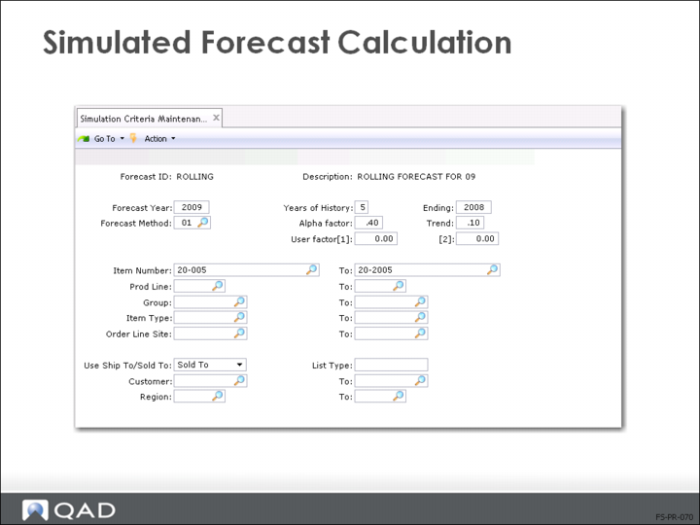
1 Identify the criteria template. If a criteria template has not been previously defined for a given ID, you can define the criteria template at the time of the calculation.
2 Specify an output device for the generated report of calculations.
3 After the calculation is run, the template and detail records are updated. Previous templates and records are deleted. The template is frozen and cannot be further modified.
Simulation Forecast Calculation
• Sales history data is analyzed to predict sales quantities for the year specified
• This calculation can take some time to process. Submit it in batch mode
• The calculation requires a criteria template
• You can use the criteria template defined in Simulation Criteria Maintenance (22.7.1) and stored in the system by forecast ID
• Or you can define the template here
• Items must exist in the item master
• When Ship-To and regions are defined to select the sales history data, only permanent Ship-To addresses in the address master are in the selected region range
• At least one sales record is required to produce a non-zero forecast quantity
• When insufficient history exists to create a valid forecast, a forecasting master record is not created and the item is printed out as “insufficient item”
• Negative results are shown as zeroes
• Memo items and drop shipments are excluded from any forecast calculations
• To recover a deleted forecast record, run the calculation again
• Control access to this function with security
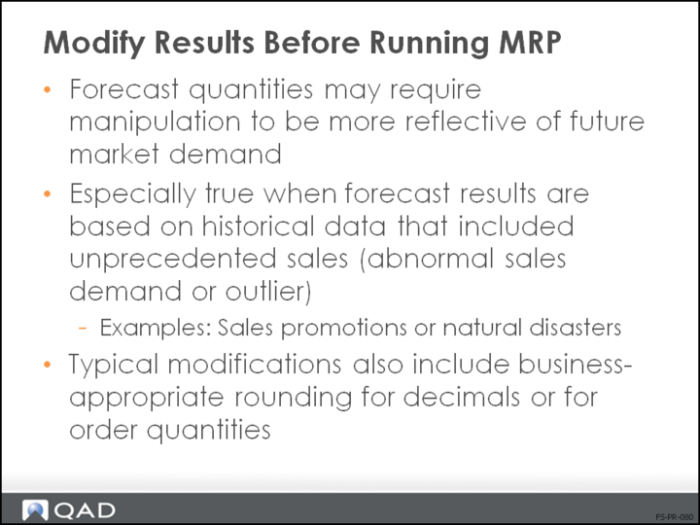
Modifying Forecast Results
• Adjust the forecast results whenever there is a reason to expect future demand to differ from sales history
• Abnormal sales demand (outlier)
• Unwanted decimal sales quantities from calculations
• Adjust results before copying forecast quantities to MRP
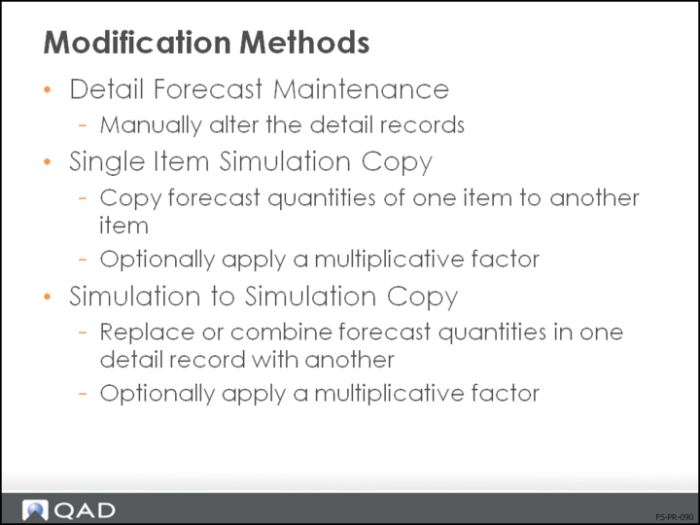
Modification Methods
• Three most common ways to adjust forecast quantities manually are:
• Detail Forecast Maintenance (22.7.7)
• Simulation to Simulation Copy (22.7.11)
• Single Item Simulation Copy (22.7.12)
• You can also load forecast records from outside QAD Enterprise Applications with a CIM load