Items
You create item records for items and products stored in inventory and/or planned by MRP or DRP. The item master table contains records for all items, regardless of site. Item records contain data used throughout QAD Enterprise Applications.
You must create an item record/number for every inventory item. There are two ways you can do this using:
• Item Master Maintenance (1.4.1)
• Item Data Maintenance (1.4.3)
Item records contain six categories of item data:
• General
• Inventory
• Shipping
• Planning
• Price
• Cost
You can add item data using:
• Item Master Maintenance(1.4.1)
• All categories
• Item Data Maintenance (1.4.3)
• General data
• Item Inventory Data Maintenance (1.4.5)
• Inventory data
• Shipping data
• Item Planning Maintenance (1.4.7)
• Planning data
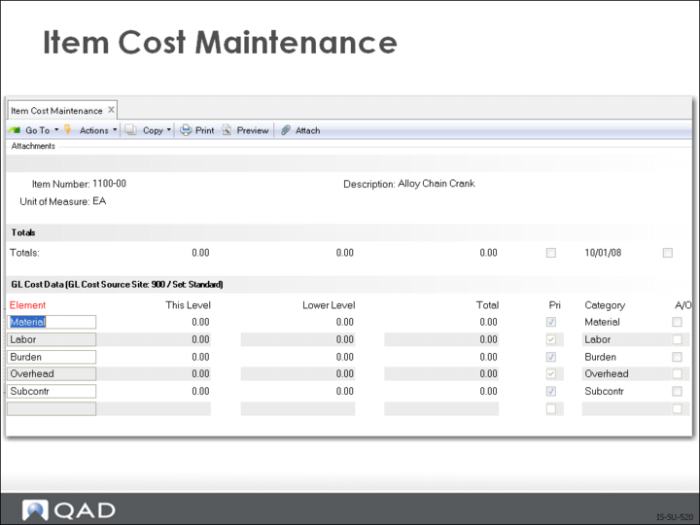
• Item Cost Maintenance (1.4.9)
• Price data
• Cost data
• Item Master Copy (1.4.12)
• Copies all the item master data for one item to a new item number then allows changes
Note: These screens enable flexibility in setting security for different types of information.
Note: Items cannot be deleted using Item Master Maintenance (1.4.1) if there are any active transactions on the system, or inventory balances.
Item Master Maintenance
Use to add and maintain item numbers at the default or primary site. You must set up item numbers for every inventory item.
The same item can be linked to different sites. You can control, plan, and cost items separately at each site by using:
• Item-Site Inventory Data Maintenance (1.4.16)
• Item-Site Planning Maintenance (1.4.17)
• Item-Site Cost Maintenance (1.4.18)
If the item’s general data is different between sites, you need to create a new item for each site. Once you create an item-site record for an item, future modifications to that item must be done using the item-site programs listed above. This applies even if you are modifying the default or primary site.
Field Definitions: General Item Data
General item data is basically static information identifying the item and providing descriptive data. It appears on reports (item number, description) and groups items for planning and reporting (product line, group, and item type). General data must be valid for all sites. If an item’s general data varies by site, you must set up each item using a different item number at each site.
Item Number
The system places no constraints on the item number, except for its length, which can be a maximum of 18 characters
UM
Indicates the unit of measure in which this item is stocked and planned. The default is EA (each). Define the units of measure you require then validate the field using Generalized Codes.
Description
When completing the description, keep in mind that QAD Enterprise Applications allows you to select items by description. There are two lines in the description:
• First line appears on reports, inquiries, and printed documents
• Second line provides additional information about the item and can appear on reports, inquiries, and printed documents if space permits
Prod Line
Items are assigned to product lines
Added
The date this item/product was first entered into the system. The default is the system date
Design Group
Identifies the group of users responsible for the design of this item
Promo Group
The Promo Group field is significant only if you are using the Trade Management (TrM) module.
Item Type
An optional code you can use to categorize similar items. Items can be selected for cycle count based on item type
Status
An optional code identifying the status of an item/product
Group
An optional code you can use to categorize similar items
Drawing
An optional engineering drawing number for this item/product; for reference only and may appear on some selected reports and inquiries
Revision
An optional code identifying the engineering revision of this item
Drawing Loc
User defined code representing the storage location of the engineering drawing
Size
User-defined code representing the size of the engineering drawing
Price Break Cat
Categorizes or groups items that need to be accumulated together to get a better quantity break; used by Best Pricing module
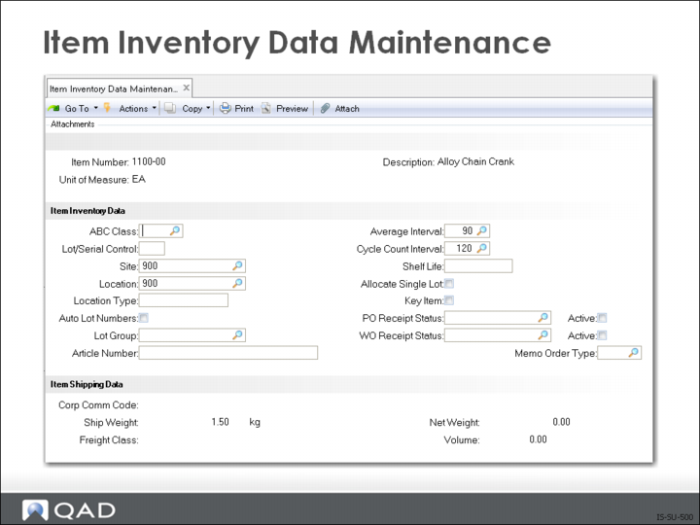
Item Inventory Data
Item inventory data is control data that controls QAD Enterprise Applications inventory functions). It is responsible for the security, movement, accuracy, and (in some cases) the allocation of inventory. These fields are used in:
• Inventory control ABC classification
• Inventory transactions
• Allocations and picking
• Cycle counting
Field Definitions
ABC Class
A code classifying and ranking this item/product. ABC classification codes determine the cycle count frequency and the error tolerance allowed for each item
Lot/Serial Control
All inventory functions look to this field first to see if a lot or serial number is required to issue the item
Site
The site where the item is normally produced or stored. This site code will default into all inventory transaction screens for this item to save effort. This should be the site that will generate the most transactions.
Location
An optional location code indicating the physical location where this item is normally stored. This location code will default into all inventory transactions screens for this item to save effort. This should be the location that will generate the most transactions.
Location Type
A code identifying the type of location this item should be stored in Useful for items with special storage requirements, such as temperature or humidity
Auto Lot Numbers and Lot Group
Settings determine if lot numbers are automatically assigned and if so, the format the system uses
Article Number
The article number associated with this item. This field is for reference only and may appear on some selected reports and inquiries
Avg Interval
The number of calendar days used as an averaging interval for this item. The default is 90 days
Shelf Life
The number of days from the receipt of an item until it should not be used. Items that are beyond their shelf life cannot be used.
Allocate Single Lot
The item issue quantity must be from a single lot number
Key Item
A work order that is short a Key Item cannot be released
PO Rcpt Status (PO Receipt Status), WO Rcpt Status (WO Receipt Status), and Active
Set default Inventory Status Codes for these transactions
ABC Class and Cyc Cnt Int
Control cycle counting. These are set by the system using Item ABC Status Report/Update (3.6.3 or 1.5.9)
Item Shipping Data
Contains the item data used to determine the item’s freight costs.
• System uses this data to calculate freight charges when shipping the item
• Sales orders use the ship weight and freight class for inventory items
• Freight Class, Net Weight, Size, and Ship Weight are used by distribution functions in shipping
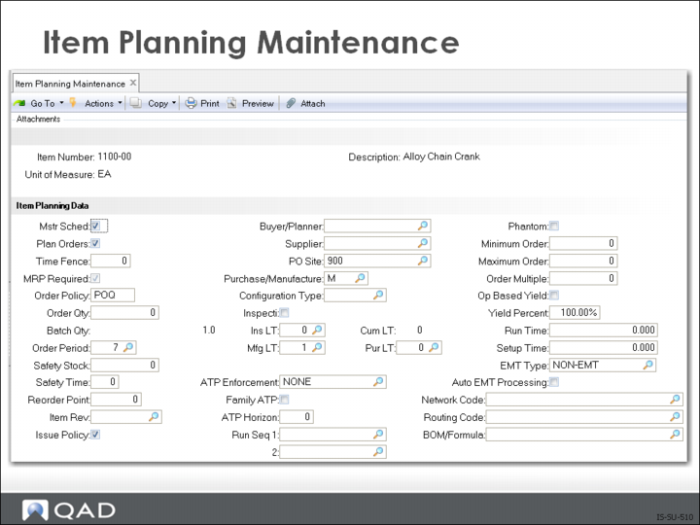
Item Planning Data
Item planning data is control data that controls planning and manufacturing functions. The data you enter in this section determines how and when to replenish/plan inventory. This data affects:
• MRP
• Purchasing
• Manufacturing (work orders, repetitive schedules, and master scheduling)
• Configured Products
• Costing
You can add or modify item planning information using: (continued on next page)
• Item Master Maintenance (1.4.1)
• Item Planning Maintenance (1.4.7)
• Item-Site Planning Maintenance (1.4.17)
If your planning data differs between sites, you can use Item-Site Planning Maintenance to create item planning information that is specific for a given site. The item’s general information remains the same between sites. The MRP course covers this in detail.
Field Definitions
Mstr Sched
Check yes if the item is forecast or master scheduled
Plan Orders
Check yes if MRP should create planned orders for the item. If planned orders is no, and Order Policy is a valid code MRP plans requirements and generates action messages
Order Policy
How MRP should plan the item; there are five valid options
POQ - Period Order Quantity
FOQ - Fixed Order Quantity
LFL - Lot for Lot
OTO - One Time Only
Blank - When blank MRP ignores the item
If the field contains a non-valid value, and planned orders is yes, MRP will default to LFL
Pur/Mfg
The Pur/Mfg (Purchased/Manufactured) field is where all planning functions look first. Determines how items are planned, how costs are calculated, and how cumulative lead times are calculated. You have nine options to choose from:
[P]urchased
[D]RP
[M]anufactured
[R]outable
[C]onfigured
[L]ine Manufactured
[W]Flow Scheduled
[F]amily
[Blank] - Optional use with co and by-products
EMT Type and Auto EMT Processing
EMT Type and Auto EMT Processing are significant only if you are using the EMT module. EMT Type determines the type of EMT processing to be followed. Your options are:
• TRANSHIP
• DIR-SHIP
• NON-EMT
If you are not using EMT, select NON-EMT.
Set the Auto EMT Processing field to Yes if you are using multi-level EMT processing and want to have the system automatically create an EMT purchase order
Network Code
Used with DRP to define source network for this item
Routing Code
An alternate route (route code not equal to item code) to be used in planning this item
BOM/Formula Code
An alternate product structure or formula (code not equal to item code) to be used in planning this item
Note: For more details on item planning parameters refer to the following training materials:
MRP/CRP Fundamentals, Master Scheduling, Work Centers and Routings, and Product Structures
Item Cost Data
Item cost data is divided into three sections:
• Price
• GL cost
• Current cost
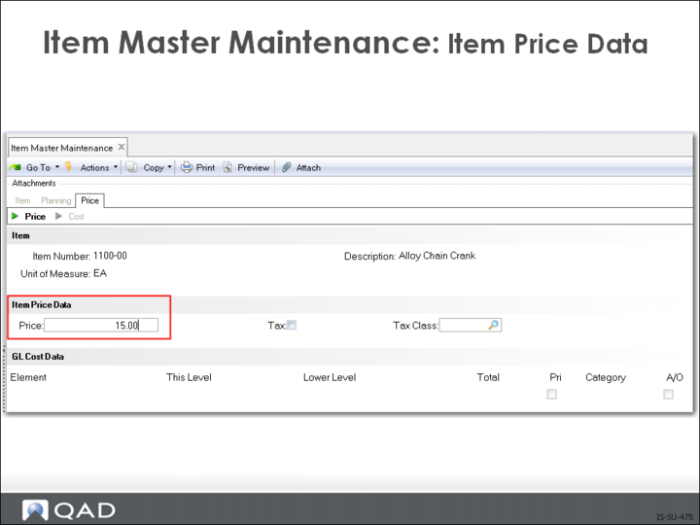
Item Price Data
• Is entered in the system base currency
• Becomes the default list price in sales transactions
• Controls the price of the item at this site (specified in the Inventory Data section)
• Controls the item’s tax status
• Is the same for the item at all sites
Cost Data
• Every item has at least two costs, GL and Current
• GL cost is the cost the system uses on all GL transactions
• Current cost is today’s cost, which the system can maintain as the Last or Average cost (purchase, labor, burden, and subcontract)
• The cost information can be different for each site
• In a multi-site environment the cost must be specified for each site
• Default cost applies only to the default site
• Cost at other sites is zero until it is set up either in Cost Maintenance or by copying or assigning a cost set to each site
• Most reports print either GL or current cost
There are this-level (Level 0) and lower-level costs. Each has five standard categories:
• Material
• Total cost for an item
• Labor
• Cost of direct labor used in producing an item
• Burden
• Also referred to as variable burden or variable overhead
• Cost of operating a business that cannot be directly related to an item
• Overhead
• Also referred to as fixed burden or fixed overhead
• This is a cost category that permits costs to be maintained outside of burden
• Subcontract
• Outside processing or assembly cost added to a product by outside vendors
Note: An unlimited number of additional categories can be set up if you are using the Cost Management module.
You can add or modify item cost information using:
• Item Master Maintenance
• Item Cost Maintenance
• Item-Site Cost Maintenance
• Item-Element Cost Maintenance
If your cost data differs between sites, you can use Item-Site Cost Maintenance or Item-Element Cost Maintenance to create individual item site cost information. The item’s general information, price, and tax status remain the same between sites.
Use Cost Set Copy to Cost Set and Cost Set to Site Assignment to allocate costs to sites in a multi-site environment.
Warning Costs are copied for items with cost, planning or inventory data already set up in the target site.
Note: Refer to the Product Costing and Cost Management Training Guide for complete details on costing.
GL Cost Data
• Functions that create GL transactions use the item’s GL cost
• Standard cost is the default, but you can change it to average cost using Cost Set Maintenance (30.1)
• You can change standard costs manually
• The system maintains average costs as it processes inventory transactions
• Costs used for valuing inventory and for determining cost of goods sold
Current Cost Data
• Normally based upon recent production and/or purchases
• You can use current costs for comparison in combination with standard or average costing
• The system keeps current costs by average or last purchase or manufacturing cost
Item Data Maintenance
Use to add a new item number. You can also enter or modify general item data.
Adding an item number using Item Data Maintenance does not link the item to a site, and does not create the item’s control data. You must add the control data at each site where the item is going to be located. To do this you can use:
• Item Inventory Data Maintenance (1.4.5)
• Item-Site Inventory Data Maintenance (1.4.16)
• Item-Site Planning Maintenance (1.4.17)
• Item-Site Cost Maintenance (1.4.18)
Item Inventory Data Maintenance
Item inventory data consists almost entirely of data that controls QAD Enterprise Applications functions.
• Most data applies to the item at all sites
• Some data can be defined differently for each site
• ABC Class
• Cycle Count Interval
• Status
• Item inventory data is accessed by:
• All inventory transactions
• Receipts
• Returns
• Issues
• Shipments
• Transfers
• Sales and work order allocations
• Work order release functions
• All inventory functions look at the item Lot/Serial Control field first
[L] or [S] = the inventory is not issued without a number
• Shelf Life, Allocate Single Lot, and Key Item further limit issues or transfers
• PO Rcpt Status, WO Rcpt Status, and the Active fields set default inventory Status Code codes
• ABC Class and Cycle Count Interval control cycle counting
Item Planning Maintenance
Use to enter an item’s planning data.
• You cannot create a new item number
• You can only access the item’s planning data
Item planning data is control data—it controls planning and manufacturing functions.
• All planning and manufacturing functions use item-site planning data
If an item is used at multiple sites, planning data can be set up differently for each site using Item-Site Planning Maintenance (1.4.17).
Item Cost Maintenance
Use to enter an item’s costing information.
• You cannot create a new item number
• You can only access the item’s cost data
If an item is used at multiple sites, cost data can be set up differently for each site using Item-Site Cost Maintenance (1.4.18).
Exercise 4: Item Data
Instructions: Using the new product line that you created earlier, add the item data for the new ink cartridge.
1 Use Item Data Maintenance (1.4.3) to enter the following information, leaving the remaining fields blanks:
Field | Data |
Item Number | 05-0579 |
UM | EA |
Description | Prototype Ink Cartridge High Quality |
Prod Line | 1300 |
Promo Group | PG1 (If not available, choose Edit and add PG1) |
Item Type | FINGOOD |
Item Status | Active |
Rev | A |
Accept the remaining defaults.
Check Item Planning
1 Use Item Planning Maintenance (1.4.7) to check item planning by selecting item number 05-0579.
Make sure that the Pur/Mfg code is set to M (manufactured).
Also check that the Mfg LT and the Pur LT are set to 0.
Review your items
2 Use Item Browse/Inquiry (1.6) to review the items set up on your database.
Your new item should display.
Exercise 5: Item-Site Data
Instructions: This new item is stocked at two sites, the default site and the site you just created.
The planning data is different at each site. Add the item to the newly created site.
1 Use Item–Site Planning Maintenance (1.4.17) to select item number 05-0579.
Move your cursor to the Site field and enter 900.
Advance to the next screen.
Change the Mfg/LT to 3.
Review Planning Info
2 Use Item–Site Master Inquiry (1.4.11) to review the planning information for item 05-0579.