Inventory Control
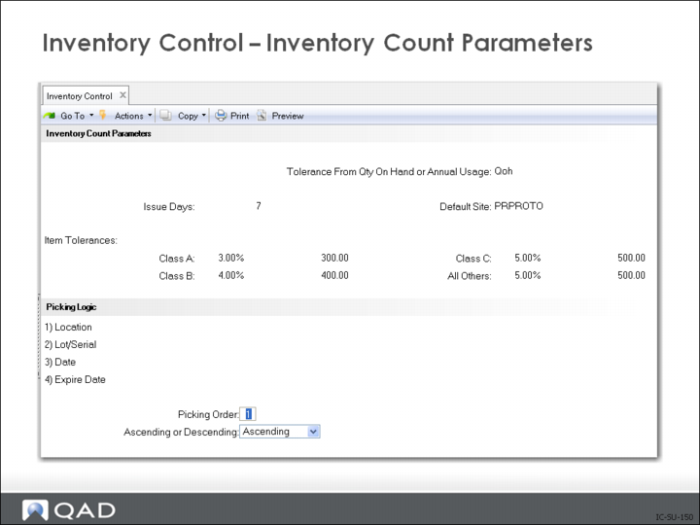
Inventory Control (3.24) sets count tolerances, establishes accounting procedures, and defines picking logic. Settings in this program enable the system to:
• Identify inventory imbalance
• Update item current cost
• Generate GL transactions
• Prioritize item picking
Inventory Count Parameters
Issue Days
The number of calendar days before expiration that an item with limited shelf life can be picked or issued. Shelf life is usually only defined for items that deteriorate over time.
Shelf life automatically sets the expiration date for inventory. The system adds the number of days shelf life to the receipt date. This can be changed manually as needed. Inventory that has expired (or will expire within issue days) does not appear on picklists as a quantity to be picked.
Item Tolerances
Tolerances are set up by ABC class. This allows a greater degree of control over class A and B items than others.
Setting tolerances based on annual usage further refines this by putting tolerance into perspective with the amount of use of an item.
Cycle Counting and Physical Inventory functions use this whenever a count is entered that is different than the quantity-on-hand recorded in the system.
Error tolerance is calculated and used to determine whether the entered count should be accepted or flagged as an error. Both percentage and amount tolerance is checked. The error must be within both tolerances for it to be accepted.
If the tolerance method is:
• Q (QOH), item tolerances are calculated as a percentage of quantity-on-hand.
• U (Usage), item tolerances are calculated as a percentage of annual usage.
Value (currency) tolerance is always checked.
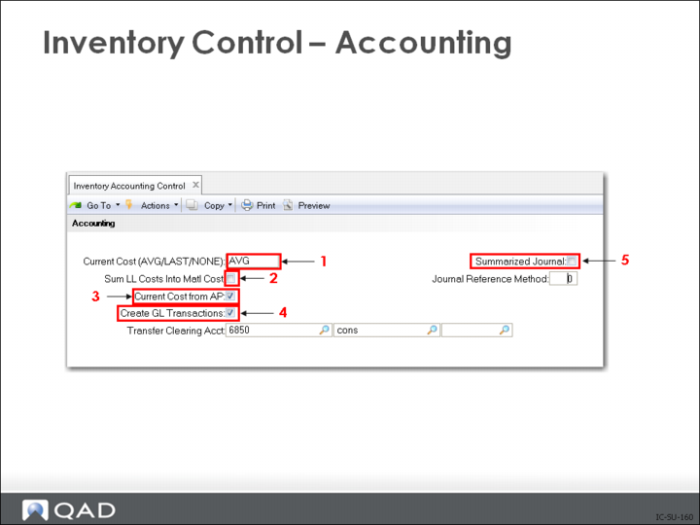
Inventory Control – Accounting
Note: In QAD Enterprise Edition, financial control settings are updated separately from operational settings in Inventory Accounting Control (36.9.2). This supports detailed segregation of duties assigned with role-based security. In QAD Standard Edition, all control settings are updated in Inventory Control.
1 How current cost is calculated
Current Cost
Specify the method to use for updating current material, labor, and burden costs.
When you have the Cost Management module (Menu 30), this is the default update method for all sites that do not have site-specific cost sets defined in Cost Set to Site Assignment (30.9).
When you do not use Cost Management, this setting applies to all sites in the system.
Valid values are:
• Average (default): Current costs are updated during item receipts and other inventory-related activities using a simple weighted-average calculation
• Last: Each item’s current cost is equal to the unit cost from the last receipt or inventory update.
• None: The system does not automatically update current costs. They must be maintained
2 Fold-in or roll-up costs for manufactured items
Sum LL Costs Into Matl Cost
Usually this field is set to No. It specifies how lower-level costs are posted to Cost of Goods Sold. Usually this field is set to No.
However, in some companies, the material cost for an end item is considered to include all costs associated with purchasing or manufacturing components, as well as any direct material costs. Then this field is set to Yes.
If this field is No, lower-level costs are added to this-level costs for each cost component and the total posted to Cost of Goods Sold.
For example, the total material cost (this-level plus lower-level) is posted to Cost of Goods–Material, the total labor cost is posted to Cost of Goods–Labor, and so on for Cost of Goods–Burden, Overhead, and Subcontract.
If this field is Yes, all lower-level costs are summarized into Cost of Goods–Material. Only this-level costs are posted to Cost of Goods–Labor, Burden, Overhead, and Subcontract.
This field does not affect the way costs are calculated or stored in cost sets.
3 Should current cost be modified during Accounts Payable activities
Current Cost from AP
This field indicates whether current cost should be affected by AP Rate Variances calculated in Accounts Payable.
If this field is Yes, current material cost is updated to reflect AP Rate Variances. These are variances between the supplier invoice cost and the purchase order cost.
If this field is No, these price variances are not reflected in current cost.
4 Create GL transactions from inventory activity
Create GL Transactions
This field indicates if general ledger (GL) transactions are to be created by inventory activities.
• If this field is set to Yes, all inventory issues, receipts, count adjustments, and transfers will create a GL transaction reflecting the change in inventory asset balances. In addition, any transactions that affect work-in-process inventory will create GL transactions, including work order issues and receipts. Companies who do perpetual inventory accounting should set this field to Yes, taking advantage of the automatic journal transactions created by QAD Enterprise Applications.
• If this field is set to No, GL transactions will not be created. Companies using periodic inventory accounting normally set this field to No.
With periodic accounting, the accountant manually calculates Ending Inventory based on Beginning Inventory plus Purchases less Cost of Goods Sold. Manual journal entries must be made to post the Purchases and Cost of Goods Sold amounts, because these will not be posted automatically by the system.
This field does not impact Memo item transactions. These do not create GL transactions regardless of this field.
Another alternative is to allow QAD Enterprise Applications to create the journal transactions but not to post them. This is useful for creating manual journal entries under periodic accounting, or if you are using an external general ledger system. GL transactions can be printed and then deleted using the GL Transactions Report / Delete function on the Manager Functions menu.
Transfer Clearing Acct
Enter the GL account code used to track transfers within a site or between sites in the same entity. Transfers between sites in different entities are tracked using the Intercompany Transfer account. If this account is blank, the Purchases account of the item product line is used.
Account code is one component of an account number defined in GL setup functions. Other components of an account number are sub-account, cost center, and project. Project codes are not available for all GL transactions. Each component you enter must be valid on its own and in combination with other account number components.
Note: You can enter an allocation code, which represents a set of accounts, in any account field. During GL transaction post, the system automatically divides transaction amounts among the set of accounts, based on percentages defined in Allocation Code Maintenance.
5 Determines how inventory transactions are created
Summarized Journal
All Inventory transactions normally create GL journal transactions. These may be created in detail, with one general ledger transaction for each Inventory transaction, or in summary by day.
Summarized Journal is Yes creates summarized journal transactions by day; generating just one transaction for each entity, account, sub-account, cost center, and project combination used. No creates detailed transactions.
The AR amount of the transaction is always summarized for posting regardless of how you set this field.
When you first implement QAD Enterprise Applications, we recommend you create detailed journal entries. You can verify that each transaction is being processed correctly with the right account numbers, and can identify any mistakes.
Once you feel confident that entries are being correctly made, you can switch to a summarized journal that takes less space and is easier to handle in the GL. Greater detail is always available by printing transaction registers in the original module.
If you have lots of disk space, you may want to consider posting in detail. This can make the GL Account Inquiry with Drill-Down extremely powerful, allowing you to review any GL transaction and drill back to the individual inventory transaction that created it.
Journal Reference Method
This field controls the summarization method when field Summarized Journal (icc_gl_sum) is set to Yes.
• Method 0 generates one summarized journal transaction for each combination of date, entity, account, sub-account, cost center, and project. Method 10 generates one summarized journal transaction for each active session.
• Setting Summarized Journal to Yes creates summarized journal transactions by day; generating just one transaction for each entity, account, sub-account, cost center, and project combination used.
• When Summarized Journal is No, this field has no effect, but must be zero.