Physical Inventory
During physical inventory, production is stopped and many people are involved counting inventory. Every item is counted and there is usually no time to resolve problems associated with an incorrect balance.
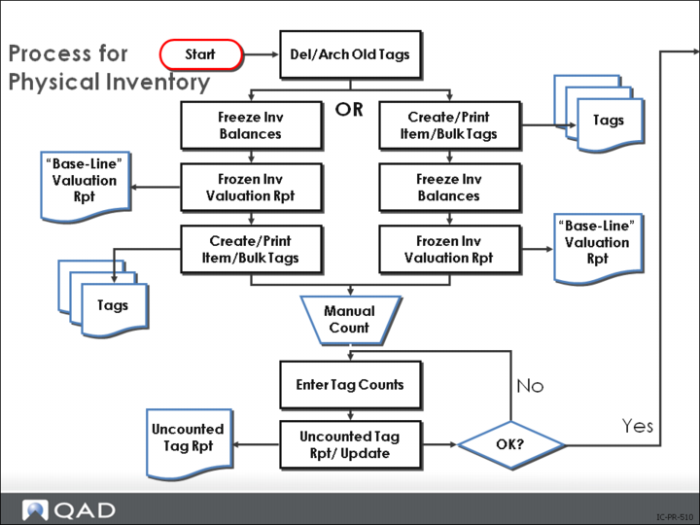
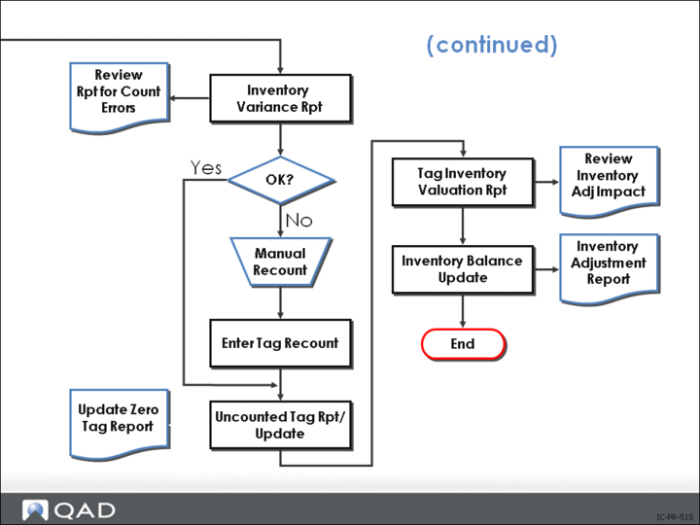
This slide shows the basic process. When the process is completed successfully (OK is Yes), it continues on the next slide.
Tag Delete/Archive
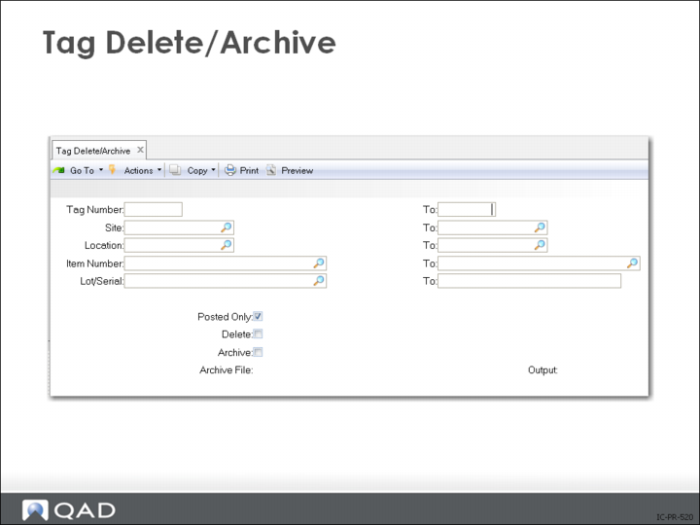
Before creating new tags for the physical inventory, delete tags from the last physical inventory. Do this either after completing the physical inventory or before starting the next one. Usually you only delete tags posted using Inventory Balance Update (3.16.21).
Tag Delete/Archive
• Deletes specified tags
• Archives deleted tag information
• Generates a report showing all deleted tags
Inventory Balance Freeze
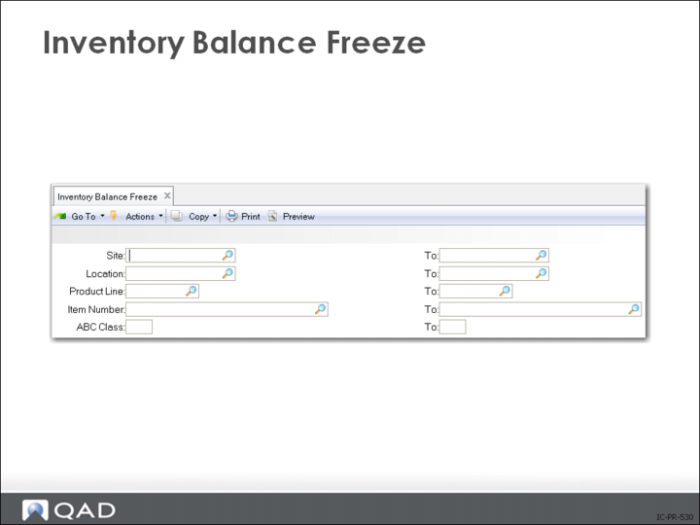
Freeze inventory balances before entering item counts. This makes a copy of the current quantity on hand for all selected inventory and this copy becomes the frozen inventory. The system uses the frozen inventory copy for all the physical inventory functions.
Enter outstanding inventory transactions before freezing inventory balances. Transactions that affect on-hand inventory balances can still be entered.
Suspend inventory transactions, especially during audited or year-end inventories to help ensure an accurate valuation of inventory and to simplify the audit process.
Freezing inventory does not prevent the system from processing regular inventory transactions on the quantity on hand. If you continue inventory transactions during the physical inventory, keep track of changes in inventory. When you enter the count quantities from the physical inventory, you must also include these changes.
The system selects inventory using one or more of the following:
• Site
• Location
• Product Line
• Item Number
• ABC Class
Create/Print Tags
• Create item tags from existing inventory balance records.
• Use tags to verify and correct quantity balances.
• Print item tags on standard-sized forms. Default form is 3 x 5 card stock.
• Create and print tags either before or after the inventory balance freeze.
• If inventory transactions are entered after item tag records are created, but before inventory balances are frozen, there may be inventory detail records without corresponding item tags, and vice versa.
• Use the tags to record the count information. If you need to recount an item, the recount information goes on the same tag.
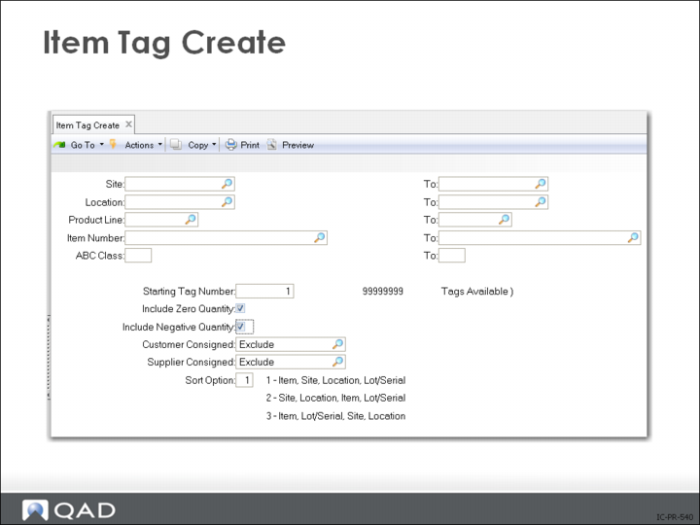
Item Tag Create
Use item tags to verify and correct quantity balances.
Create tags for every item you specify. Select items by item number, site, product line, or ABC class. If you want tags for all items in the item master table, leave the selection criteria blank.
Bulk Tag Create
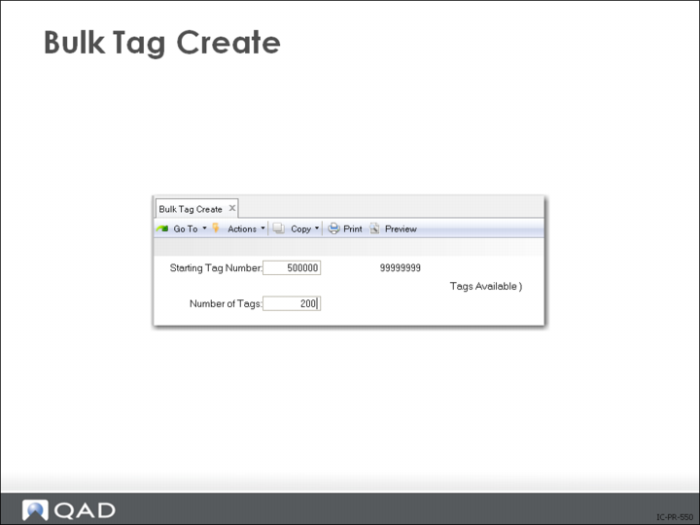
It is possible to create bulk tags that are not linked to any actual item number or location. Bulk tags are used in the event that you find an item at a location and the system has no record of it.
Create as many bulk tags as you need. They are identical to item tags, except the item information on the tag is blank. Use bulk tags to count items missing item tags.
• Before deleting bulk tags, void the tags using Tag Void Status Update (3.16.7)
Use any one of the following to find out how many bulk tags you need:
• Tag Inquiry (3.16.8)
• Tag Report (3.16.13)
• Uncounted Tag Report/Update (3.16.15)
Tag Print
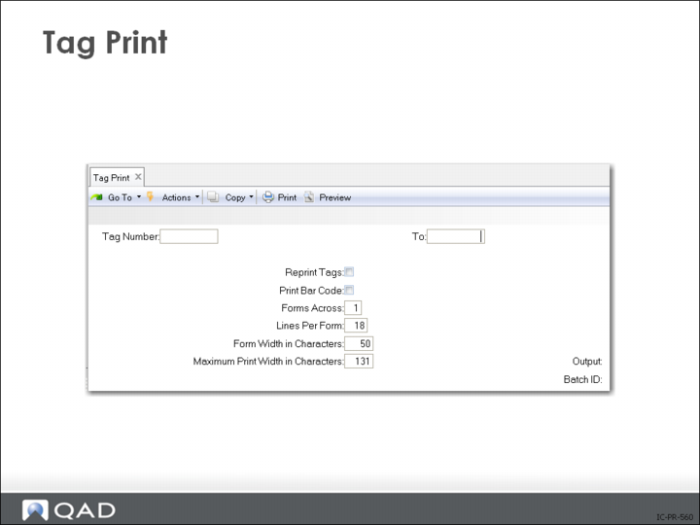
Use Tag Print (3.16.6) to print both types of tags. If there is an error in the tags, delete them using Tag Delete/Archive (3.16.23), and create and print new tags.
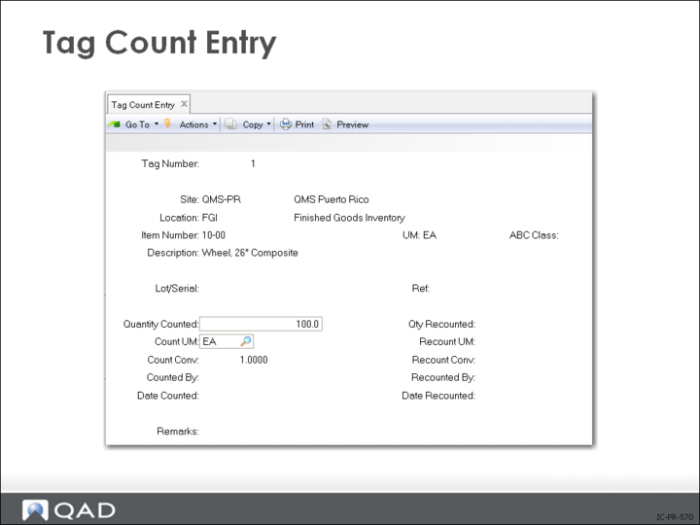
Enter Initial Tag Counts
Use to enter the tag count quantity into the system once tagged items are counted.All count quantities are accepted, even those that are out of tolerance.
Enter count quantity as of the inventory freeze. If you did not suspend inventory transactions after the freeze, you must take into consideration any inventory transaction activity occurring after it to ensure an accurate count total.
Action | Quantity |
Frozen Inventory as of 9/30 | 100 |
Issue Quantity on 10/1 | 50 |
Cost Quantity on 10/2 | 47 |
Count Quantity entered on 10/2 (47+50) | 97 |