Set Up MRP
MRP Setup
In this section, you learn how to set up MRP and CRP in QAD Enterprise Applications. This lesson covers the data required to configure a successful MRP implementation.
Reading the Training Flow
• The current step is highlighted
• Optional steps are marked (optional)
A suggested setup sequence for MRP includes three steps:
• First, verify the accuracy of your work schedules and holidays so that MRP can properly plan your activities.
• Second, set up or maintain the MRP control program.
• Third, verify the planning parameters of your items so that MRP can properly process them.
Creating Work Schedules
Here you look at how to create calendars and holidays in QAD Enterprise Applications.
Holiday Maintenance
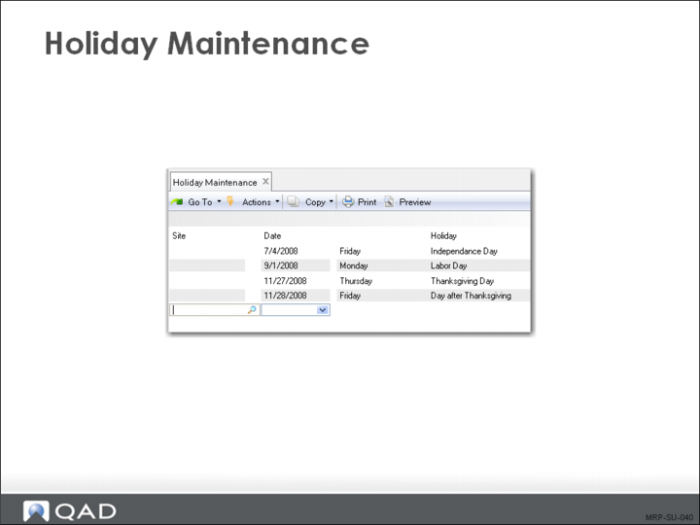
Use Holiday Maintenance (36.2.1) to schedule holidays and other nonwork days that apply to an entire site.
Field Definitions
The information shown describes the key fields in the screen.
Site
The site to which the holiday applies.
Date
The holiday date.
Holiday
A brief, reference-only description.
Calendar Maintenance
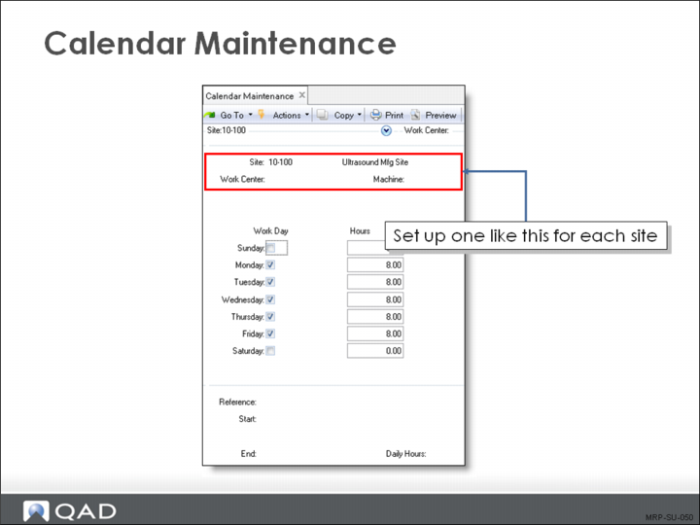
Calendars provide the basis for MRP scheduling functions. Calendars define the standard work week for a site and the work centers in it. They also define exceptions to the normal calendar, such as scheduled overtime or shutdown periods. In Calendar Maintenance (36.2.5), you can create calendars for individual work centers or for the entire site. You are required to define at least one calendar.
Field Definitions
The following information describes the key fields in the screen.
Site
You can also set up for each domain a generic calendar with both site and work center blank.
This field contains the site code to which this shop calendar applies. For each site, set up at least one calendar without specifying work centers or machines. This action sets the default for the site.
Work Center
The work center to which this shop calendar applies. A work center code and a machine code uniquely identify a work center.
Machine
The machine to which this shop calendar applies.
Work Day / Hours
Shows which days are work days and how many hours are available for work.
When calculating schedule due and release dates, the system only looks at scheduled work days, ignoring exceptions and holidays. Note:
• If you set work day to No on a Sunday, the system does not schedule a work order or purchase order due date that day.
• If you sometimes work on a Sunday, enter Yes in work day and set the scheduled hours to zero, allowing due dates to fall on a Sunday.
A reference code and a start and end date identify exceptions to the normal calendar. Use these fields to schedule overtime, increased shifts, reduced shifts, preventative maintenance, or shutdowns. The number of hours specified is added to (or subtracted from) the normal work day for each day in the range of dates specified.
Reference
A reference code identifying an exception to the shop calendar, usually describing the type of exception, such as Overtime or Shutdown.
Exceptions only record holidays if the holiday only applies to some work centers. If the holiday applies to all work centers, use Holiday Maintenance (36.2.1).
Start / End
The start and end dates of the exception.
Enter start and end dates carefully. The exception applies to all work days in the range of dates specified.
Daily Hours
Daily hours can be positive or negative. A positive number increases scheduled work hours; a negative number decreases them.