Performance Considerations and Limitations
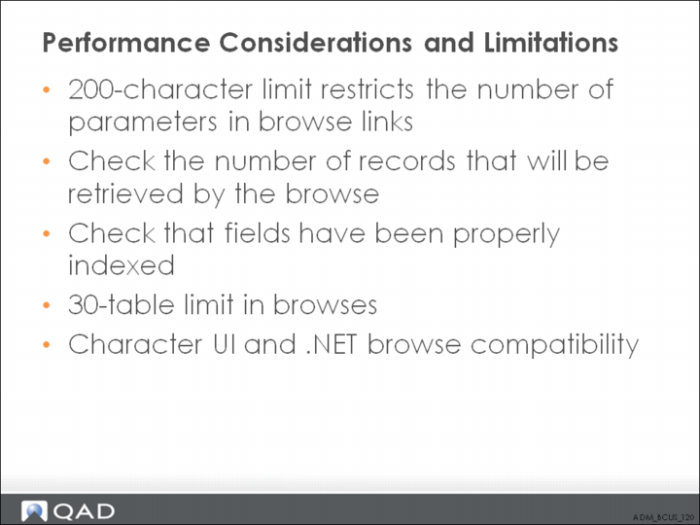
A browse on a database table that has a great many records may take a long time to save and hours to run. System resources are also strained when you select fields as search criteria that have not been properly indexed.
You should, therefore, consult the data dictionary before defining a browse, to check the number of records being retrieved by a browse. You should also check that the selected fields have been indexed.
There is no limit to the number of tables you can include using the .NET UI Browse Maintenance, but including more than 30 tables in a browse definition can cause the .NET UI browse engine to halt. The browse engine was originally designed with a four-table limit to avoid Progress performance issues. The Character UI browse engine and desktop browse engine have four-table limits.
Although all browses created by Browse Maintenance (.NET User Interface) can be maintained in the Character UI, some legacy browses defined using the Character UI might not be maintainable by Browse Maintenance (.NET User Interface). In the Character UI, you create a browse by entering data in two maintenance programs: View Maintenance and Browse Maintenance. You have to enter the join data in View Maintenance’s Join Phrase field, where join data is a clause of the form:
<from table>.<from field> = <to table>. <to field>
However, more than just join data can be entered in View Maintenance’s Join Phrase field. For example, you can include field filters of the form <field name> <operator> <value>. Browse Maintenance (.NET User Interface) only supports maintaining join data.
Browse Performance Controls
In QAD .NET UI 2.9.3.79 (2011.1 EE), if a browse runs longer than five minutes, the browse will be cancelled and the user will get a browse timeout message.
When developing custom browses with Browse Maintenance, be sure to follow the browse performance guidelines described in User Guide: Introduction to QAD Enterprise Applications. If not developed carefully, custom browses can cause performance issues.
If custom browses are causing performance issues, you can configure the system to identify those browses, send warnings to the Message Inbox, and cancel the browses after a specified time.
Cancelling the browses after a specified time prevents long-running browse queries from adversely affecting application server performance, which can affect all the users of the system. You can have the system identify, report, and eventually cancel long-running browses. You can alert administrators that a performance problem could be developing by having the system periodically send messages to the Messages Inbox.
The browse name and query conditions are included in the messages to help administrators identify problematic browses and their user-specified conditions. In general, performance issues can often center around just a few browses. To track particular types of browses, you can use regular expressions to specify the names of the browses you want to monitor and possibly cancel after some specified time. To configure the system to identify, report, and cancel such browses, use the following settings in the client session configuration file (client-session.xml):
• <NotifyRole> indicates which role (or group) of users gets notified on any browse alert. Notification is sent to the Messages Inbox. If blank, no notification is sent to administrators, but the user running the browse gets a browse timeout message.
<timeout browseId="browse_name" warnAt="interval" cancelAfter="interval"/> specifies a browse performance warning or cancellation, where:
• browseId specifies a browse name (such as ppbr100.p) or a regular expression (such as so*) to specify browse names. The default is blank, which applies the browse performance warnings to all browses.
• warnAt specifies the interval for sending warning messages to users in the <NotifyRole> role (or group). The warning messages can alert administrators that a performance problem could be developing because of a long-running browse query. The messages include the browse name and the query conditions entered by the user.
• cancelAfter specifies the minutes after which the browse will be cancelled, with 0 specifying no cancellation.
Use warnAt and cancelAfter to have the system report warnings up to some time after which the browse is cancelled automatically. For instance, in <timeout browseId="xx*" warnAt="2" cancelAfter="5"/>, the system reports warnings two minutes for all browses running whose names start with xx. After five minutes, those browses are cancelled.
The following is included in client-session.xml:
<Browse>
<Notification>
...
<NotifyRole></NotifyRole>
<timeout browseId="" warnAt="0" cancelAfter="5"/>
...
<!-- Add additional specific browse setting as required
<timeout browseId="ppbr100.p" warnAt="2" cancelAfter="5"/>
<timeout browseId="so*" warnAt="2" cancelAfter="5"/>
-->
...
</Notification>
</Browse>
Important: The browse performance settings are active by default. If a browse runs longer than five minutes, the browse is cancelled and the user gets a browse timeout message.