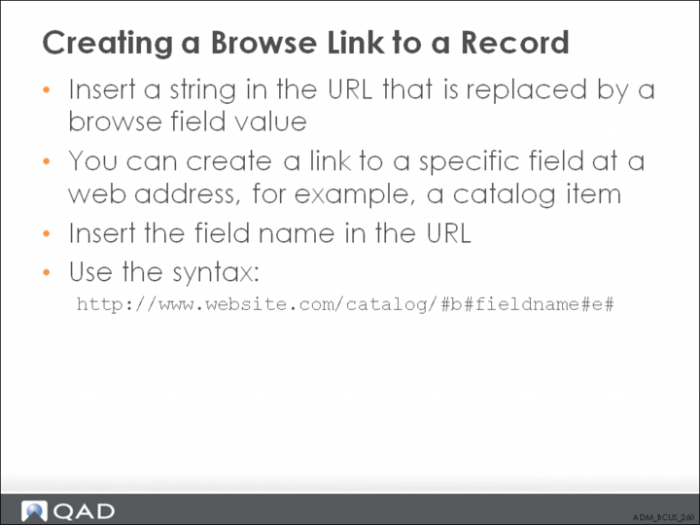
Creating a Browse Link to a Record
URLs can contain special strings that are automatically replaced by field values in the browse. Selecting a link containing this type of string automatically replaces that string with the corresponding field value in the row. Follow these steps to define this type of special string in a URL:
1 Enter #b# to indicate the beginning of the string.
2 After the #b#, enter a field name associated with the specified browse.
3 Enter #e# to indicate the end of the string.
4 The Web site for one of your primary suppliers contains a catalog of items. Entering an item’s identifier at this Web site accesses the catalog entry for that item, containing information such as item cost, quantity available, and ship weight. To create links from the supplier item numbers to their corresponding catalog entries at the supplier’s Web site, create the following URL: http://www.generalsupplies.com/catalog/#b#vp_vend_part#e#
Note: You must include http:// in the URL. For example, you must use http://www.generalsupplies.com/ and not just www.generalsupplies.com.
5 Next, associate the URL with the Supplier Item column in the Supplier Item Browse.
6 After you establish this link, selecting a supplier item number in the Supplier Item Browse automatically inserts the selected field value. For example, selecting supplier item 10-1005 creates this URL: http://www.generalsupplies.com/10-1005.
7 The system then launches a Web browser to display the relevant catalog information for that item located at that URL address.