Overview
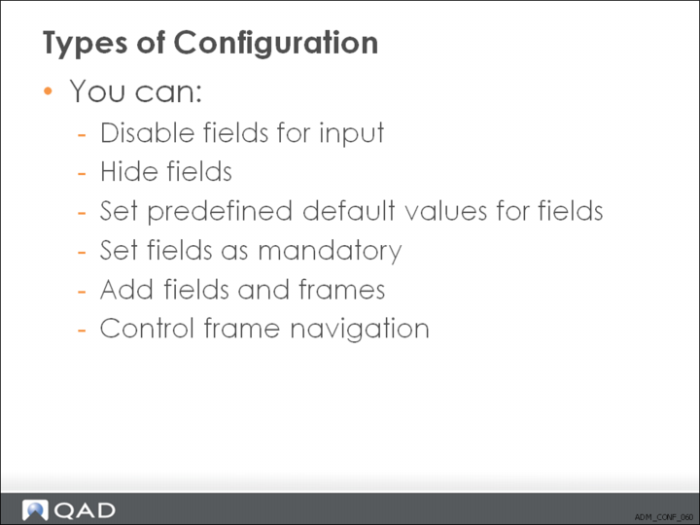
Configurable Screens lets users in a designated UI design group disable fields for input, hide fields, set a predefined default value for a field, mark a field as required, add fields and frames, and set frame navigation.
Configurable Screens is used for non-component based programs only. Component-based screens are customized using Design Mode.
Note: Access to the Configurable Screens functionality is enabled by the system administrator.
Types of Configuration
Each company that implements a particular function may use different features. This affects which fields are required and which are optional.
Configuration Examples:
• Generalized codes validation
• Optional modules
• Control settings
You must have a very clear understanding of how a particular function is being used before you change the data input requirements. You must thoroughly test the templates you create before using them in a production environment.
Users and Templates
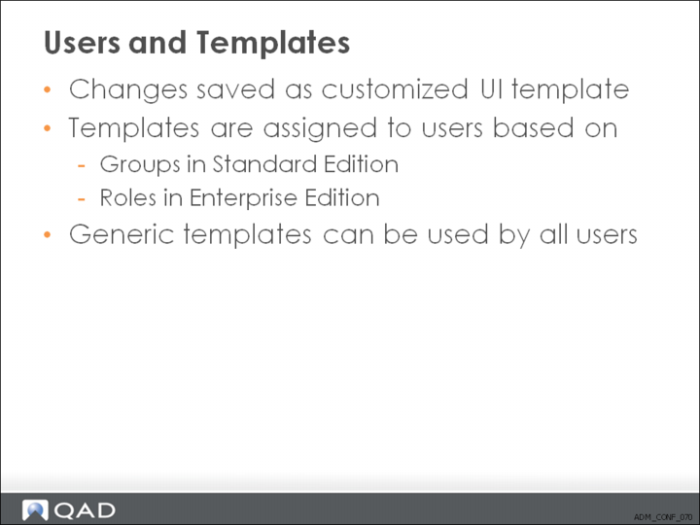
Screen definitions are stored as UI templates, which can be assigned to user groups so that the screen appearance and behavior can vary based on the user’s role within an organization.
In QAD Enterprise Applications Enterprise Edition, the user group function is replaced by the role function. To enable Configurable Screens in Enterprise Edition, you therefore enter the name of the role to which you want to assign the function in the UI Design Group setup field. The users to which this role has been assigned are then authorized to use Configurable Screens.
Error Handling and Template Conflicts
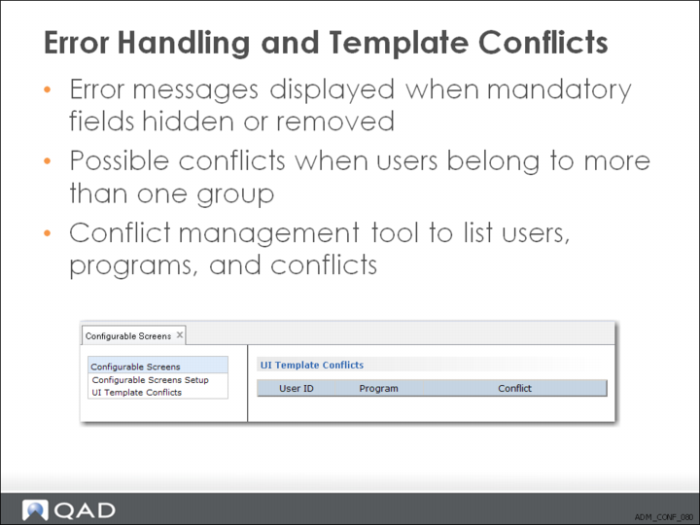
When you hide a field that is validated by the system, and attempt to progress through the frame containing the field, the system displays the following error message:
The following error was caused by a configurable screen setting.
Please contact your System Administrator.
ERROR: Country code does not exist. Please re-enter.
Use the Configurable Screen UI Template Conflicts screen to resolve conflicting template assignments. If a user belongs to more than one group, the system uses the template associated with the first group assigned to the user. You can view and manage these conflicts using the UI Template Conflicts function, accessible from the Configurable Screens table on the Configurable Screens Admin screen. The administrator can use the drop-down list in the Conflict column to select the group assignment that the system should prioritize.