Adding Frames
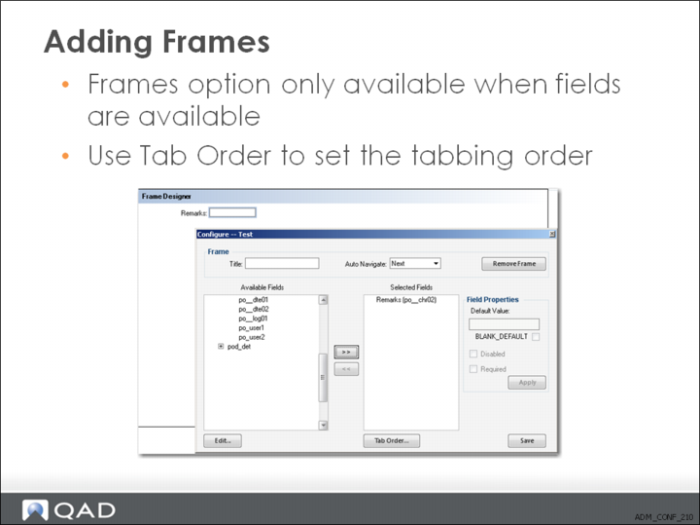
The Frame button is only available when there are available fields to add. A default message (8622, See User Guide for adding User Fields) is displayed when no fields are available.
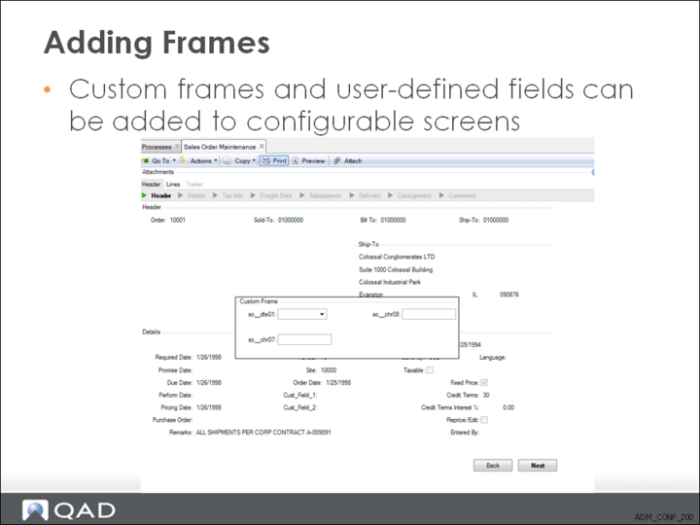
The new frame is displayed behind the Configure screen. To add fields to the screen, use the arrow key to move fields from the Available Fields area to the Selected Fields area. Use the cursor to position fields in the frame, and click the Tab Order button to set the tabbing order for the frame.
Click Save to save this frame and insert it into the program sequence, or Remove Frame to remove the frame from the sequence. When you remove a frame, the fields are selectable again in the Available Fields area.
When you create a new frame, save your updates and exit Configure Screens, the frame is displayed immediately following the current frame when you next launch the program.