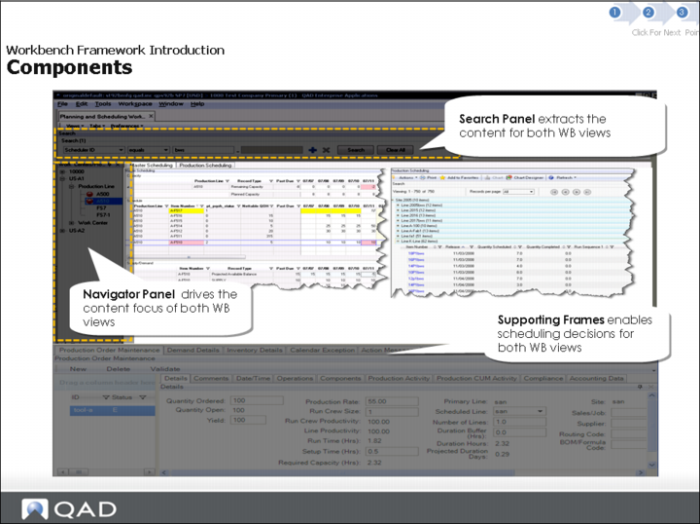
Components Demonstration (Continued)
Retrieve Scheduling Data Section
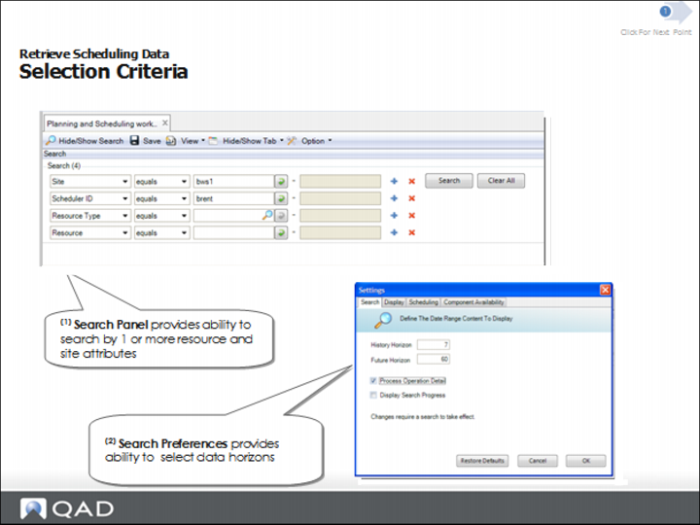
Retrieve Scheduling Data: Selection Criteria
Search Panel
The PSW lets you build production schedules for production lines, not work centers and operations.
Search Preferences
You can use the search preferences to define the sequencing horizon. Click, Options, then Search, to find PSW sequence horizon settings.
The PSW horizon setting is based on calendar days, not the shop calendar, and always shows past due released orders.
Basic Rules
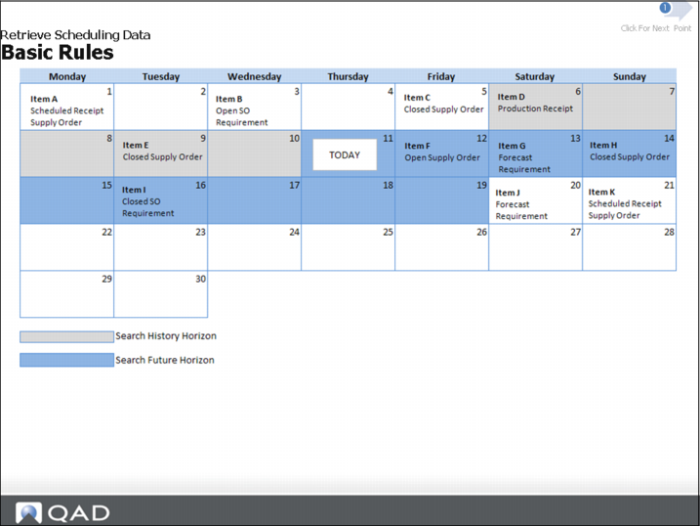
Basic Rules
Workbench search retrieves items and transaction records based on this criteria:
• Active supply/demand records
• Within the future horizon
• Prior to today
• Item activity within the history/future horizon
• Item receipts
• Item association with resource
Question: Which items would not appear on workbench?
System Setup Considerations
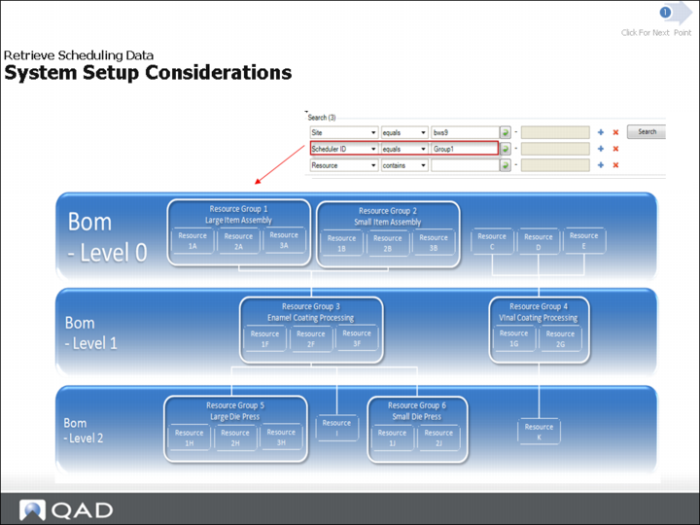
For optimum search performance with proper selection criteria, resource naming conventions are important
Question: Can resources be grouped?
Answer: Yes, you can group resources, and in fact, it is logical to group the resources; however, in some instances you may not want to group resources.
System Setup Considerations (Continued)
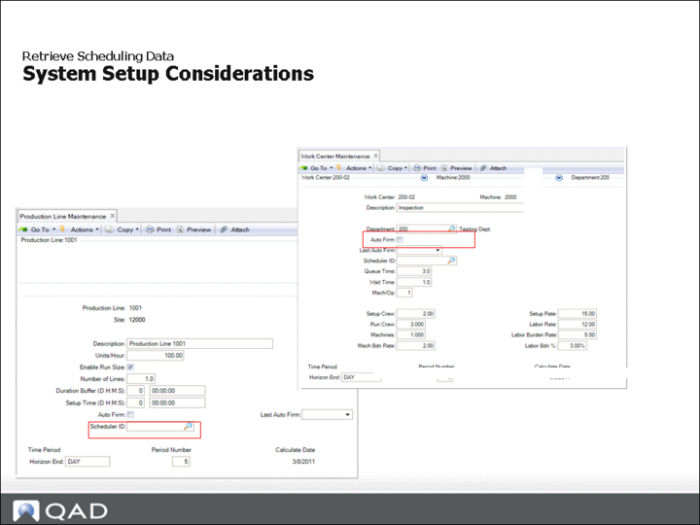
You can group resources by entering a Scheduler ID in Work Center Maintenance (14.5) or Production Line Maintenance (18.1.1).
Review Scheduling Data Section
Review Scheduling Data: Sequence Grid
Sequence Grid
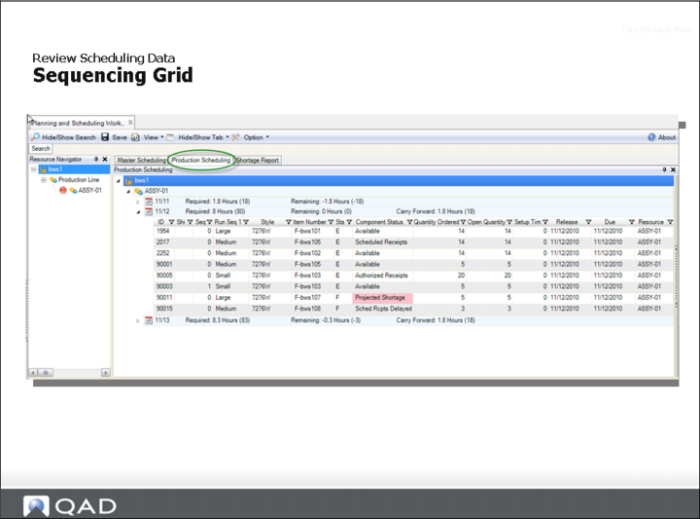
The Sequence Grid lets you concurrently view, both a list of sequenced and non-sequenced jobs (production orders).
The Sequence Grid displays item supply records, that is, production orders, with bucketed quantities of the production order supply records for the item. The records represent the master production schedule for a given period. The summarized quantity values within the Sequence Grid are production order quantities.
PSW shows capacity in hours and units. Units is the total quantity of parts scheduled. Hours is the required capacity for each production order, and required capacity is the run time plus the setup time.
In the PSW, you look at data from a release date perspective, not a due date perspective. Use the MSW to view from a due date perspective.
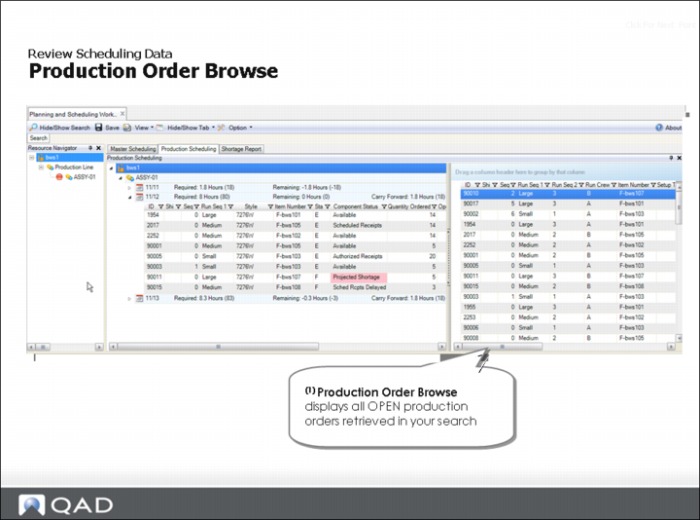
Production Order Browse
Production Order Browse within the Planning and Scheduling Workbenches displays production orders with a zero open quantity if the production order is a discrete order. Repetitive scheduled orders with a zero quantity do not display; however, Production Order Browse still displays both production orders and scheduled orders.
Production Order Browse (Continued)
U
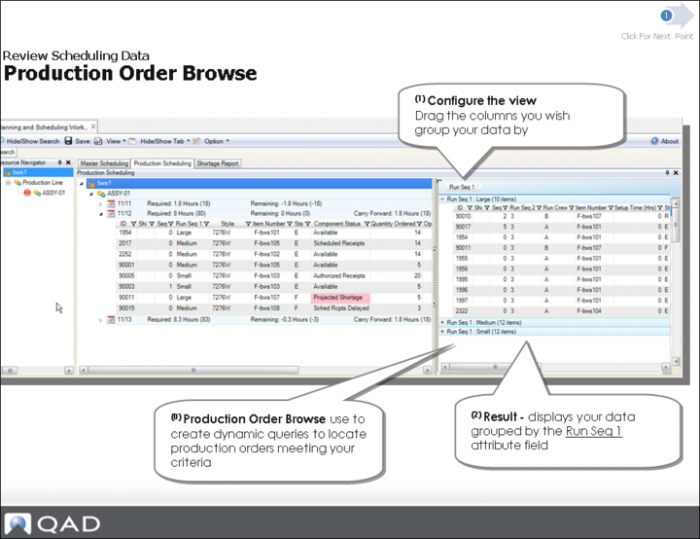
Use Production Order Browse to create dynamic queries. You can find those production orders that pertain to your scheduling issues. The system displays browse data by the Run Seq 1 field.
Run sequence fields can be used to control the sequence in which planned orders for line-manufactured items are added to a production line schedule. MRP uses run sequences when planned orders are approved for line manufacture.
If multiple items are produced on a single production line, efficiency can be improved by producing the items in a certain order. Run sequences let you control the order, or sequence, in which items are scheduled on a production line.
An item’s run sequences are sorted by primary run sequence and then secondary run sequence. A two-digit numeric value should be the first characters of a run sequence. This convention provides enhanced control over the sorting of run sequences.
Review Supporting Data Section
Review Supporting Data: Item Details
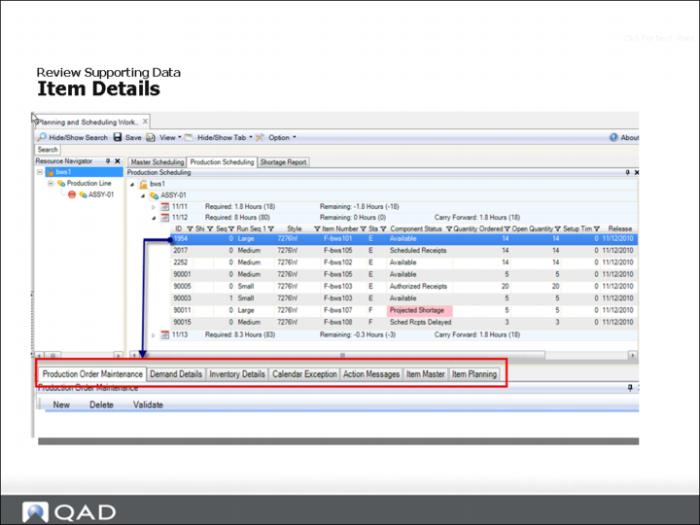
Use the supporting programs to view item details for items shown in the Sequence Grid.
For example, the Item Planning frame displays item master/planning details for a selected item. At any point during the scheduling process, you can refer to the item planning frame to find information to identify lead time, order quantity, and so on. If an item-site record exists, planning data from item-site record display for the selected item-site record. You can modify item details to include information from any field in the Item Master Maintenance.
Production Order Maintenance
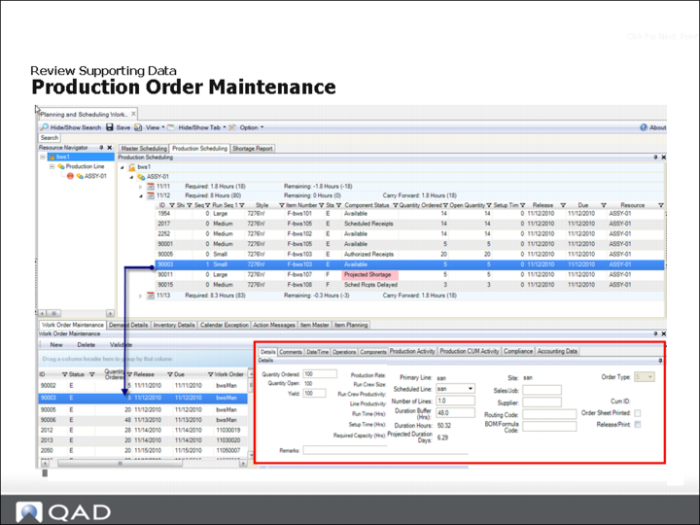
You can run Production Order Maintenance within the PSW. Production Order Maintenance lets you view individual item production order supply records for items that display in the PSW Sequence Grid.
Production Order Maintenance uses a horizontal layout and supports scheduling of work centers, production orders, and production lines. You can view, monitor, and interact with all operations of a production order independent of the Sequence Grid.
In Production Order Maintenance, the left-side displays production order summaries with the order ID, status, quantity ordered, and release date columns. For each of these fields, you can select to see all, custom, blanks, or non-blanks. If you select custom, the system displays an additional frame to enter additional filter criteria for the field. For example, if you customize data to display for the Qty Ordered field, you can specify operands so that only those orders that equal a quantity ordered of 500 display. You can also add or delete conditions.
Introduction to Capacity Section
Introduction to Capacity
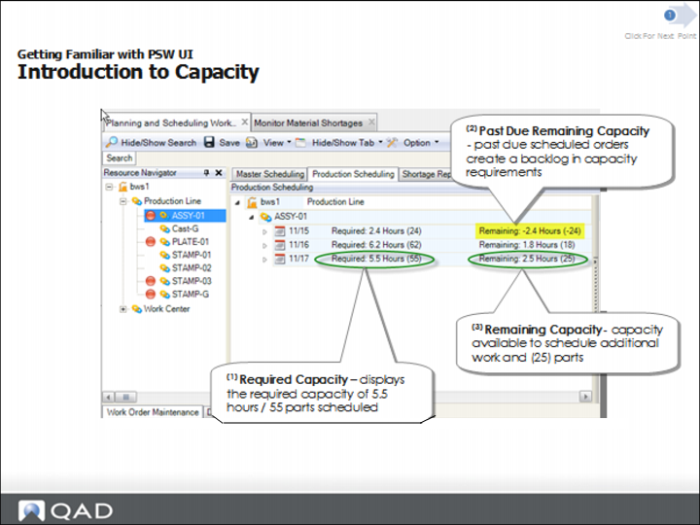
PSW Remaining Capacity
Capacity calculations are focused on the release date, not the order due date.
The formula for remaining capacity available by release date/ shift is as follows:
Resource Capacity minus [Sum production orders by release date]
With the rule:
[Sumif (production order status > [planned])]
The formula for remaining capacity, in terms of the quantity that can be produced per the resource defined run rate, is as follows:
Production Line Run Rate x Remaining Capacity
Introduction to Capacity (Continued)
PSW Required Capacity
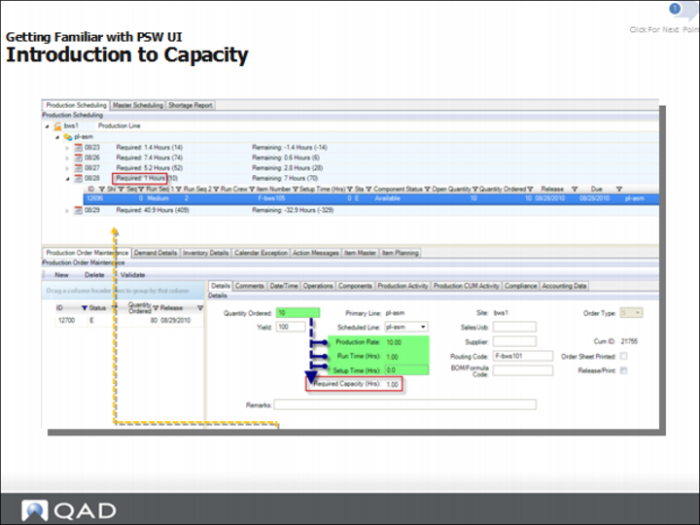
Required capacity is the amount of time to produce a production order, including both the run time and setup time.
Important: Required capacity is based on the open quantity, not the original scheduled quantity.
The formula for required capacity for production orders per release date/shift is as follows:
Prod Load = [Sum Production Order Required Capacity]
With the rule:
[Sumif (Production Order status > [P]lanned)]
Introduction to Capacity (Continued)
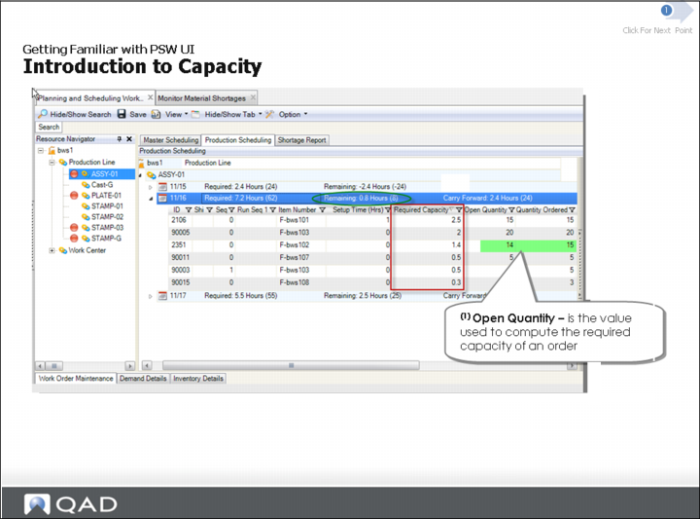
The Open Quantity column displays the value that the system uses to compute the required capacity of the order.
Question: In the screen above that shows the remaining capacity for 11/16 of (8), how is the capacity calculated? See User Guide: Planning and Scheduling Workbenches for the answer.
Target Data with Navigator Section
Target Data with Navigator: Demonstration
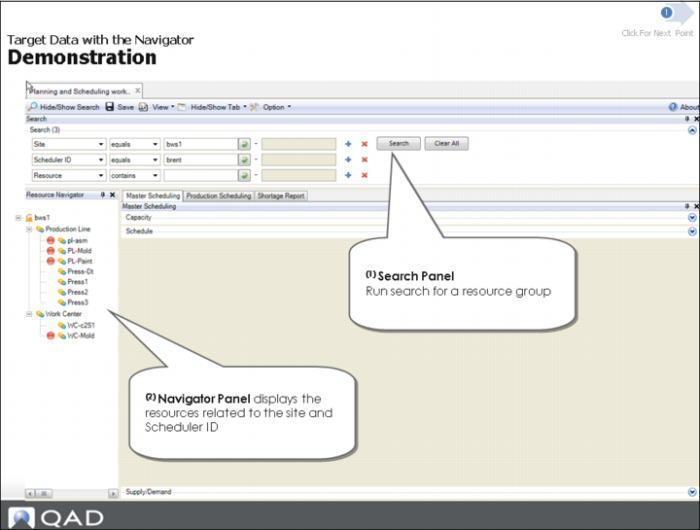
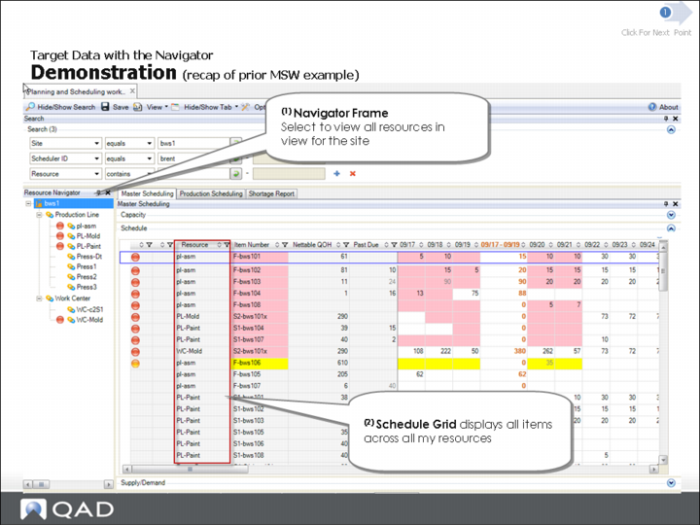
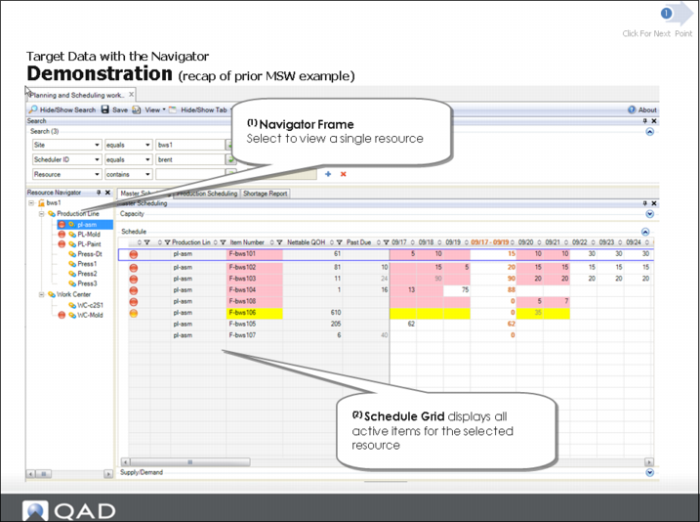
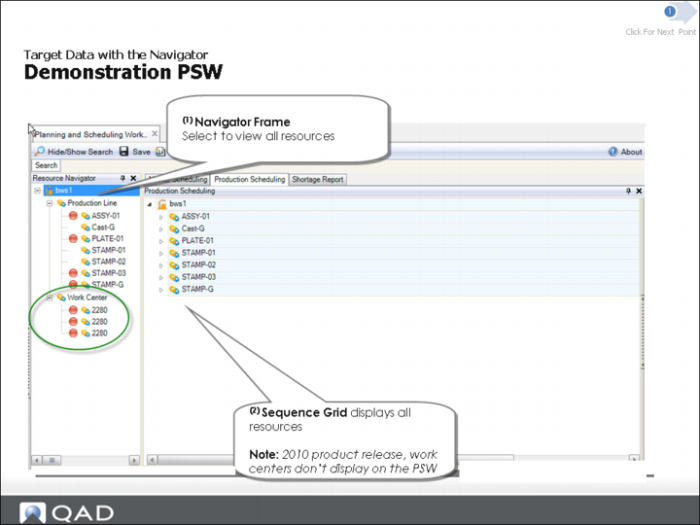
When you click at the site level in the navigator, the system displays all of the records for all production lines for that site in the Sequence Grid.
Important: There is no display of work centers in the initial release of this product.
Target Data with Navigator (Continued)
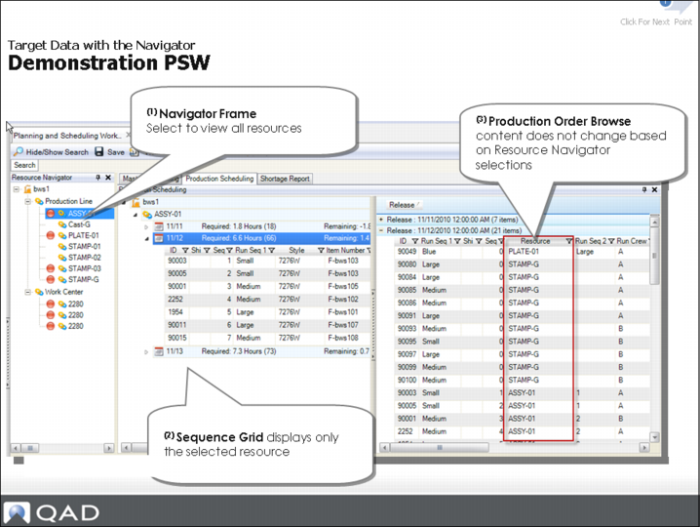
Notice on Production Order Browse, the system displays all resources. The Sequence Grid responds to the navigator; however, Production Order Browse does not respond to the navigator.
Target Data with Navigator: Demonstration (Continued)
Target Data with Navigator: PSW
Demonstration PSW (Continued)
Filter and Sort Data Section
Sequence Grid and Production Order Browse
Sequence Grid
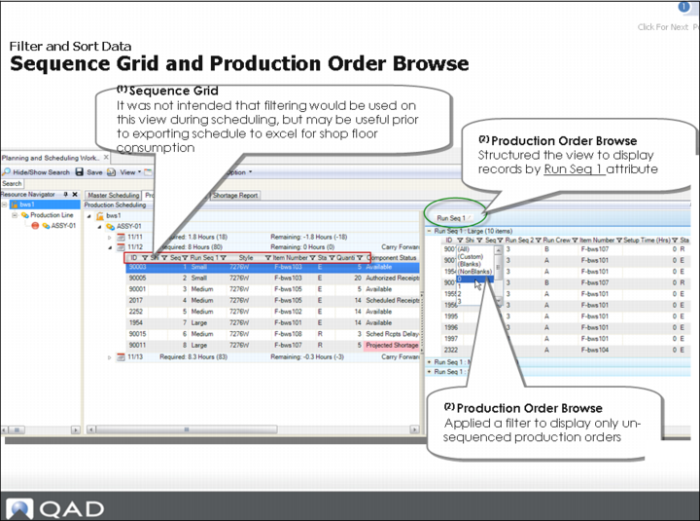
It was not intended that filtering would be used on this view during scheduling, but may be useful prior to exporting schedule to excel for shop floor consumption
Production Order Browse
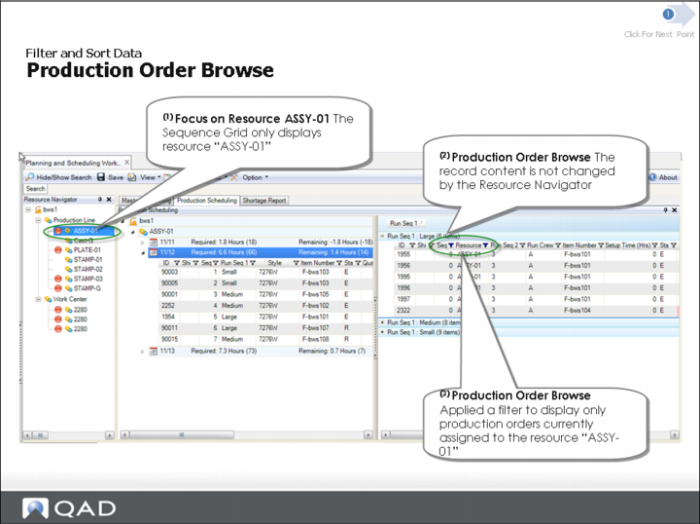
The browse is structured the view to display records by Run Seq 1 attribute.
In the slide above, a filter was applied to display only un-sequenced production orders.
Filter and Sort: Production Order Browse Demonstration
(1) Focus on Resource ASSY-01. The Sequence Grid only displays resource ASSY-01.
(2) Production Order Browse: The record content is not changed by the Resource Navigator
(3) Production Order Browse: Applied a filter to display only production orders currently assigned to the resource ASSY-01.
Hands-On Lesson Section
Exercise 1: Enter Search Selection Criteria and Review Results
In this exercise, you will learn how to retrieve data and review data results in the Production Scheduling Workbench view. You will also learn the difference between the Production Scheduling Sequence Grid and Production Order Browse.
Start the PSW
1 Ensure that MSW/PSW are enabled by setting the Use Plan/Sched Workbenches field to Yes in QAD EE Site Maintenance (1.1.13).
2 Start the .NET UI, then navigate to the QMI environment.
3 In the .NET UI Menu Navigator, enter Production Scheduling Workbench. You can also find the application by:
a Using the updated EE process maps (not available in SE process maps)
b Looking under the Manufacturing / Repetitive/ Advanced Repetitive/ Schedule Menu, then selecting Production Scheduling Workbench.
c Looking under the Forecast / Master Plan / Production Scheduling Workbench Menu.
4 Add the program to your Menu Favorites in .NET UI for quick future reference.
Retrieve the Scheduling Data using the Search Panel
1 Enter selection criteria as Site equals 10-202.
2 Enter Resource equals ASSY-01.
3 Click Search.
The system retrieves item/resource records.
4 Minimize the Search Panel.
Become Familiar with the Sequence Grid
1 Select the Production Scheduling tab.
The system displays resource ASSY-01 with several date rows.
2 Expand the Release Date rows and review the records.
• Question: What do the records represent?
• Hint: What is in common related to the work order status of each order? Specially, which order statuses are not displayed on this view?
3 Right-Click on the resource ASSY-01 row, use the Expand/Collapse All option and click Collapse. Next, try Expand.
The system collapses and expands all date rows.
Use expand/collapse functions as a method to quickly view all data or collapse all data and then target a specific release date.
Become Familiar with Production Order Browse
You are ready to review data in Production Order Browse. You can structure the Production Order Browse view to look similar to the Sequence Grid view, which is structured by resource and release date.
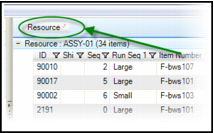
1 In Production Order Browse, drag the Resource Column to group your data by resource.
The system groups the data by resource. Data should look like the following:
Results of Dragging Resource Column
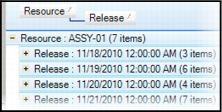
2 Drag the Release Date column and drop it below the Resource group icon.
The system groups data by the resource/release date. Data should look like the following:
Results of Dragging Release Date Column
3 Compare the data displayed in the Sequence Grid, on the left, to the Production Order Browse, on the right. Compare the first release date row displayed on the left and right.
• Question: Is there any difference in the number of release date rows? Do you remember why the Sequence Grid, on the left, only shows a couple release dates rows, but the browse on the right shows several more rows?
• Hint: There is a setting for this in User Preferences to control this that is discussed later in this chapter.
Review Customer Demand Records for the Item You are Scheduling
1 Select an order for item 02301 on the Sequence Grid.
2 Select the Demand Details tab.
The system displays the item demand records.
3 Select another item on the Sequence Grid.
The system displays the item’s demand records.
• Question: How is this information useful when making decisions regarding changing the release date of an item?
Review Other Production Orders
1 On the Sequence Grid, select item 02308.
2 Select the Production Order Maintenance tab and review the other planned orders for the item.
The system displays three or four production orders for the item.
• Notice the order status for the other orders. Do these orders display on the Production Order Browse frame. See the next step to find out why.
3 In the Production Order Browse frame, filter on item 02308, by right-clicking on the icon in the item number column, then selecting 02308 from the drop-down list.
The system displays production order record ID 90015.
• Question: Not all orders for 02308 display on the Production Order Browse frame, but all display in Production Order Maintenance, why?
• Hint: The reason for this was discussed in the PPT training recording and has to do with the production order status.
4 In Production Order Maintenance, (F)irm the planned order for the QTY of 12.
The order now displays on the Production Order Browse frame.
• Only planned orders display on the Production Order Browse and not in the Sequence Grid.
• You can still view planned orders by using the Production Order Maintenance tab.
• By changing the order status from P to (F)irm, you saw how the production order ID immediately displayed on the Production Order Browse frame.
Note: For the initial 2010 Release, the order you firmed does not display until you re-apply the filter for the 02308 item number. Re-apply the filter for the 02308 to see the order you firmed.
Questions
1 True or False. The Planning and Scheduling Workbenches have a Search mechanism that extracts data for both the MSW and PSW but a Navigator Panel that drives content only for work centers.
2 Name at least two criteria for which the workbench searches and retrieves item transaction records.
3 When retrieving data, how can you retrieve production lines or work centers in groups?
4 The Sequence Grid displays all production orders with an open quantity with a status greater than what?
Answers
1 False.
2 Search criteria records include: active supply/demand records within the future horizon, prior to today; item activity within the history/future horizon; item receipts, and items associated with the resource.
3 To group resources, enter a unique Scheduler ID for each group in Production Line Maintenance or Work Center Maintenance.
4 The Sequence Grid displays all production orders with an open quantity greater than P(lanned) and less than C(losed).
Exercise 2: Capacity Calculations, Navigator Panel, and Data
In this exercise you will become familiar with:
• Displayed PSW capacity calculations
• The Navigator Panel and how it relates to the PSW Sequence Grid and Production Order Browse
• Filtering, sorting, and grouping data
Note: This exercise is a continuation from a prior lesson in this chapter; refer to prior lesson to use the same Search selection criteria if you have closed the workbench.
Become Familiar with Capacity Information and Calculations
In this exercise, you review capacity information for past due scheduled production orders.
1 In the Sequence Grid, review the first Release Date Row for <Yesterday>.
The system displays 1.8 required capacity and displays three production orders records with a release date of yesterday.
• Compare the required capacity to the remaining capacity information.
• Question: What is your conclusion of the information displayed?
2 Determine how the required capacity quantity of (18) was calculated.
• Notice that order ID 90010 has a schedule quantity of 10 but an open quantity of 4.
• Question: Which value is used in the required capacity calculation?
3 Review the Release Date row for <today>.
The system displays 6.1 hours and several firm scheduled orders.
4 Review the following Release Date row for <today+1>.
• Questions: What is the remaining capacity? How many more parts can be scheduled?
5 Enter 1(one) hour setup time for Order ID 90008 in the PSW Sequence Grid Setup Time (hours) field.
The system updates the required and remaining capacity.
This demonstrates the interactive nature of the PSW Sequence Grid and the recalculation of the capacity.
6 Remove the setup time hours you entered above back to 0 (zero) setup hours.
The system displays the original capacity calculations.
Drill Down into Order Detail to Review Required Capacity
You wish to determine the required capacity details of a specific production order.
1 In the Sequence Grid, find order ID 90010 and item number 02307.
2 In Production Order Maintenance, review the production rate, run time (hours) and required capacity information.
The system displays the required capacity as .4 hours.
• Notice that the required capacity is based on the open quantity of the order.
3 Enter the setup time as 2 hours, then Tab to another field to exit.
The system displays a strike-through for the value you entered. Required capacity does not change.
• Question: Why does the Required Capacity not change?
• Answer: The order is currently in production, the system no longer includes setup time in required capacity.
Retrieve Scheduling Data using the Search Panel for Multiple Resources
1 Enter selection criteria Site equals 10-202.
2 Enter Scheduler ID equals Group1.
The system prompts to save.
3 Important: Do not save.
4 Minimize the Search Panel.
Use the Navigator Panel to Target Resources
You ran a search that pulled data from multiple production lines and work centers. You are now ready to use the Navigator Panel to target the resources you wish to view and manage on the PSW.
1 In the Navigator Panel, expand site, production line, and work center lists.
The system displays several production lines and work centers. The resources with the red bulb indicator depict resources with scheduling issues to address.
2 In the Navigator Panel, select site.
The PSW Sequence Grid displays all items scheduled across all resources in view.
• Question: Do work centers display on PSW?
Note: The 2011 product release does not display work centers on the PSW.
3 In the Navigator Panel, select production line.
The Sequence Grid displays all items scheduled across all production lines.
4 In the Navigator Panel, select ASSY-01.
The PSW Sequence Grid displays all items scheduled on the selected resource. This demonstrates the ability to use the navigator to focus data on the PSW.
5 Review the production orders in PSW Production Order Browse.
The Production Order Browse displays orders for all production lines.
• Question: Do you see production orders for other resources other than ASSY-01?
Note: Production Order Browse is not impacted by the Navigator Panel. The Production Order Browse shows all resources whether you selected that resource in the Sequence Grid or not.
Apply a Filter to the Production Order Browse
Production Order Browse contains production order records for production lines; however, you wish to display only production orders for a specific production line. You decide to apply a filter to the Production Order Browse.
1 In the Navigator Panel, select production line ASSY-01.
The PSW Sequence Grid displays only items for the selected production line. Production Order Browse displays all items/orders/production lines.
2 In the Production Order Browse Resource column, apply a filter on ASSY-01. To do this, right-click on the filter icon in the column, then select ASSY-01 from the drop-down list.
Production Order Browse only displays orders for the selected production line.
• Question: When might such a filter be useful?
3 Remove the filter on the Resource column by selecting (All).
Look for Items with Certain ID, Attribute, Prefix, or Suffix
1 In the Sequence Grid, click the Item Number column Filter icon.
2 Select custom.
3 In the Operand field, select contains, then an Operand field value of 02, then click OK.
The system displays a list of parts which match this selection,
• Try additional columns upon which to apply a filter. Think of scenarios applicable in your environment,
4 Remove the item filter.
Group Data by Resource in Production Order Browse
The Production Order Browse contains production order records for many production lines; for this exercise, you decide to display production orders for a specific production line.
1 In the Navigator Panel, select production line.
The Sequence Grid displays all production lines.
To see orders by lines, you apply grouping by resource; go on to the next step.
2 In Production Order Browse in the Resource column, drag the column to the shaded area with the message: Drag a Column here to group by that column.
Production Order Browse displays data grouped by resource (production line).
Note: The Sequence Grid should look similar to the Production Order Browse in structure. There are many business applications for filtering and grouping data on the Production Order Browse. This training guide provides illustrations in other training topics.
Questions
1 Is required capacity calculated by order release date or due date?
2 Based on your selection criteria, the Navigator Panel displays the sites and resources and defaults to what?
3 True or False. The PSW lets you schedule both work centers and production lines.
4 On the Sequence Grid, resources are grouped by site and what?
5 True or False. When you click on a production line resource in the Navigator Panel, the Sequence Grid displays all items associated with every production line assigned to the Scheduler.
Answers
1 Required capacity is calculated by Release date.
2 Resources default to the first record.
3 False. The PSW lets you schedule only production lines.
4 In the Sequence Grid, resources are grouped by site and production line.
5 False. The Sequence Grid displays only those items associated with the selected resource that you clicked on in the Navigator Panel.
Manage the UI
Manage the UI: Overview
Monitor Size Section
Monitor Size
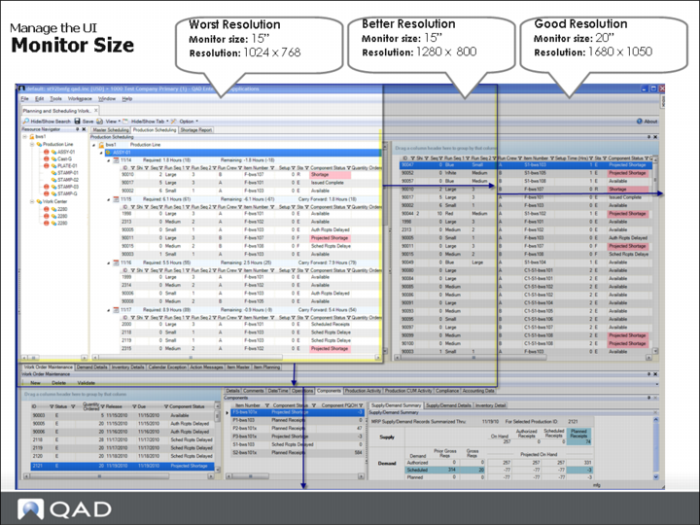
Small monitor size/resolution reduces usability.
Usability improves or worsens with monitor and resolution attributes as follows:
Attributes and Usability
Attribute | Results |
Small monitor | Reduces usability |
Low resolution | Reduces usability |
Higher resolution | Improves usability |
Larger monitor | Improves usability |
Add or Remove Fields
Add or Remove Fields
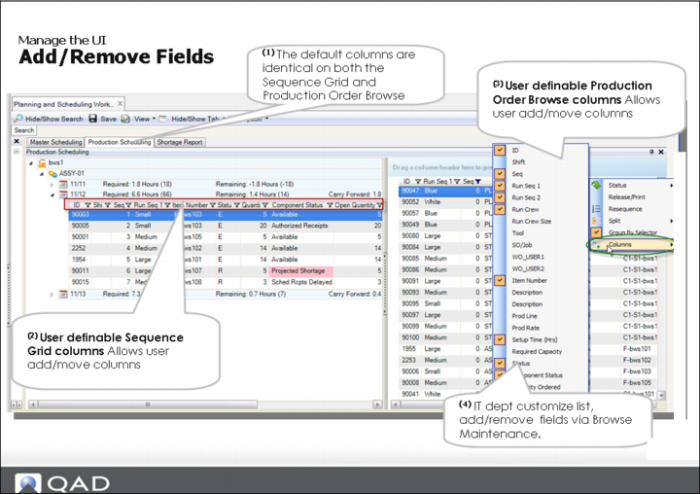
You select the fields to display in columns by right clicking on the column, then selecting from the Column pull-down menu. If you want more or different fields to display in the pull-down your IT department can customize the list through the QAD EE Browse Maintenance in .NET UI.
Create Views
Create Views