Monitor Production
In Learning Central, the following training course corresponds to this chapter:
Planning and Scheduling Workbenches: 6. Performance Monitoring - Functional Detail - 2011 Launch, code PLM11-1240
Play the video within the course with this chapter. The video informs you when to stop the video and take the hands-on lesson.
Overview
Now that you have learned how to create a production schedule, you are ready to learn how to release orders to production. There is no need to use tools outside of the QAD Planning and Scheduling Workbenches to do this.
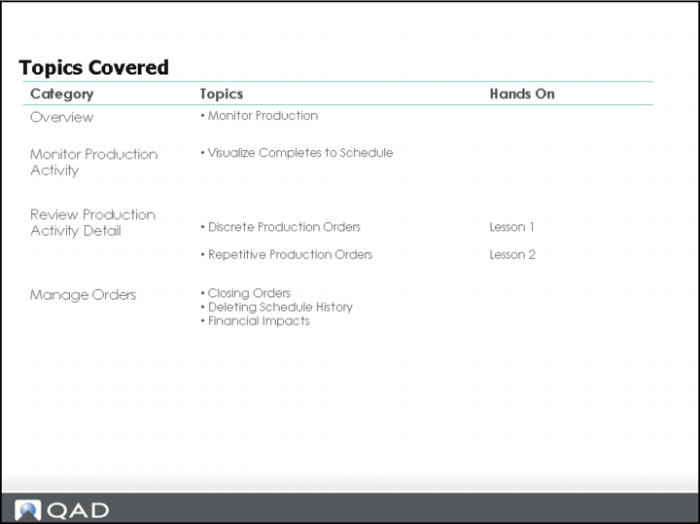
Topics Covered
Overview Section
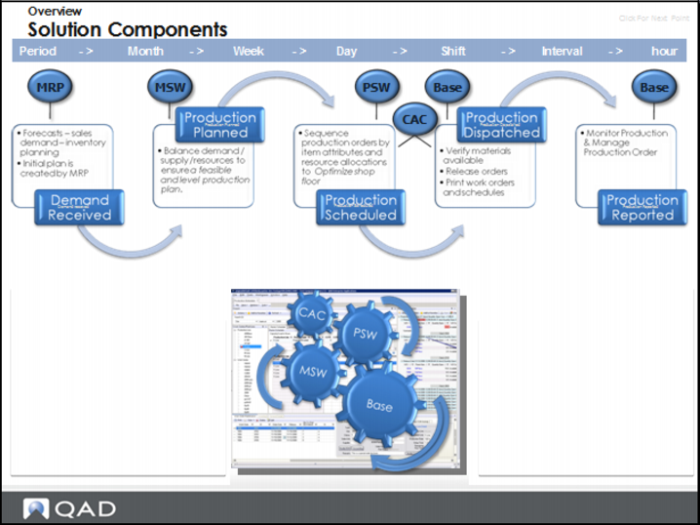
Solution Components
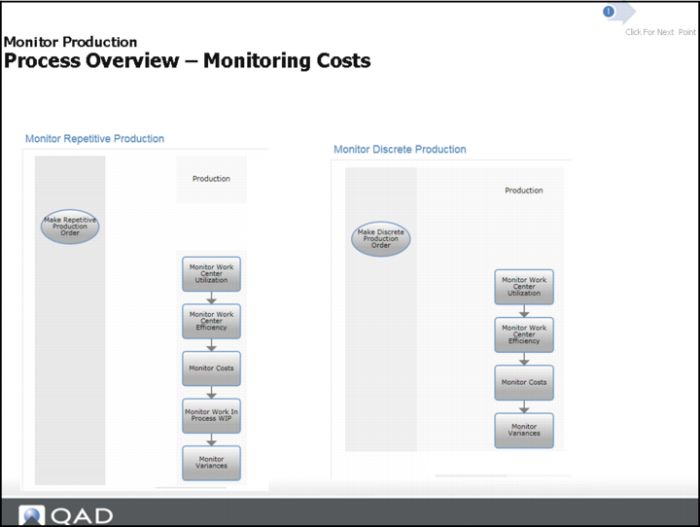
Process Overview: Monitoring Costs
To make a repetitive production order, you must monitor:
• Work order utilization
• Work center efficiency
• Costs
• WIP processes
• Variances
To make a discrete production order, you must monitor:
• Work center utilization
• Work center efficiency
• Costs
• Variances
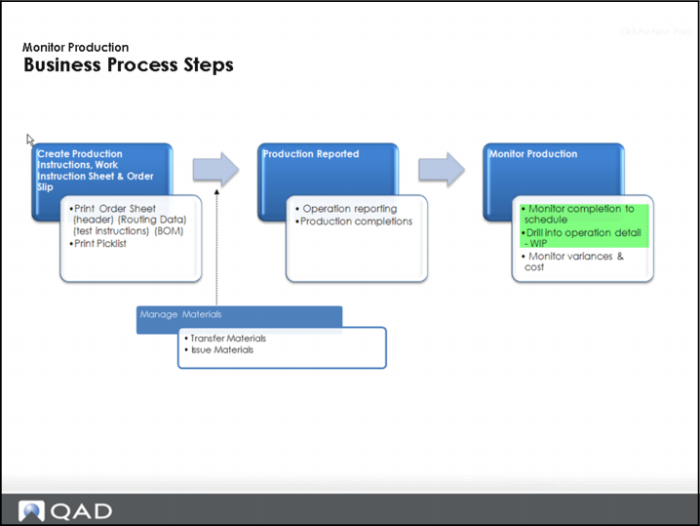
Business Process Steps
1 Create production instruction, work instruction sheet and order slip:
• Print order sheet.
• Print picklist.
2 Manage materials, if needed by:
• Transferring materials
• Issuing materials
3 Report production:
• Operation reports
• Production completion
4 Monitor production:
• Monitor completion to schedule
• Drill into operation details and WIP
• Monitor variances and costs
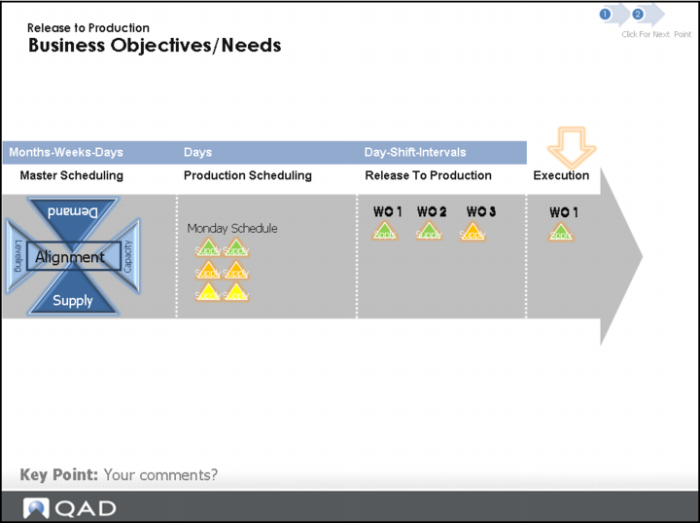
Business Objectives/Needs
Business Objective
Provide a production schedule which is obtainable.
Business Need and Approach
Visibility to timely/real-time schedule attainment when creating the next production schedule release.
Visualize Completions to Schedule: Basic Rules
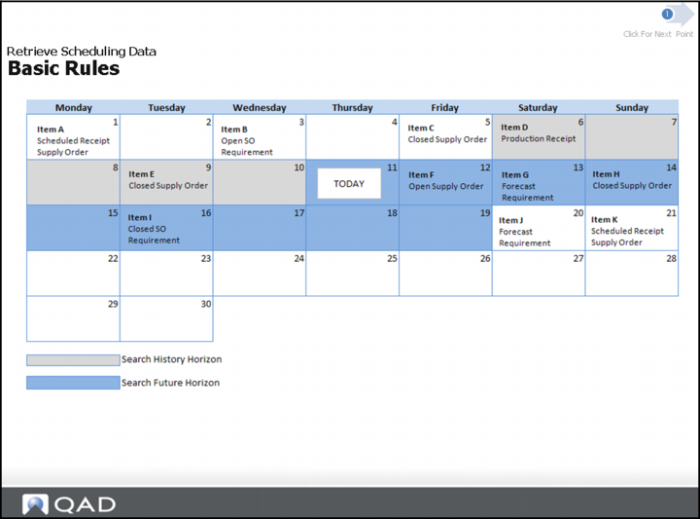
Basic Rules
Workbench search retrieves items and transaction records based on this criteria:
• Active supply/demand records
• Within the future horizon
• Prior to today
• Item activity within the history/future horizon
• Item receipts
• Item association with resource
Question: Which items would not appear on workbench?
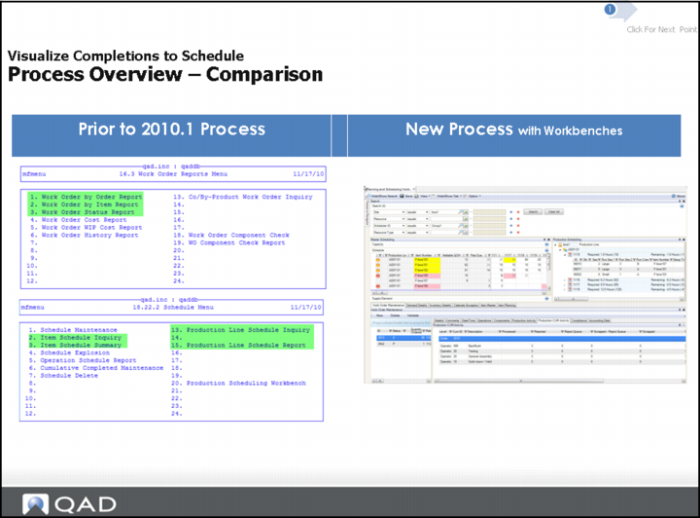
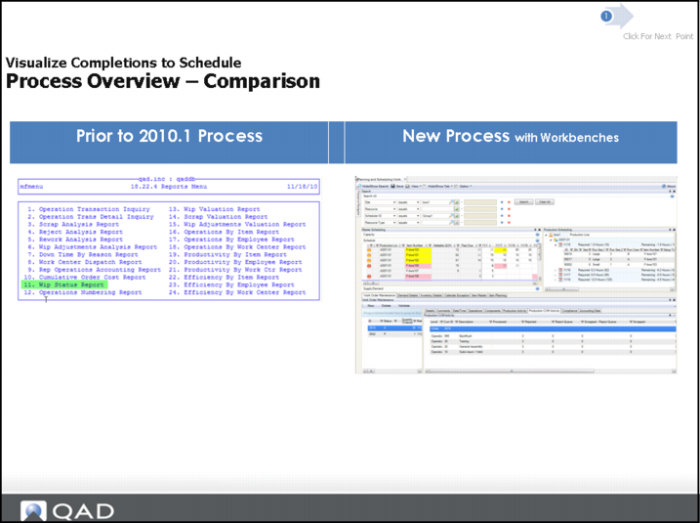
Process Overview: Comparison
Process Overview: Comparison (Continued)
Process Prior to 2010.1
• Several reports to access production progress.
• Low visibility to performance to schedule, especially in discrete environments.
New Process
• Workbenches provide high-level summary and detail views of schedule attainment.
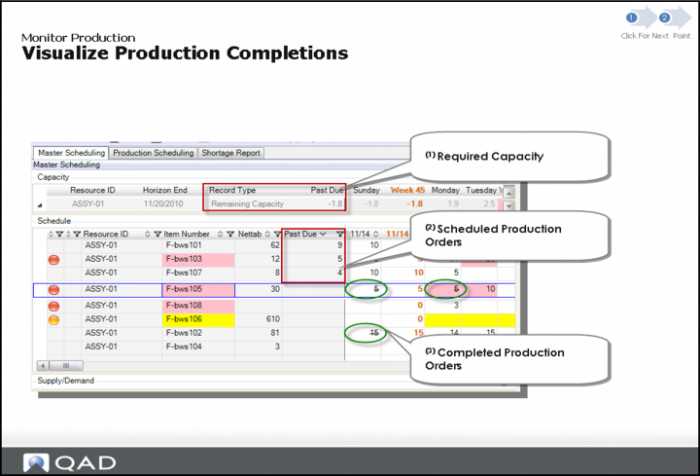
Visualize Production Completions
Solution Approach: MSW provides visualization of:
• Past due required capacity
• Past due scheduled production orders
• Completed production orders
Business Scenarios:
MSW provides visualization of:
• Past due required capacity
• Past due scheduled production orders
• Completed production orders
• Reviewing past schedules and completions
PSW provides visualization of:
• Past due scheduled production orders
Discrete Section
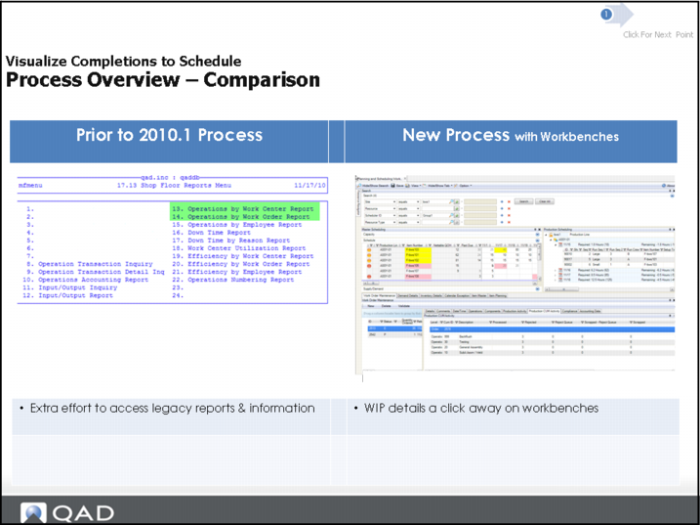
Process Overview: Comparison
Standard QAD EA Process
Extra effort to access legacy reports & information.
Workbenches Process
WIP details a click away on workbenches.
Solution Approach
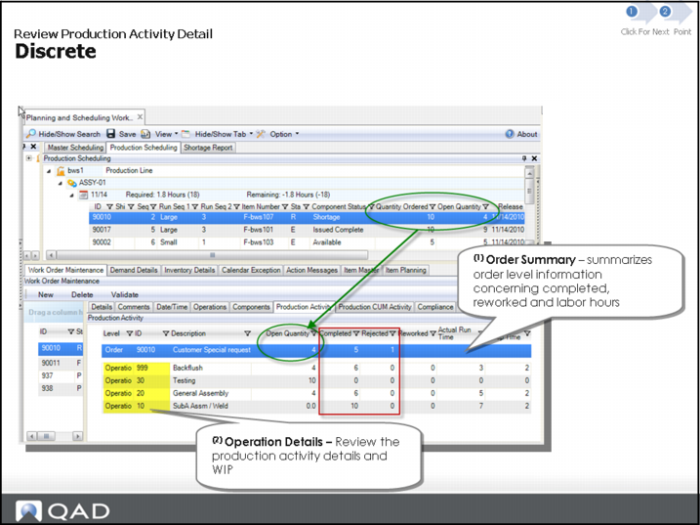
Solution Approach: Production Order Maintenance / Production Activity Tab displays Production Activity of discrete orders.
Repetitive Section
Process Overview: Comparison
QAD EA Standard Process
No performance tracking for production against a scheduled repetitive order or visibility of progress at the operation level. You had no idea if your production was on time, using this method.
Extra effort to access legacy reports and information.
Workbenches Process
New production activity detail now available for repetitive order types.
Repetitive - Solution Approach
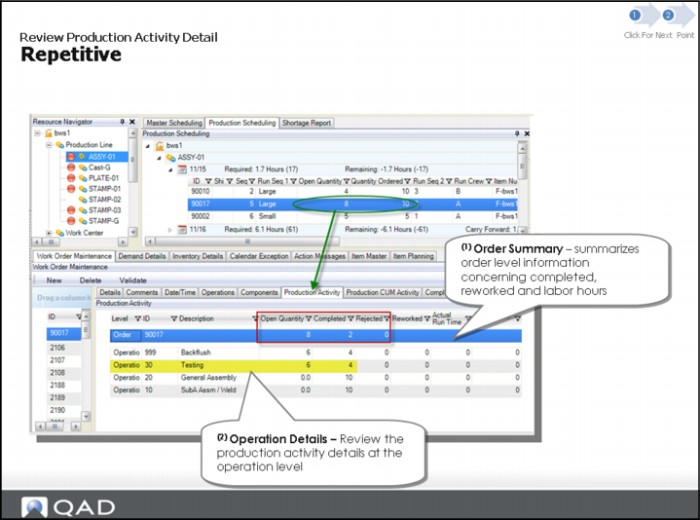
Solution Approach: Production Order Maintenance / Production Activity Tab displays Production Activity of repetitive orders
Use the Production Activity window to track production order activity. For an order, you can view the operation and description, open completed, rejected, and reworked quantity; the actual run time; and the actual setup time.
The actual time shows the time required to manufacture a single unit. Run time for an operation is a function of total run time, work center or shop calendar hours, and the machines per operation. Run time is expressed in terms of an hourly production rate. This time is differentiated expected run time. The actual time is the time required to set up a resource.
Solution Approach (Continued)
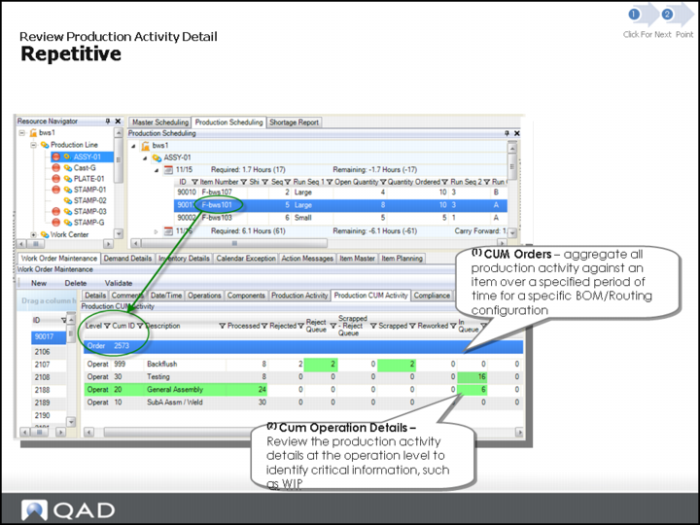
Solution Approach: Production Order Maintenance / Production Activity Tab displays Production CUM Activity of repetitive orders.
Cum(ulative) orders are the aggregate of all production activity against an item over a specified time period for a specific BOM or routing configuration.
Cum operation details let you review the production activity details at the operation level. This lets you identify critical information.
Use the Production CUM Activity window to track cumulative order activity. For an order, you can view the CUM ID, the quantity processed, rejected, or in the reject queue; the number scrapped, reworked, and the number in and out of the queue. You can also see the actual run time and the actual setup time.
Manage Orders Section
Manage Orders
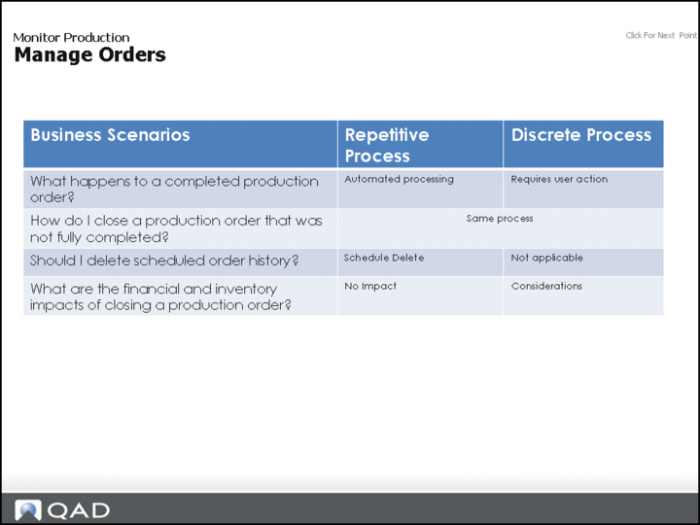
The slide above depicts the difference in the repetitive and discrete order processing when managing orders.
Hands-On Lesson Section
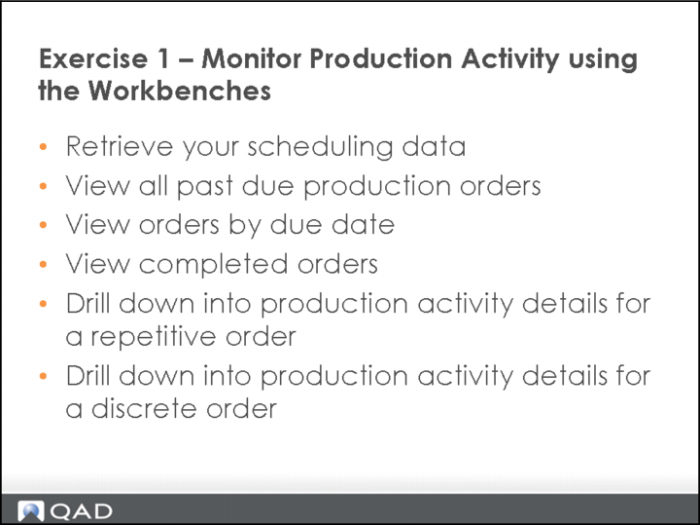
Exercise 1: Monitor Production Activity
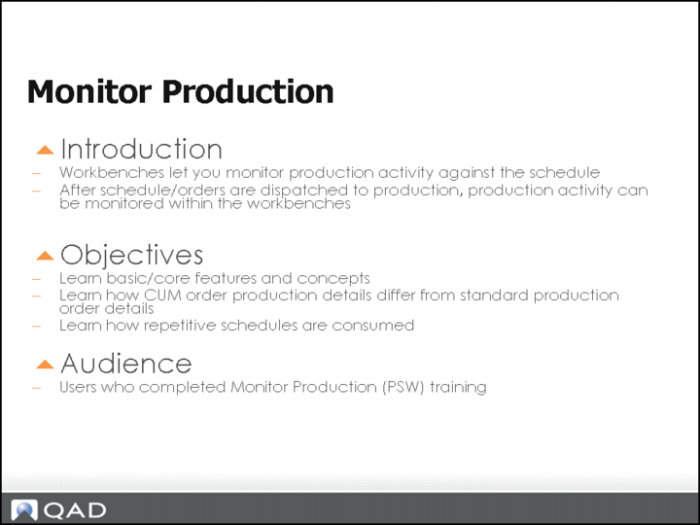
In the following topics, you learn the process and steps to monitor production activity using the workbenches. Once completed, you should know how to:
• Identify globally, past due production orders
• Identify orders completed on the MSW
• Drill down into production order details for repetitive and discrete orders
Important: Ensure your training data was refreshed today. The exercises are not dependent on any prior exercises.
Retrieve your Scheduling Data
1 Select Toolbar Options, Preferences, Restore Defaults on each Tab (Search, Display, Scheduling).
There is no immediate impact without a new search.
2 In the Search Panel, enter selection criteria Site equals 10-202.
3 Enter Scheduler ID Equals Group1.
4 Click search.
5 Hide the Search Panel.
View all Past Due Production Orders
You retrieved data from several of the resources you manage. Now you wish to review all past due production orders. You use the MSW Past Due Column to quickly view all past due production orders.
1 In the Navigator Panel, click site.
2 MSW Schedule Grid, click on Past Due Column to sort descending.
The system displays several items/resources with past due production orders.
• Questions: For Item 53008, where is the past due quantity of 8 from? What was the production order due date?
View Orders by Due Date
Continuing from the prior step, you want to review production activity against orders completed today. You use the MSW to view orders by due date.
1 In the MSW Schedule Grid, click on the Date Column for <today>; then click twice to sort descending.
The system displays all orders due today.
• Question: Can you identify which orders have been completed?
• Hint: Item 02305 has a strike-through in the scheduled quantity, indicating the order is closed/completed.
Note: When orders are completed/closed, they continue to display on the MSW. Review the search rules in the Chapter on Getting Familiar with the MSW.
2 Select item 02035 on production line ASSY-01.
3 Open the Supply/Demand Panel to review production activity.
• Questions: What does the Receipts row show for the item? How much was completed and when?
View Completed Orders
Continuing from the prior step, you want to review production activity of orders completed yesterday. You use the MSW to view completed orders per yesterday by changing the search horizon to include yesterday and the day before.
1 Select Toolbar Options, Preferences, Search, History Horizon 2.
There is no immediate impact until you run a new search.
2 In the Search Panel, enter selection criteria site equals 10-202.
3 Enter resource equals ASSY-01.
4 Click search.
5 In the MSW Schedule Grid, use the scroll bar to view yesterday's production.
The system displays two days in the past on the MSW Schedule Grid.
Note: This demonstrates the ability to visualize production schedule history.
• Question: Does the PSW show any orders which were scheduled in the past?
6 In the MSW Schedule Grid, select item 02305.
Displays 2 completed production orders in the past
• Question: Did you drag the scroll bar on the MSW to view the Schedule Grid Date columns in the past?
7 Select the PSW Sequence Grid
Does not display the completed orders for the 02305
• Illustrates that the MSW displays completed production orders, but the PSW displays only open production orders.
Drill Down into Production Activity Details for a Repetitive Order
You want to drill down into further production activity details of a repetitive order. You use the Production Order Detail Supporting tab.
1 In the MSW Schedule Grid, select item 02305.
The system defaults order 90000.
2 In Production Order Maintenance, select the Production Activity tab.
The system displays a completed quantity of 5.
• Question: What is the quantity open?
Note: You can resize the columns in the panels to make them smaller to view the data easier.
3 Select the Production CUM Activity tab.
The system displays a processed quantity of 10.
• Question: Is there any WIP for this item?
Note: You can resize the columns in the panels to make them smaller to view the data easier.
4 PSW Sequence Grid, select Release Date of <yesterday>; then select order 90017.
The system displays a quantity scheduled of 10 and an open quantity of 9.
• Question: What is the WIP for this order?
• Hint: See the next step.
5 In Production Order Maintenance, select the Production Activity tab.
The system displays WIP information.
• Question: What is the WIP at operation 10 versus 30?
• This demonstrates the ability to view not only the production activity of a repetitive order, but the activity at the operation level.
6 Select the Production CUM Activity tab.
The system displays a different WIP/process quantity at each operation.
• Questions: What is the CUM processed for this item? What is the quantity processed at operation 999 versus operation 10? Which operation has the highest WIP? Which operation has the highest Rejected parts?
• This demonstrates the ability to visualize the WIP in a summarized/concise manner.
Drill Down into Production Activity Details for a Discrete Order
You want to drill down into further detail of discrete order production activity. You use the Production Order Detail Supporting tabs.
1 In the MSW Schedule Grid, select item 02307.
The system defaults on order 90010.
2 In Production Order Maintenance, select the Production Activity tab.
The system displays a completed quantity of 5.
• Questions: What is the Order open Quantity? How many parts were Rejected? What is the most likely reason operation 30 show a quantity open of 10?
Questions
1 Which one of these things can you monitor in the workbenches?
a Work order utilization
b Work order efficiency
c Costs
d Variances
e WIP processes
2 Which production order type must be closed as part of the production reporting process?
Answers
1 E. WIP of scheduled orders.
2 Discrete orders.
Other Related Topics Section
Other Related Topics