Exercise 2: Effect of Pur/Mfg Code
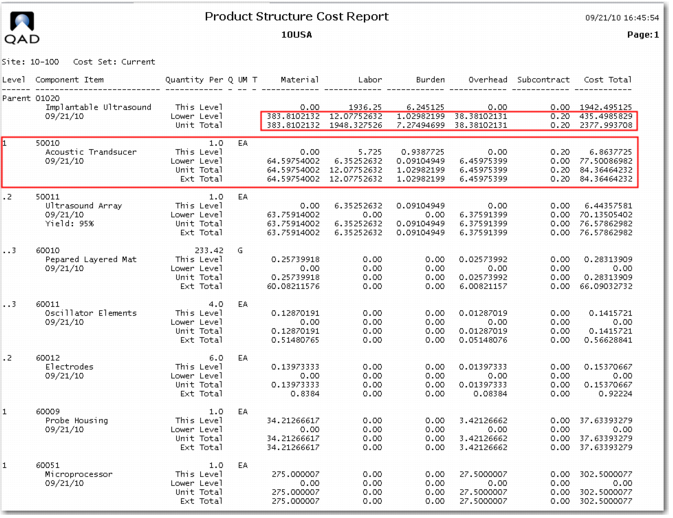
1 To see the effect of incorrectly changing the Purchase/Manufacture code, use item 01020 Implantable Ultrasound. Review the Product Structure Cost Report (13.12.4) for this item; note the lower level material, labor and burden costs for the 01020.
Note the first level item 50010, the manufactured acoustic transducer.
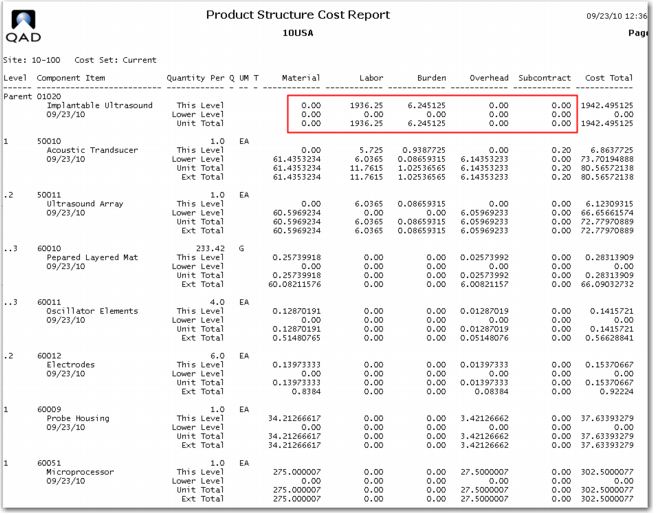
2 Use Item Planning Maintenance (1.4.7) to change the Purchase/Manufacture code from M to P for the 50010. Use Product Structure Cost Roll-Up (13.12.13). Review the Product Structure Cost Report again; you see that the Roll Up stops at 50010.
The lower level costs have not been rolled up to the 01020. Only the This Level labor and burden remain. This is caused by the manufactured item 50010 not having any material cost. As it is now coded a P purchased item, the system looks for material cost but finds none.
Go back to Item Planning Data Maintenance and change the Purchase/Manufacture code back to M, then rerun Product Structure Cost Roll Up (13.12.13) and the item roll up will be restored. Check the product structure cost report to ensure the costs have been returned to normal.
Effect of Phantom Field Settings
Whether an item is treated like a phantom or not is determined by the Phantom field in the item data menu: Item Master Maintenance (1.4.1), Item Planning Maintenance (1.4.7), or Item Site Planning Maintenance (1.4.17).
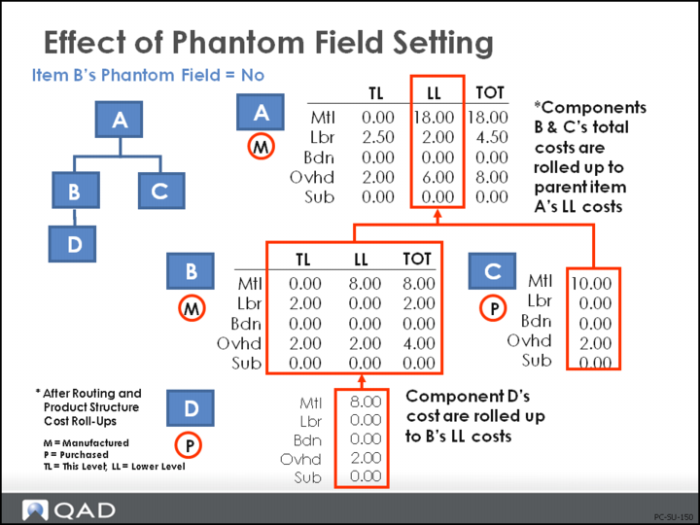
Phantom field Set to No
Example: The figure above shows material and other costs at the lower level for all the components in the structure. Component B is an assembly with one component (D) that reports to it. Component C is a purchased part. In this first figure of two, we see the cost structure as a standard manufactured item (Phantom field = No).
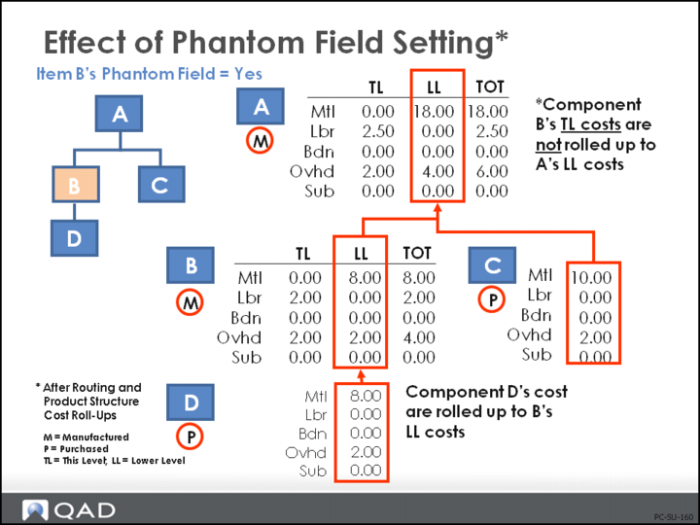
When you set the phantom field in the item data to Yes, that indicates the item is a “global” phantom and is to be treated as a phantom for all product structures it reports to.
The other way that you can set a phantom in a structure is to change the structure type code to X in Product Structure Maintenance (13.5), which indicates that the item is a local phantom and is to be treated as a phantom only in that specific product structure
Routing Cost Roll-Up (14.13.13) will roll up global phantom items. However, the labor, burden, and subcontract costs of a global phantom item are not included in the parent item’s cost when the product structure cost roll-up is performed. If you need to build and stock a phantom item, the routing roll-up and the product structure roll-up for the phantom item correctly cost it at this level.
Example: In the figure shown above, we see the difference in cost when the phantom field is set to Yes in the item data. Notice that when B is a phantom, all of item B’s this-level costs are excluded from the roll-up.
Warning Local phantoms (coded as X in the product structure) do have their labor and overhead costs roll up into the parent’s costs. The use of local phantoms should be discouraged for this and other reasons. They do not support use-up logic.
Note: Phantom use-up logic, which will be discussed later, whether for global or local phantoms, is not possible in the Repetitive/Advanced Repetitive modules.