Exercise 3: Effect of Phantom Field
Use the same item 01020 to review the effect of the phantom field. Currently, item 50010 is a manufactured item and not a phantom.
Manufacturing Engineering might decide the Acoustic Transducer components can be built directly into the top-level Ultrasound machine without first making the subassembly. However, they still want to keep the structure of the 50010 in case there is a need to build one for repair to a field unit.
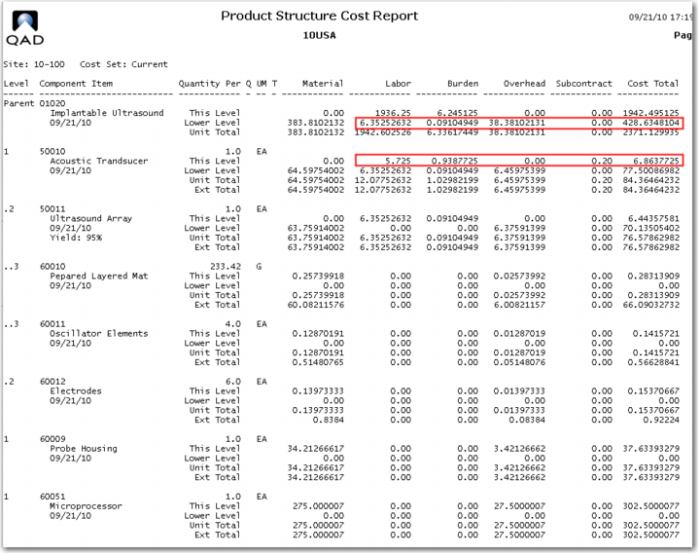
Review the Product Structure Cost Report from the previous exercise to see the cost structure of the normal 01020.
1 Use Item Planning Data Maintenance (1.4.7) to select the Phantom option for the 50010.
2 Use Routing Cost Roll Up (14.13.13) then Product Structure Cost Roll Up (13.12.13) for the item 01020. Review the Product Structure Cost Report; it will look like this.
Note that the This Level labor and burden costs for the 50010, 5.725 and 0.9387725 are no longer included in the lower level costs of the 01020, but the other lower level costs are rolled up. For the time being we will leave this phantom structure in place.
Enter Purchased Material Costs
There are three menus you can use to enter purchased material cost data:
1 Item Master Maintenance (1.4.1). Use Item Master Maintenance when, in addition to entering cost data, you also need to enter other item data, such as general data, inventory data, or planning data.
2 Item Cost Maintenance (1.4.9). Use Item Cost Maintenance when you only need to enter cost data. This function is a subset of the series of screens included in Item Master Maintenance (1.4.1).
3 Item-Site Cost Maintenance (1.4.18). Use Item-Site Cost Maintenance, which maintains site-specific item costs, when an item is used at multiple sites. It includes the same cost data fields as Item Master Maintenance and Item Cost Maintenance, but it does not include item price data.
Because the three cost data screens are similar, only the Item Cost Maintenance screen (1.4.9) is shown and discussed.
Item Cost Maintenance
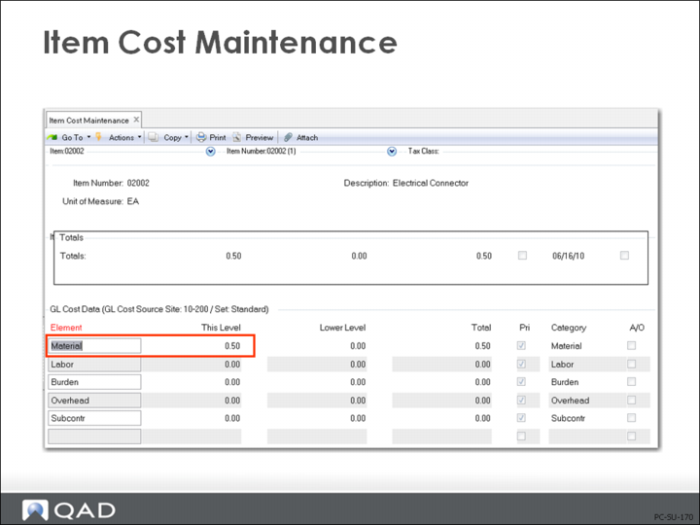
Enter the item number in Item Cost Maintenance (1.4.9) and scroll through the Item Price Data and GL screens until you reach the current cost data frame. Enter purchased material costs in the this-level field of the current cost set.
Note: It is recommended that you initially enter costs in the current cost set so that the GL is not affected. As with any change to the GL cost set, if you have inventory on-hand, you will cause an inventory value change in the GL.
Once you have reviewed the cost entries, move the costs from current to GL by using Current Cost Set Move to GL Set (1.4.22).
Fixed Overhead
Fixed overhead costs are usually allocated to each item based on an estimated production volume. You can enter them manually as a fixed cost per unit for each item by using one of the item data menus or they can be calculated as a percentage of material, labor, burden, and/or subcontract costs by using Item Overhead Cost Update (1.4.21).
Other than overhead, you should not manually enter costs for manufactured items, only purchased items. If you do enter costs for manufactured items, you cannot use the roll-up functions to update these costs.