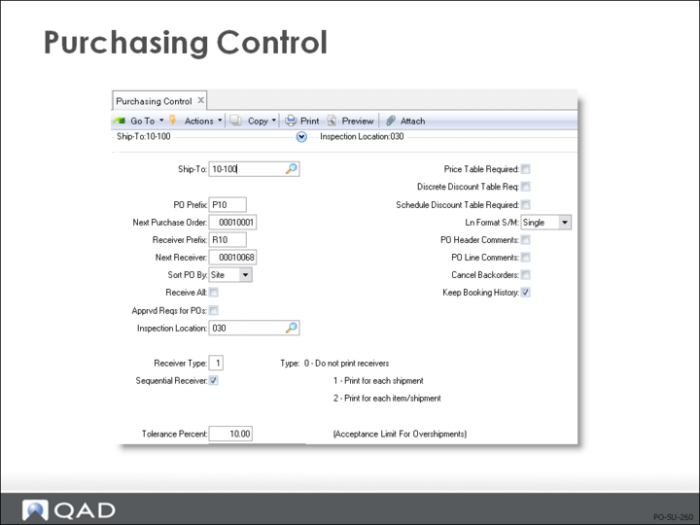
Configure Purchasing Control Settings
Use this table to control purchasing operations and options.
Note: Always use PO and receiver prefixes for distributed (multiple databases) purchase orders so that purchase order and receiver numbers are unique.
Field Definitions
Bill-To
Whenever you add a purchase order or blanket order, the bill-to address defaults to the bill-to address code from Purchasing Control. The bill-to address prints on the purchase order.
If you have several bill-to addresses (for example, one for each entity), you can choose to leave the default bill-to address in Purchasing Control blank, forcing the operator to enter the appropriate bill-to address code on each individual order. Each billing address should be set up in Company Address Maintenance (2.12)
Ship-To
Whenever you add a purchase order or blanket order, the ship-to address defaults to the ship-to address code from Purchasing Control. You can change the ship-to address on each order, as needed.
The address for each site should be set up in Company Address Maintenance (2.12), with the address code equal to the site code.
When a purchase order is entered with line items referencing different sites, multiple purchase order documents can be printed, one for each site. The system accesses the site address based on the purchase order line item site.
PO Prefix / Next Purchase Order
Each purchase order or blanket order entered must be assigned a unique purchase order number. You can enter one manually or let the system assign the next number.
Leave the purchase order number field blank for a system assigned number.
The system records this next purchase order number in Purchasing Control (5.24) and increments it automatically.
Note: The system generates a purchase order for each blanket order released. The PO number equals the blanket order number followed by a sequential release number. For example, blanket order 123456 generates POs 12345601, 12345602, and so on.
Receiver Prefix / Next Receiver
When you receive or return purchased items, a receiving record (receiver) is created for verification against the supplier's invoice when it is entered into Accounts Payable. Each receiver is assigned a unique receiver number, entered manually or system assigned.
Leave the receiver number field blank for a system assigned number. This next receiver number is recorded in Purchasing Control (5.24) and incremented automatically by the system.
Receiver number selects specific information to appear on reports and inquiries. Receiver numbers are alphanumeric and will sort in that sequence.
Example: Receivers 10, 20, and 100 will sort in the sequence 10, 100, 20.
Start with a large number (such as 1000000) so that receivers will sort in the sequence they are entered
Because there can be multiple receivers for any given purchase order, use two different ranges of numbers for receivers and purchase orders
Sort PO By
Orders can be printed in sequence by site (default) or by purchase order line. When orders are printed by site, an order document is printed for each order/site combination
Example: If line item 1 is for site 1000 and line item 2 is for site 2000, you would get two printed order documents, one for each site.
If orders are not printed by site, using this same example, you would get one printed document listing all the line items regardless of site
Print by Line if you have set the ship-to by order line. In this case, a PO prints for each unique ship-to using the correct ship-to address.
Note: When you choose to sort by Site, the system automatically picks up the address associated with the address code equal to the site code, even if this address is actually a customer or salesperson. Be sure to enter the address for each site into Company Address Maintenance (2.12). Set the address code equal to the site code.
Receive All
Displays as the default Receive All setting when you process a purchase order receipt. It can be changed manually on any receipt transaction
• Yes = The system sets the quantity to receive equal to the quantity open on each purchase order line
Note: This does NOT include subcontracted line items; set these quantities manually.
If all lines were shipped complete, the receipt can be processed with a minimum of keystrokes, significantly speeding up processing; without care, however, this can lead to over-receipts. Train your receiving staff to carefully verify the receipt quantity displayed on the screen against the shipment quantity on the supplier packing list. If there are exceptions, they must be entered manually
• No = the system leaves the quantity to receive as zero. You must enter the quantity to receive on each line
Price Table Required
• Yes = items must have an existing price list. Only items from an existing price list can be entered, and only if the price list, item, unit of measure, and currency match
• No = items can be entered whether or not a price list exists. Prices can be overridden unless the field is password-protected
Note: By requiring price tables, you can control which items can be ordered or purchased to/from and your customer/supplier units of measure (such as case quantities).
Disc Table Required
• Yes = only items from an existing discount table can be entered, and only if the price list, item, unit of measure, and currency match
• No = items can be entered whether or not a discount table exists
Apprvd Reqs for POs
Specifies whether purchases must be approved prior to entering a purchase order
• Yes = you are using purchase approvals.
Prior to entering a purchase order, a requisition is entered, printed, and approved. The system calculates a required approval level for any purchase requisition, whether it is manually generated or created by MRP. Requisitions requiring approval cannot be referenced on a purchase order or blanket order until they have been approved.
Note: Approval codes can have up to four levels of people required to approve a purchase requisition, depending on the purchase cost. Approval amounts can be calculated by site, product line, person requesting, and purchase account (for non-inventory items).
Approval information is printed on requisitions waiting to be approved. When approvals are entered, an appropriate approval code must be recorded
• No = approval code exists for the site, product line, purchases account, or requested by entered on the PO, you will not be required to go through the approval process. It is not necessary to use purchase approvals for everything you buy. Only set up approval codes for things that require an approved requisition prior to purchasing
Example: You may require approvals on all capital equipment purchases but not raw materials.
Inspection Location
Only applies to purchase order line items flagged as Inspection Required = Yes. This defaults from the item planning data for each item
Receiver Type
Indicates whether receiving documents are printed and controls how many receivers are created for each receipt
Sequential Receiver
• Yes = ensures that receiver numbers occur in sequence. This prevents anyone else from creating purchase orders while a receipt is being processed
Tolerance Percent / Tolerance Cost
•
• If an overshipment is out of tolerance range (over the defined cost or percentage allowed) an error displays and the receipt cannot be processed
• To receive the additional quantity, go back and increase the quantity on the purchase order or temporarily change the tolerance
• Applies to whole database
Ln Format
•
• Single = you can display and maintain detailed information for each line item
This is the default setting
You must use Single line format to access and change this information
• Multi = you can enter basic information--item, quantity, and price, for up to 12 lines on a single screen
Dates, site, location, tax status, and GL accounts simply default
Note: When you first implement the system, use Single line entry mode. It requires only one additional keystroke per line and gives you much more functionality.
PO Header Comments / PO Line Comments
• Yes = the transaction comment screen displays for the user to enter comments, which can be flagged as printing or non-printing
• No = if you normally do not use comments, use this setting to avoid being prompted each time with the comment entry screen
Cancel Backorders
• Yes = the system allows you to flag this backorder quantity as canceled at the time you process the receipt. This means that any backorder can be cancelled, regardless of the quantity.
Example: With an order for 1000 against which you receive only 5, if the operator specifies Cancel Backorder when processing this receipt, the remaining order for 995 will be flagged cancelled.
• No = you can only cancel a backorder through Purchase Order Maintenance (5.9), manually setting the line item status to X. The order quantity will remain open until it is received completely or cancelled.
Keep Booking History
Yes = the system keeps an audit trail of all incoming purchase orders, including new orders added or existing orders changed. A record is kept in transaction history and identified as type ORD-PO with the item, order quantity, price, cost, date, user ID, and other information. A transaction history record is kept for all additions and changes.
Example: If you enter a line item with a quantity of 100 but you meant to enter a quantity of 10, the system tracks the booking for the initial quantity of 100. When you correct the mistake, the system creates two more booking history entries, one for -100 and another for the correct quantity of 10.
Note: You can end up with many booking history records. Examine the booking history reports available and decide whether you really plan to use them before you consume space with booking history.
ERS Processing
• Yes = a window allowing update of the ERS Option and the ERS Price List Option will appear during entry of the order header and during entry of each order line during Purchase Order Maintenance 5.9, Blanket Order Maintenance (5.3.1), and Scheduled Order Maintenance (5.5.1.13)
The ERS Option will default to the value entered in Purchasing Control maintenance
The ERS conversion utility must be run and complete successfully for this field to remain set to Yes. If the ERS conversion utility is not run or does not complete successfully, the field will be reset to No
• No = ERS is not enabled
The window allowing update of the ERS Option and ERS Price List Option will not appear
The ERS Option does not serve as a default
ERS Option
Sets the default for the order header. The order header will then determine how the order lines are defaulted
• Yes = a window allowing update of the ERS Option and the ERS Price List Option will appear during entry of the order header and during entry of each order line during Purchase Order Maintenance 5.9, Blanket Order Maintenance (5.3.1), and Scheduled Order Maintenance (5.5.1.13)
• 0 = the ERS option on the lines of the order should be determined at the time ERS processor is run
• 1 = ERS processing will not occur for this order
Note: When determining the ERS option for a purchase order line, the system looks for a corresponding ERS Maintenance record or combination of ERS Maintenance records.
Price by PO Line Due Date
Determines whether or not due date and credit terms interest can be modified for each line item
• Yes = a popup window appears containing two fields: Due Date and Credit Terms Int
Due Date defaults from the PO header due date and is used for price table and discount table lookups
Credit Terms Int defaults from the PO header credit terms interest rate
Both fields can be modified for each line item
• No = the popup window does not display
Pricing calculations use the PO header values
PO Interest Applied Acct
The general ledger account code recording the applied credit terms interest for a purchase order. Account code is just one component of an account number defined in the GL.
• Allows you to separately track the interest component of purchasing and sales in hyperinflationary currencies
If you do not deal with hyperinflationary currencies, you should set the PO Interest Applied Acct equal to PO Interest Accrued Acct and the Terms Interest Pct in Credit Terms Maintenance (2.19.1) to 0%
Note: If you turn on account verification in the System/Account Control, the system will verify that accounts entered in other modules, such as sales or purchasing, are correct.
Next Fiscal Batch
Batch numbers are used to identify a group of transactions that were entered all at the same time, such as a batch of invoices, vouchers, or PO Receipts (fiscal)
• Batch number is not required to modify a transaction
If you leave batch number blank and enter an existing reference number the system displays the batch number for you
Require Acknowledgment
Yes = the system generates an acknowledgment. This is the default.
Generate Date Based Release ID
Affects Supplier Schedule Update from MRP. When set to Yes, a newly-created release gets a release number with a format of YYYYMMDD-nnn, otherwise it gets the usual 6-digit serial number.
• If it runs on July 16, 2001, for the first time, the release number is: 20010716-001
• If it runs again on July 16, 2001, it sees that 20010716-001 already exists, so it increments the last 3 digits, e.g.: 20010716-002