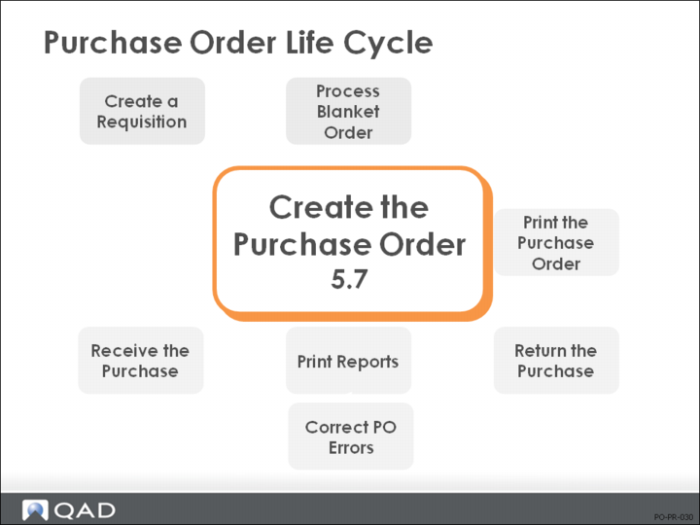
Create the Purchase Order
• A purchase order (PO) is a response to a demand for materials, for example a requisition or an MRP action message
• In general, POs are entered, printed, received, and closed or canceled
• Complete receiving history is maintained for matching with accounts payable
• Purchase Orders can be entered manually or created by processing a release against a blanket order
• Open POs or line items have a <blank> status code and are considered a firm source of supply for inventory items by MRP
• QAD Enterprise Applications generates action messages if a line item should be canceled, decreased, increased, or expedited
Note: Before entering purchase orders, it is useful to print the Purchase Requisition Report (5.1.6), which lists all the requisitions for the site. The requisitions can then be used during the creation of the PO lines.
Purchase Order Sections
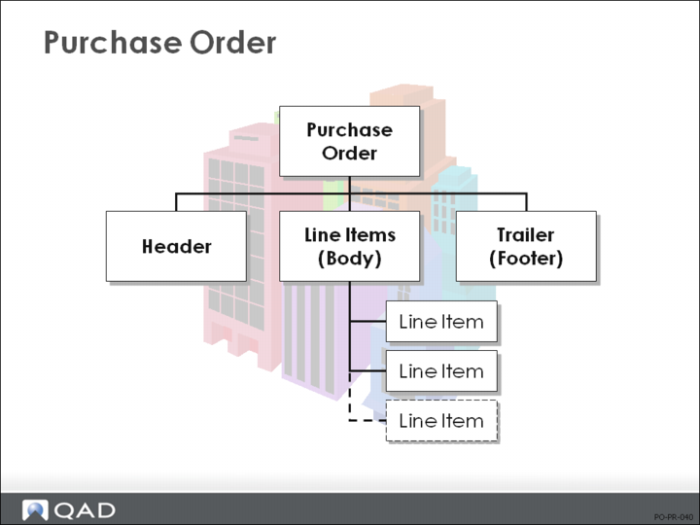
Purchase Orders and Blanket Purchase Orders have three sections.
1 The header contains PO site, contract terms, supplier data, and the delivery date.
2 The line items contain information about the ordered items, such as quantity and price.
Any exceptions to the header data, such as a different due date or a different site
The PO site on the line items can be changed if that item is being purchased for a site other than the one on the header
3 The trailer contains tax, shipping and status information.
Purchase Order Maintenance
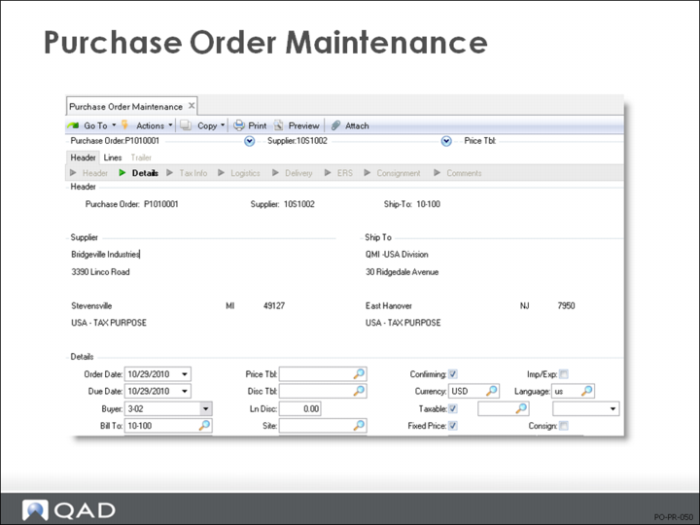
Header
• The order header includes the Supplier, Ship-To, Credit Terms, Currency, Exch Rate, and other general order information
• If requisitions are being used and the PO header Due Date is blank, the Requisitions Need Date in Purchase Requisition Maintenance (5.1.4) defaults as the PO line Due Date
• Once you enter the header, the order is stored even if you do not enter any line items
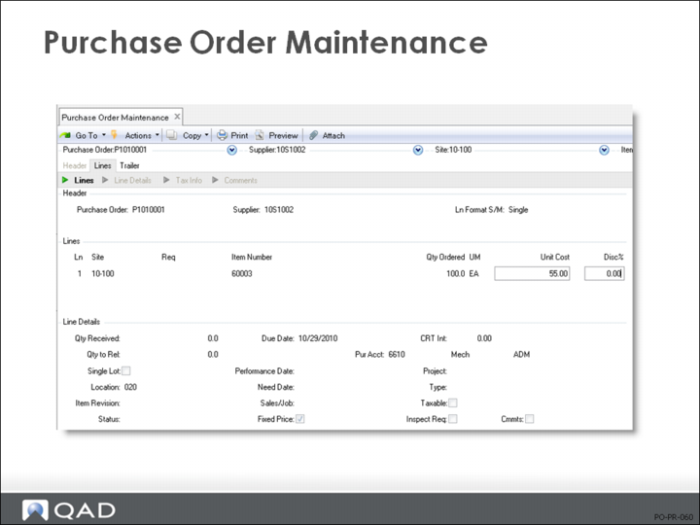
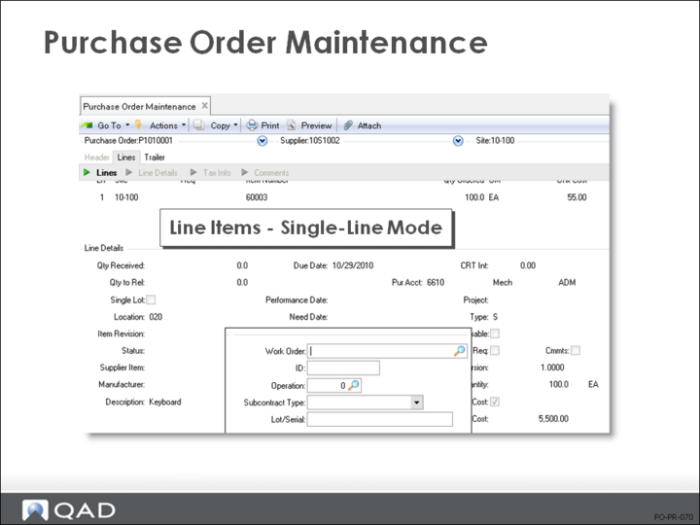
Line Items: Single-Line Mode
• If you enter your item number, QAD Enterprise Applications displays the GL material cost
• If you enter the supplier’s item number, the system accesses data in Supplier Item Maintenance (1.19) and Price List Maintenance (1.10.2.1) and displays the Purchase Cost quoted for that order quantity
• If a supplier item record is in the table for the supplier and item number, the price is obtained from the supplier item
• The price is only obtained from the price list if the price list code is entered on the PO
• You can enter one line at a time or multiple lines; the default is established in Purchasing Control (5.24)
Single-line entry allows you to enter more details, such as dates, site, location, tax status, and GL accounts
You can change the method during order entry by entering S or M in the Ln Format field
Line Items: Single-Line Mode
Note: For subcontracting operations, you set the line Type = S (in single-line entry). The system then requests the work order and operation numbers.
Note the following for memo (non-inventory) items:
• Set Type to any value other than blank or S for a non-inventory line
• On receipt, the purchase account and cost center from the line are debited
• The purchase account and cost center default from the supplier, or from the product line if a valid item code is entered
• You can use Requisition Approvals to restrict use of the default account
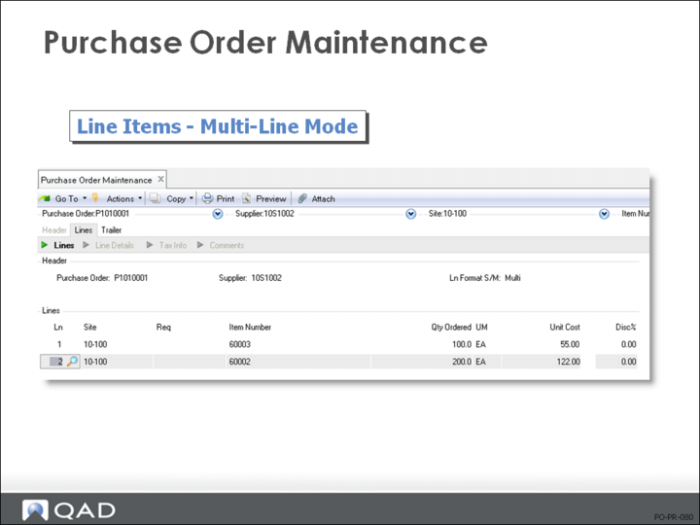
Line Items: Multi-Line Mode
• Unlike single-line entry, Multi-line entry does not allow you to enter details such as dates, site, location, tax status, and GL Accounts
In multi-line entry, these fields contain the defaults for these fields
• In multi-line entry, you can enter 12 lines per screen
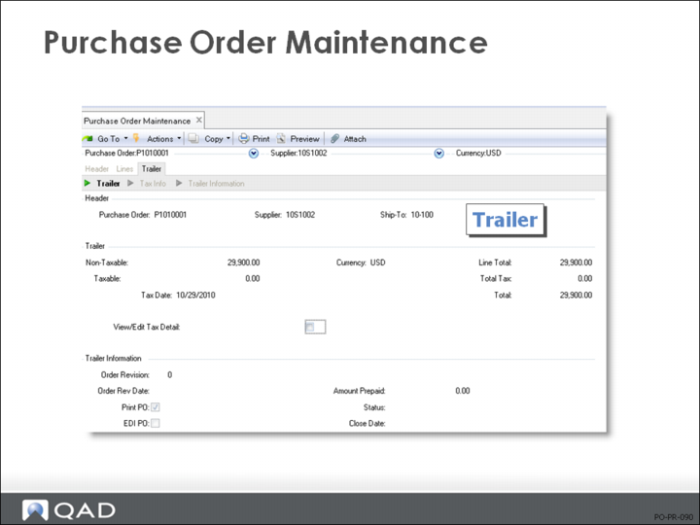
Trailer
Once all line items are entered, QAD Enterprise Applications displays trailer information, totaling line items and calculating taxes.
Revision
When a purchase order is first entered, revision defaults to zero
• Each time a purchase order is changed, increase the revision number by 1
• A new copy of the purchase order document can be printed listing the current purchase order information along with the revision number.
• When a revised purchase order is printed, it lists all of the purchase order line items, but does not highlight changes
• To avoid confusion, highlight the changes yourself or enter comments describing the changes made.
Print PO
Each purchase order and blanket order has its own print field
• If Print PO = Yes, the order should be printed
• If Print PO = No, the order has already been printed
• The Purchase Order Print (5.10) or Blanket Order Print (5.3.5) functions automatically set this field to No.
• If you want to skip printing this order, set this field to No manually.
• Normally a formal printed document should only print once
• The print field prevents the document from reprinting by mistake.
• To reprint it intentionally, change the print field back to Yes using the maintenance function.
EDI PO
The EDI PO field defines whether the purchase order will be exported by EDI Purchase Order Export (35.15)
Status
With status code, the system decides whether to include a purchase order on reports and inquiries, and whether to consider open line item quantities as sources of supply for planning purposes
• Status = blank means the purchase order is open
It is included on all open order reports, and line item quantities are considered by planning.
• Status = X means the purchase order is cancelled and not considered by planning
Line items might or might not have had anything received against them.
No further receipts can be processed against this order.
• Status = C means the purchase order is closed
This is automatically set when all line items have either been cancelled or received in full (or, for blanket PO's, released in full).
No further receipts can be processed against this order.
Closed and cancelled (status C or X) orders can be deleted using the Purchase Order Delete/Archive function.
If an order or line item has been closed, it can be reopened by changing the status.
Returns to supplier can be processed even after an order or line item has been closed or cancelled.
FOB
Free on board (FOB) prints on formal documents such as Purchase Orders, Blanket Orders, and the Purchase Return Document
• FOB also displays on many purchasing inquiries and reports
Validated against predefined values entered in Generalized Codes Maintenance (36.2.13), if any
Indicates the FOB point for receipts made against this order
Ship Via
Supplier ship via is the default ship via on all purchase orders and blanket orders for this supplier
It can be changed manually during order entry
Validated against predefined values entered in Generalized Codes Maintenance (36.2.13), if any
The ship via prints on purchase orders, blanket orders, receivers, and return documents