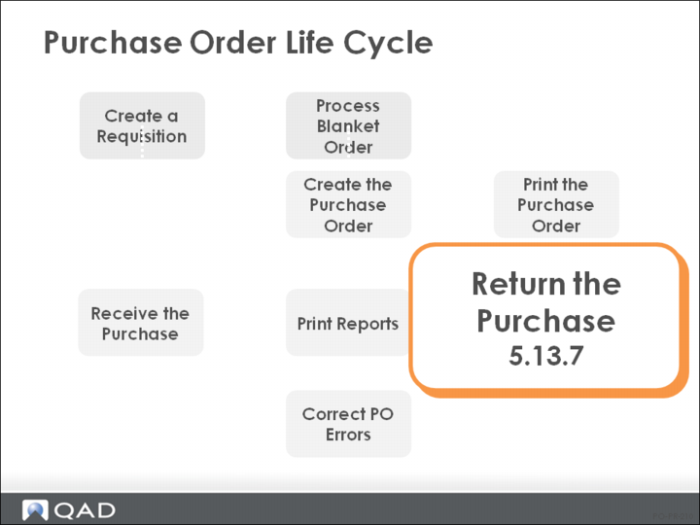
Return the Purchase
There are two ways to return goods to a supplier. If the purchase order still exists, use Purchase Order Returns (5.13.7). Or use Purchase Order Maintenance (5.7) to enter a new line or order for the items to be returned. Use negative numbers to indicate returned quantities. Receive items in Purchase Order Receipts (5.13.1).
This guide discusses the return of goods to the supplier using Purchase Order Returns (5.13.7). If you are using the Service/Support Management module, the Return to Supplier functions (11.7.3) are used to return items to the supplier for service. See Training Guide: Service/Support Management (SSM).
• A purchase order return indicates that you are returning materials to a supplier. The material can be taken from inspection, inventory, or work in process (WIP). Receiving history is generated for matching against the supplier invoice in Accounts Payable.
• You can process returns against any PO, open or closed, returning up to the received quantity. If you want to replace items, enter a replacement order in Purchase Order Maintenance (5.7) or increase the quantity on an open PO.
Note: Returns affect the Supplier Performance Report (5.15).
• Subcontract items are returned out of WIP. The return updates the quantity completed at the WO operation.
• A complete audit trail of all inventory transactions is maintained in transaction history (tr_hist), which can be reviewed using Transactions Detail Inquiry (3.21.1) Each transaction is identified by a transaction number and a transaction type (ISS-PRV).
• All general ledger transactions are stored in the unposted transaction table until they are posted
Unposted transactions can be reviewed using Unposted Transaction Inquiry (25.13.13)
The GL entries are the reverse of those created by Purchase Order Receipts (5.13.1)
If you process an incorrect quantity in this transaction, you can reverse it by processing the same transaction again with a negative quantity. After you reverse the original entry entirely, process this transaction again with the correct quantity to maintain a complete audit trail
Note: Do not use a negative Purchase Order Receipt to process a return; it does not update supplier performance history.
Purchase Order Returns
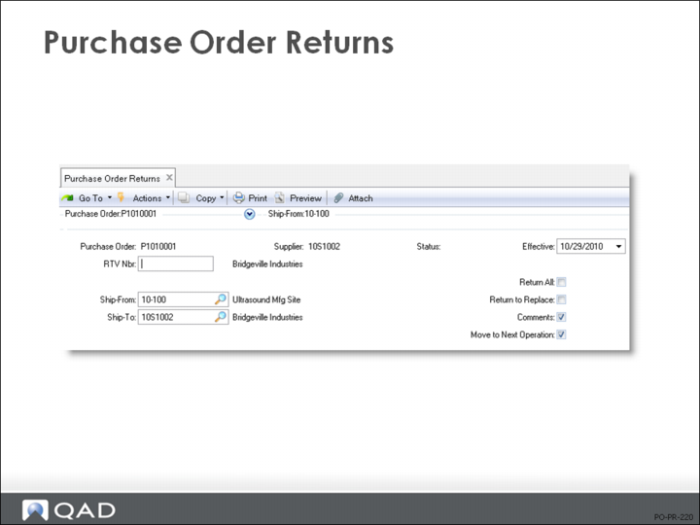
Header
Purchase Order
Specify the PO number
Status
A code identifying the status of this purchase order
With status code, QAD Enterprise Applications decides whether to include a purchase order on reports and inquiries, and whether to consider open line item quantities as sources of supply for planning purposes
• Blank = the purchase order is open
It is included on all open order reports and line item quantities are considered by planning
• X = cancelled
Line items might or might not have had any quantity received against them
The order is cancelled and not considered by planning
No further receipts can be processed against this order
• C = closed
Status is set to [C] automatically when all line items have either been cancelled or received in full (or, for blanket PO's, released in full)
No further receipts can be processed against this order
• Closed and cancelled orders can be deleted using the Purchase Order Delete/Archive function
• If an order or line item has been closed, it can be reopened by changing the status
Returns to supplier can be processed even after an order or line item has been closed or cancelled
Return All
Yes = all items received on a PO are to be returned
This sets the Quantity to Return to the Quantity Received for each line item on the PO, streamlining the return process
Return lines are set up with items taken out of the site and location (or work order) specified on the PO
If you are returning from a different place, type in the return information for that line
Lot/serial numbered items must always be manually returned to record the correct lot/serial number
Return to Replace
• No = a return for credit
• Yes = the item is to be replaced
QAD Enterprise Applications adds a new line to the original PO for the returned quantity
All fields on the new PO line default to the values for the returned line item except that Order Quantity shows the quantity returned, and Qty Received is set to zero
The line number is set to the highest line on the PO plus one
The new line updates quantity on order, MRP, and transaction history just like any other PO line
When you process a voucher against the supplier invoice, the quantity returned appears in the receiver window as a negative quantity offset against the original PO line
The Return for Replacement field will reopen a closed PO but does not work if the original PO has been deleted
Comments
You can enter information about the return on a comment screen
In general, to move from one screen to the next you press Go, except when you are entering comments
Since multiple pages of comments can be entered, the system will keep prompting you to enter more until you signal that you are done by pressing End
RTV Nbr
Number must be unique
RTV Number is a form of receiver number
• Enter a receiver number on the receipt transaction only if Receiver Type is set to 0 or 1 in Purchasing Control (5.24)
• Some companies use different receiver numbers when recording returns
Make sure that codes are entered consistently by entering the allowed codes into Generalized Codes Maintenance (36.2.13)
The system verifies entered codes against these predefined values, preventing incorrect codes from being entered
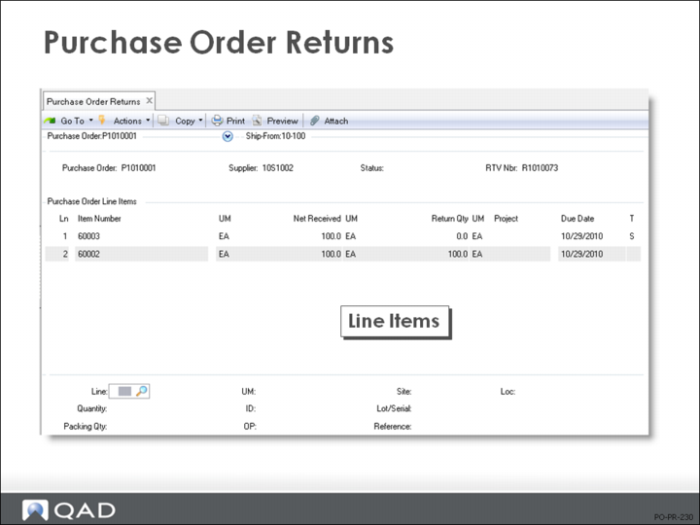
Line Items
• At the top of the screen, the line items and the Quantity Received for each are shown
• At the bottom, enter the quantity to return for each line item and specify the Site, Location, Lot/Serial, and Ref
Lot/serial numbered items must always be manually returned to record the correct lot/serial number
Be sure to enter the same site, location, lot/serial, and lot reference numbers as you entered on the original transaction
If you are returning from a different place, type in the return information for that line
• If Return All = Yes in the header, return lines are set up with items taken out of the site and location (or work order) specified on the PO
• You can enter a reason code and comments for each line item returned
• Subcontract items are returned out of WIP
The return updates the quantity completed at the WO operation
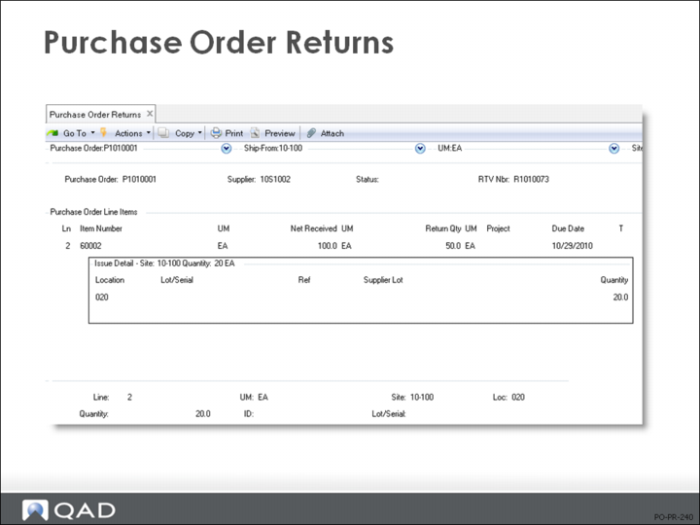
Issue Detail
• If you set Multi Entry to Yes, another screen pops up for you to enter a list of sites, locations, lot/serial, and lot reference numbers, and a quantity for each one