Selecting Menu Items
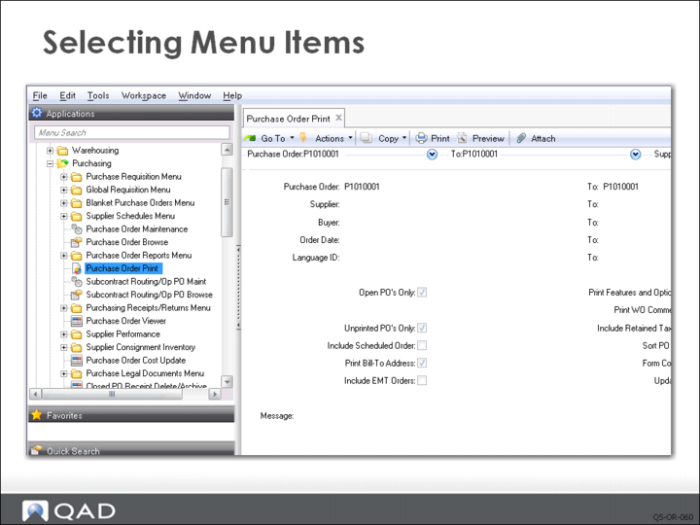
You use the mouse to select menu items. You can execute a program by:
• Clicking on the menu folders until you find the program in the menu and then double-clicking on its name. You can single-click the plus or minus sign to toggle the folder open or closed or double-click the folder icon directly.
• Double-clicking on a discrete functions, such as Purchase Order Maintenance to open the functional screen in the main window.
• Entering part of its name in the Menu Search field. For example, enter sales to display all menu labels that include the word sales.
Experienced users can also find menus by number and program name, but most users find the search easiest. This guide assumes you are using menu names but menu numbers are provided when a function is first introduced. When typing in the menu search area, different screens appear as the typing continues until the proper screen is located. This is called predictive text.
The window uses tabs and lets you open multiple functions at one time. You can toggle between the functions by clicking on the tabs. Close a tab by mouse clicking the X in the tab corner.
Note the Favorites section below the menu listing. You can create your own unique menu of frequently used functions by dragging the icon of a menu item from the main list into the Favorites section.