Non-Standard Receipt
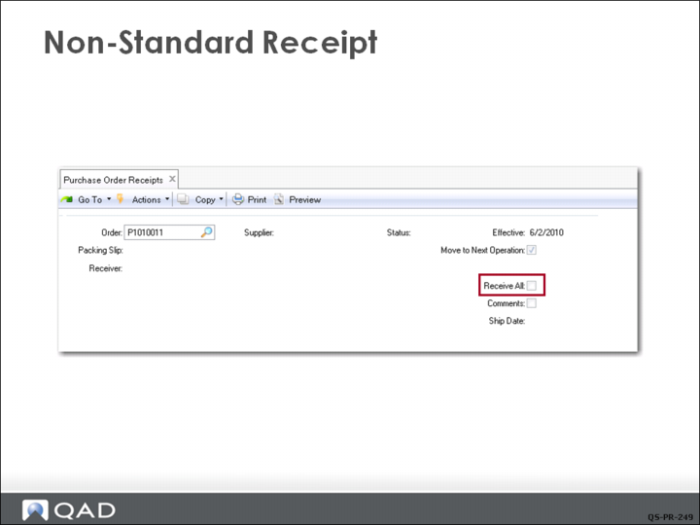
Now you will look at how to handle PO receipts in a non-standard situation. In this example, the PO is the same as the previous one, except the PO number is different. The first screen shows the Receive All box left unchecked.
Non-Standard Receipt
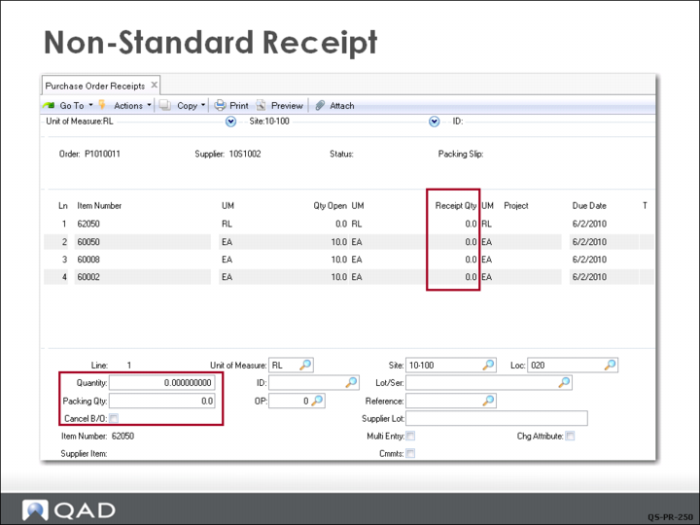
This brings up the receipt screen but, because Receive All was unchecked, the Quantity to be received is blank. You can use the lower frame to manually enter each line item and the quantity being received. In subsequent frames, the Receiving Department enters both the actual quantity received for each line (Quantity field) and the quantity indicated on the packing slip (Packing Qty field). This step is especially important when a discrepancy exists between the quantity listed on the packing slip and the actual quantity received. The line detail frame can also be used to indicate inventory location the material is put away in, if it is different than the default.
In this case the quantities are the same. Complete the line item data and click Next to update the quantity to be received column in the top frame; then you can proceed to the next line item.
Note the field Cancel Back Order. In some cases, a shipment is short a few items. This field lets you receive the item short and cancel the back order, thus closing the PO line. Of course, you will want to notify your supplier so they do not try to ship the additional items.
In the final frames, the Receiving Department confirms that all information listed is correct and the system processes the order receipt. A trailer frame is displayed to review any taxes.
Questions
Where did the following default information come from: Supplier, Location, Site
If this had been a partial order, how would you handle that in QAD EE?