Allocation of Inventory
QAD EE uses allocations to reserve inventory. Particular quantities can be set aside or allocated to specific sales orders and work orders. For both sales orders and work orders, allocations help ensure that inventory is available when it is needed. For sales orders, allocations also enable the sales department to determine which items are shipped for specific orders and prevents you from promising the same item to two or more customers.
General and Detail Allocations
When inventory is to be allocated, the system distinguishes between a general allocation and a detail allocation.
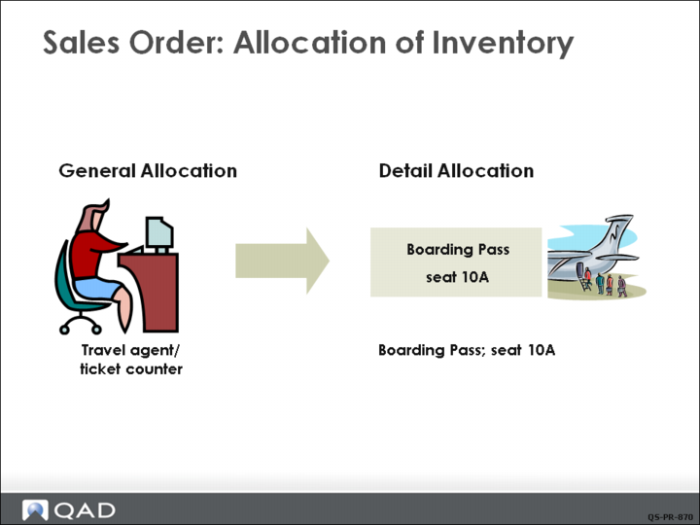
• A general allocation reserves inventory at a particular site, but it does not specify a specific location or lot/serial numbers. This is similar to when you buy an airline ticket. The airline allocates a seat for you. This is a general allocation—you have a seat but you do not know which one.
• Detail allocations enable you to reserve exact items of inventory at a specific location by specifying lot and/or serial numbers, expiration dates, sites, and/or locations. Detail allocation is normally done automatically when the picklist is prepared, but it can be done manually during the order-entry process. In the airline example, detail allocation happens when you get a boarding pass—now you know what seat you are in. It is detail allocated to you and no one else should be assigned to the same seat.
Automatic or Manual
Allocations can be done at several stages, automatically or manually. For sales orders, general allocations can be created during order entry, depending upon the setting in Sales Order Control. The system automatically converts general allocations to detail allocations when picklists are printed. You can also override the system by manually creating detail allocations during order entry. Like the airline boarding pass example, most errors occur when humans try to manipulate the system and override the system allocations.