Approve Planned Orders
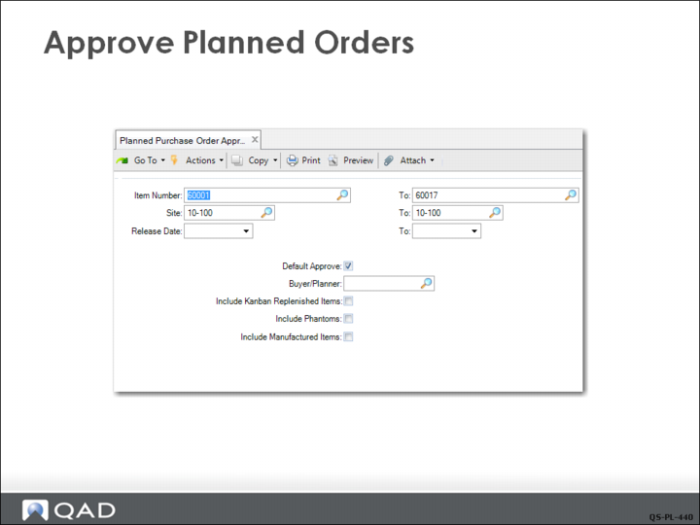
The QMI planner uses Planned Purchase Order Approval (23.11) to approve MRP planned purchase orders.
When you approve the MRP planned purchase orders, the system converts these orders into purchase requisitions. The planner:
• Selected a range of item numbers that includes only the components of the medical ultrasound and only for the local site.
• Selected a range of dates that will include any past due orders, but only looking a short time into the future. This will limit the number of orders selected.
• Set Default Approve to Yes so all planned orders will be selected for approval. If you do the selection by release date—for example all orders due to be released today, a common way to use this function—then you would want to check Default Approve.
If you are unsure, you can leave Default Approve unchecked and approve the orders individually. When there are many planners, orders are usually selected by buyer/planner code.
A review screen displays next.
Approve Planned Orders
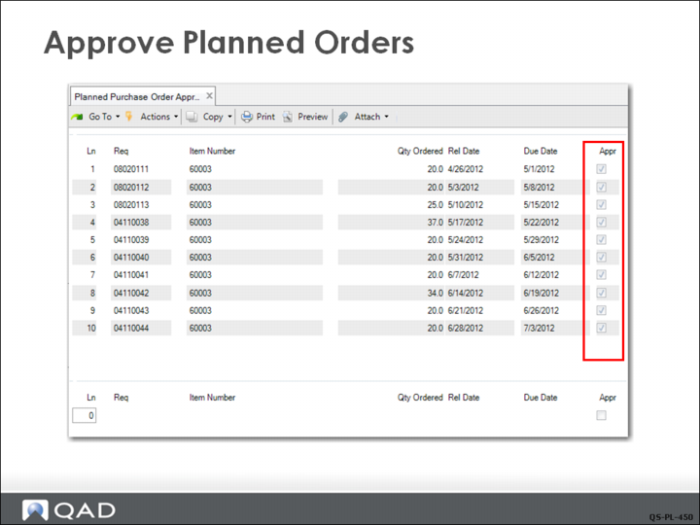
The Appr box is already checked because Default Approved was checked in the previous selection screen. Clicking Next will bring up a verification window for confirmation. Clicking Yes will approve all orders, converting them into purchase requisitions. They are no longer planned orders.
If more orders need approval than will fit on one screen, clicking Next brings up the next ten orders for review. The system will cycle through as many screens as necessary to display all the orders included with your selection criteria.
If you are manually selecting orders for approval, or if you need to change a particular order’s selection, use the lower frame. Enter the line number of the order you want to change, then click Next to the Approval check box and either check it or uncheck it, then click Next again.
A pop-up displays requesting confirmation of the approval. Clicking Yes will approve all orders, converting them into purchase requisitions. They are no longer planned orders.
If more orders need approval that will fit on one screen, clicking Next brings up the next ten orders for review. The system will cycle through as many screens as necessary to display all the orders included with your selection criteria.