Approve Planned Work Orders
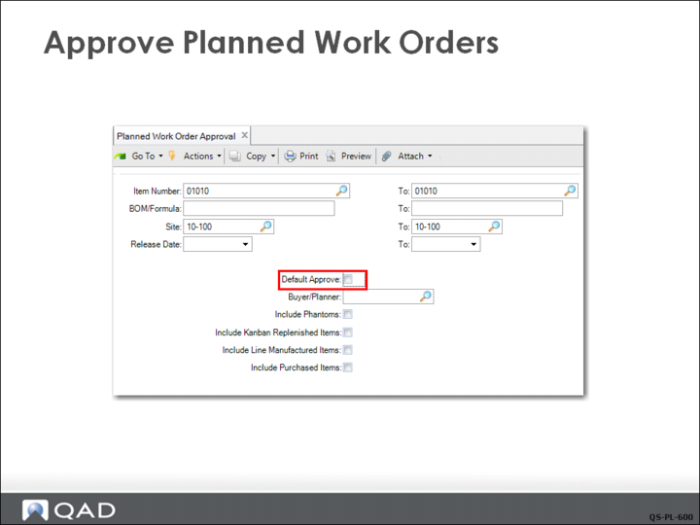
The planner uses Planned Work Order Approval (23.10) to approve the MRP planned order. The planner has deselected Default Approve.
Note: You can also choose orders by planner code or release date to limit the items displayed.
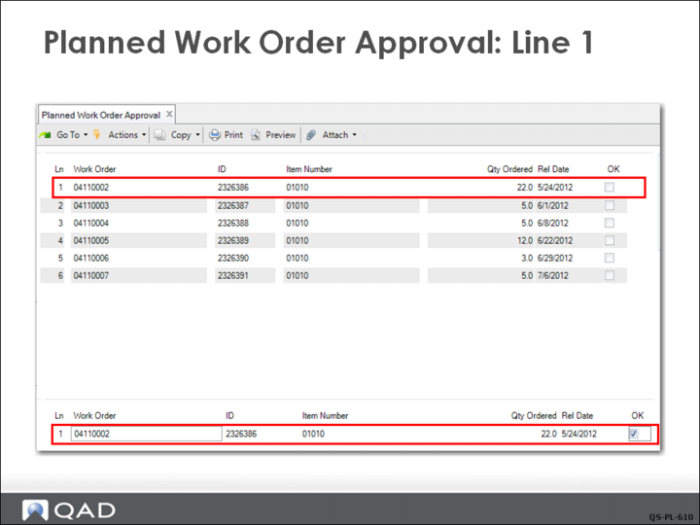
Planned Work Order Approval: Line 1
Because Default Approve was unchecked in the first frame of Planned Work Order Approval (23.10), the OK check box defaults to unchecked. After reviewing the list, the planner approves specific orders by entering the line number displayed in the upper window into the Ln field of the lower frame, clicking Next, and checking OK by clicking the cursor in the box.
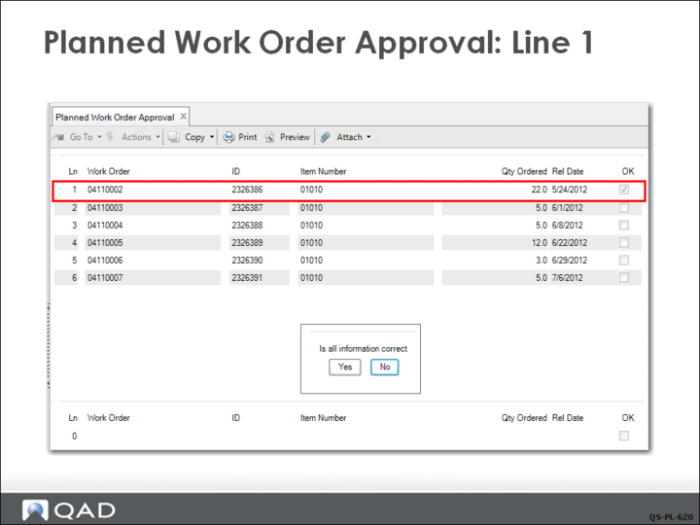
Clicking Next moves the check mark to the upper window and clicking it again displays a confirmation message.
Clicking Yes to the confirmation approves the planned order and makes it Firm Planned. When an order is firmed, you can no longer see it in Planned Work Order Browse.