Ship Items on Sales Order
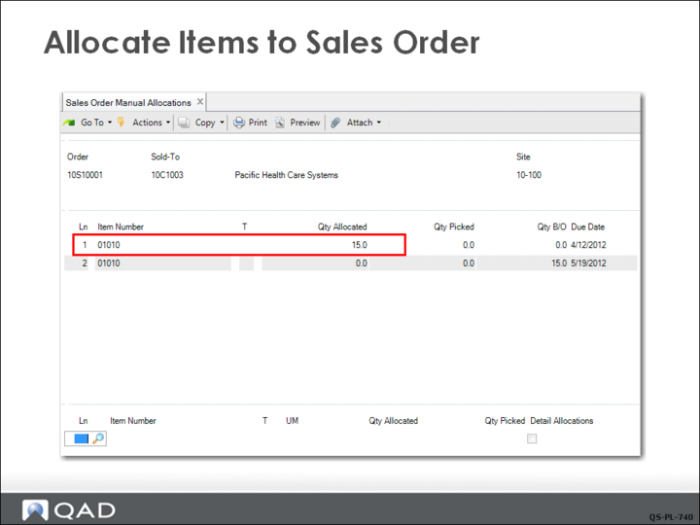
QMI’s sales department has received the authorization from the customer to ship the first line (quantity of 15) on their sales order 10210001. Sales Order Control has been set to allocate orders 10 days before the shipment due date. In order to complete the shipment, 15 units of inventory (01010) need to be allocated to the sales order.
The system lets you do this in several ways:
• Edit the order in Sales Order Maintenance and set Detail Allocations to Yes. This can be time-consuming to navigate all the frames in the maintenance program.
• Create manual allocations with Sales Order Manual Allocations (7.1.6), shown here. These can be general or detail.
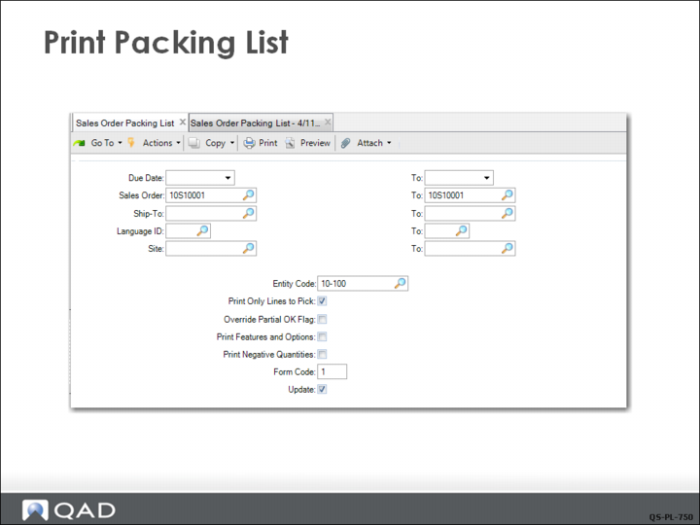
• Print a packing list and set Update to Yes. These allocations are always detailed and include serial numbers if required.
After creating the general allocations to the sales order line, print a packing list with Sales Order Packing List (7.9.13) to create detail allocations. Make sure that the Update check box is selected.
The picklist can be used to pick the items from inventory for shipment and can then be included with the shipment as a packing list. Alternatively, two copies of the packing list can be used if you need to keep a hard copy for internal purposes.
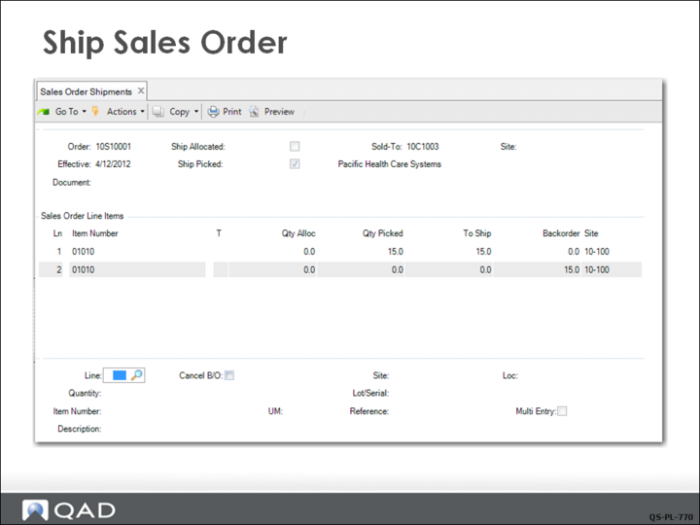
With the packing list in hand, the QMI shipping department, pulls the inventory, packs it for shipment, and then processes the shipment transaction using Sales Order Shipments (7.9.15). Notice that the second line of the order has not been allocated and the 15 items on it display on the Backorder column. All of the items on line 1 are ready to ship.
The sales clerk continues to click Next and respond Yes when prompted to complete the transaction. The sales order remains open since not all of the items have shipped.