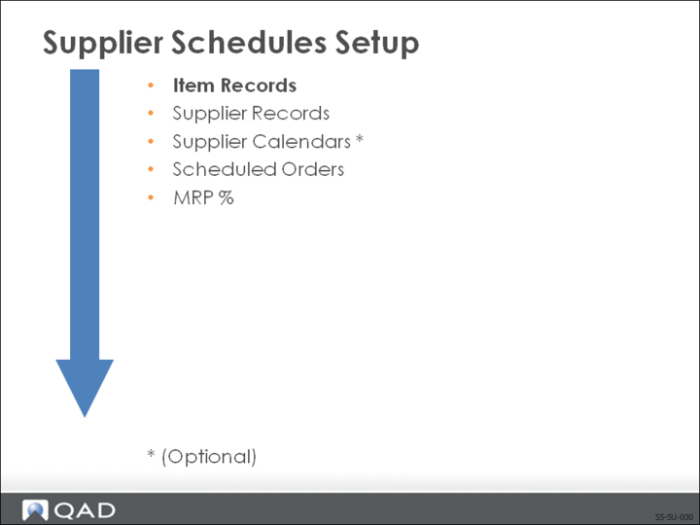
Item Records
Before creating a scheduled order, item records must exist for all items and products you are purchasing. The Item Master table contains records for all items, regardless of site. Item records hold the default information about items.
MRP uses the item information to create planned purchase orders for scheduled items.
To add item records, use one of the following:
• Item Master Maintenance (1.4.1)
• Item Data Maintenance (1.4.3)
Supplier Item Records
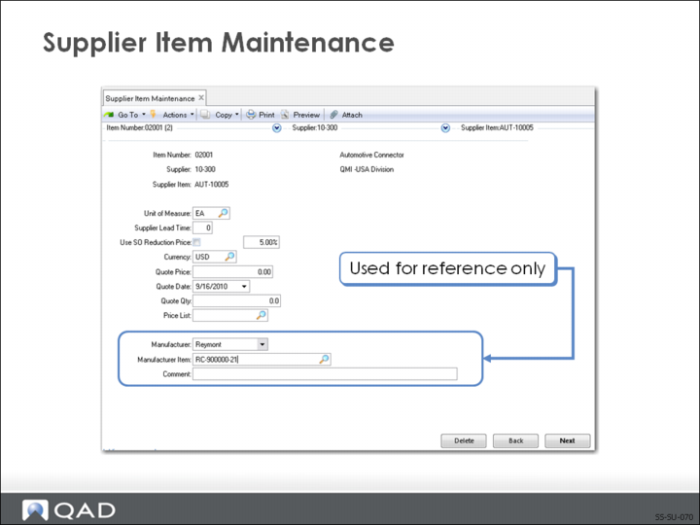
If your supplier uses an item number different from your internal item number, you can set up a cross-reference between the two item numbers. You can also reference the original manufacturer’s number.
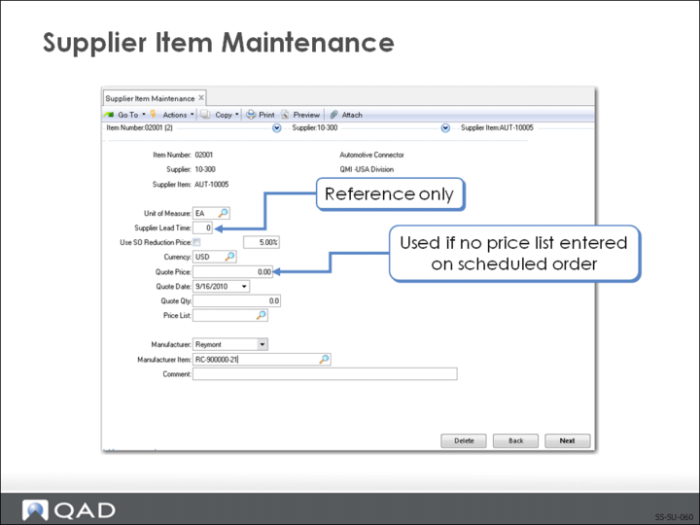
To add a cross-reference between a supplier item number and your internal item number, use Supplier Item Maintenance (1.19).
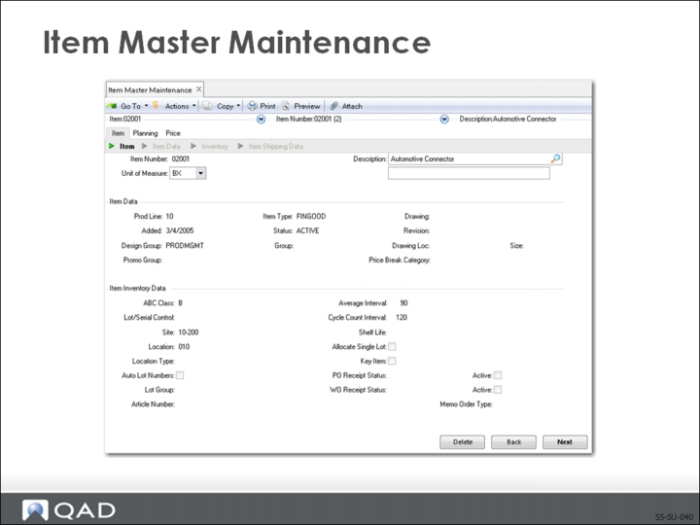
Item Master Maintenance
Use Item Master Maintenance (1.4.1) to add an item number.
There are four categories of item information (data):
• General
• Inventory
• Planning
• Cost
Exercise: Item Record
Note: The data used in these exercises may not be the same as the data shown in the screen captures in this lesson. In an exercise, if a field is not listed, you can accept the default value or leave it blank.
You are going to create a purchase part (item) number.
Use Item Master Maintenance (1.4.1)
1 To create the purchased item, enter the following:
Field | Data |
Item Number | bx-0001 |
Description | Carton, 1g |
2 Advance to the Item Data frame. Enter the following:
Field | Data |
Product Line | 10 |
Promo Group | MEDICAL |
Item Type | COMP |
Status | ACTIVE |
3 Advance to the Item Inventory Data frame. Enter the following:
Record the default site: ________________
4 Advance to the Item Planning Data frame and enter the following:
Field | Data |
Plan Orders | Y |
Pur/Mfg | P |
Pur LT | 1 |
5 Advance to the Item Price Data frame. Enter the following:
Supplier Item Maintenance
When a PO is entered referencing this supplier item, optionally you can update the supplier-item data to reflect the new price if it has changed. Both the quote price and quote date are updated. The quote quantity does not change. You can choose to prevent this update, for example if the price is much higher than normal because of a rush delivery requirement.
Both item numbers print on all communications to the supplier.
Note: Purchase order item numbers can have a maximum length of 18 characters
• When you set up a supplier item number, you can enter either item number (your internal item number or the supplier item number) on an order
• If you enter the supplier item number, the system automatically substitutes your internal item number
Exercise: Supplier Item
Note: The data used in these exercises may not be the same as the data shown in the screen captures in this lesson. In an exercise, if a field is not listed, you can accept the default value or leave it blank.
Your supplier uses their own item number, so you need to set up a cross reference between your internal item number and your supplier’s item number. You are also going to create a manufacturer’s reference.
1 To create the cross-reference, enter the following data. Use Supplier Item Maintenance (1.19)
t
Field | Data |
Item Number | bx-0001 |
Supplier | 10S1003 |
Supplier Item | Box100 |
2 Advance to the Specification frame. You are now going to create a reference to the original manufacturer and their item number:
Field | Data |
Manufacturer | Boxer |
Manufacture Item | bx-0001 |