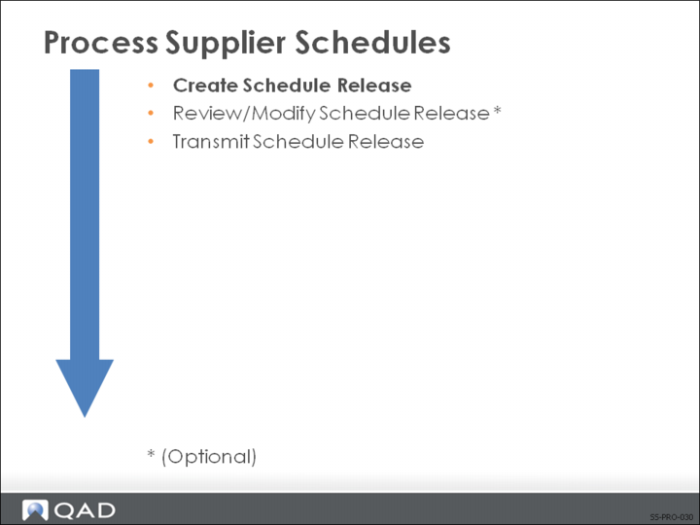
Create Schedule Release
Once you have the MRP demand, you can take the MRP requirements and determine the due dates and quantities for each scheduled order item by supplier. With this information, you are ready to produce a new active schedule release.
• A release is a set of item quantities and requirement dates identified by a release ID number
• The release is what you send to your supplier
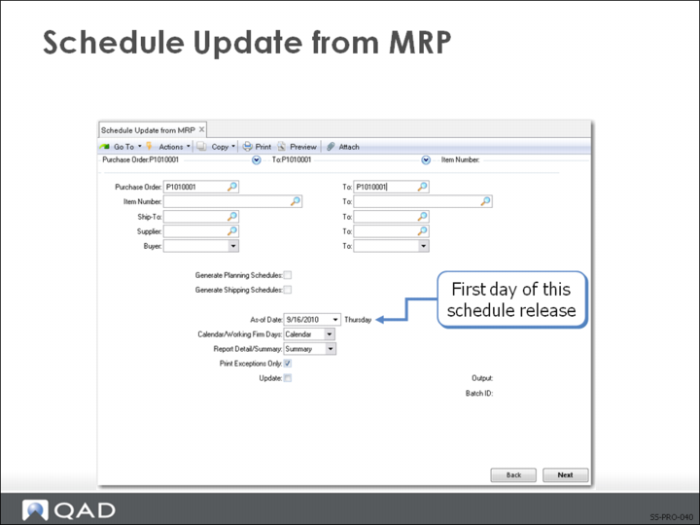
Schedule Update from MRP
Use Schedule Update from MRP (5.5.3.1) to automatically create a new release of a supplier schedule. Select the scheduled orders using one or more of the following:
• Purchase Order (scheduled order)
• Item Number
• Ship-To (receiving site)
• Supplier
• Buyer
To select all, leave the fields blank.
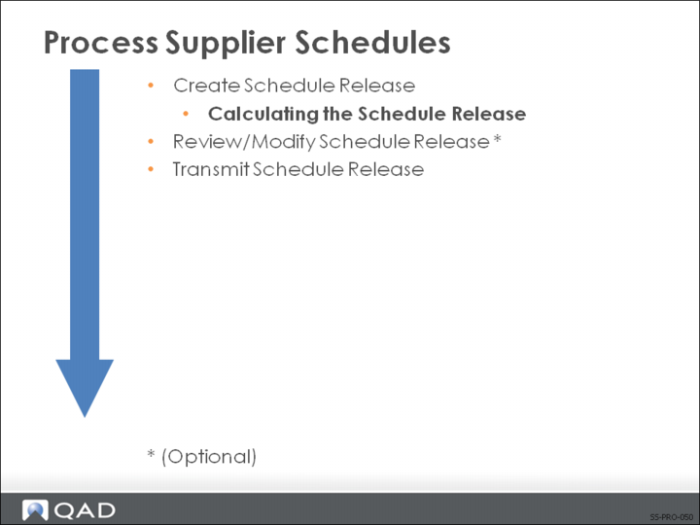
Calculating the Schedule Release
Using the selection criteria you enter, Schedule Update from MRP:
• Locates all planned orders from MRP for the selected items
• Looks at the scheduled order for the supplier and adjusts the quantities and due dates using the scheduled order’s parameters
Note: These parameters are set in the Order Line Item Data frame of Supplier Scheduled Order Maintenance.
In calculating the schedule release, Schedule Update from MRP performs the following calculations.
• Back-schedules for safety days from planned order due dates
• Back-schedules for ship/delivery pattern from safety day schedule
• Back-schedules for supplier calendar from ship/delivery date
• Distributes the requirements among the suppliers using the percentages specified in Scheduled Order MRP% Maintenance (5.5.1.17)
• Revises net required (open, not scheduled) quantities to standard pack quantity multiples
• Displays any unfulfilled prior cumulative requirements
• Creates the release and assigns a Release ID
Note: In Supplier Schedule Control (5.5.1.24), if Generate Date Based Release ID is set to Yes, a newly created release gets a release number with a format of YYYYMMDD-nnn; otherwise, it gets the usual 6-digit serial number.
• Determines whether quantities are firm (within the Firm Days time fence) or planned
• Displays fabrication and raw authorization quantities and the start and end dates
Note: Each time you run Schedule Update from MRP, all or part of the schedule is replaced depending on the Firm Days field value.
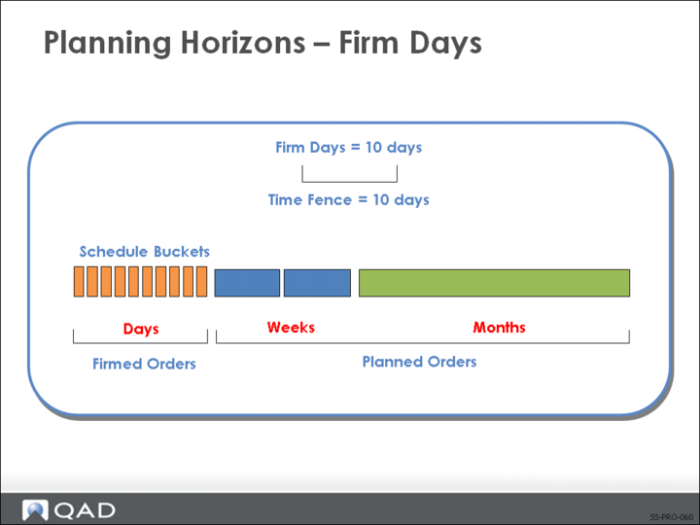
Planning Horizons - Firm Days
The setting of the Firm Days field in Supplier Scheduled Order Maintenance (5.5.1.13) affects the calculation of the schedule release. Because you are sending order quantities and planning data to your supplier, you define requirements as either firmed or planned quantities. You can send all firm, all planned, or some of both types of requirements. The value of the Firm Days field for the scheduled order line item defines the time fence and consequently determines the order status.
Schedule Update from MRP automatically applies firm status to any requirements falling within the time fence set by the Firm Days field. All planned orders outside this time fence are approved, but maintained as planned requirements. In other words, they are not seen by MRP as sources of supply and can be replanned.
When creating a new schedule release, Schedule Update from MRP checks for an active schedule release with unreceived firm requirements. If one exists:
• The firm requirements are carried forward to the new release
• Firm requirements prior to the beginning date of the new schedule release (as of date) are maintained as prior cumulative requirements (Prior Cum Req)
• Accesses MRP planned order information and adds it to the new schedule release, starting one day after the end of the firm time period of the old schedule release
• Firms any planned orders falling within the Firm Days time fence
When MRP is run again, it plans or replans orders for scheduled requirements that are now within its planning horizon. Once a schedule is created with firm data in it, MRP does not generate planned requirements with dates falling within the Firm Days time fence of the schedule release. However, if demand increases or decreases, the following occurs:
• If increased demands create additional requirements within the Firm Days time fence, MRP creates planned orders in that time period
• When you regenerate the schedule release, the system does not select any planned orders falling within the Firm Days time fence covered by a schedule
• The warning message Order not selected displays
• If decreased demand decreases requirements, MRP sees the supply as excessive and produces action messages
• Action messages recommend what action a master scheduler should take to balance supply and demand
You can set the Firm Days field to a positive value or zero (0).
When Firm Days is a positive value, Schedule Update from MRP:
• Generates firm requirements for a new schedule release
• Carries forward outstanding firm requirements to new schedule releases
• Firm requirements are visible to MRP as scheduled supply
When Firm Days is set to Zero (0), Schedule Update from MRP does not:
• Generate firm requirements for a new schedule release
• Carry forward any requirements from previous schedule releases
If 0, the update process generates each new schedule release from MRP planned data.
• All data is designated as planned
• Data designated as planned is not visible to MRP
The update process sets the prior cumulative requirements (Prior Cum Req) to the current value of the cumulative received (Cum Received). If any planned order has a requirement date falling before the beginning date of the schedule release, it is added to the prior cumulative requirements.
Note: To avoid schedule discrepancies between printed bucketed schedules and the actual required schedule, firm days should never exceed the number of days specified in the Schedule Days field set in Supplier Scheduled Order Maintenance.
Exercise: Create Schedule Release
Create a schedule release for your scheduled order.
Use Schedule Update from MRP (5.5.3.1).
1 Using your scheduled order number, run the update. Let the As of Date default to the system date.
Field | Data |
Report Detail/Summary | Detail |
Print Exceptions Only | No |
Update | Yes |
2 Send the output to Page.
3 Review the output, taking note of the calculation steps.