WLT with Work Orders/SFC
Course Overview
Work Order Process
When processing a work order (WO), the system uses WLT data collection frames to collect tracing information when the WO is WLT-controlled. A WO is WLT-controlled when:
• WLT has been enabled
• Trace Parents is set to Yes in the WIP Lot Trace Control (3.22.13.24), or
• A WLT BOM registration record is active for the parent item being manufactured and Trace Parents is Yes for that BOM registration record
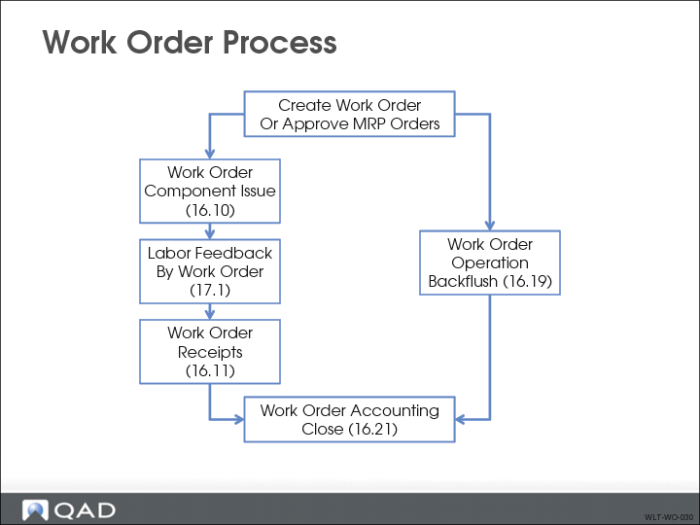
The graphic shows two methods for processing a WO. In the first method, the job flow is:
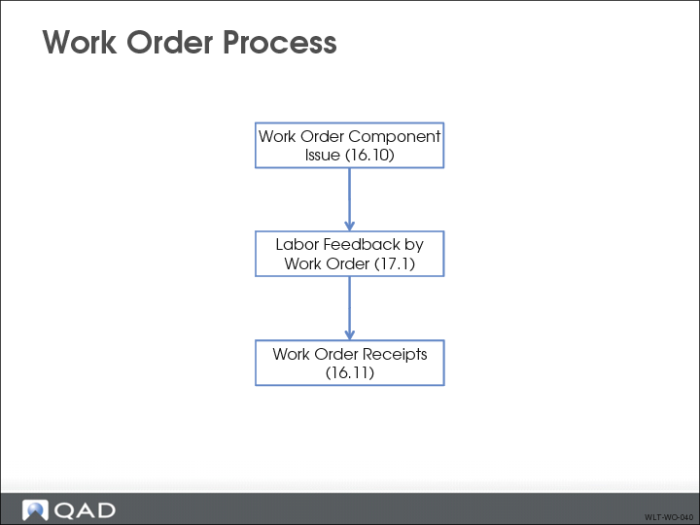
• Issue the components
• Report labor
• Receive finished goods into inventory
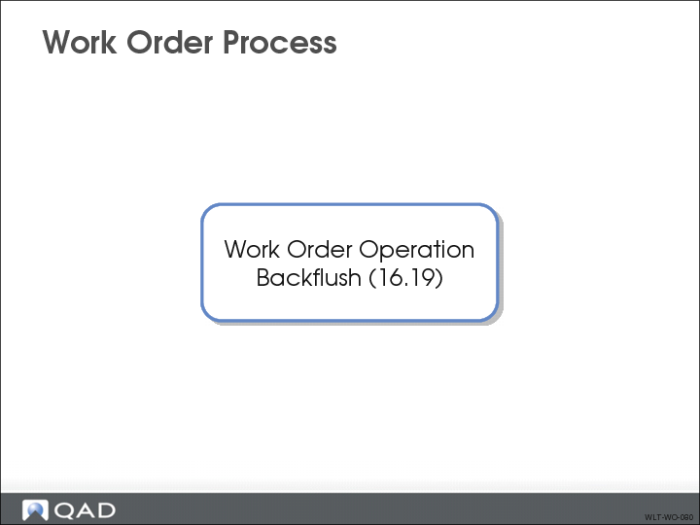
The second, or alternative, method is to use Work Order Operation Backflush (16.19). It combines issuing, labor reporting, and receiving functions.
Work Order Process
Work Order Component Issue
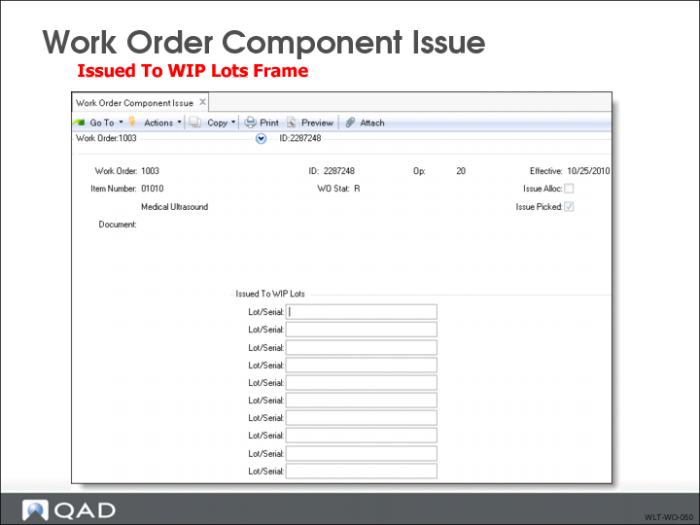
Use Work Order Component Issue to issue component and WIP material to WLT-controlled WOs. It uses the following WLT data collection frames:
• Current Work Center and Machine
• WIP Lot Input Queue Issue Data
• Issued to WIP Lots
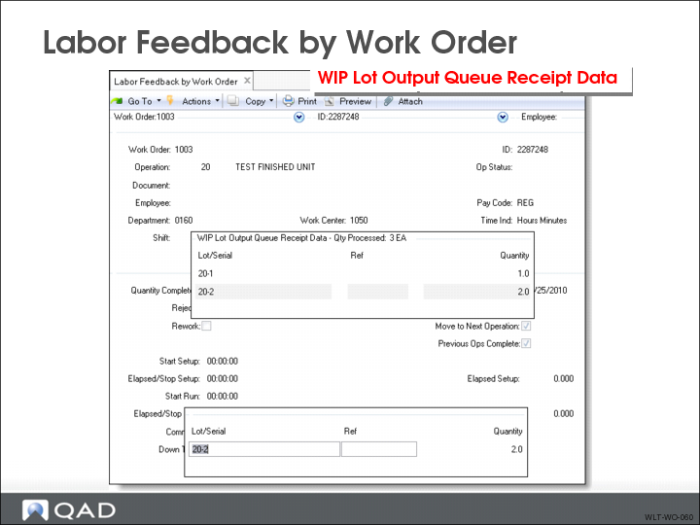
Labor Feedback by Work Order
To report labor, you can use any of the following Shop Floor Control programs:
• Labor Feedback by Work Order (17.1)
• Labor Feedback by Employee (17.2)
• Labor Feedback by Work Center (17.3)
The labor feedback programs use the following WLT data collection frame:
• WIP Lot Output Queue Receipt Data frame
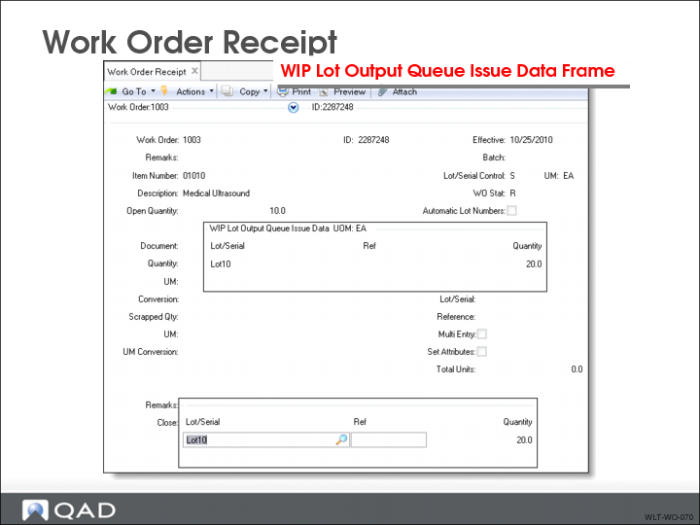
Work Order Receipt
Use Work Order Receipt to receive the finished goods manufactured with WLT-controlled routings. Work Order Receipt uses these WLT data collection frames:
• Current Work Center and Machine
• WIP Lot Output Queue Issue Data
Work Order Process
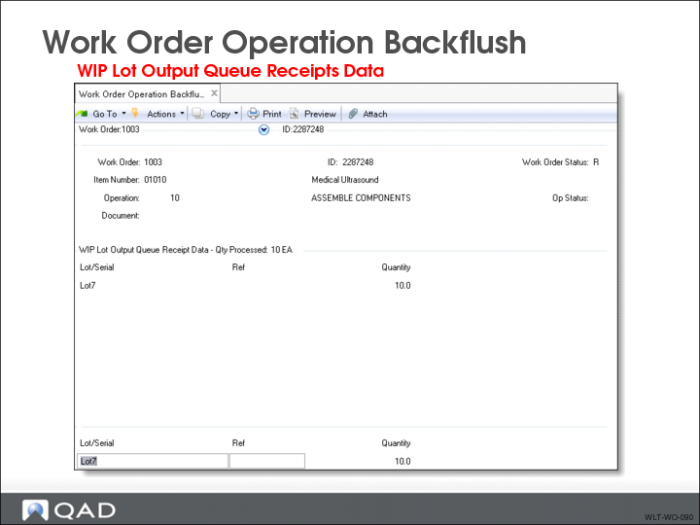
Work Order Operation Backflush
You can also use Work Order Operation Backflush to process a WO. It uses the following WLT data collection frames:
• WIP Lot Input Queue Issue Data
• Destination Work Center and Machine
• WIP Lot Output Queue Receipt Data
Exercise: Work with WIP Lot Trace
Create Work Order
1 Use Work Order Maintenance (16.1) to create a work order for two units of 10MHz probe assembly (50001) at site 10-100. Record the work order number.
2 Use Work Order Component Check (16.5) to check if there are any component shortages for the work order created. If shortages exist, use Receipt - Unplanned (3.9) to receive enough components into site 10-100 to cover the shortage. For serial-controlled items, use the same item number with a suffix to define serial numbers; for example, 60004-S001, 60004-S002, etc.
3 Use Work Order Release/Print (16.6) to release the work order.
4 Use Work Order Component Issue (16.10) to issue materials to operation 10 for the work order. In addition to the component material to issue, you are prompted to enter a list of WIP material to issue. You are also be prompted to enter a list of WIP lot numbers to which the issued WIP and component lot/serials are issued. Note that these WIP lot numbers are not “produced” by this transaction. They are used to form the association between the materials issued and the materials that are produced later.
5 Click back until the “Is all information correct?” message appears to complete the transaction; confirm by clicking Yes.
View WIP Lot Tracing Data
1 Now you can view the tracing data the component issue transaction creates. Use Operation Transaction Detail Inquiry (16.20.13.9) to review the operation transaction detail. It defaults to your last transaction (ISSUE).
2 Advance to the WIP Lot Trace Data frame. The data displayed shows the material lots consumed and produced as a result of your issue transaction.
Note: The WIP material is listed with an item number which is the same as the parent item number.
3 Use WIP Lot Convert Trans Report (3.22.13.15) to view the same detail in report format.
4 Use WIP Lot Where-Used Report (3.22.13.19) to view downstream traceability.
5 Use WIP Lot Actual Bill Report (3.22.13.20) to view composed-of traceability.
Labor Feedback by Work Order
Register an operation completion at the second operation. You are prompted to enter a list of WIP lot numbers that were produced. This action also updates the QOH for the WIP lot/serials produced.
1 Use Labor Feedback by Work Order (17.1) to record the labor feedback by entering the following:
Field | Data |
Work Order | [The work order number entered] |
Operation | 10 |
Employee | [Use your Down Arrow to select the first record] |
Qty Completed | 3 |
Operation Complete | No |
2 Advance to the WIP Lot Output Queue Receipt Data frame and enter the following:
Field | Data |
Lot/Serial | 10-1 |
Ref | [Blank] |
Qty | 1 |
Repeat this action using the following data:
Field | Data |
Lot/Serial | 10-2 |
Ref | [Blank] |
Qty | 2 |
Click back until the “Is all information Correct?” message appears to complete the transaction; confirm by clicking Yes.
3 Use WIP Lot Inventory Status Report (3.22.13.13) to view the WIP lot/serial QOH balances for this work order.
Work Order Receipts
Record the completion of finished material, similar to an Advanced Repetitive backflush at the last operation. You are prompted to enter a list of output queue WIP lot/serials to consume. Tracing data is recorded to show the consumption of the WIP lot/serials entered and the production of the finished-material lots entered. QOH balances are adjusted.
1 Use Work Order Receipt (16.11) to process the receipt; enter the work order number of the work order created earlier.
2 Advance to the WIP Lot Output Queue Issue Data frame and enter the following:
Field | Data |
Lot/Serial | L1 |
Ref | [Blank] |
Qty | 1 |
Repeat this action using the following data:
Field | Data |
Lot/Serial | L2 |
Ref | [Blank] |
Qty | 2 |
3 In the main data entry frame, enter the following:
Field | Data |
Quantity | 3 |
Site | 10-200 |
Location | 200 |
Lot/Serial | FGL2 |
Click back until the “Is all information Correct?” message appears to complete the transaction; confirm by clicking Yes.
4 Use Operation Transaction Detail Inq (17.13.9) to review the operation transaction detail. It defaults to your last transaction (RECEIPT).
5 Advance to the WIP Lot Trace Data frame.
The data displayed shows the material lots consumed and produced as a result of your last transaction.
Note: The WIP material is listed with an item number the same as the parent item number.
6 Use WIP Lot Convert Trans Report (3.22.13.15) to view the same detail in report format.
7 Use WIP Lot Where-Used Report (3.22.13.19) to view downstream traceability.
8 Use WIP Lot Actual Bill Report (3.22.13.20) to view composed-of traceability.