Internal Routing Maintenance
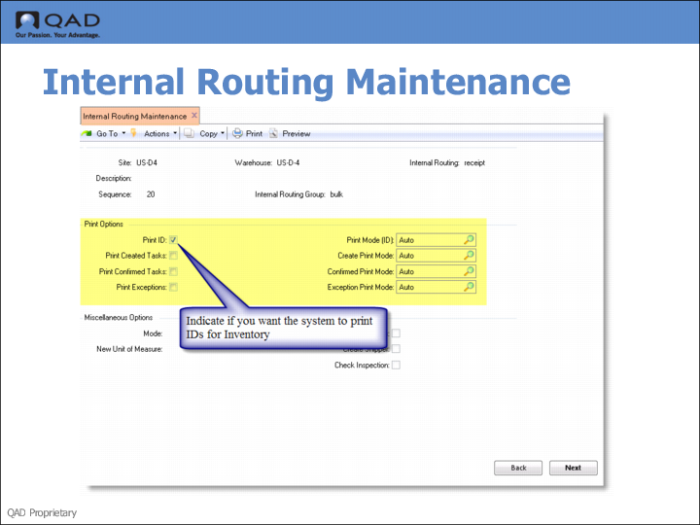
Use Internal Routing Maintenance (4.2.5 is using Warehousing for QAD EE and 80.2.5 if using AIM) to set up identification. These fields default from Warehouse Maintenance; see
Warehouse Maintenance.
Fields
Print Create
Indicate if you want the system to print transactions for tasks when they are created. If you specify Yes, enter values for the other fields related to task printing. If you enter No to both task settings, you can ignore the other printing parameters in the group.
Print Confirm
Indicate if you want the system to print transactions for tasks when they are confirmed. If you specify Yes, enter values for the other fields related to task printing. If you enter No to both task settings, you can ignore the other printing parameters in the group.
Print Except
Indicate if you want the system to print information about errors. If you specify Yes, enter values for the other fields related to error printing. If you enter No, you can ignore the other printing parameters in the group.
Create Print Mode
When Print on Create is Yes, select a Print Mode to determine when output should be printed. The setting you enter in Warehouse Maintenance defaults to internal routings set up within the warehouse. The options are as follows:
AUTO. The system prints transactions automatically as soon as they are created.
MANUAL. The system holds print requests until an on-line or batch process activates printing.
AUTOSIG. The system prints transactions automatically but holds them until a signal to print is received.
The signal to trigger AUTOSIG printing is normally a sign that the process creating print requests is complete and that all requested prints can be output at one time. This is particularly relevant when printing multiple transactions on the same task sheet.
Confirmed Print Mode
When Print on Confirm is Yes, select a Print Mode to determine when output should be printed. The setting you enter in Warehouse Maintenance defaults to internal routings set up within the warehouse. The options are as follows:
AUTO. The system prints transactions automatically as soon as they are created.
MANUAL. The system holds print requests until an on-line or batch process activates printing.
AUTOSIG. The system prints transactions automatically but holds them until a signal to print is received.
The signal to trigger AUTOSIG printing is normally a sign that the process creating print requests is complete and that all requested prints can be output at one time. This is particularly relevant when printing multiple transactions on the same task sheet.
Exception Print Mode
For exceptions, select a Print Mode to determine when output should be printed. The setting you enter in Warehouse Maintenance defaults to internal routings set up within the warehouse. The options are as follows:
AUTO. The system prints transactions automatically as soon as they are created.
MANUAL. The system holds print requests until an on-line or batch process activates printing.
AUTOSIG. The system prints transactions automatically but holds them until a signal to print is received.
The signal to trigger AUTOSIG printing is normally a sign that the process creating print requests is complete and that all requested prints can be output at one time. This is particularly relevant when printing multiple transactions on the same task sheet.