Setting Up Container Move
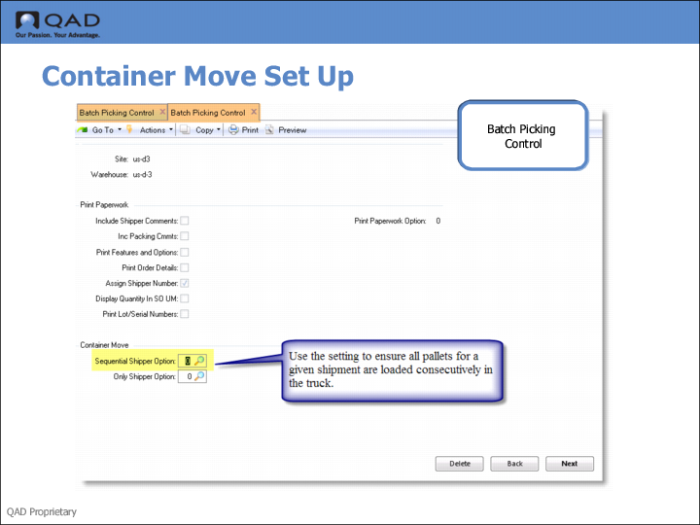
Use the Container Move frame of Batch Picking Control (4.15.24) to set up Container Move options.
Fields
Sequential Shipper Option
Specify the type of message the system displays when it checks for partially loaded pre-shippers or shippers; that is, pre-shippers/shippers for which the truck loading began, but pallets still remain to be loaded.
0: The system does not display messages and does not take action.
1: The system displays a warning message.
2: The system displays a message and prompts for user confirmation of the message before continuing.
3: The system displays an error message and you cannot continue.
Use the setting to ensure all pallets for a given shipment are loaded consecutively in the truck, ideally in the reverse order of unloading so that the unloading process is easier.
Example: You have three shippers for which you are loading a truck: Shipper 1 has three pallets, all of which are loaded. Shipper 2 has two pallets, only one of which is loaded. Shipper 3 has two pallets, none of which are loaded. You set this option to 3. The system displays an error message when you attempt to load and scan pallets for Shipper 3 because Shipper 2 has a pallet remaining to be loaded.
Only Shipper Option
Specify the type of message the system displays when it verifies whether users can load both pre-shippers and shippers or just shippers. If you set this option so that users can continue processing despite messages before loading the truck, the system converts any selected pre-shippers to shippers.
0: The system does not display messages and does not take action.
1: The system displays a warning message.
2: The system displays a message and prompts for user confirmation of the message before continuing.
3: The system displays an error message and you cannot continue.