Step 4: Print and Convert Pre-Shipper to Shipper
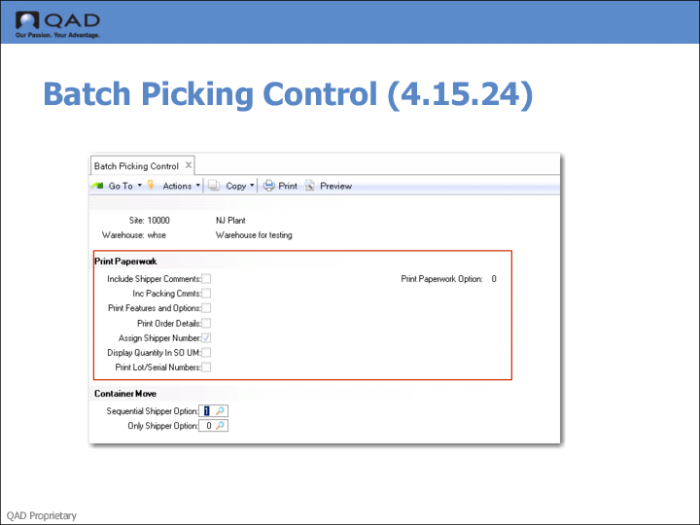
Use the RF Print Paperwork (3.8) option to print the pre-shipper and convert it to a shipper. You can set options in the Print Paperwork frame of Batch Picking Control (4.15.24) to set defaults for shipper printing when using the RF Print Paperwork function.
Field Descriptions
Print Paperwork Option
Indicate the type of message the RF displays when the system finds pending tasks (unconfirmed tasks) or finds that inventory is not on the truck when staff attempt to print shipper paperwork to ship items.
0: The system does not display messages and does not take action when either condition exists.
1: The system displays a warning message when either condition exists.
2: The system displays a message when either condition exists and prompts for user confirmation of the message before continuing.
3: The system displays an error message when either condition exists.
Parcel Manifest
A manifest is a list of goods carried on a truck, train, or ship. Before starting the container move and truck load process, RF users can produce the necessary shipment manifest by using the RF Print Paperwork (3.8) function. Print Paperwork allows RF users to:
• Print pre-shipper/shippers by scanning the document number in the RF device.
• Convert pre-shippers to shippers by assigning a shipper number.
• If the Send Shipment (whtraxsx.p) routine is specified in Local Exit Routines Setup (4.23.10), the system produces a ship shipment (SHIP) message and exports it to the TMS for rating.