RF Task Confirmation
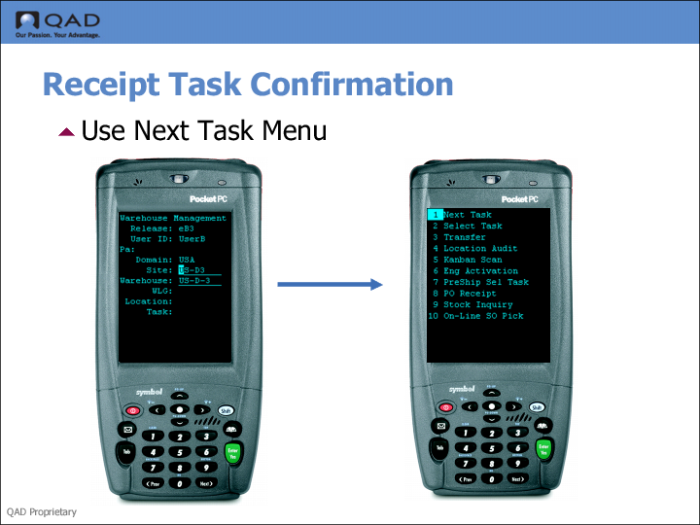
The following procedure illustrates how to replenish from the RF. Although you can perform this task with the RF Select Task function (1.2), the following procedure uses the Next Task (1.1) function.
1 Log in to the RF and enter your ID, password, site, warehouse, and if applicable, your work location group.
2 Select Work (1), then Next Task (1.1).
The RF displays the Overpick screen.
Note: If the system displays other tasks, cancel the Next Task program, return to the RF login screen, and enter REPLEN in the Login screen’s Task field; then select Work (1), then Next Task (1.1).
3 To pick for the replenishment, scan the source location, then scan the pallet number.
The RF displays the number of replenishment tasks to perform for the pallet in the counter at the top.
4 To replenish a bin, scan the destination location, then scan the items.
The system prompts for the quantity in the base UM.