Step 1: Create/Review Stock in Location
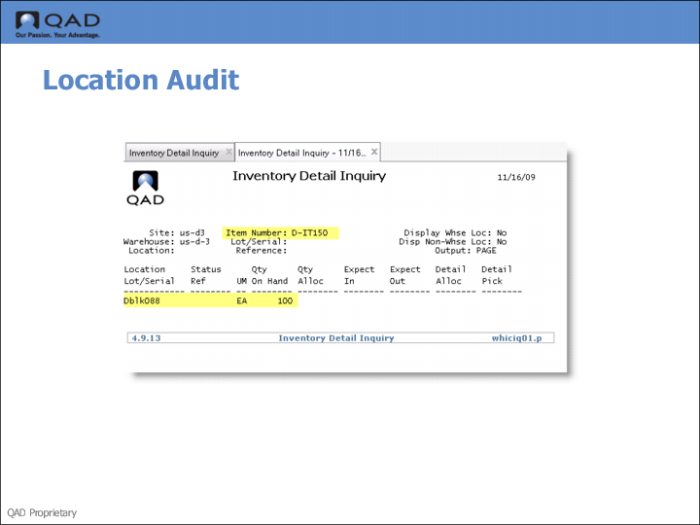
Use Inventory Detail Inquiry (4.9.13) to ensure that inventory exists at a specified warehouse location. Check the quantity on hand for the item you want to audit.
Step 2: Use the RF to Audit Location
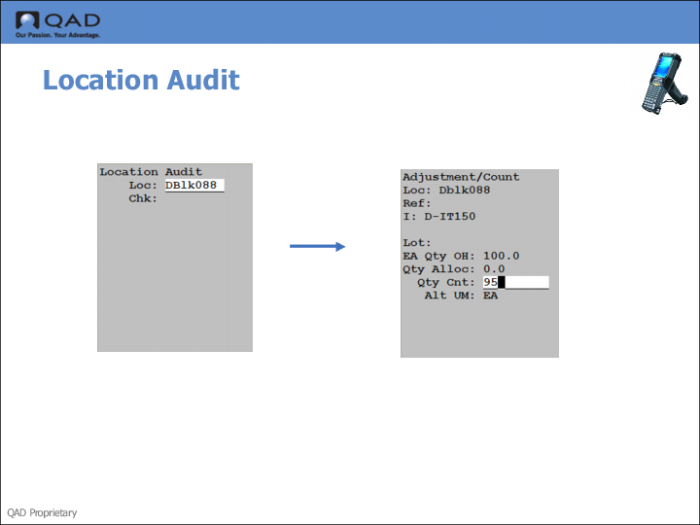
Use the RF Location Audit (1.4) to invoke a location audit.
1 Log onto the RF, entering site and warehouse.
2 Specify 1.4, Location Audit.
3 Enter the location with the stock to audit.
4 Enter the item number.
5 Enter the quantity counted as less than the quantity OH.
Note: Because the quantity is out of tolerance, the system creates a recount automatically. This is considered an extra task that you should confirm using the RF Next Task option.
Step 3: Confirm Movement for the Recount
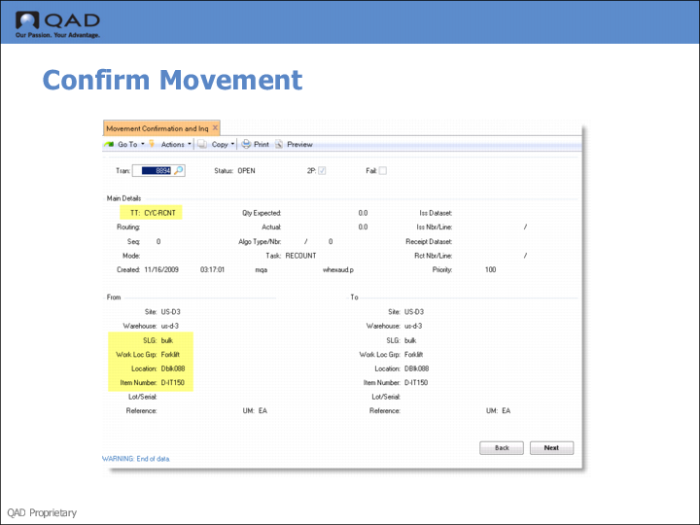
Use Movement Confirmation and Inquiry (4.8.9) to display and confirm movement transactions. You select inventory movements by transaction number. The header displays the status of the transaction and indicates if the transaction previously failed processing by the system.
The system displays transaction details and the source and destination of the movement. Press Go to display other transaction details, such as the create date, the shipper ID, ship-from data, and so on.
After all data displays, the system prompts you if it is OK to confirm the movement. Specify Yes to confirm. The system informs you that it is confirming the movement for the transaction.
Step 3: Review Stock in Location
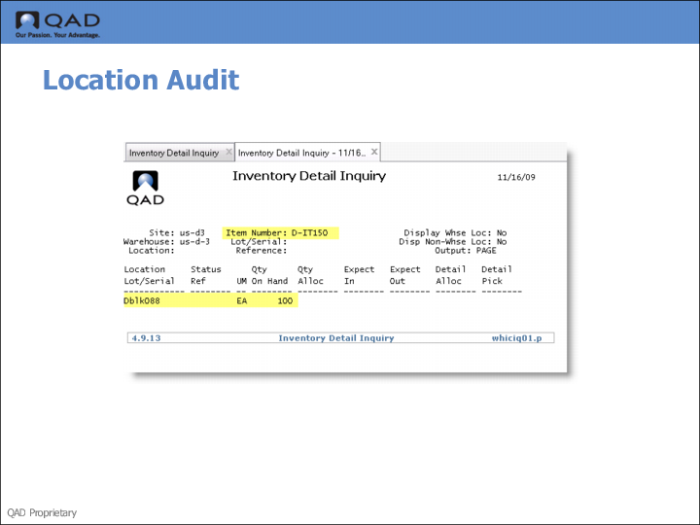
Use Inventory Detail Inquiry (4.9.13) to review inventory in the location.