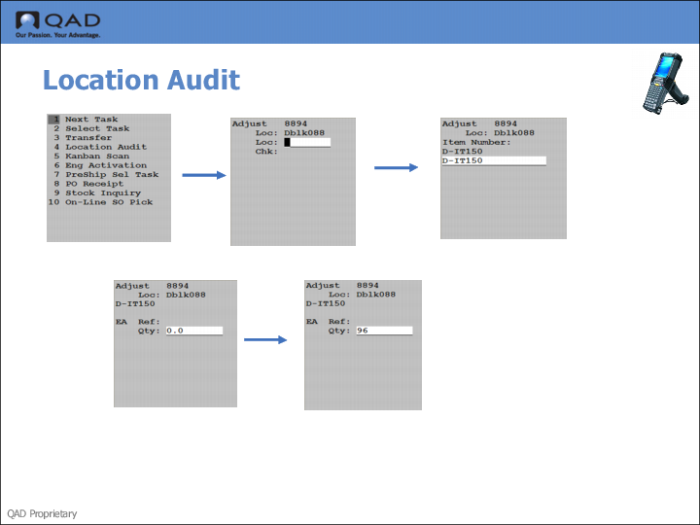
Step 4: Use the RF to Adjust the Stock
Use the RF Next Task (1.1) to adjust stock.
1 Log onto the RF, entering site and warehouse.
2 Specify 1.1, Next Task.
3 Enter the location with the stock to adjust.
4 Enter the item number.
Note: With the movement confirmation programs, cycle count transactions are created with an expected quantity of zero so that the Expected In and Out inventory quantities are not automatically updated. If cycle count transactions are confirmed without first modifying them, they are confirmed as zero counts. That is, if each transaction is not manually modified to reflect the counted quantity, the on-hand quantity of each piece of counted inventory is set to zero.
5 Enter the quantity to adjust.