Example 3 - Set Batch Picking Control Parameters
Did You Know
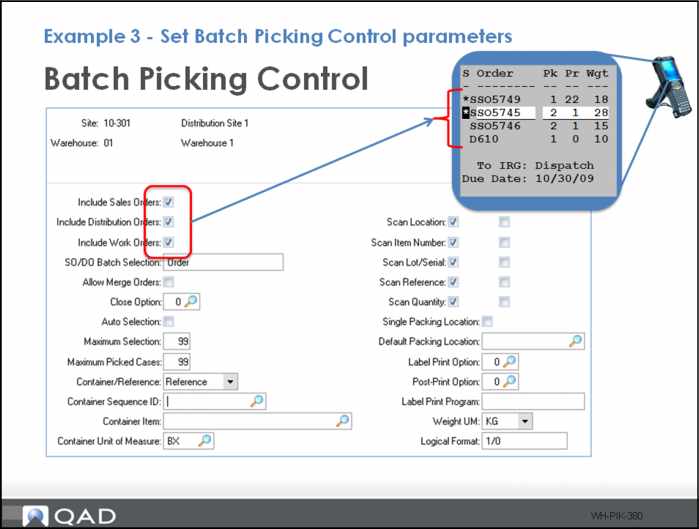
Batch Picking can include:
• Sales orders
• Distribution orders
• Work orders
Batch Pick Control lets you define many Batch Pick parameters, such as types of orders to batch, maximum number of orders and/or cases to batch, and RF scanning requirements.
There are eight frames and 54 fields in Batch Picking Control used for configuration.
Example 3 - Set Batch Picking Control Parameters (Continued)
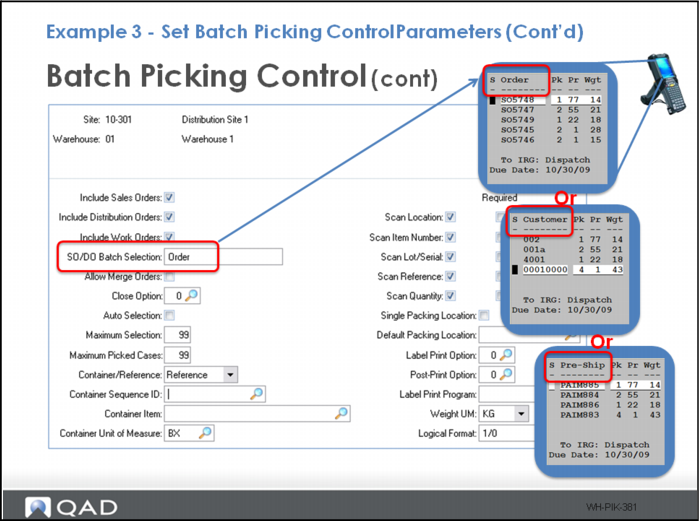
The SO Batch Selection field determines if orders, customers or pre-shipper reference numbers display on the RF screen during BP All selection on the RF device.
Example 3 - Set Batch Picking Control Parameters (Continued)
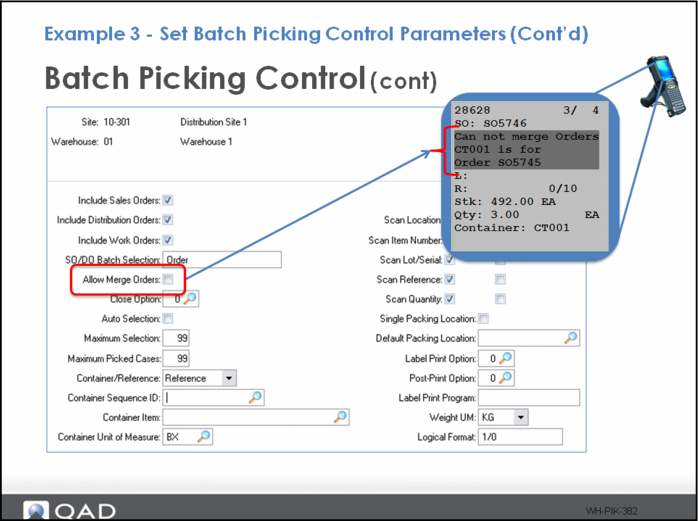
The Allow Merge Order field determines if the user can combine items from different orders into the pick container.
Example 3 - Set Batch Picking Control Parameters (Continued)
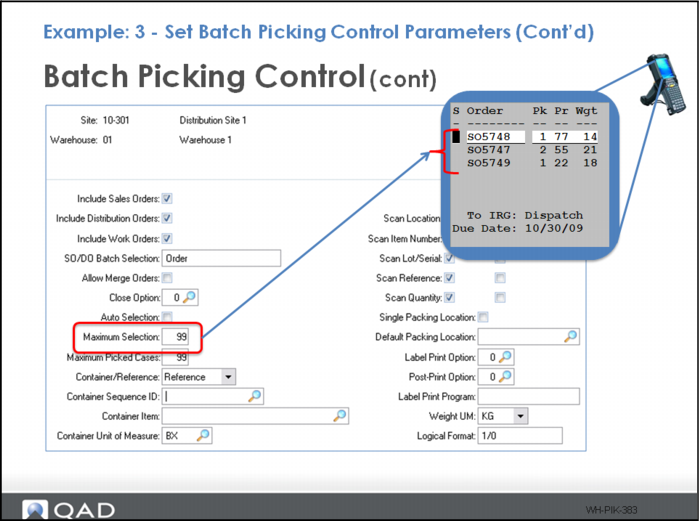
The Maximum Selection field determines the number of orders, customers or pre-shippers to display on the RF screen during BP Pick All processing.
Example 3 - Set Batch Picking Control Parameters (Continued)
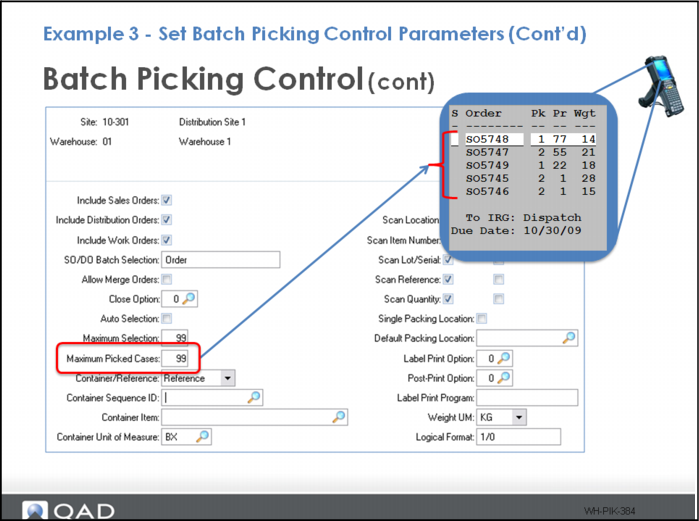
The Maximum Picked Cases field determines how many orders the user can pick at the same time during BP All processing.
This is typically determined by how many pick cartons fit on a pick cart considering volume, weight, quality, and operator-handling constraints.
Example 3 - Set Batch Picking Control Parameters (Continued)
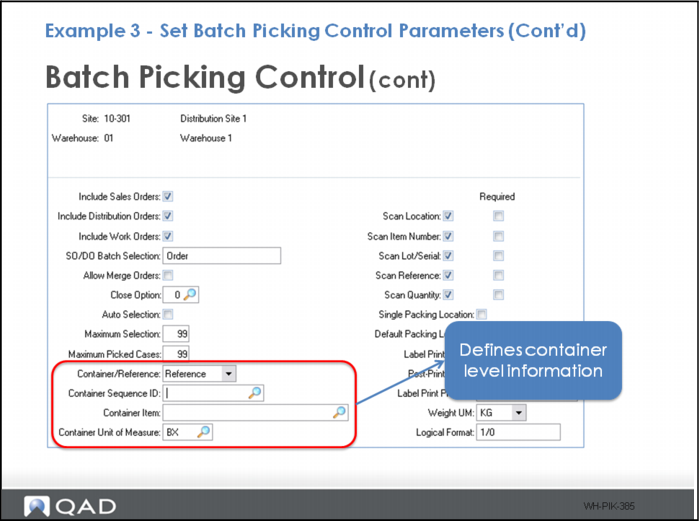
The container-related fields define container level information, including:
• Container levels to create for each tote/box/pallet staff used during the batch-picking process.
• The starting sequence ID for box/tote/container numbers when printing labels before picking.
• The item number of the container.
• The unit of measure for the container.
Example 3 - Set Batch Picking Control Parameters (Continued)
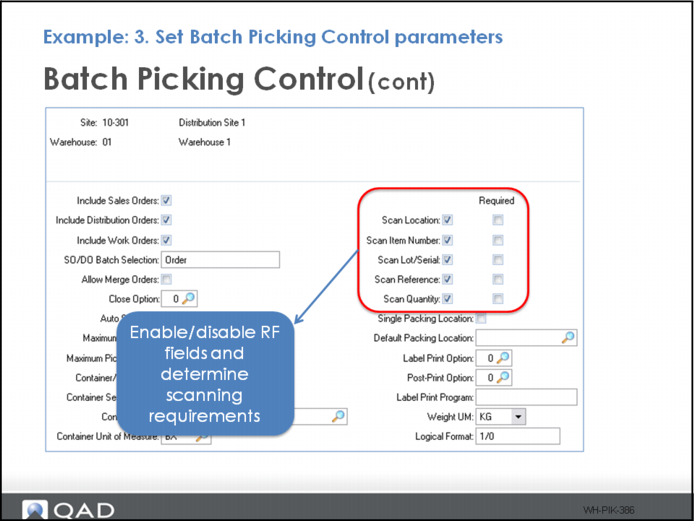
he scan-related fields enable/disable RF fields and determine scanning options, including whether to scan the:
• Location from which items are picked
• Item being picked
• Lot/serial number for the picking location
• Source reference (pallet ID) when picking
• Quantity picked
Note: The Required field dictates if the scan is required or optional.
Example 3 - Set Batch Picking Control Parameters (Continued)
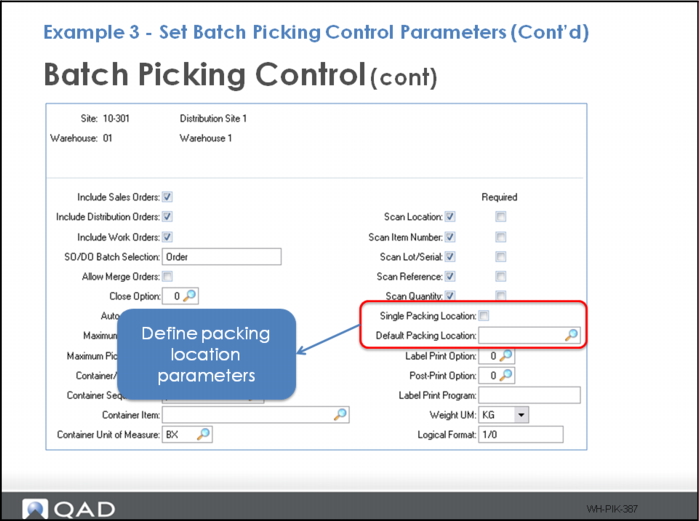
The Single Packing Location and Default Picking Location field determine:
• If you use a single location as the packing location
• The default packing location
Example 3 - Set Batch Picking Control Parameters (Continued)
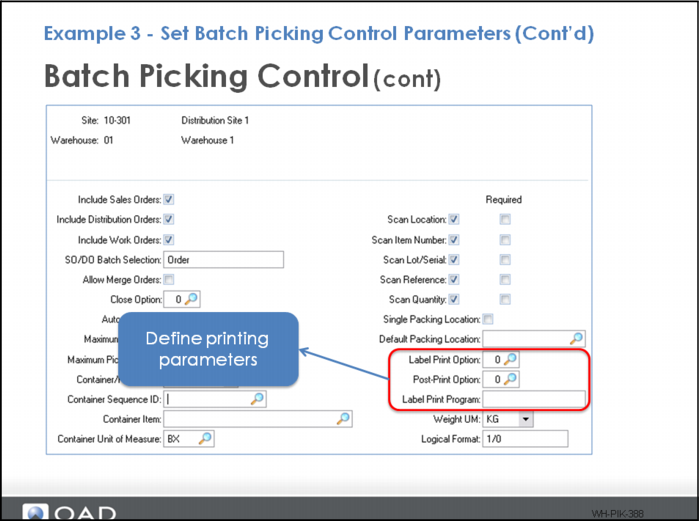
The print parameter fields specify:
• When labels should be printed after order selection is complete but before picking begins.
• When labels should be printed after picking is complete.
• The print program to use when printing labels.
Example 3 - Set Batch Picking Control Parameters (Continued)
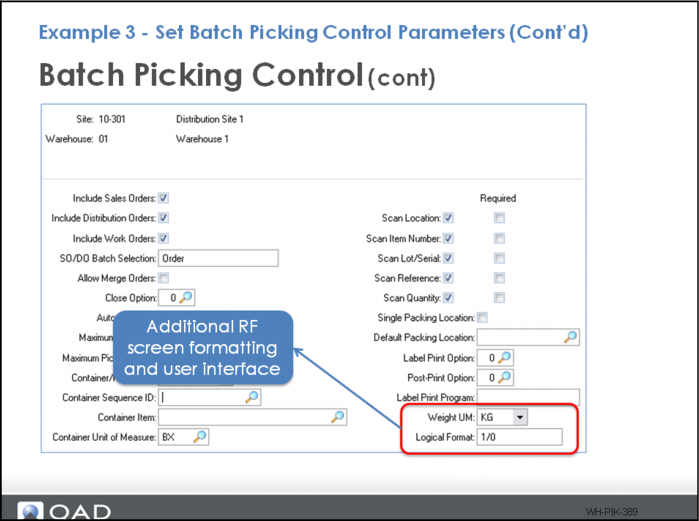
Additional RF screen formatting and user-interface fields let you:
• Specify the default weight
• Specify the user confirmation input: 1/0, Yes/No, Y/N, and so on.
Example 3 - Set Batch Picking Control Parameters (Continued)
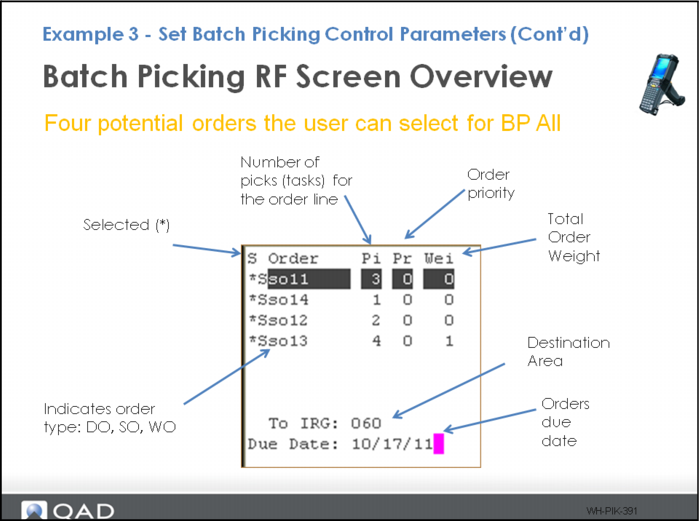
The graphic above depicts the layout and data presented in the RF batch-picking screen.
Example 3 - Set Batch Picking Control Parameters (Continued)
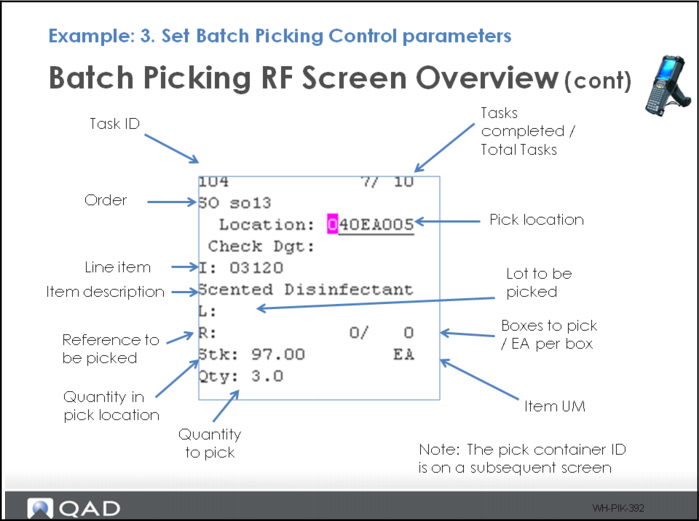
As you process batch picks, entering data and pressing return, more batch picking fields display on the RF, as shown in the graphic above.
Example 3 - Batch Picking Control Parameters (Cont’d)
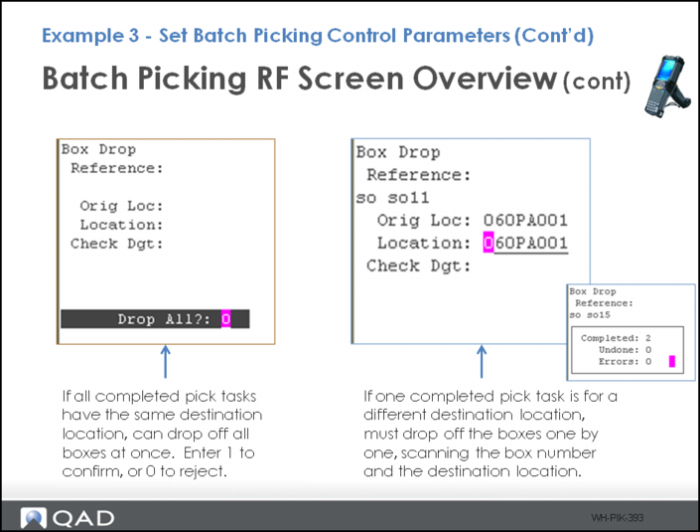
The orders for which staff pick can be very large. Occasionally, staff need to drop off boxes at consolidation areas or shipping lanes before they complete batch picking for an order.
• When all completed pick tasks have the same destination location, warehouse staff can optionally drop off all items they finished picking. This lets them avoid scanning each box and the destination location for confirmation.
• If one completed pick task is for a different destination location, staff can still drop off completed boxes, but they must drop off the boxes one by one, scanning the box number, then the location in which they drop off boxes, such as the shipping lane.