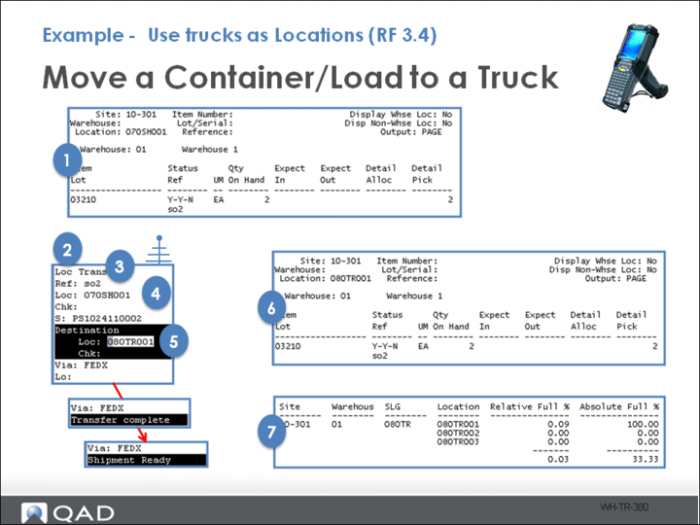
Example - Use Trucks as Locations (RF 3.4)
As referenced earlier, setting up a new non-functional truck area allows lets you check the location utilization using the Location Full% Report or the Percent Full column of the Warehouse Location field.
Note: Percent Full information is not reported on locations in functional areas.
Steps involved include:
1 Confirm a load is in shipping.
2 Log into RF Container Move (3.4).
3 Select the load ID.
4 Select the load location.
5 Select the move to truck location.
6 Confirm shipment moved to a truck location.
7 Use Location Full% Report to view capacity. This only pulls data for locations in non-functional areas.
Note: It is also possible to change inventory status of the item when moved to a truck location. For example, the company wants inventory in a truck not available for any purpose. To change inventory status on a move requires setting the inventory status of the truck locations to N-N-N and disabling Keep From Status on the internal routing