Printing Shippers
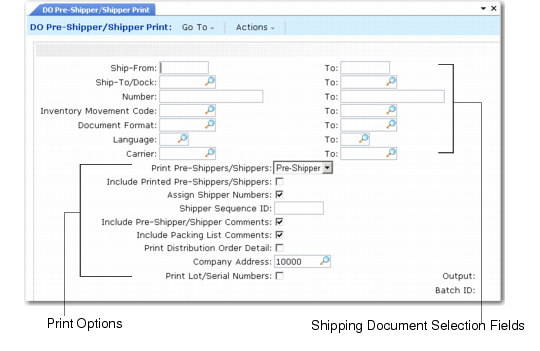
Use DO Pre-Shipper/Shipper Print (12.19.11) to print shipping documents. You can print either pre-shippers or shippers, but not both at the same time. You can select pre-shippers and shippers based on the sequence number, document format, language, and carriers.
DO Pre-Shipper/Shipper Print (12.19.11)
Selecting Documents to Print
The range of values you enter in the DO Pre-Shipper/Shipper Print selection fields determines which pre-shippers or shippers print. Each of these fields includes a From and a To value. Leaving any of these fields blank results in the system considering all pre-shippers and shippers.
You can select documents to print by range of ship-from address or ship-to address, order number, inventory movement code, document format, language, and carrier. For shipments with multiple carriers, only the first carrier is considered.
Note: Select documents by language when you are using preprinted forms in a specific language.
Selecting Print Options
The following fields define the actions you want the system to take when it prints shipping documents based on the specified selection:
Print Pre-Shippers/Shippers
Enter Pre-Shipper or Shipper, depending on the shipping document type you want to print.
Include Printed Pre-Shipper/Shipper
Enter Yes to reprint documents in the specified selection that have already been printed or No to skip documents in the selection that have already been printed.
Assign Shipper Numbers
This field specifies whether you want the system to assign a shipper number to the pre-shipper. The system propagates the new shipper numbers to all records linked to the converted pre-shipper, including containers, line items, and carrier detail records.
In order for the system to generate a number, the NRM sequence for the pre-shipper/shipper must be an internal sequence generated by the system. If the assigned NRM sequence is external, the pre-shipper/shipper is skipped. To use an external sequence, you can assign the shipper number during shipper creation (if pre-shippers are not used), or during confirmation (if pre-shippers are used).
Shipper Sequence ID
Enter an NRM sequence ID to select the pre-shippers or shippers you want to print. The way you use this field differs, depending on whether you are printing pre-shippers or shippers.
• For pre-shippers, the system compares the specified sequence to the sequence that will be used to assign a shipper number when the pre-shipper becomes a shipper. The sequence used to assign the pre-shipper ID is not considered.
• For shippers, the system compares the specified sequence ID to the sequence that was used to assign the shipper number to each shipper.
Use this field when you are want to assign shipper numbers sequentially at print time. Shipper number can be drawn from multiple NRM sequences based on the associated shipping group and inventory movement code. Limiting selection to a single sequence ensures numbers are assigned sequentially as documents are printed.
Include Shipper Comments
Enter Yes to include pre‑shipper or shipper comments for the specified selection on the printed documents or No to not include such comments.
Include Packing List Comments
Enter Yes to include packing list comments for the specified selection on the printed documents or No to not include such comments.
Print Distribution Order Detail
This field determines whether the distribution order number and the distribution order requisition number associated with line items on the shipper is included in the printed output.
Reviewing distribution order data provides detailed accountability for the shipper items. It can also be used to determine if the distribution order or line associated with an item on a shipper no longer exists in the system. This condition will cause an error when a shipper is issued or confirmed.
Company Address
Enter the company address to print at the top of this shipper/pre-shipper. Define company addresses in Company Address Maintenance (2.12).
Forms are designed to print your company name and address in the top left corner so all formal documents can print on blank paper.
To print on paper preprinted with your company name and address, suppress address printing by setting this field to blank.
Print Lot/Serial Numbers
Specify whether a complete list of each of the lot/serial and lot reference numbers shipped prints on this shipper or pre-shipper.
No: Each line item shipped is followed by a list of the lot/serial and lot reference numbers shipped.
Yes: Only the total shipped quantity prints for each line item.
Updating Documents
When printing completes, you are prompted to confirm that the documents printed correctly. Review the printed shipping documents and respond appropriately. If you enter No, documents are considered unprinted.
When you indicate that the documents did not print correctly and you specified Yes to Assign Shipper Numbers, you are also prompted to undo shipper number assignment. If you reply Yes to this second prompt, the system reinstates the pre-shipper and either cancels or deletes the shipper that was created. How the shipper is affected depends on the setting of Allow Discarding specified in Number Range Maintenance (36.2.21.1) for the NRM sequence used to generate the shipper number.
• If Allow Discarding is Yes, the system reinstates the pre-shippers and deletes the shipper documents. The next shipper number generated will start after the last deleted shipper number, leaving a gap in numbering.
• If Allow Discarding is No, the system reinstates the pre-shippers and creates empty shippers (without detailed lines), with a status of canceled.
See the shipping chapter of User Guide: QAD Sales.