Item and Item-Site Planning Maintenance
Identify Master Scheduled Items
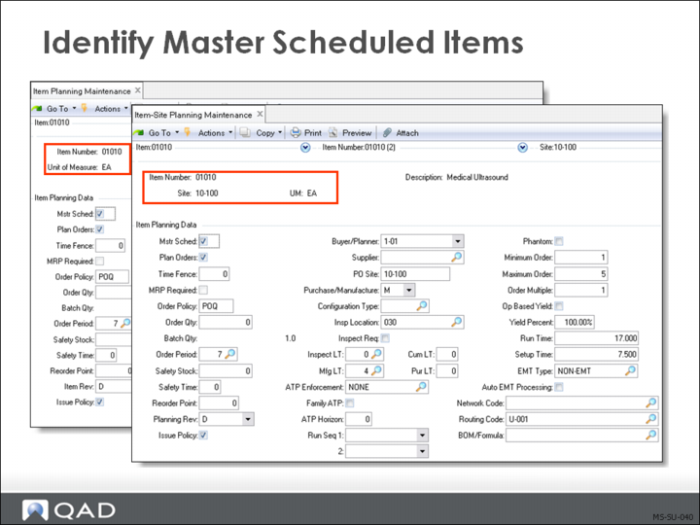
To define an item as master scheduled, set Master Schedule to Yes for that item in:
• Item Master Maintenance (1.4.1)
• Item Planning Maintenance (1.4.7) or
• Item-Site Planning Maintenance (1.4.17) (for multisite environments)
• Most items are set up with Plan Order set to Yes
• Sometimes master schedule items have this field set to No
If criteria at each site are the same, use Item-Site Planning Maintenance (1.4.17) (the default for all sites). The system looks at item master data only when no site-specific data has been entered, or when dealing with the item at the default site established in Item Master Maintenance (1.4.1).
Note: Master schedules can be created and maintained entirely by master schedulers entering firm planned orders using Master Schedule Order Maintenance or Work Order Maintenance.
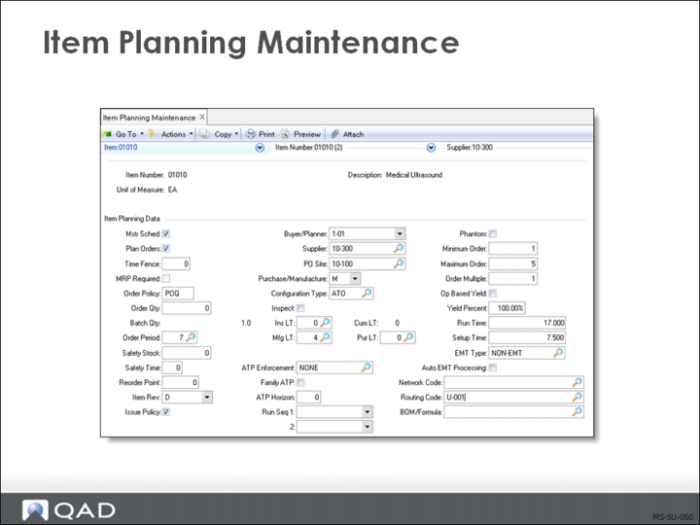
Item Planning Maintenance
Master Sched
This field is Yes for master scheduled items. These items may be planned separately using Selective Materials Plan (23.3). This allows development of the master schedule for:
• Independent demand items
• Planning for dependent demand items
Plan Orders
Most items are set up with Plan Order set to Yes.
Sometimes master scheduled items have this field set to No, allowing manual interaction with the system.
Indicates whether Material Requirements Planning (MRP) should create planned orders for this item. Planned orders are orders with a suggested order quantity and due date calculated by MRP to meet planned future demand.
The Plan Orders field operates in combination with the Order Policy. If Order Policy is blank, MRP does not plan this item, regardless of the Plan Orders field. No requirements or action messages are generated.
Time Fence
Time fence is most often used with master scheduled items. It is the number of calendar days inside of which MRP should not automatically make changes to the plan.
• MRP adds the number of days time fence to the system date and does not create any planned orders within this time period
• MRP will delete any planned order (either inside or outside of the time fence) if there is no demand generated for the item
• On firm orders, if change is needed, MRP creates an action message alerting you to what must be done
• The message “Time Fence Conflict” reminds you why MRP didn't make the change
• To control the schedule manually for a period of time (the next two weeks, for example), set the time fence to 14 days
MRP Required
A system maintained field indicating whether an item needs to be replanned
• Net Change Materials Plan (23.1) determines which items to include using this field; it only replans items with MRP Required set to Yes
• An item is automatically flagged for replanning whenever a change is made that affects order timing or quantity, such as:
• Planning data
• Inventory balance
• Product structure
• Purchase requisitions and orders
• Sales orders
• Work orders
• Master schedule
• Repetitive schedule
• Forecast
• If MRP Required is Yes, it reflects changes made after the item was planned by MRP
Order Policy
A code controlling the MRP process for this item/product. Values are:
• Period Order Quantity (POQ)
• A planned order is created to cover the requirements for a specified number of calendar days, as specified in Order Period.
• Fixed Order Quantity (FOQ)
• Planned orders are created with the order quantity specified in the Order Qty field
• If the value for Min Ord is greater than Order Qty, planned orders are created with the order quantity specified in the Min Ord field instead
• Order Qty must be greater than zero (even if Min Ord is greater than zero) for creating planned orders
• Lot for Lot (LFL)
• A separate MRP planned order is created to satisfy each net requirement
• If there are many sources of demand, MRP creates many planned orders
• One Time Only (OTO)
• A single order is created with an order quantity of one
• Could be used to plan project activities and milestone events that happen only once
• Blank
• Obsolete parts, reorder parts, Kanban
• MRP will not calculate
Note: Any other non-blank value is processed as LFL.
Whenever a net requirement exists, MRP creates a planned order to fill it. The quantity and due date of the order are determined by the order policy, lead time, and order modifiers.
• If the Order Policy is not blank and the Plan Orders field is Yes, MRP plans the item
• If the Order Policy is not blank and the Plan Orders field is No, then MRP plans the item but does not create planned orders
• Only action messages are created, suggesting what orders should be entered manually
• If Order Policy is blank, MRP does not plan this item, regardless of the Plan Orders field
• No requirements or action messages are generated
The traditional technique for managing the master schedule is to enter and maintain master schedule orders manually, using action message reports.
This process becomes unwieldy if you have a large number of master scheduled items, but may work quite well in some situations. To do this, master scheduled items should be set up with the following:
• Master Schedule is Yes
• Plan Orders is No
• Order Policy is any value but blank
Order Qty
The normal order quantity for this item or base process
• If this item has an Order Policy of FOQ, all MRP planned orders are created with this quantity
• For manufactured items, order quantity identifies the normal or average order quantity of the item
• When manufacturing costs are calculated using Routing Cost Roll-Up, setup costs are divided by this order quantity
• When manufacturing lead times are calculated, they are stated in terms of this order quantity
• If this quantity is zero, the system assumes an order quantity of 1 for cost calculations only
• Not used for co-product or by-product items when planned from a base process
• In a process environment, item Order Quantity should always be the same as the formula Batch Quantity; this must be set manually
Warning This value affects both cost and lead time calculations and can significantly impact scheduled due dates. Order due dates are determined using the standard manufacturing lead time (for the standard order quantity). If orders are entered for a much different quantity, due dates must be adjusted manually.
Batch Qty
A system maintained field recording the normal batch quantity for an item. Used only with formula/process functions
• Ingredient quantity per and process operation run times are stated in terms of batch quantity
• This quantity is updated by the Batch Quantity Change function
Whenever you change the formula Batch Quantity, make sure that you also change the item Order Quantity. These should always be the same. This must be done manually.
Order Period
This field operates only if the Order Policy is set to POQ. Then MRP looks ahead this number of days when calculating net requirements. One planned order is created to cover the requirement for this period.
• Validated against predefined values, if any, entered in Generalized Codes Maintenance (36.2.13)
• Number of calendar days to cover by one MRP planned order (default is 7)
Safety Stk
Safety stock is the quantity of this item to be maintained in inventory as protection against fluctuation in demand and/or supply. Safety stocks may be particularly important for critical items, a shortage of which can shut down production.
• MRP processing considers safety stock a requirement and schedules planned orders to cover it
• As soon as quantity on hand falls below the safety stock quantity, MRP plans an order
• Safety stock and safety time can inflate inventory levels
• Safety stock can trigger MRP planning an order even if there is no “real” demand
• Safety time consistently plans to have inventory on hand before it is actually needed
Note: Reorder Report (3.6.2) is the only report in the system that shows safety stock.
Safety Time
MRP schedules planned orders to be received this many days early; acts as a hedge against late deliveries
Reorder Point
The inventory level at which this item should be reordered
PO Site
The PO site entered on the requisition determines which purchasing department takes action on this requisition.
Pur/Mfg
Purchase/manufacture code controls how the system:
• Explodes forecasts
• Plans and creates orders
• Calculates costs for the item
Code options include: Purchased (P), DRP (D), manufactured (M), routable (R), configured (C), line manufactured (L), flow scheduled (W), and family (F)
Configuration
Allows users to determine if a configured item is assemble-to-order (ATO) or a kit (KIT).
• ATO
• A discrete end item in itself, produced from a combination of various components
• The configuration defines components or ingredients of a finished product
• KIT
• A set of items that are picked for shipment
• No real assembly takes place
• Not a physical entity in and of itself; it only exists as a logical superset of its components
Mfg LT
The normal or average number of working days it takes to manufacture this item
Pur LT
Normal number of calendar days it takes to complete a purchasing cycle for this item
Inspect
Indicates whether this item is to be inspected after receipt
Ins LT
The normal or average number of working days needed to inspect this item after it is received
Cum LT
The longest possible length of time it would take to have this item/product available if you started today with no components in stock. The system looks at the manufacturing lead time of this item and its subassemblies, and the purchasing lead time of the raw materials to determine the critical path
Example: You are making washing machines from all purchased components. Most components have a purchasing lead time of 4 days or less, except motors, which have a purchasing lead time of 20 days. If it takes 2 days to assemble the machine, the cumulative lead time for a washing machine is 22 days, the longest possible time.
Network
A code used to identify a set of sourcing relationships; considered only when Pur/Mfg Code is D (DRP)
Routing Code
A code identifying the routing or process normally used in the manufacture of this item. Operates only for manufactured items. Accesses the routing operation steps to:
• Calculate product cost
• Plan for material and capacity
BOM/Formula
A code identifying the product structure, formula, and/or co-product/by-product structure normally used to manufacture this item. For co-products/by-products, this is the base process code
Issue Policy
A code indicating whether this item should be issued on work order picklists
Phantom
Indicates if this item is normally stocked or is put together as part of a higher level assembly
Min Ord
The minimum quantity of this item to be ordered on a single order. MRP uses Min Ord to determine the quantity of planned orders, regardless of the Order Policy
• If net requirement is below this amount, MRP creates an order for this minimum quantity
• If an existing order is below this minimum, MRP creates an action message
Max Ord
Zero (default) means there is no maximum of this item to be ordered on a single order.
• If MRP calculates a requirement greater than this, it creates a planned order for the amount needed
• However, any time MRP sees an order for more than this quantity, it creates an action message
Ord Mult
The multiple in which orders for this item are placed
• Used only when Order Policy is POQ or LFL
• Then MRP uses it to determine the quantity of planned orders
• The net requirement is rounded up to a multiple of this number
Example: If the order multiple is 50 and the net requirement is 432, MRP creates a planned order for 450.
Yield%
The percentage of any order expected to be in usable condition
• Applies to both purchased and manufactured items
• If the yield is less than 100%, then MRP plans orders for more than needed
Example: If the net requirement is 100 and the item yield is 50% then the planned order quantity is set to 200.
Run Time
Standard time in decimal hours (excluding setup time) required to make one unit of this item
• The sum of all the operation run times
• This field is for reference only and may appear on some selected reports and inquiries
Setup Time
Standard time required in decimal hours to set up for one lot of this item
• The sum of all the operation setup times divided by the item Order Quantity
• This field is for reference only and may appear on some selected reports and inquiries
EMT Type
This field is used in the Enterprise Material Transfer (EMT) order processing environment.
Auto EMT Processing
This field is used in the multilevel Enterprise Material Transfer (EMT) order processing environment.
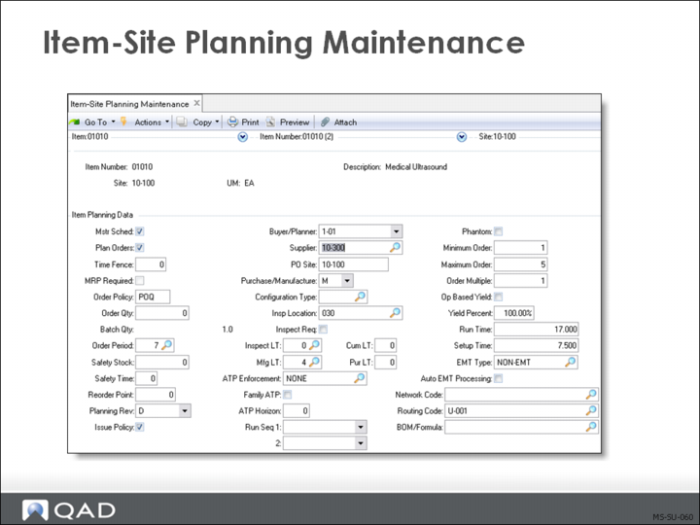
Item-Site Planning Maintenance
Multisite Environments
Note: Takes precedence over Item Planning Maintenance (1.4.7).
Item planning data controls QAD Enterprise Applications planning and manufacturing functions. If an item is used at multiple sites, planning data can be set up differently for each site.
If an item is used at multiple sites, planning data can be set up differently for each site.
• To define an item as master scheduled, set Master Schedule to Yes in Item-Site Planning Maintenance (1.4.17)
• An item can be master scheduled at one site and not at another