Setting Up the Report Chart
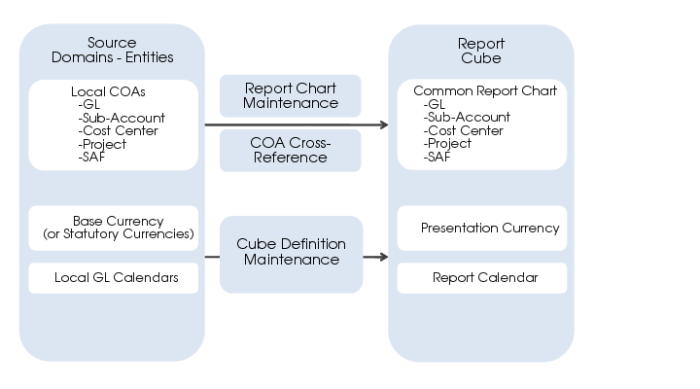
The Financial Report Writer collects financial data from several source domains in a reporting COA. Therefore, specify which common report COA to use.
You set up a report chart by selecting a GL shared set, a sub-account shared set, a cost center shared set, a project shared set, and up to ten SAF concepts. The report COA setup also includes the COA cross-references that translate the COA of the source domains to the report COA. When required, you can create multiple report COAs in the system.
Report Chart Mapping
Report Chart of Accounts Maintenance
Use Report Chart of Accounts Maintenance to maintain a common reporting chart of accounts.
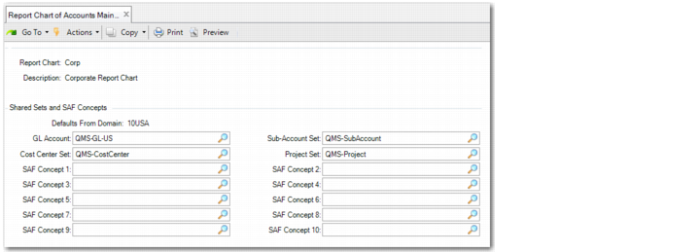
Report Chart of Account Maintenance: Report Chart Details
Report Chart
Specify the code for the report chart.
Description
Enter a maximum of 40 characters for a description of the report chart.
Defaults From Domain
Specify the domain from which you want to use most or all of the shared sets. By default, the system uses the shared sets used in that domain. However, you can update the defaulted values.
GL Account Set, Sub-Account Set, Cost Center Set, and Project Set
Specify a GL shared set, a sub-account shared set, a cost center shared set, and a project shared set for the report chart. You can also leave a shared set field blank. This indicates that you are not planning to use that dimension in any of your reports. It is only mandatory to specify the GL Account Set.
SAF Concept
Financial Report Writer can include SAF dimensions and bring SAFs from various structures and concepts together to create a central reporting SAF structure. Specify a maximum of ten SAF concepts to use in reporting.
In the following section, enter the special accounts created in steps 2-6.
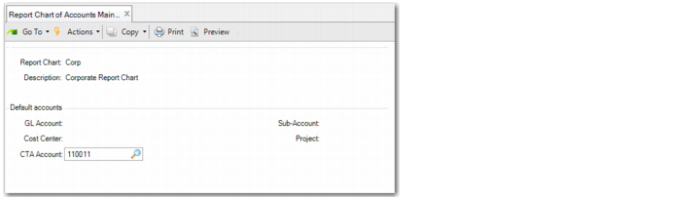
Report Chart of Accounts Maintenance: Enter Special Accounts
GL Account
Specify the special catch-all GL account you created in step 3.
Sub-Account
Specify the special catch-all sub-account you created in step 4.
Cost Center
Specify the special catch-all cost center you created in step 5.
Project
Specify the special catch-all project you created in step 6.
Note: This value is only required if you plan to use projects in the reporting COA.
CTA Account
Specify the special catch-all project you created in step 2.
On the next screen, specify the entities you want to include in Financial Report Writer.
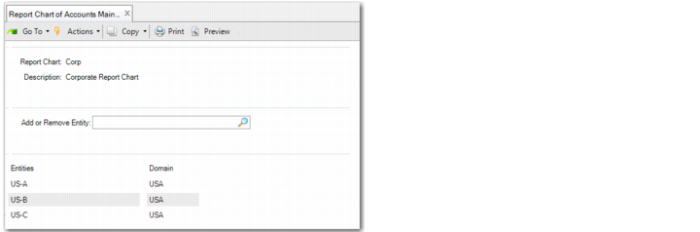
Report Chart of Accounts Maintenance: Entities
Add or Remove Entity
Specify an entity code to create a list of source entities from which to retrieve balances. You can specify entities from any domain in the system. You can also remove entities from the list by entering their code in the Add or Remove Entity field, provided no report cubes use that entity. If report data exists for the entity, first remove the entity from the report cube.
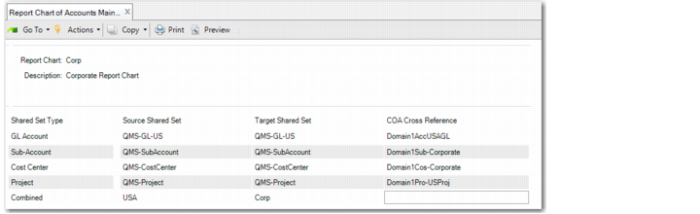
On the next screen, you specify a COA cross-reference code to map shared sets that are different in the source and target.
Report Chart of Accounts Maintenance: Set COA Cross Reference
COA Cross Reference
Specify the COA cross-reference. You can use an existing code or specify a new one.
The system verifies if an existing COA cross-reference matches the combination of shared sets and retrieves that cross-reference. If there is no matching COA cross-reference, the system creates a COA cross-reference code that combines the source and target shared set names.
The system creates a COA cross-reference of type Separate for the code you specify. For example, the system creates a COA cross-reference of type Separate for GL accounts or a COA cross-reference of type Separate for sub-accounts.
When the source and target shared sets are the same for a dimension, the system displays a not needed message and you can skip that shared set. You can also specify COA cross-references of type Combined, which you can use for exceptions.